

Dropbox
The Dropbox integration saves form submission files to your Dropbox account automatically each time a submission comes in. PDFs, CSVs, and any files patients upload all land there directly. It's a good fit for practices that want submission records in cloud storage without manually pulling files from the HIPAAtizer dashboard.
If you intend to store Protected Health Information (PHI) in Dropbox, your Dropbox account must be configured for HIPAA-compliant use. This requires a Dropbox Business plan and an active Business Associate Agreement (BAA) with Dropbox.
Prerequisites
You'll need:
- An active HIPAAtizer account with at least one published form.
- A Dropbox account (Business plan required if storing PHI).
- A signed Dropbox BAA if your forms collect Protected Health Information.
Step 1: Connect Your Dropbox Account
This is a one-time setup at the account level.
-
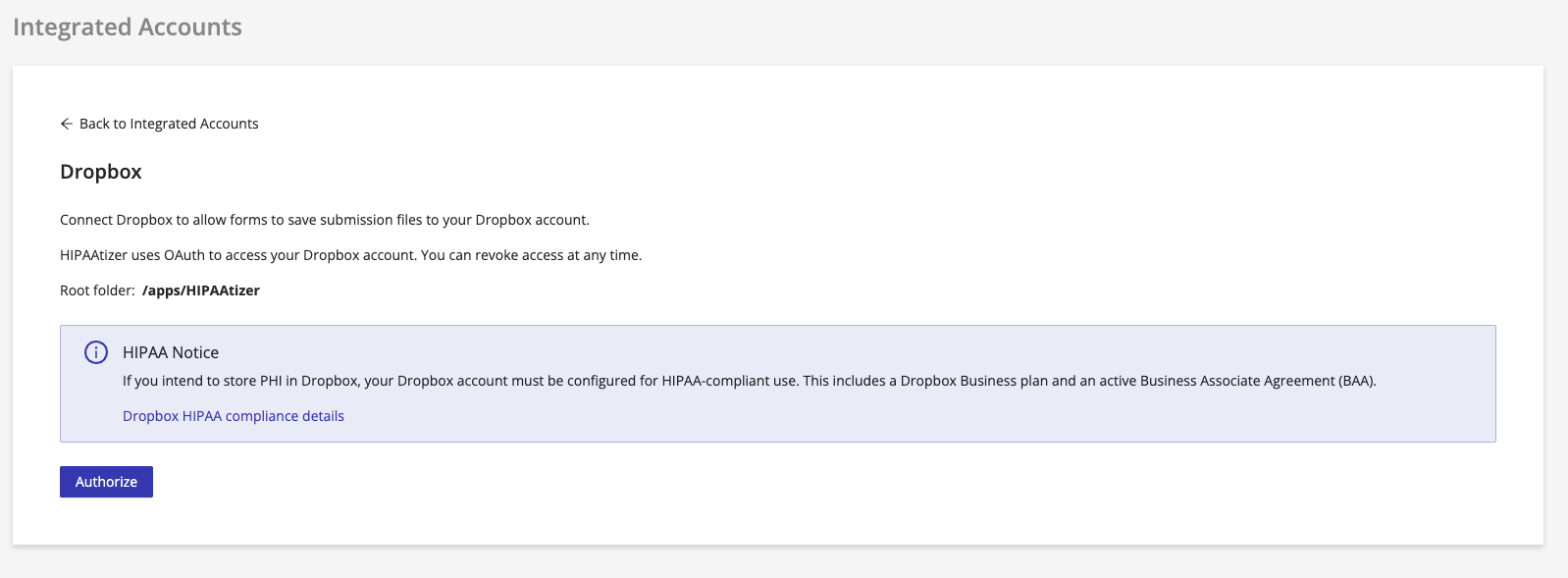
Go to Integrations (top menu) → Integrated Accounts → Dropbox.
-
HIPAAtizer connects via OAuth, no password is shared. You can revoke access at any time from your Dropbox account settings. All files are stored under the root folder
/apps/HIPAAtizer. -
Click Authorize. You'll be redirected to Dropbox to complete the authorization.
-
When it succeeds, you'll land back on the HIPAAtizer dashboard with the confirmation: "HIPAAtizer has been successfully connected to Dropbox."
Step 2: Enable Dropbox on Each Form
Dropbox sync is configured per form, and each form saves its files independently. Enable and configure the integration separately for every form whose submissions you want sent to Dropbox.
- Go to My Forms and click the Form Settings icon for the form you want to configure.
- Open the Integrations tab and select Dropbox.
- Check Enable Dropbox sync for this form.
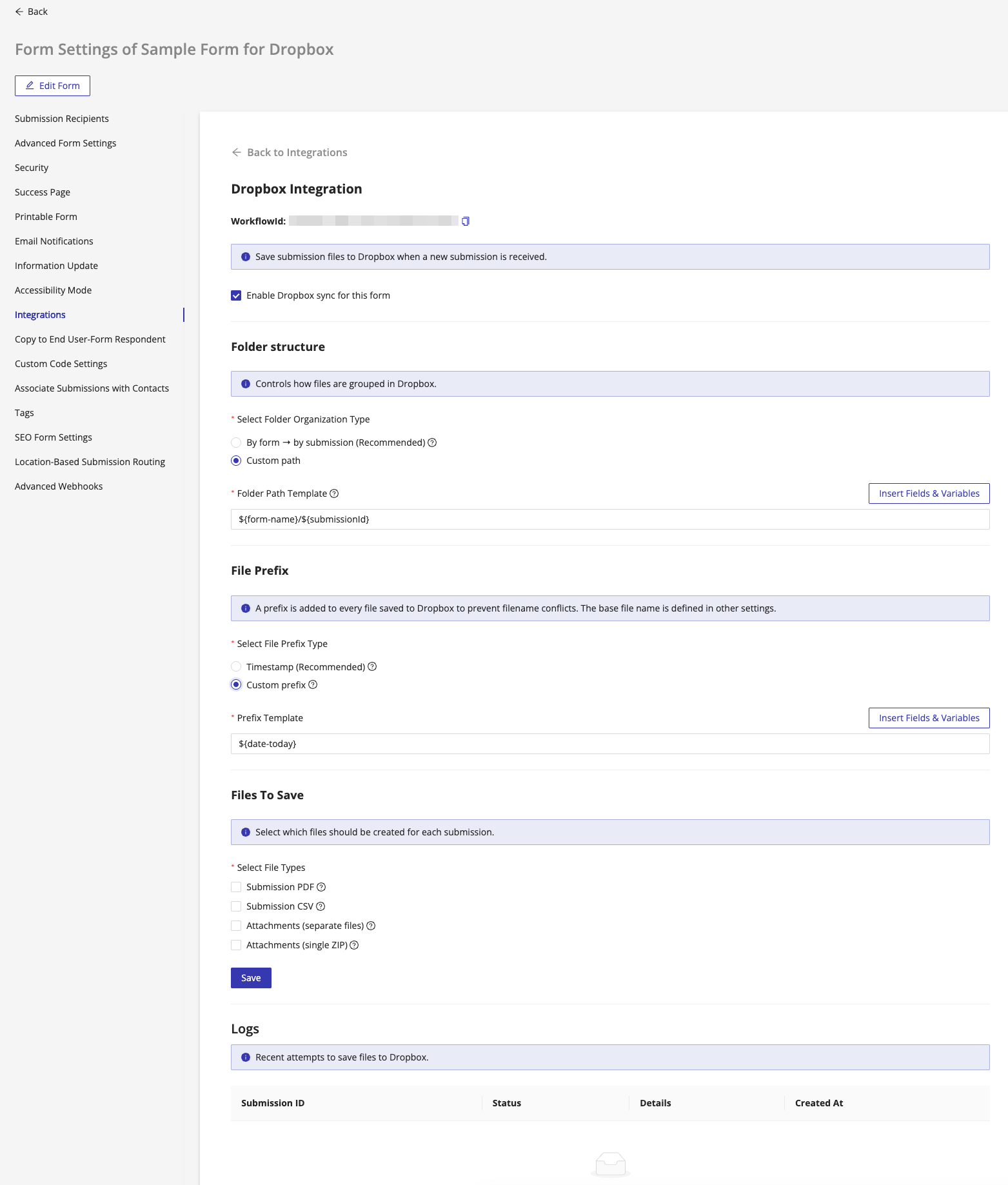
Three configuration sections will appear: Folder Structure, File Prefix, and Files To Save.
Folder structure
This controls how files are grouped inside your Dropbox.
HIPAAtizer creates all files inside the /Apps/HIPAAtizer folder in your Dropbox. This is the root that the Folder Structure settings build on, so any path you configure below is relative to /Apps/HIPAAtizer.
Select Folder Organization Type:
-
By form (Recommended): Files are organized automatically, one folder per form name. The resulting path is
/Apps/HIPAAtizer/${form-name}/. -
Custom path: Lets you define a relative folder path using a template with dynamic variables. A Folder Path Template field appears where you can type a path and use the Insert Fields & Variables button to include values like form name, submission ID, date, or any form field.
The default custom path template is:
${form-name}/${submissionId}, which resolves to/Apps/HIPAAtizer/${form-name}/${submissionId}/.
Use the Insert Fields & Variables button to browse all available variables, including form fields, submission metadata, and date values, to build a folder path that matches your filing conventions.
File prefix
HIPAAtizer adds a prefix to every file it saves to Dropbox to prevent filename conflicts. (The base filename comes from your form's printable template and other settings.)
Select File Prefix Type:
-
Timestamp (Recommended): Prepends a timestamp to each filename, which keeps files unique and sorts them chronologically.
-
Custom prefix: Lets you define a prefix using a template. A Prefix Template field appears where you can enter a static value or use the Insert Fields & Variables button to build a dynamic prefix.
The default custom prefix template is:
${date-today}
Files to save
Select which file types get saved to Dropbox for each submission. All four are enabled by default:
| File Type | Description |
|---|---|
| Submission PDF | A printable PDF of the completed form submission. |
| Submission CSV | The submission data in CSV format, suitable for spreadsheet import. |
| Attachments (separate files) | Any files uploaded by the patient are saved as individual files in Dropbox. |
| Attachments (single ZIP) | All patient-uploaded files are bundled into a single ZIP archive. |
Enable or disable any combination, then click Save.
You can enable Attachments (separate files) and Attachments (single ZIP) at the same time if you want both individual files and a combined archive saved for each submission.
Logs
The Logs section at the bottom of the panel shows recent sync attempts for that form. Check here first if files aren't showing up in Dropbox.
| Column | Description |
|---|---|
| Submission ID | The HIPAAtizer submission that triggered the sync attempt. |
| Status | Whether the sync succeeded or failed. |
| Details | Additional information about the result or any error encountered. |
| Created At | The date and time of the sync attempt. |
Troubleshooting
Files are not appearing in Dropbox
Check the Logs section on the form's Dropbox Integration tab first. Common causes:
- The Dropbox connection was revoked. Go to Integrations → Integrated Accounts → Dropbox and reconnect.
- Enable Dropbox sync for this form isn't checked, or the settings weren't saved.
- Your Dropbox storage is full.
The Dropbox connection stopped working
Dropbox OAuth tokens can expire or get revoked. If syncing stops, go to Integrations → Integrated Accounts → Dropbox and re-authorize the connection.