

Squarespace
This guide walks you through how to embed a HIPAAtizer form into your Squarespace website.
Prepare Your Squarespace Page
Log into your Squarespace dashboard and navigate to the page where you want to embed the form. Click Edit to open the page editor.
Locate the section where you want the form to appear. Click Add Block, then choose the Code block from the available options.
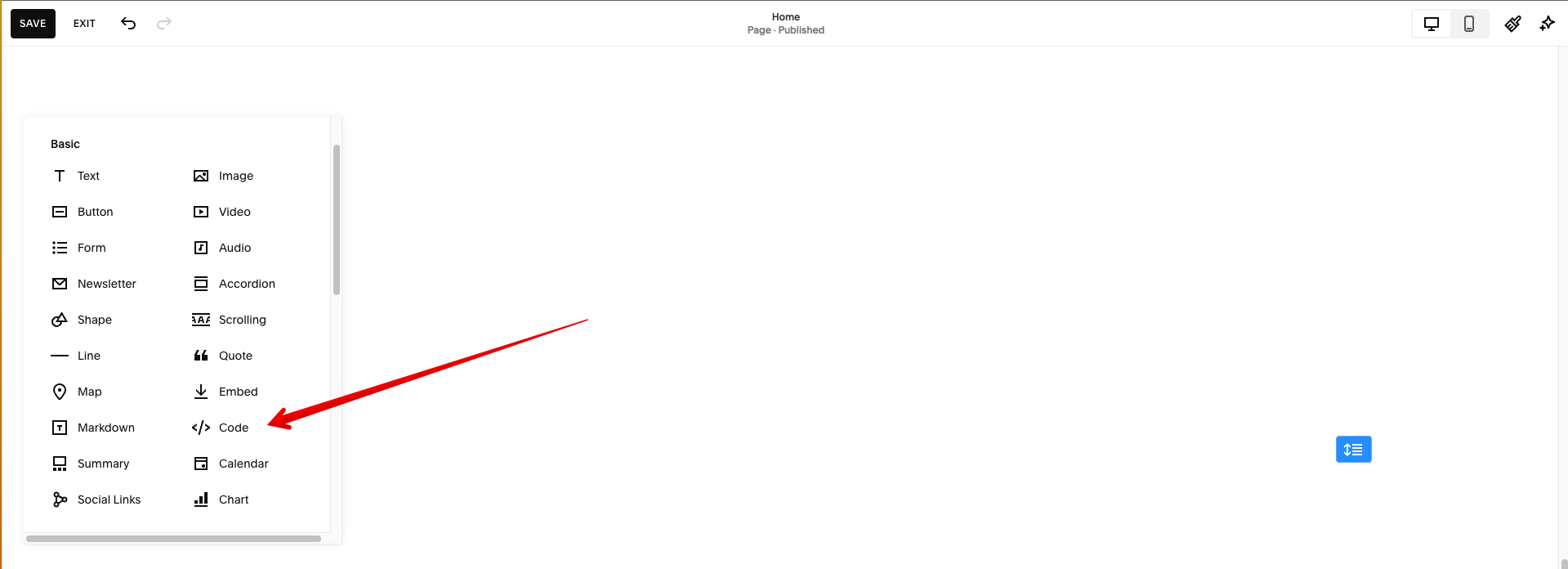
After inserting the block, click the pencil icon to edit it. Set the Mode to HTML to allow embedded code.
Embed Your HIPAAtizer Form
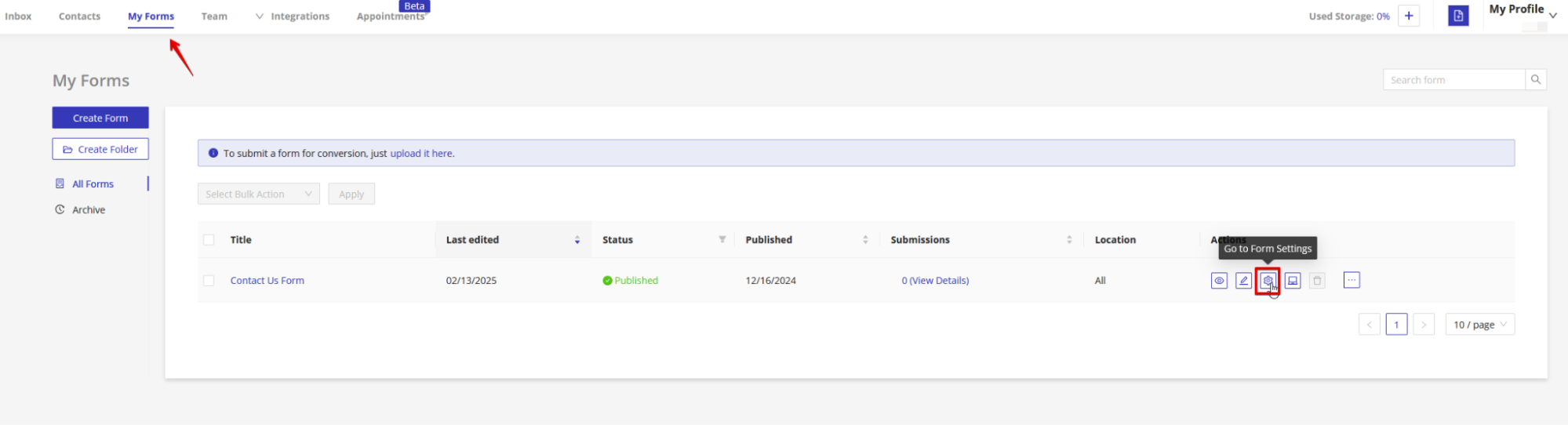
In your HIPAAtizer dashboard, go to the My Forms page and click Go To Form Settings under Actions for the form you want to embed.
Click the Integrations tab, then select Squarespace.
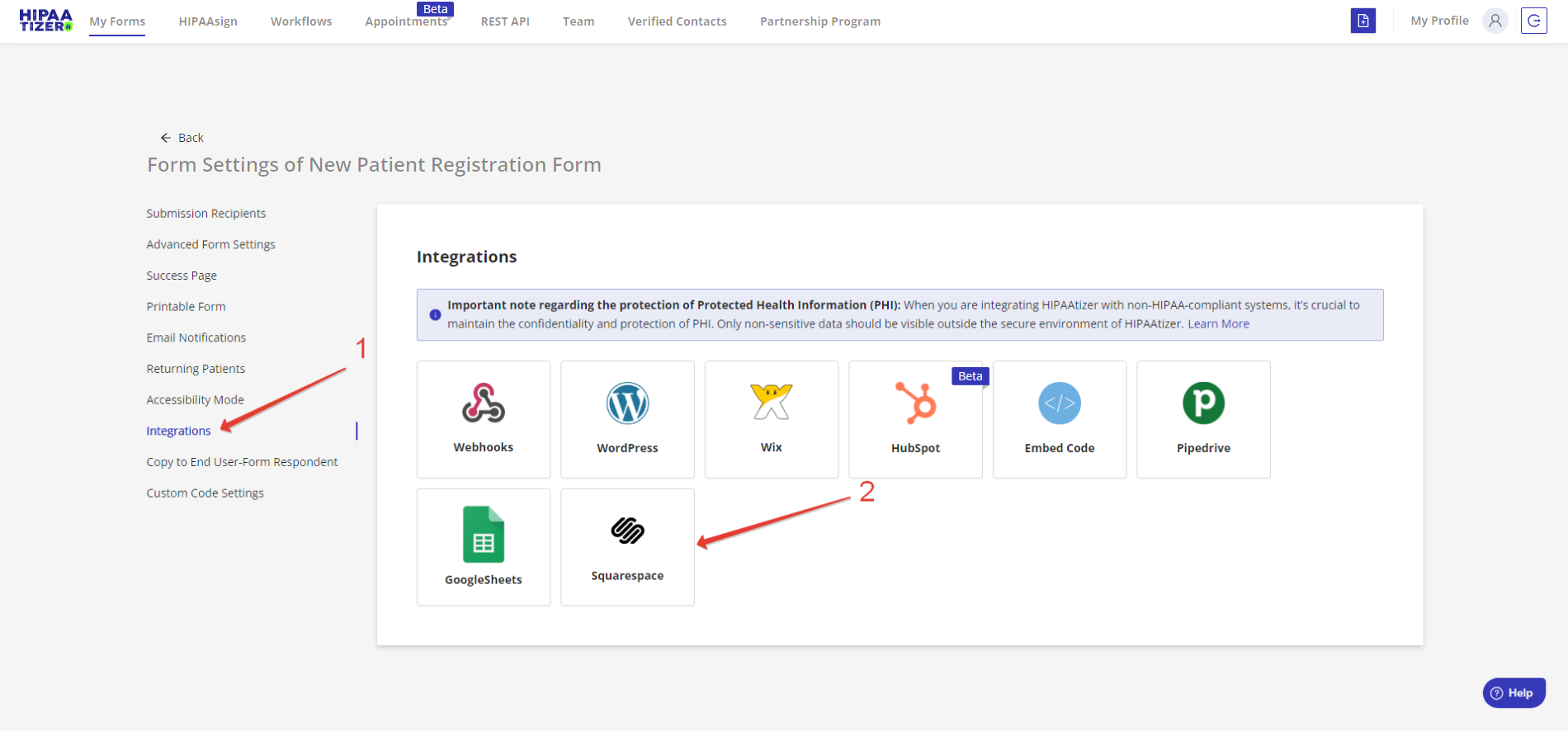
Depending on your Squarespace subscription level, you may have two embed options:
- Script Embed: Ideal if your plan supports custom scripts.
- iFrame Embed: Compatible with most Squarespace plans.
Copy the appropriate embed code and paste it into the Squarespace code block.
✅ Make sure the "Display Source" toggle is turned off in the Code Block settings. If enabled, Squarespace will display the raw code instead of rendering the form.
Embedded scripts are not visible while logged into Squarespace in edit mode. To preview the form, open the live version of your website in a separate browser or incognito tab.
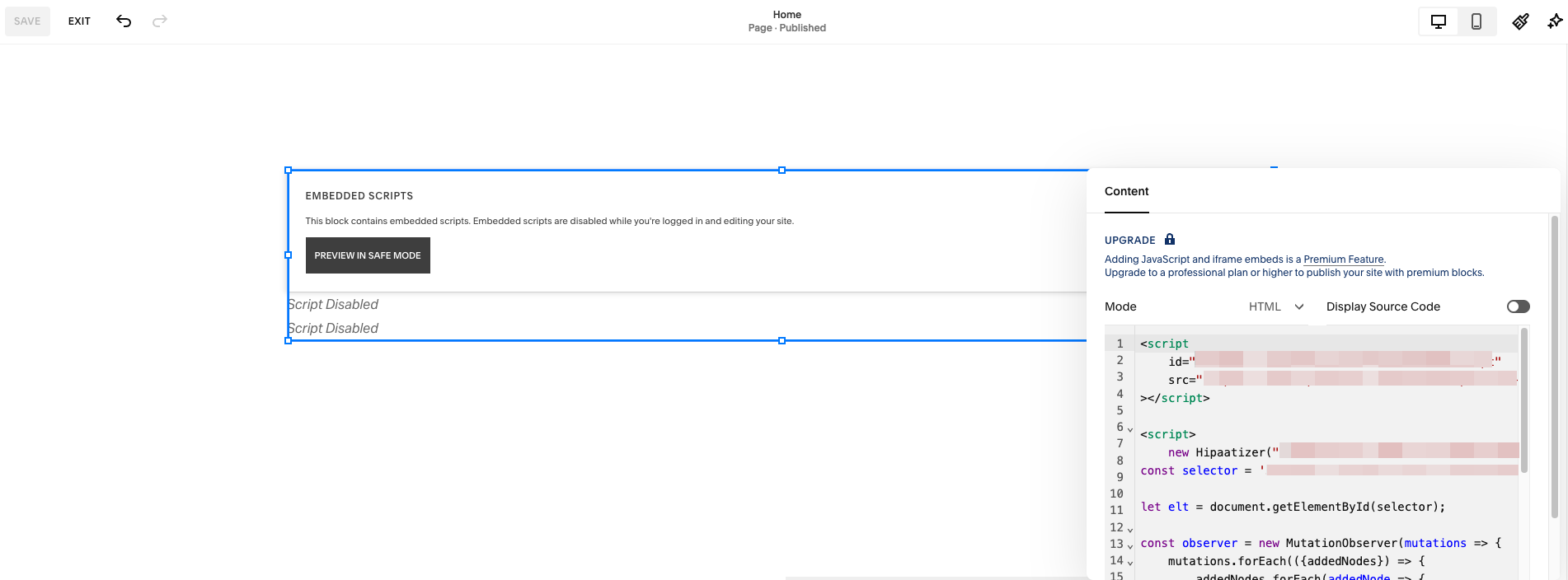
Save and Preview
After pasting the code, click Save to update the page.
To confirm the form is properly embedded, open your site's live page outside the Squarespace editor.
Your HIPAA-compliant HIPAAtizer form is now successfully embedded into your Squarespace website.
Need help? Reach out to support@hipaatizer.com.