WiX
There are three options for embedding a published online form into your website: HIPAAtizer App, JavaScript Code Embedding and iFrame Embedding.
Follow the steps below to incorporate a HIPAAtizer form into your WiX website:
HIPAAtizer App
Access the WiX App Market
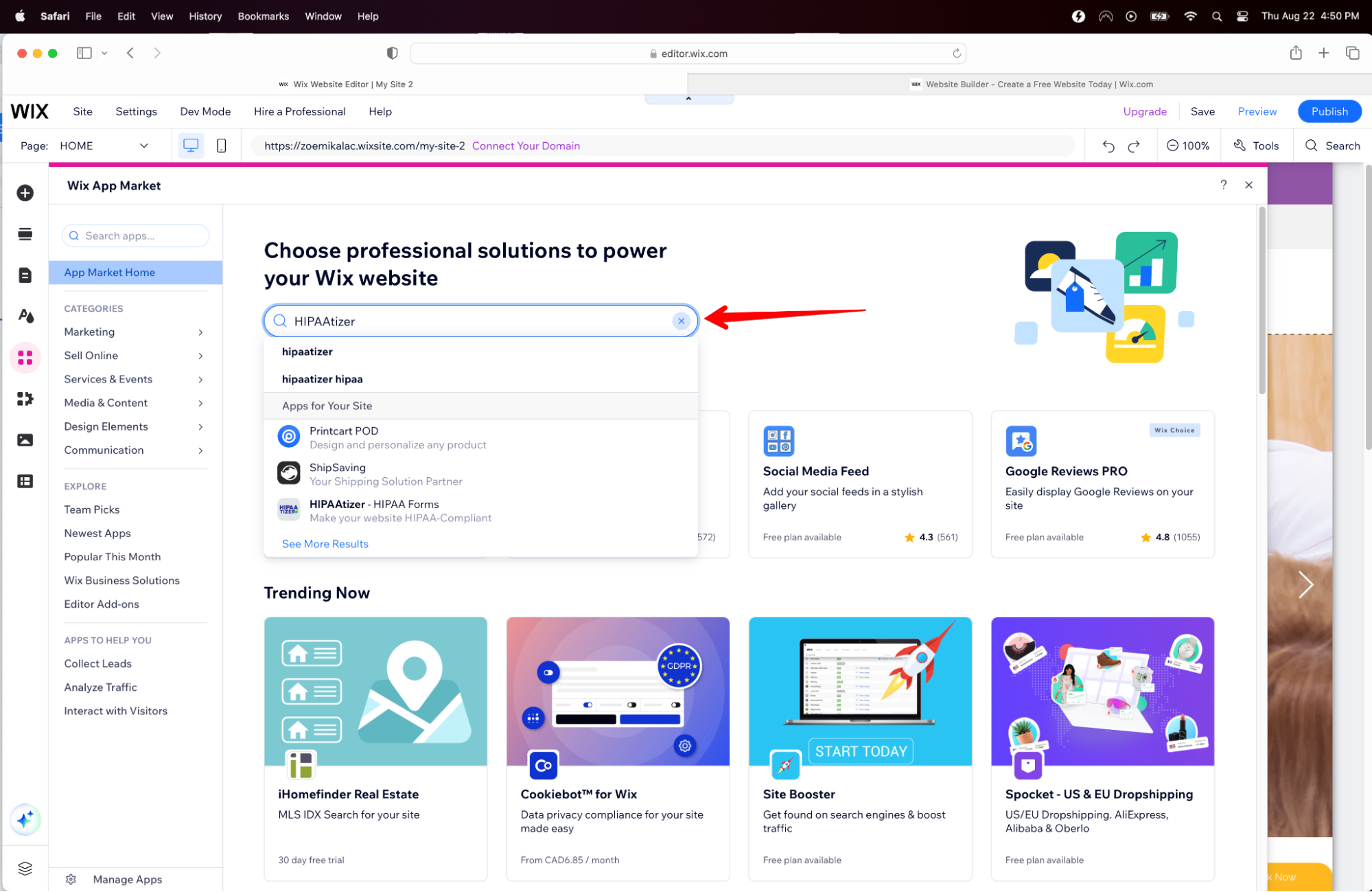
Login to your WiX account and navigate to the site editor. Click the 4 box incon the left hand side to access the WiX App Market.

Download the HIPAAtizer App
- In the WiX App Market, use the search bar and enter HIPAAtizer or HIPAA to find the HIPAAtizer app.
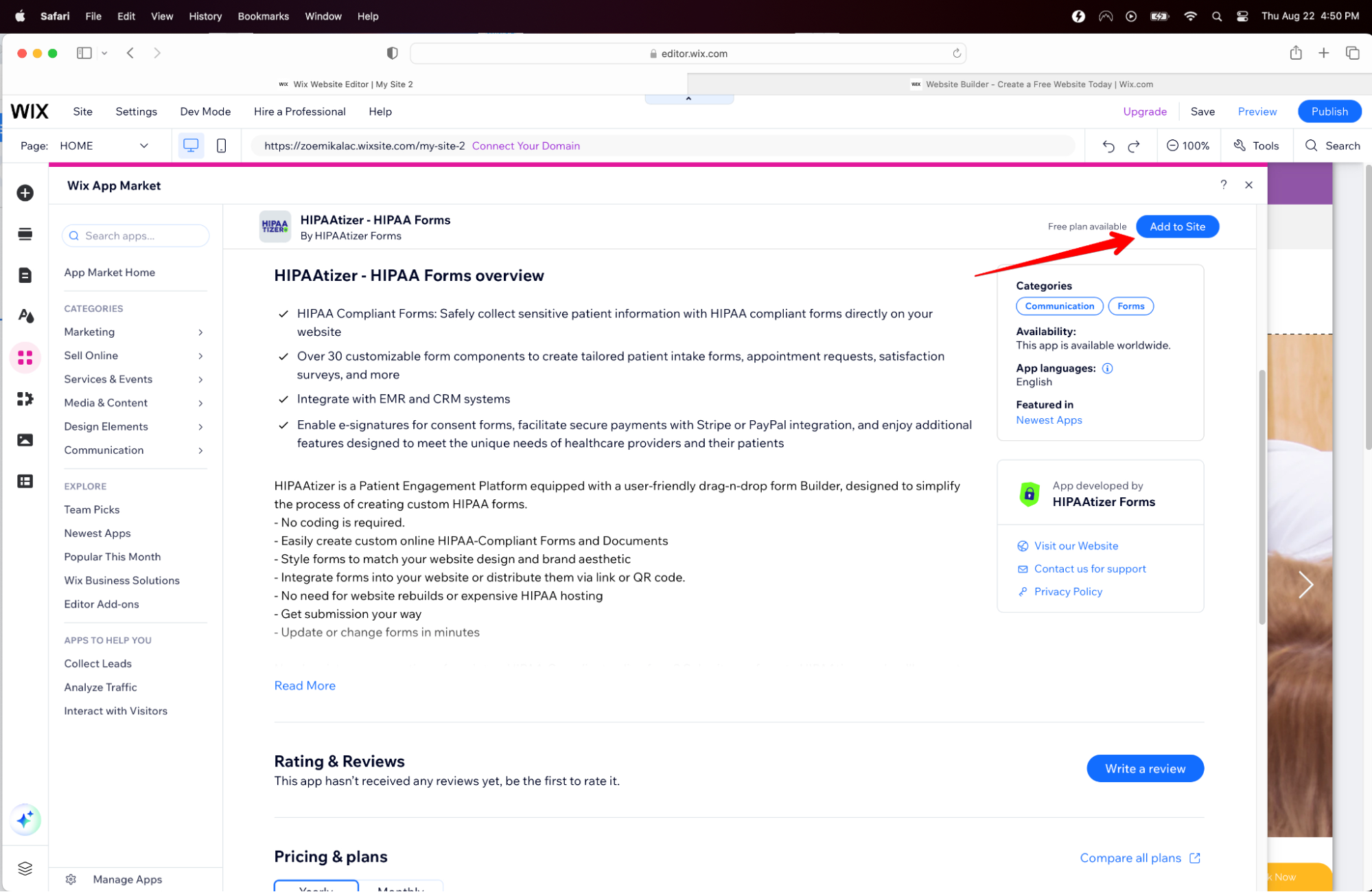
- Scroll down to make the 'Add to Site' button appear on the top right side. Click on the button, then click "Agree & Add", and the HIPAAtizer App will begin installing.
Embedding Your Forms
Add a widget
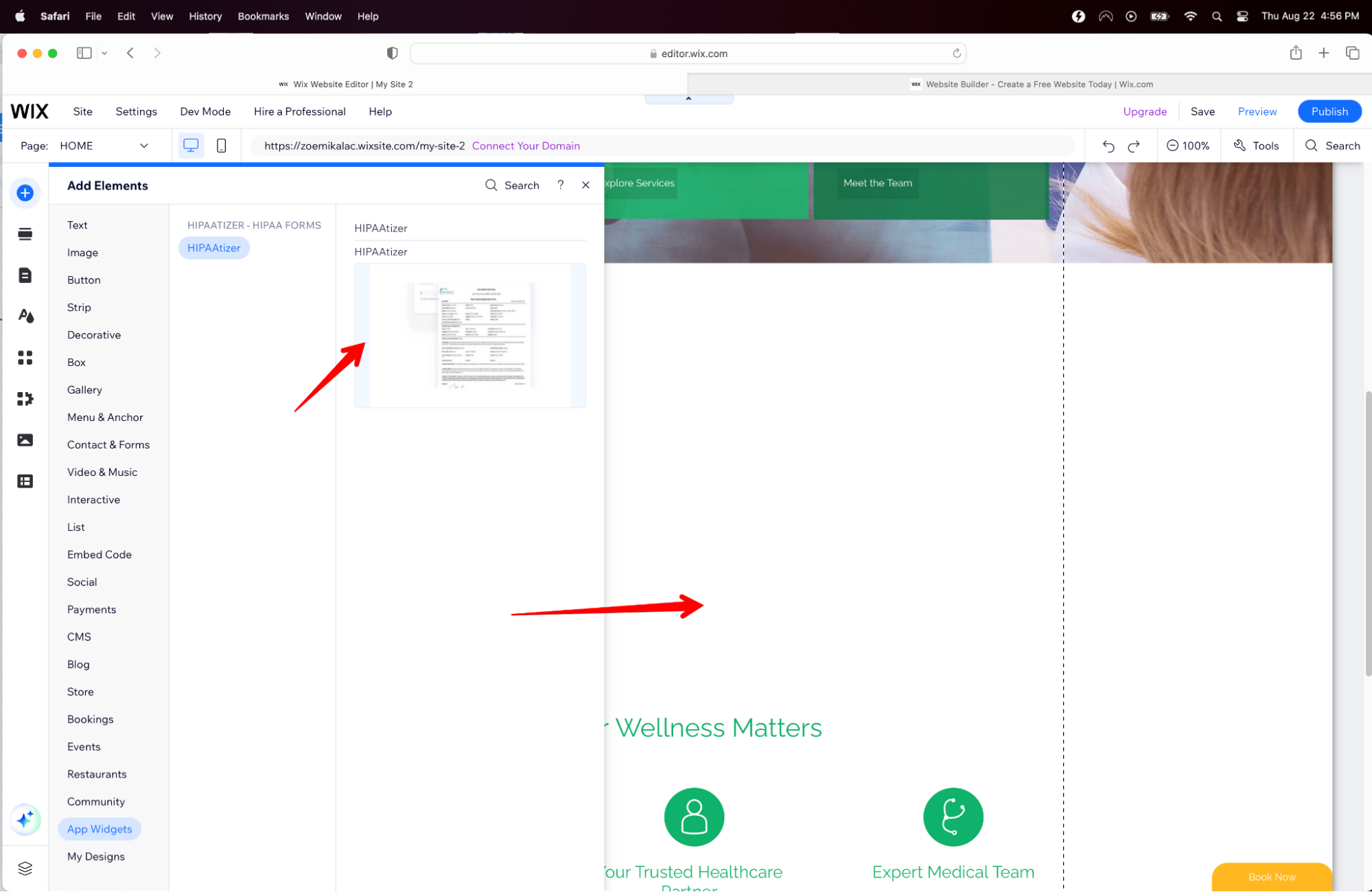
- You can now drag over the HIPAAtizer app widget to your desired location on your page.
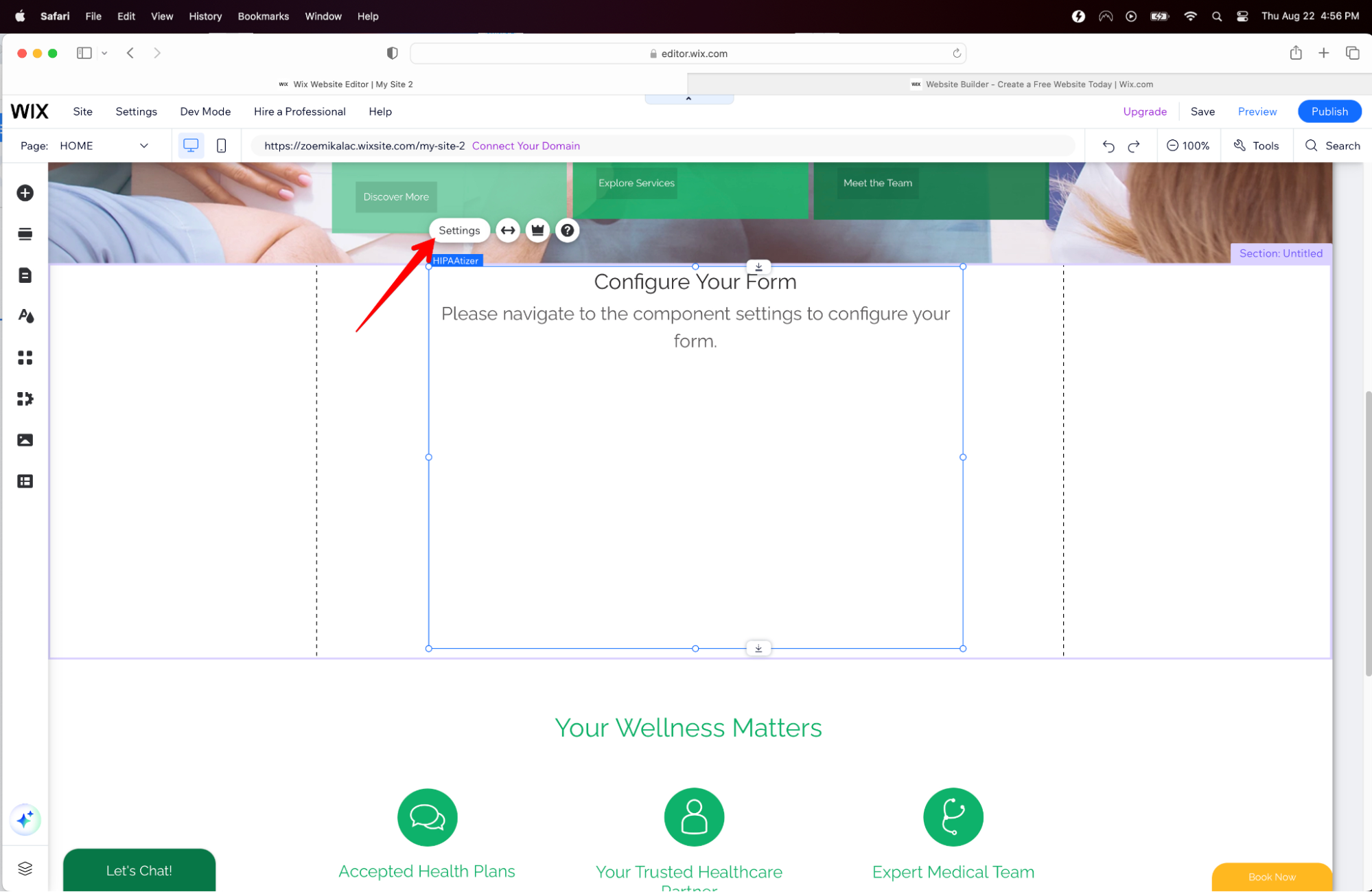
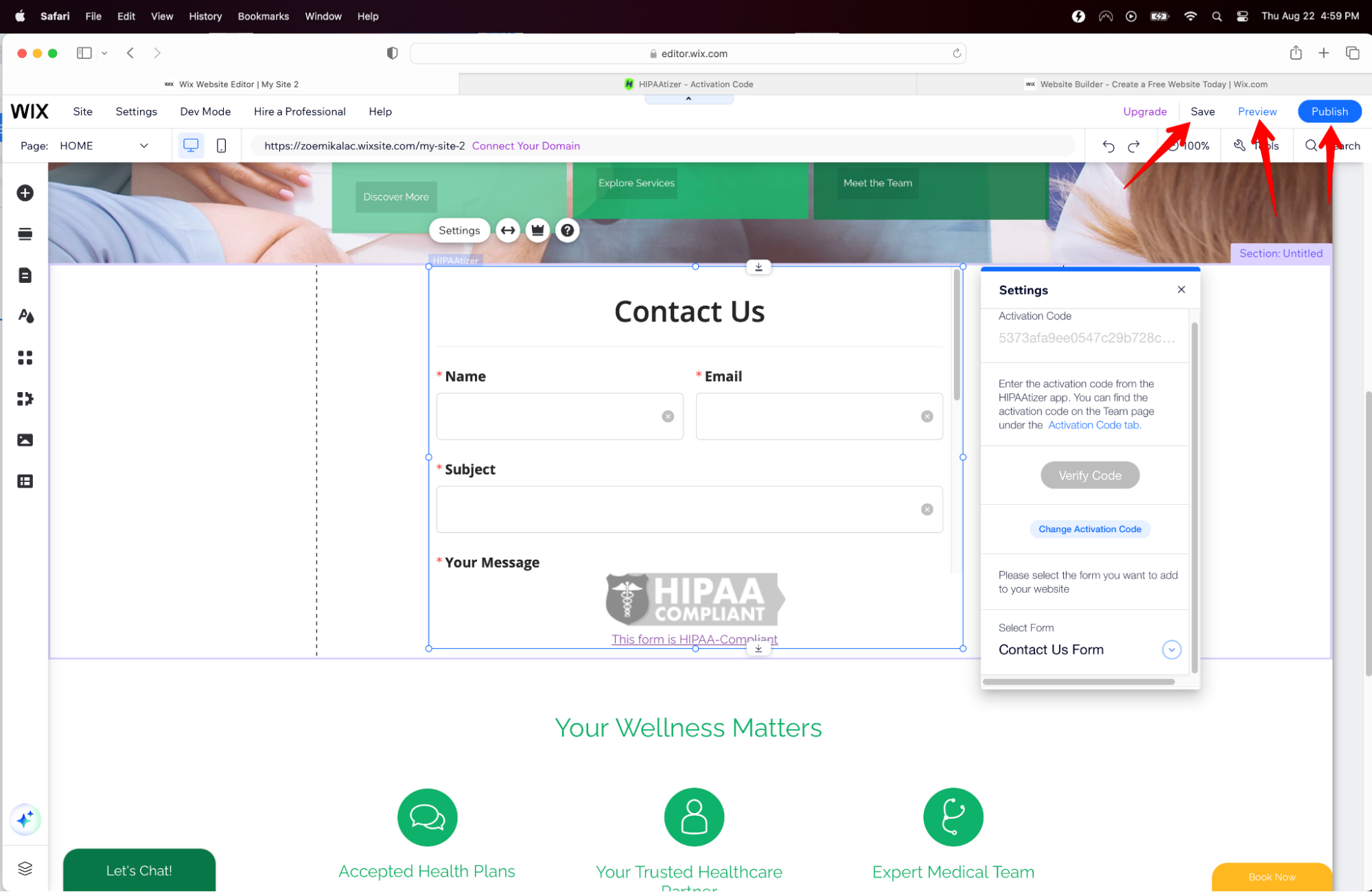
- To add a specific form, click the 'Settings' tab at the top left of the form box.
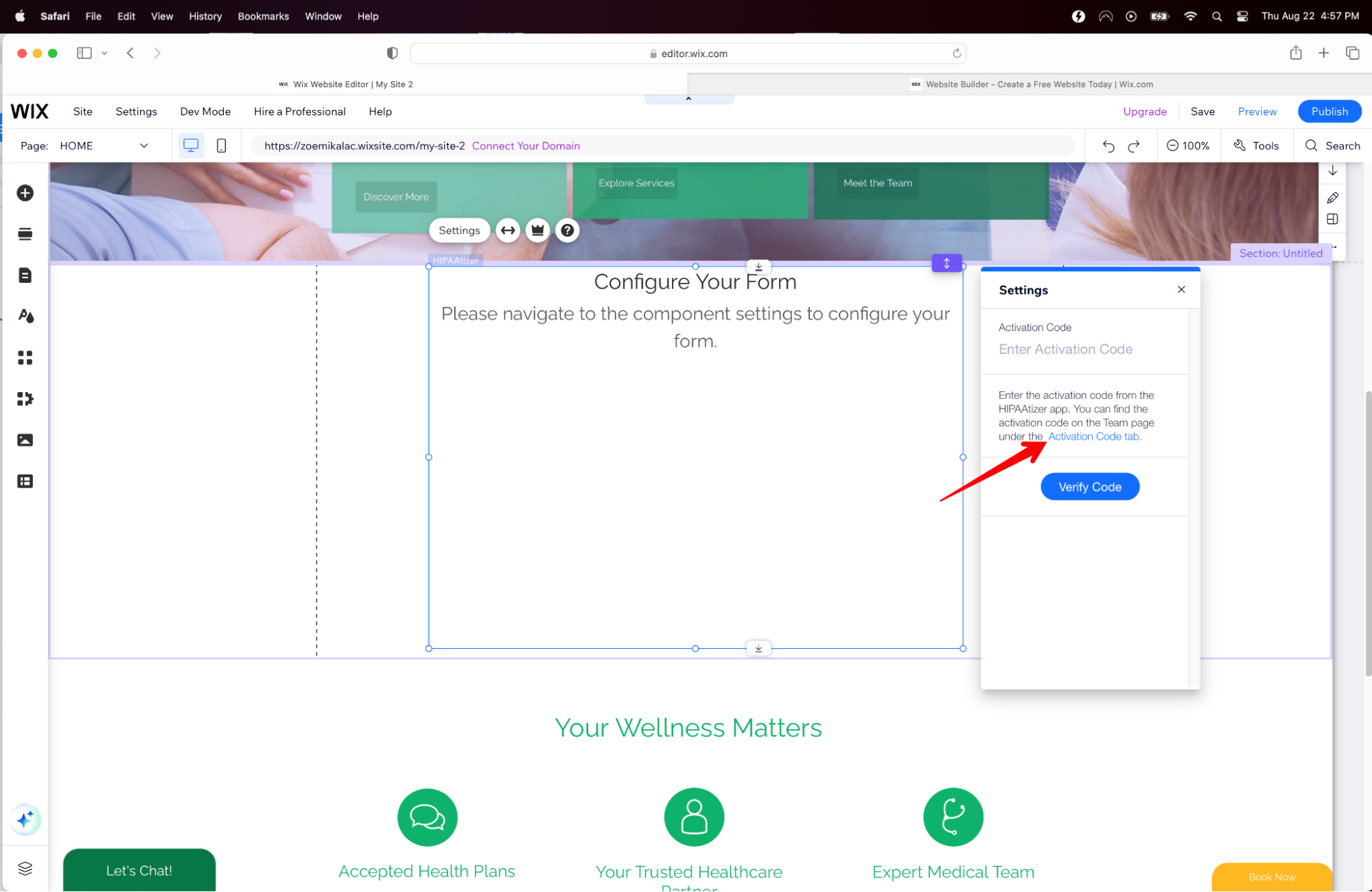
- You will now need to enter the activation code to connect your forms to the app.
Finding the Activation Code
Sign in to your HIPAAtizer account. If you haven't signed up yet, create an account.
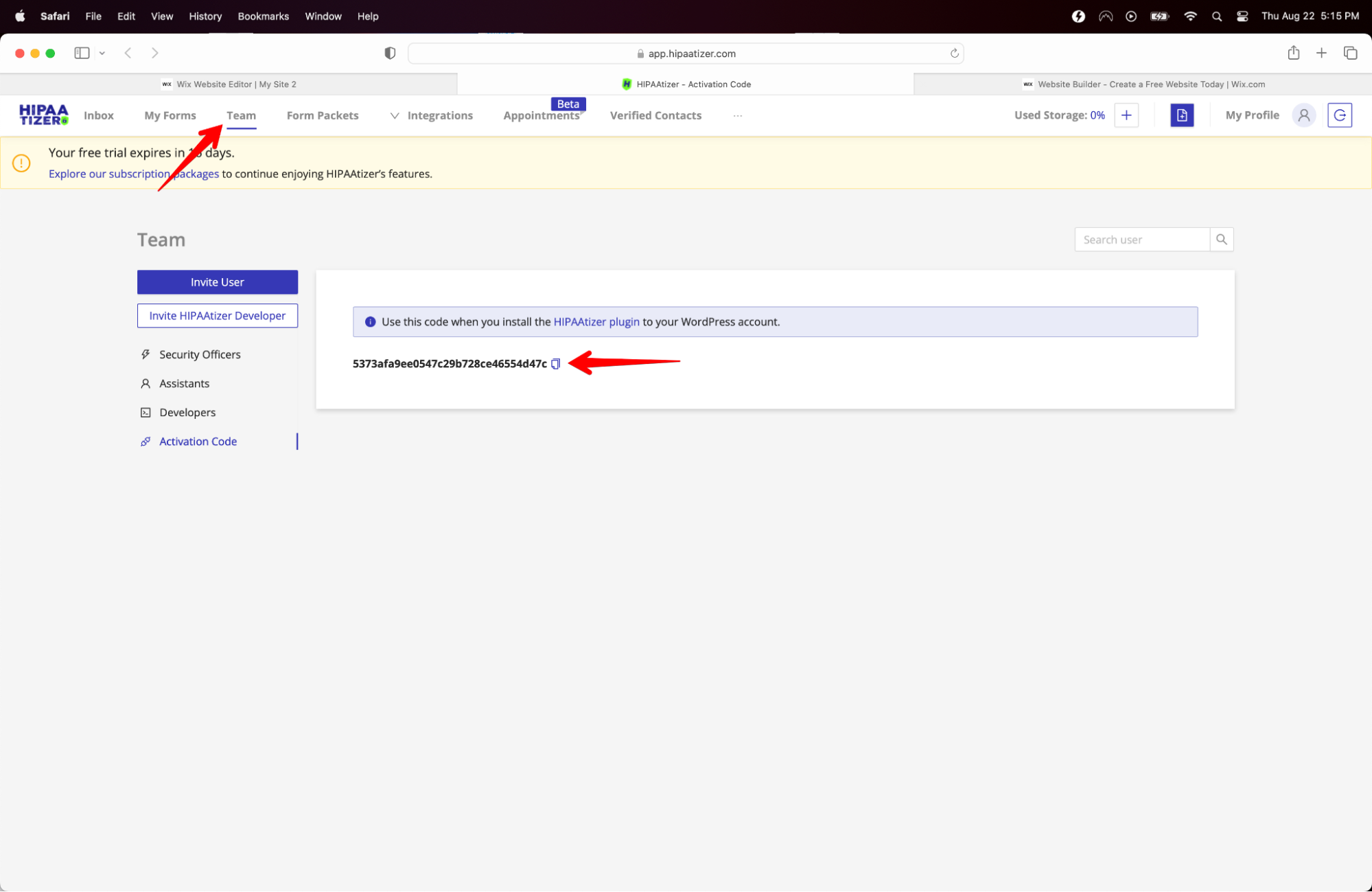
From the HIPAAtizer dashboard, select the 'Team' button from the top menu, then navigate down to the 'Activation Code' tab. In this area, you will find your completed and published forms to copy and paste.
Copy the code for the selected form, go back to your WiX page, and paste the code in the 'Activation Code' box.
Selecting Your Form
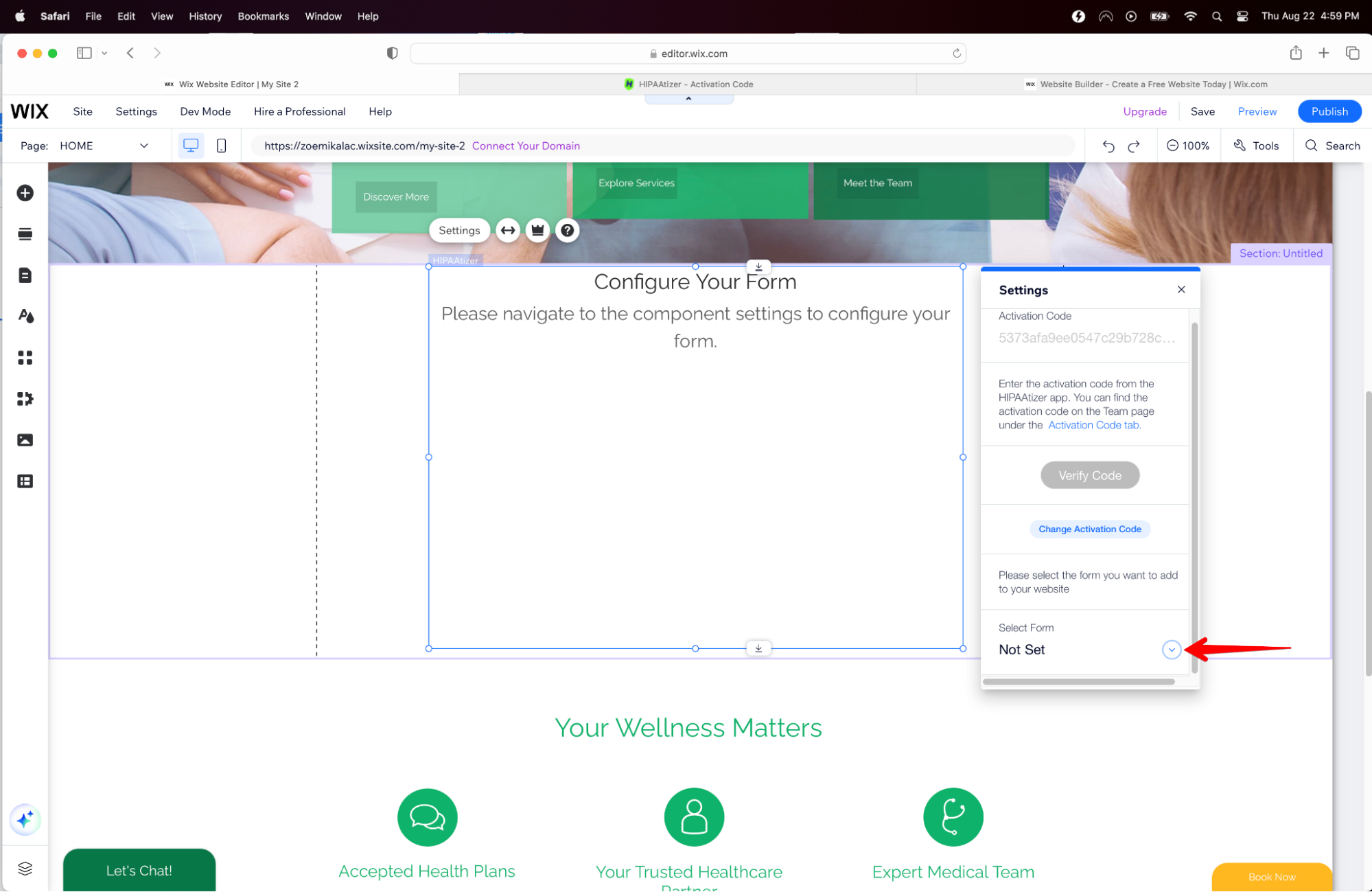
Now, you can select the form from the drop down menu. Your form will now appear in the app box.
To preview your form on your website, select the preview button on the top right and save changes.
Javascript Code Embedding
When you use JavaScript code, the form will automatically resize the WiX container to match the form's height.
Preparing Your Website's Pages
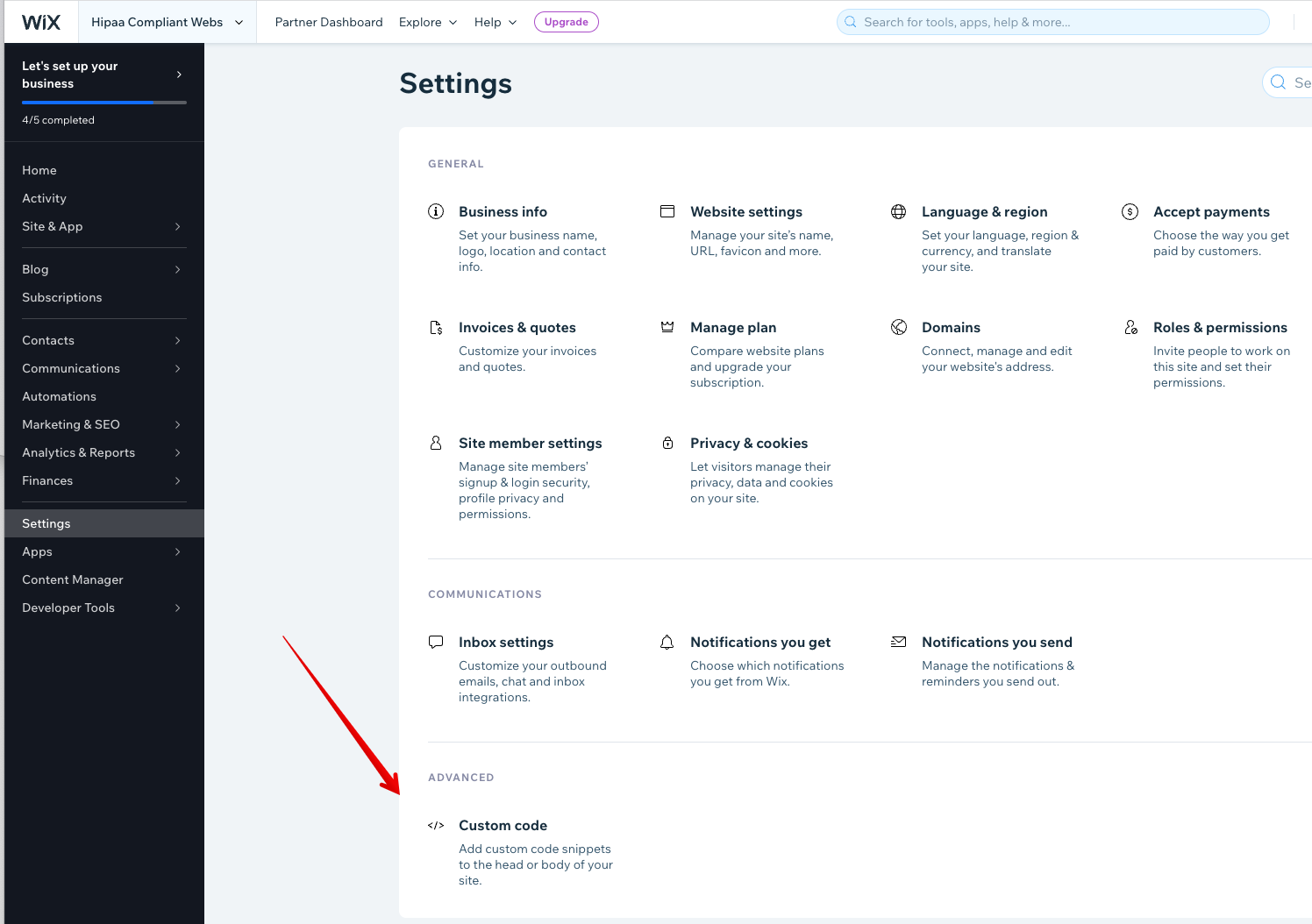
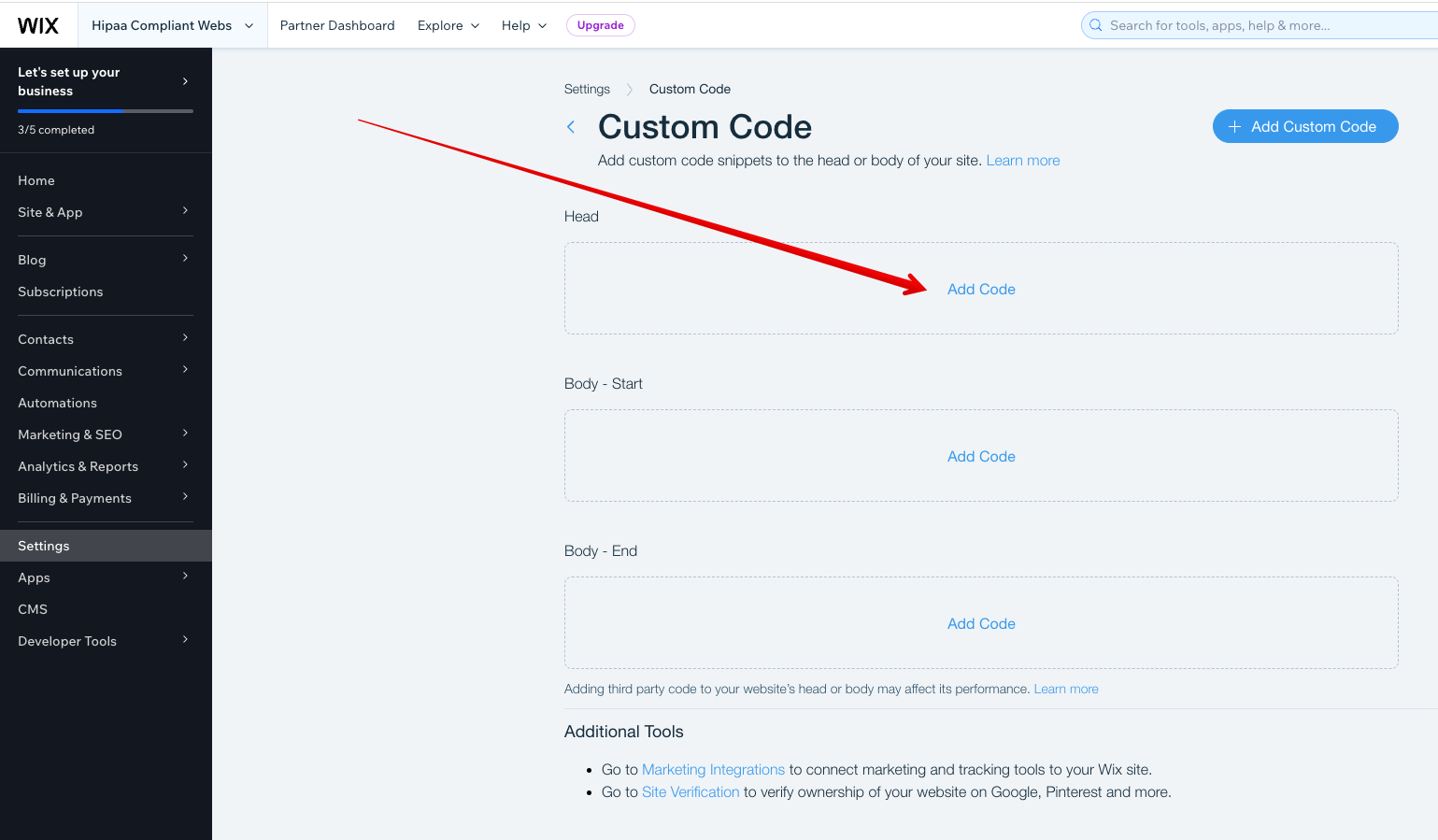
From your WiX site dashboard, click on the 'Settings' menu. Navigate to the 'Advanced' section and click on 'Custom Code'. Then, click on 'Add Code' in the 'Header' section.
Retrieving the Code
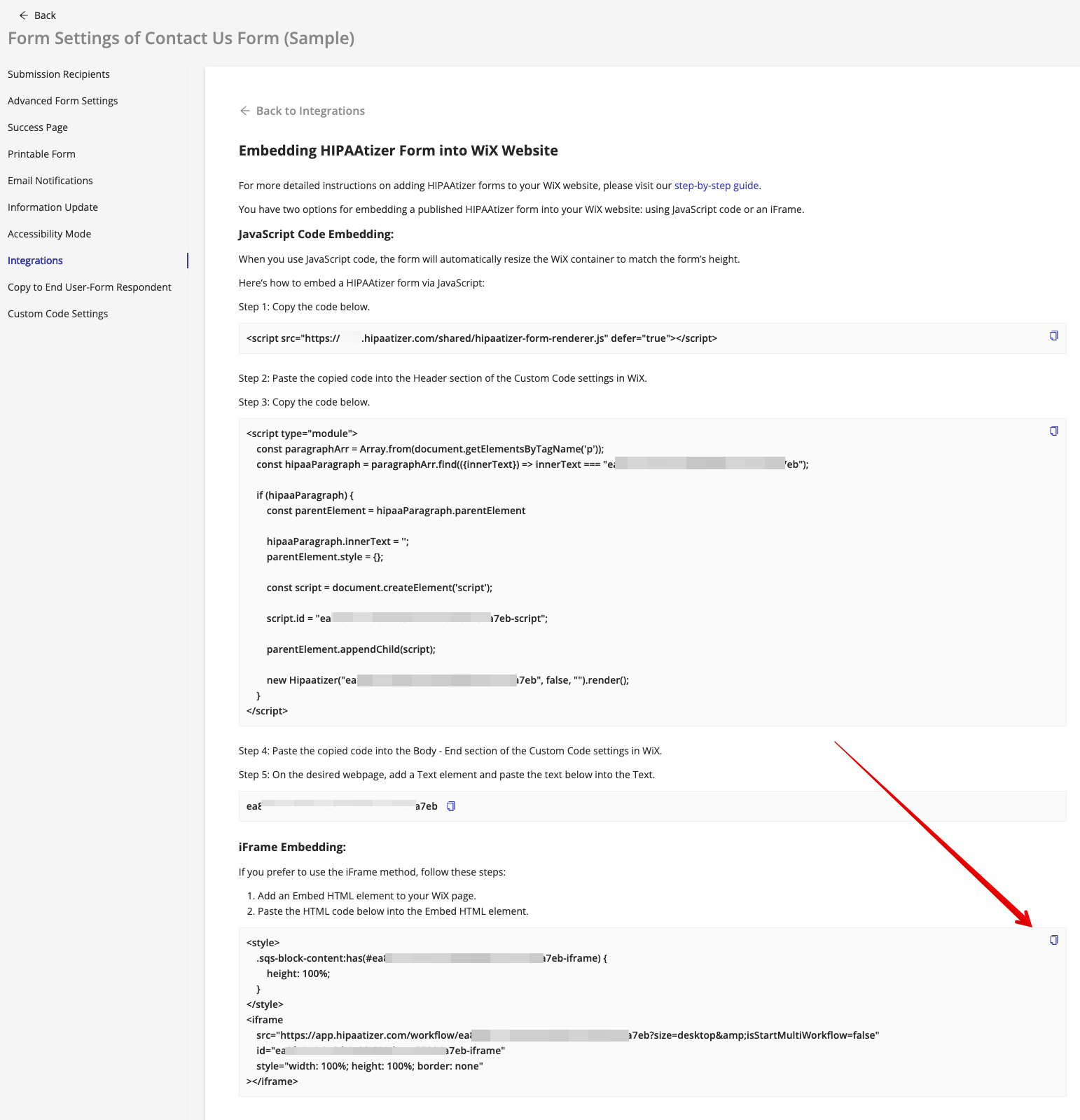
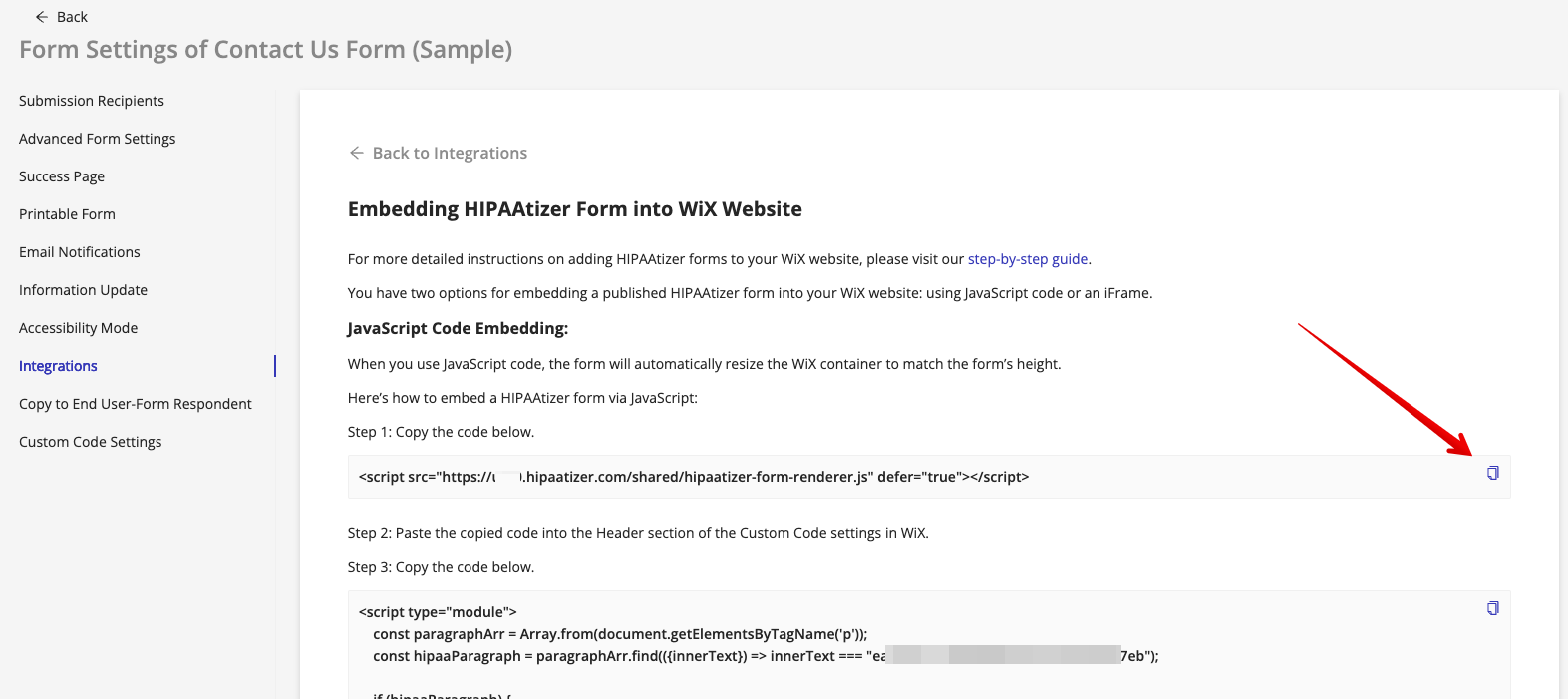
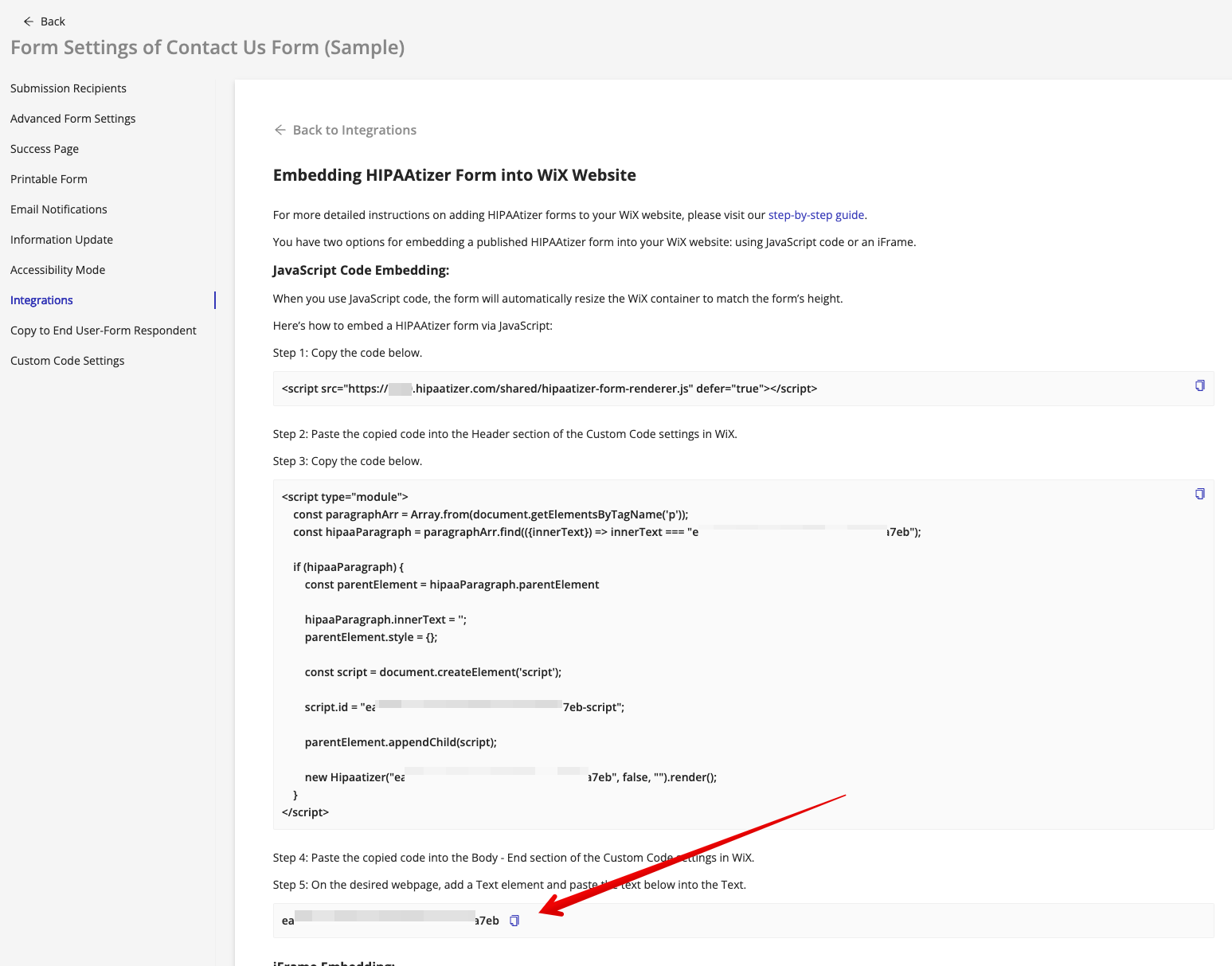
In the HIPAAtizer app navigate to the 'Form Settings' of the form you need to integrate, the go the 'Integrations' tab and select 'WiX'.
Copy the code under 'Step 1' in the page, and paste the code into the 'Header' section of the custom code settings in WiX. To embed multiple forms on your website, you only need to add this script a single time.
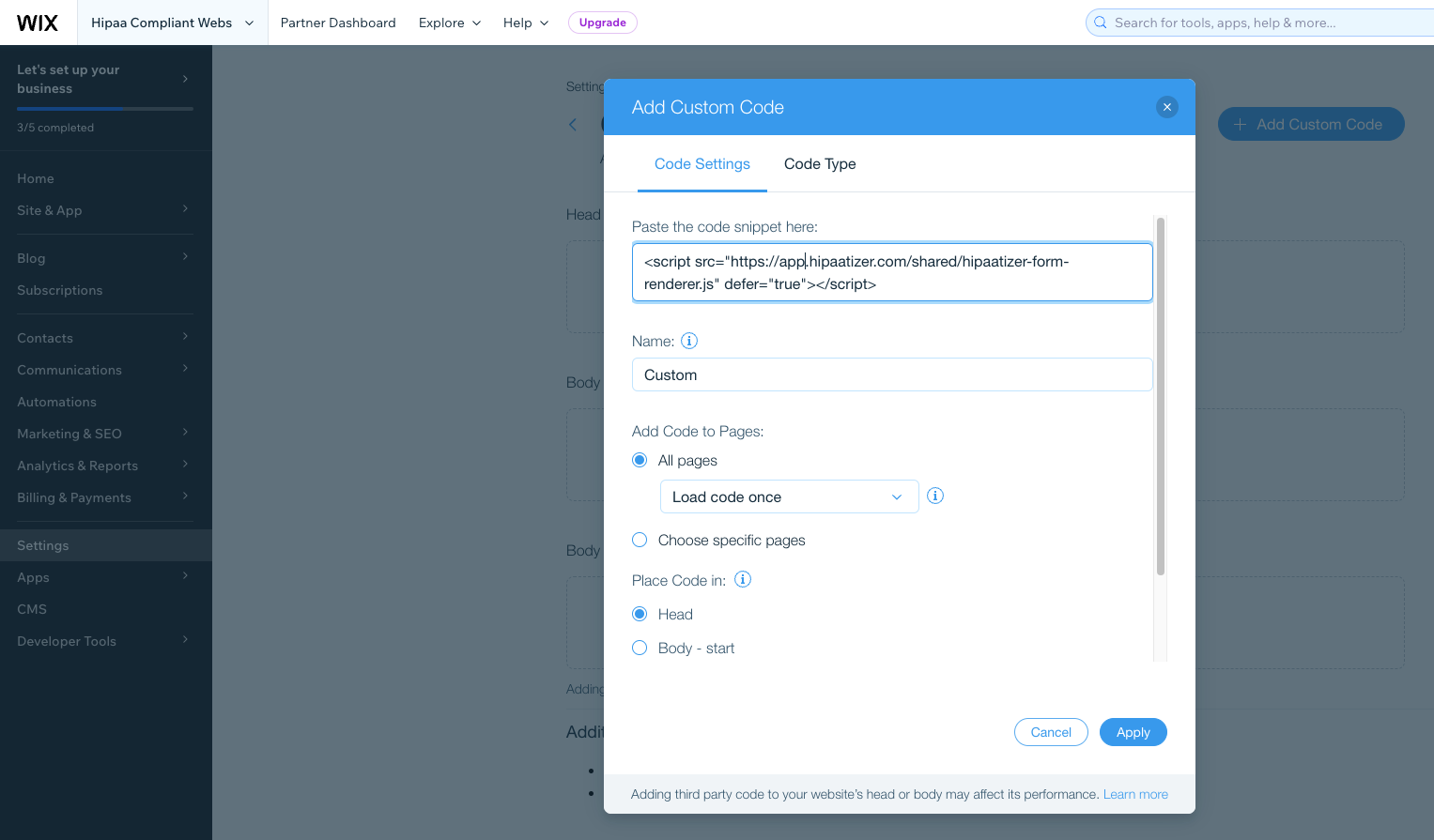
Click on "Add Code" in the "Body-End" section.
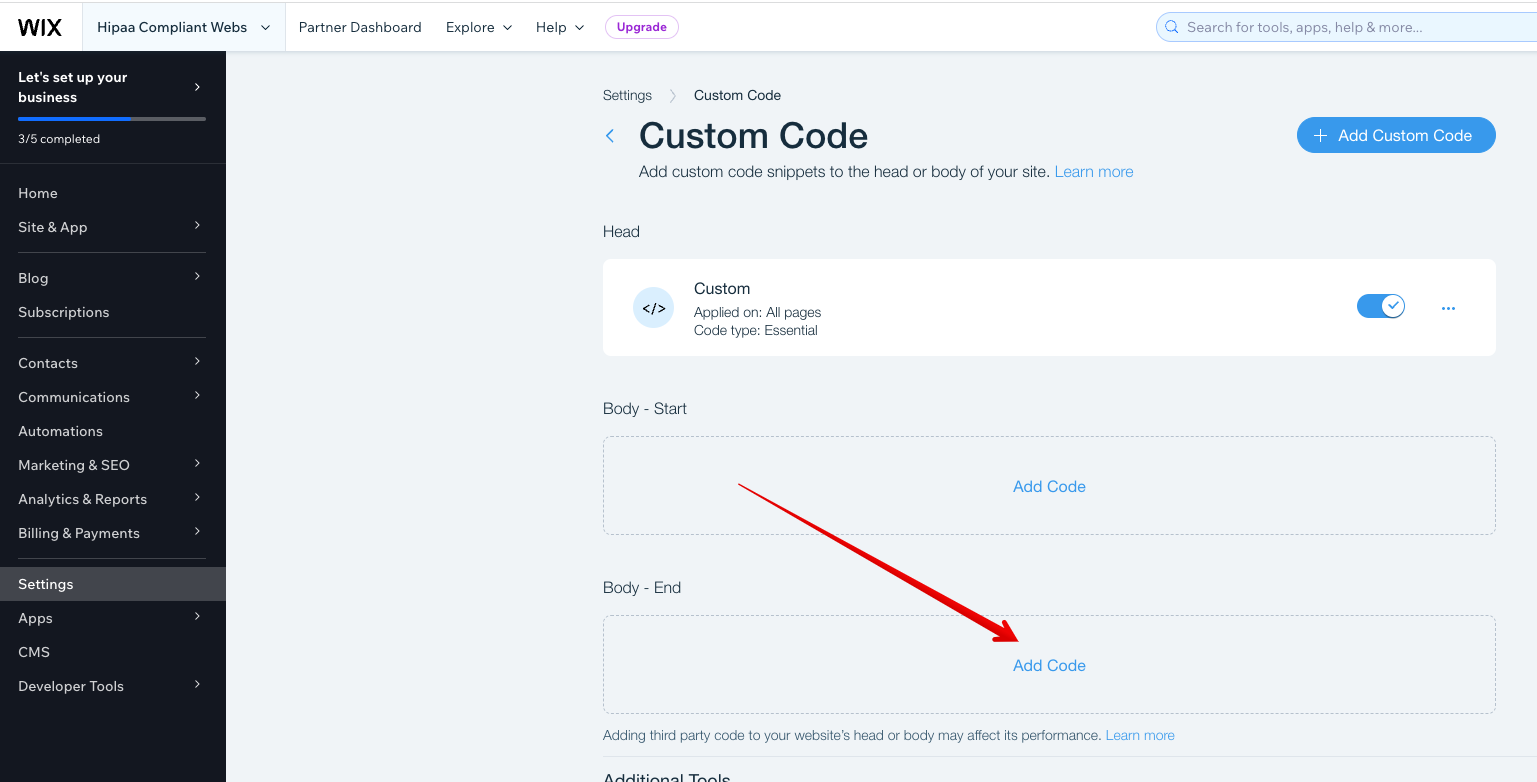
On the page where you copied the code under 'Step 1', now copy the code under 'Step 3' and paste the code into the "Body-End" section of the Custom Code settings in WiX.
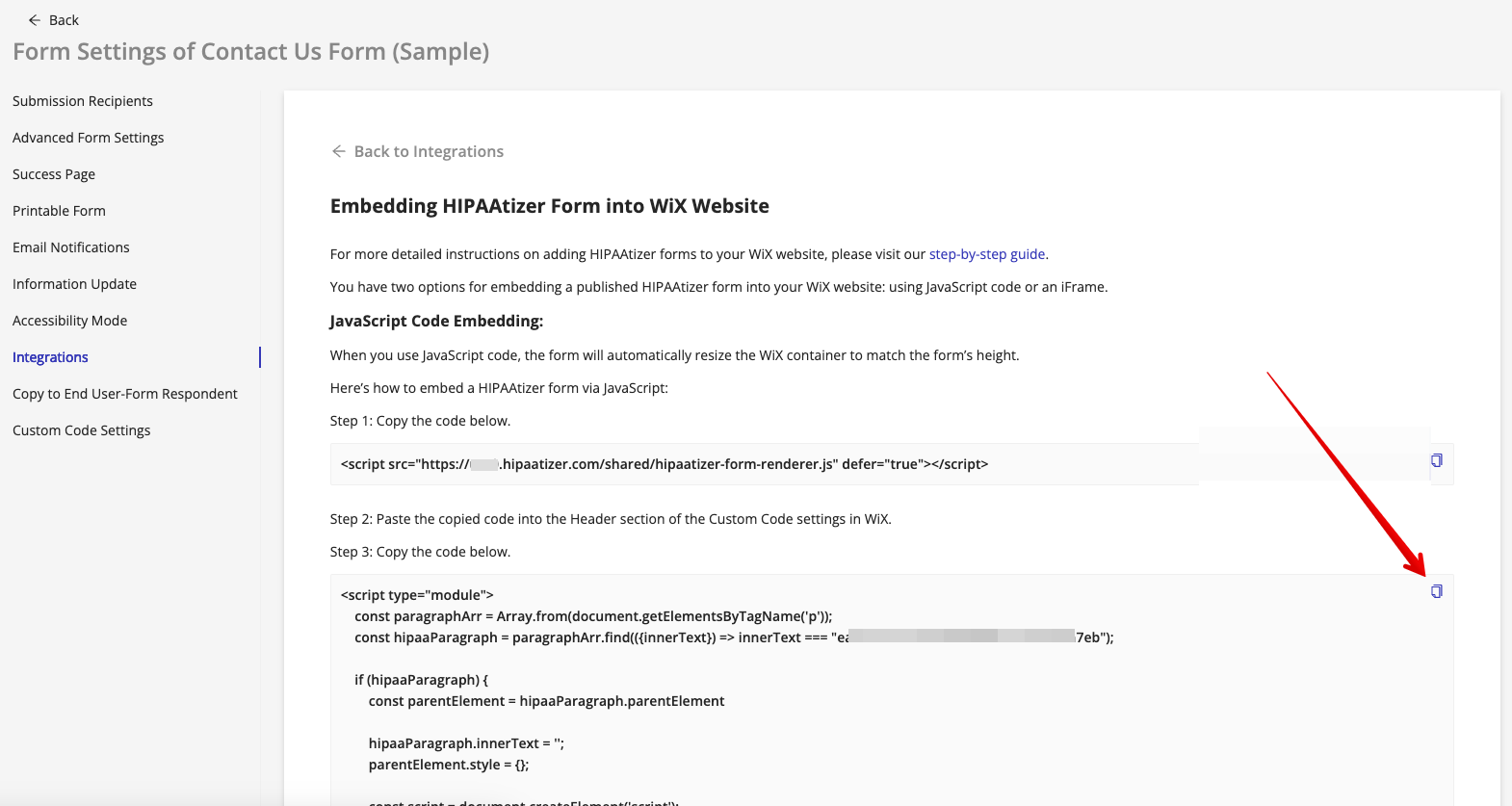
Enbabling Your Forms
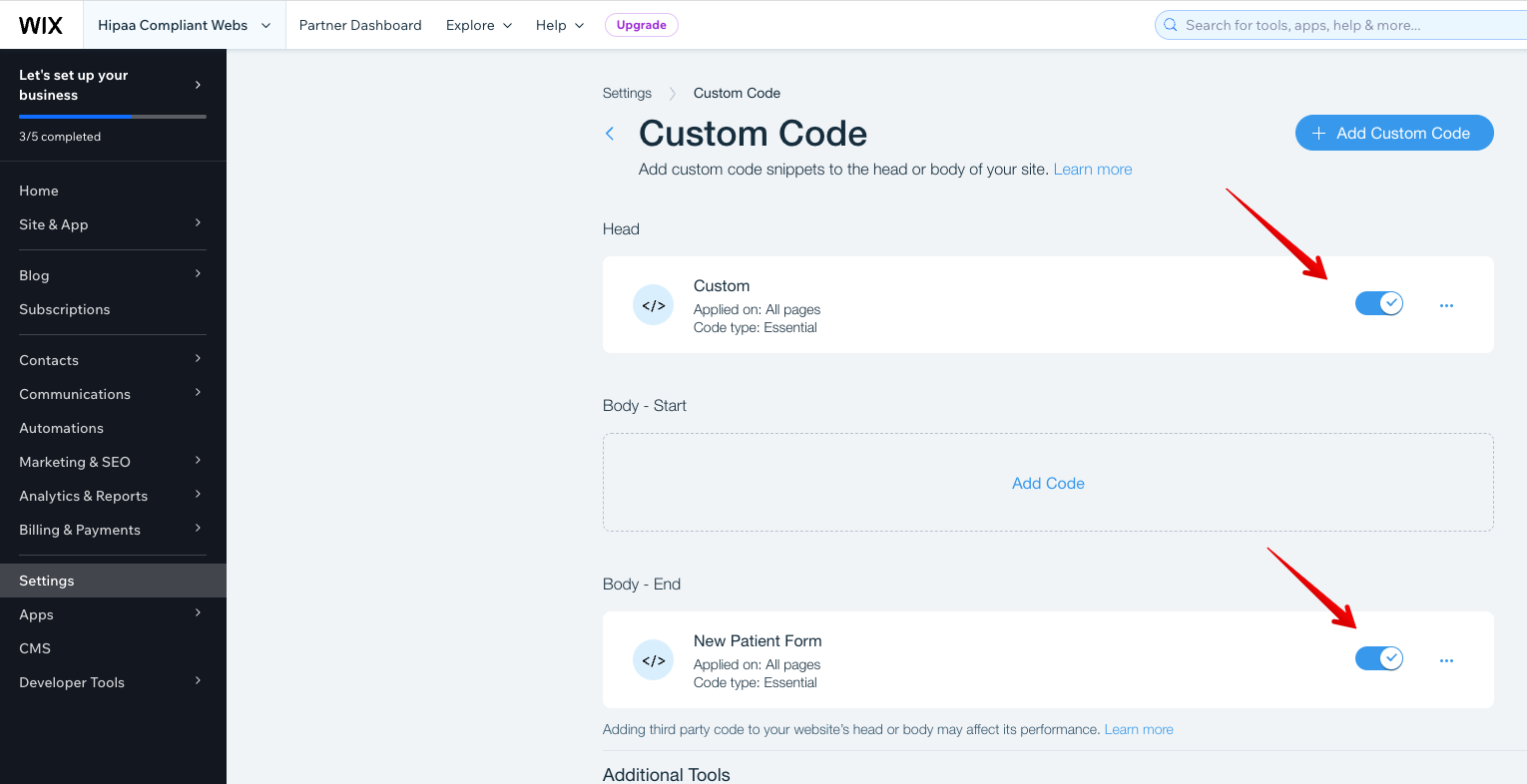
Give a descriptive name to your code snippet, for example, "New Patient Form".
Please Note: Use the "Add Code to Pages: All Pages" setting exclusively if you plan to embed the form on every page of your website. If the form is intended for specific pages only, avoid selection the "All Pages" option.
In the "Place Code in" section, select "Body-End". Click on "Apply" to save the changes.
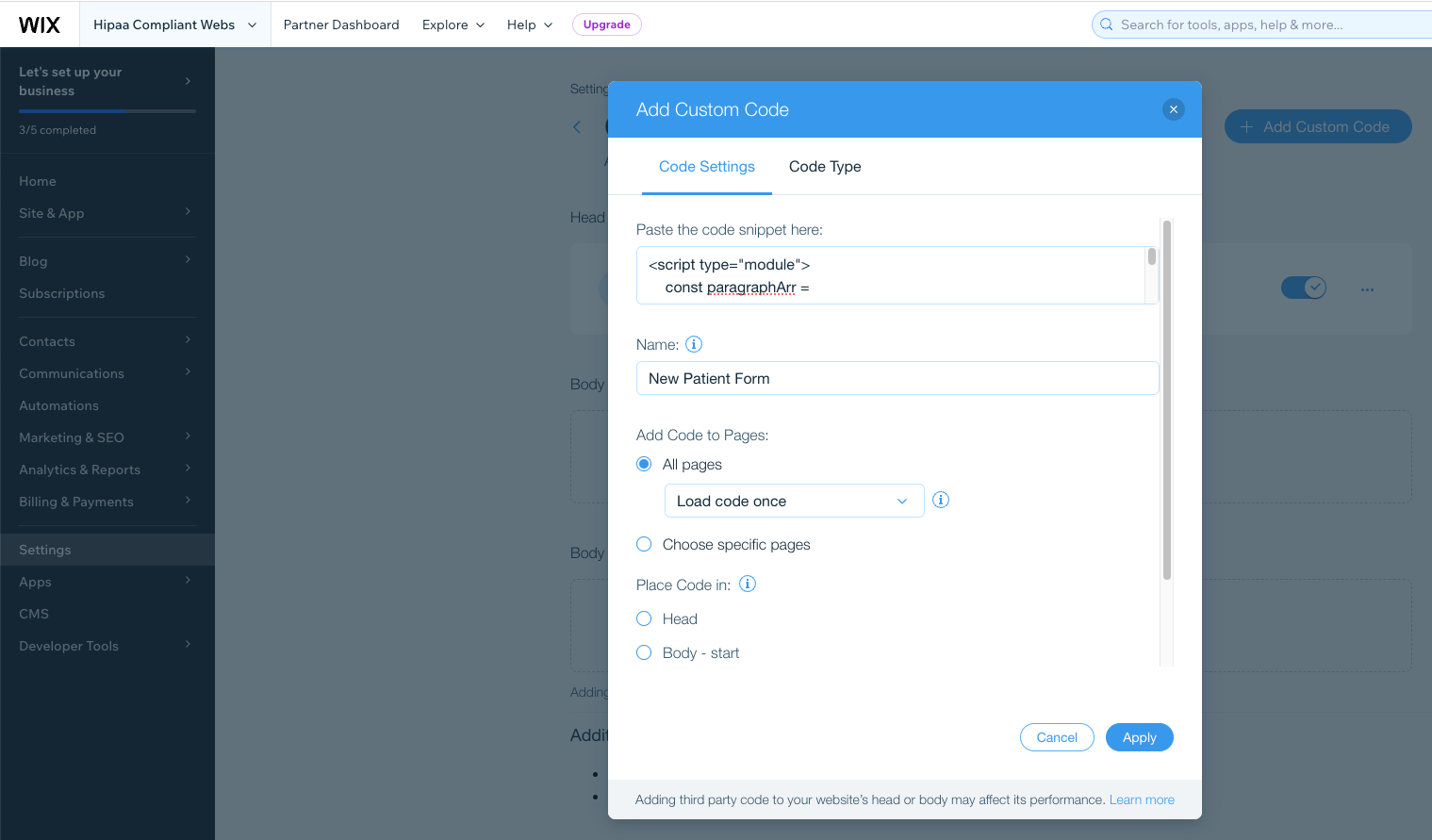
Ensure that the code snippet is enabled.
Adding the Form to a Specific Page
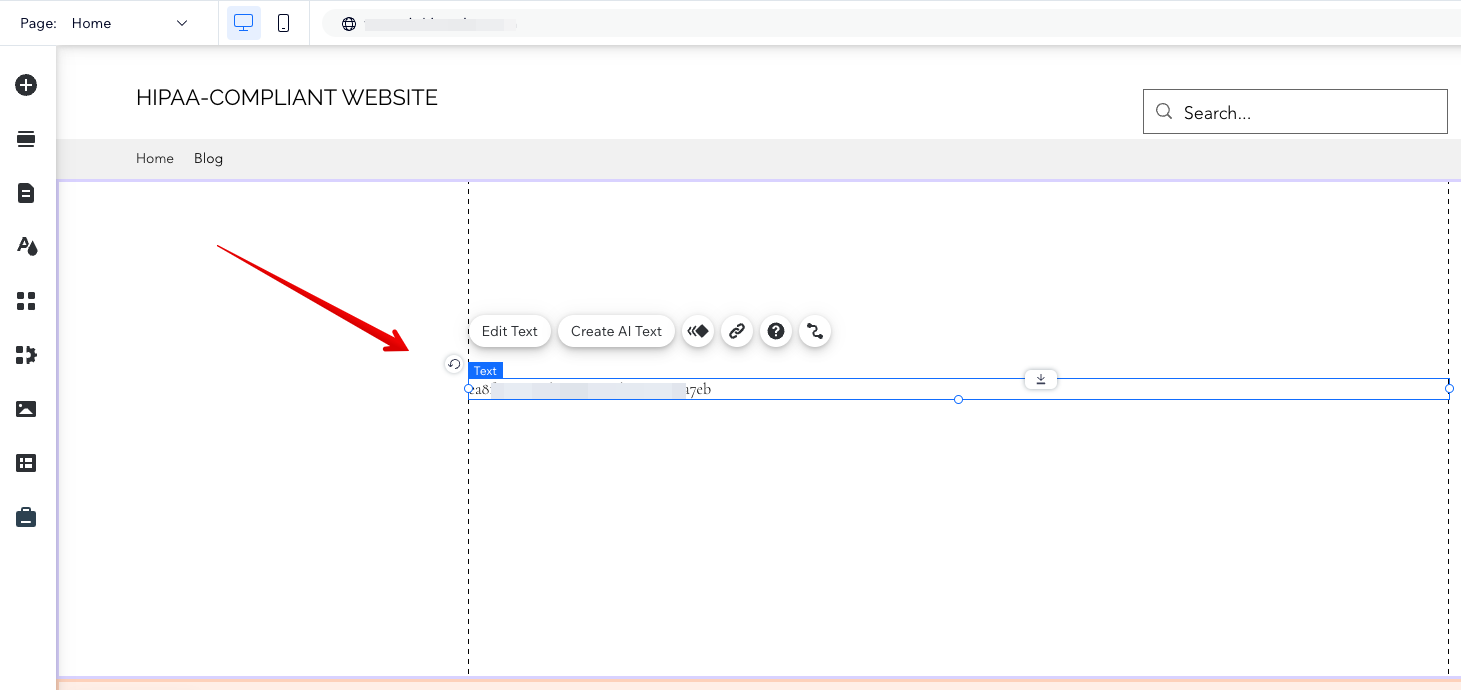
Go the the 'Site & Apps' then 'Website' page in WiX and click on the 'Edit Site' button. Select the page on which you want to install the HIPAAtizer form. Add a new paragraph, and insert the form's ID into it.
iFrame Embedding
Add an Embed HTML element to your WiX page. Paste the HTML code below into the Embed HTML element.