

Shopify Integration
This guide walks you through how to embed a HIPAAtizer form into your Shopify website.
Prepare Your Shopify Page
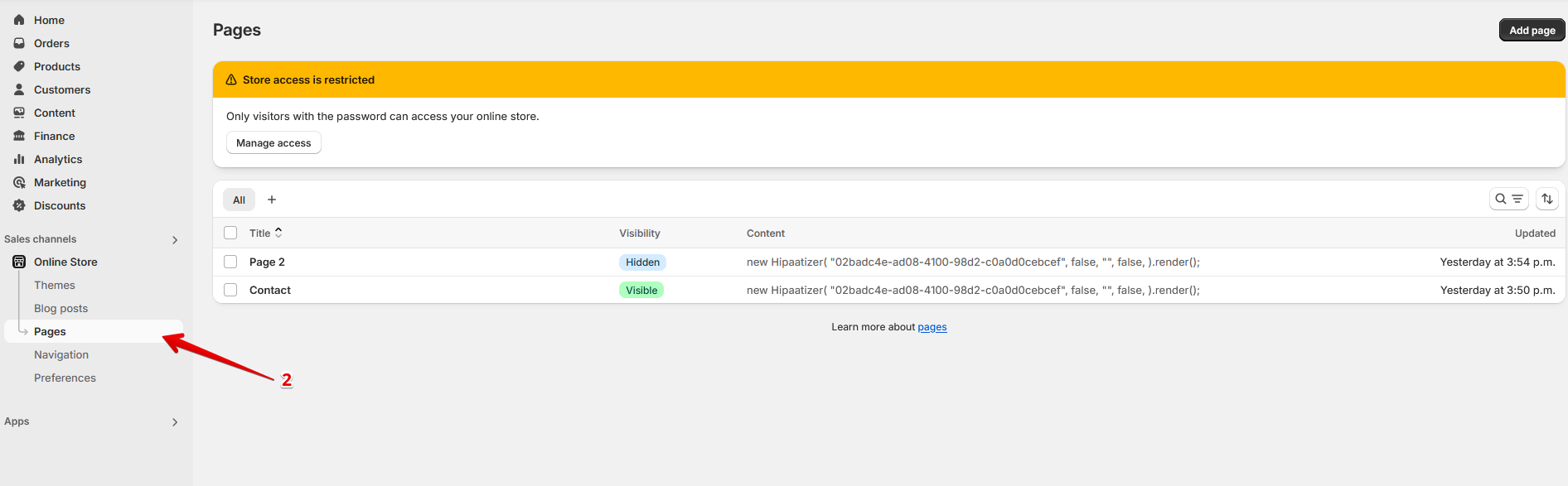
To start, open your Shopify admin dashboard and navigate to Online Store → Pages. This section displays all existing pages on your site.
Choose the page where you want to embed the HIPAAtizer form. If needed, create a new page by clicking Add page.
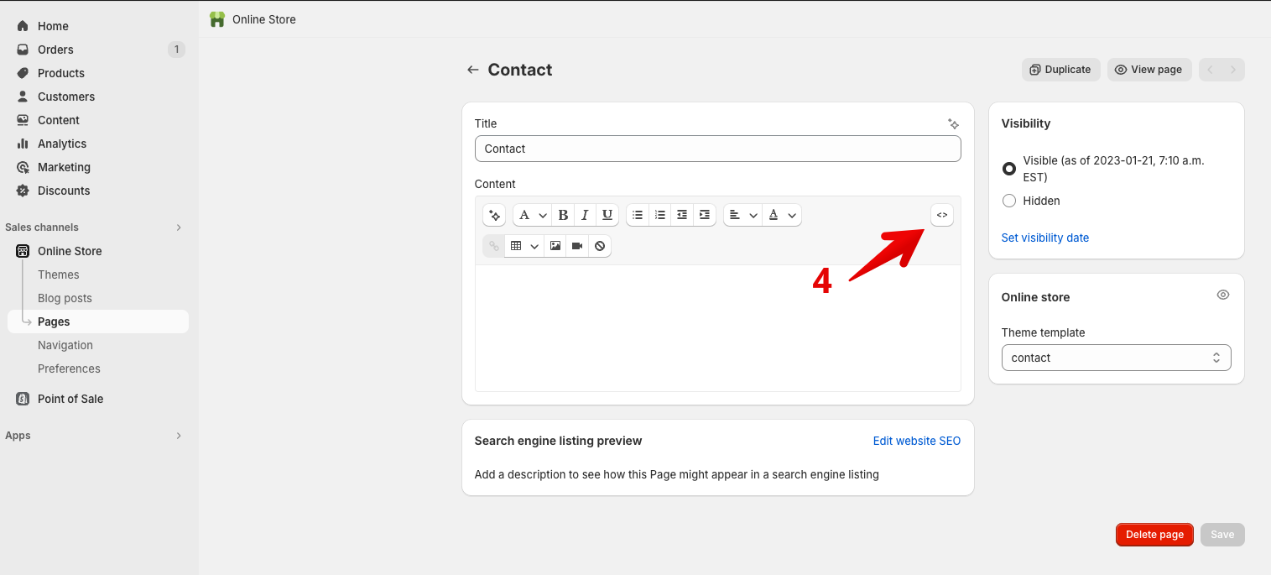
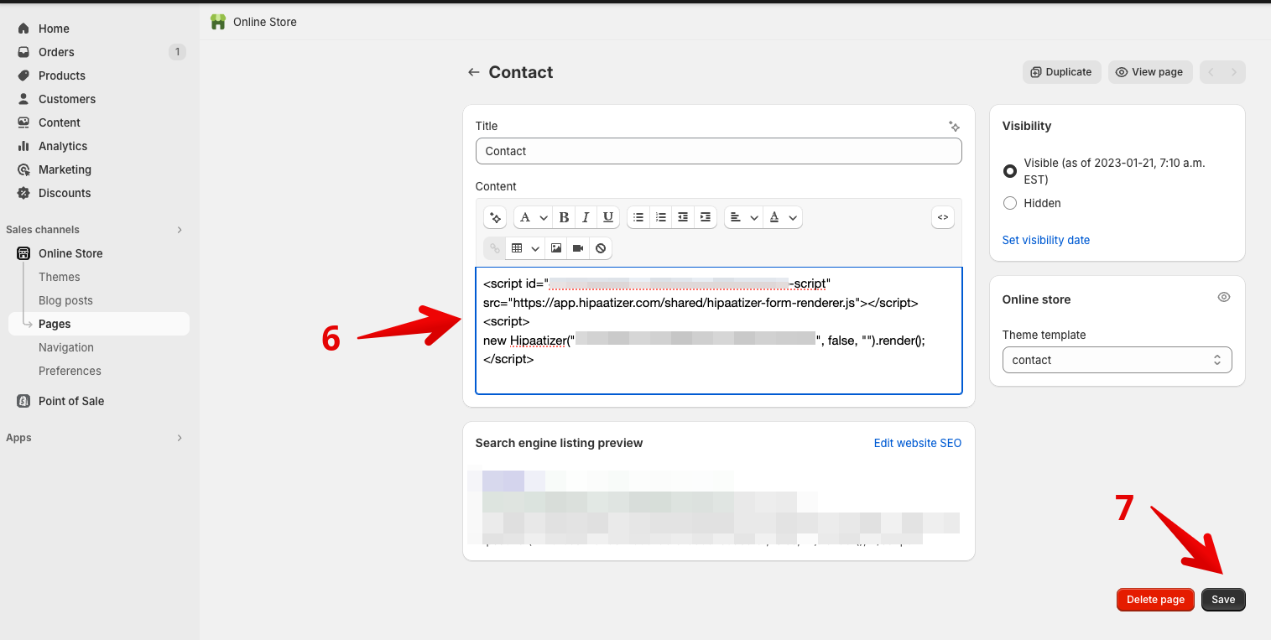
In the page editor, click the Show HTML (< >) icon - typically found in the top right of the content editor. This switches the editor to HTML mode so you can paste code directly.
Embed the HIPAAtizer Form
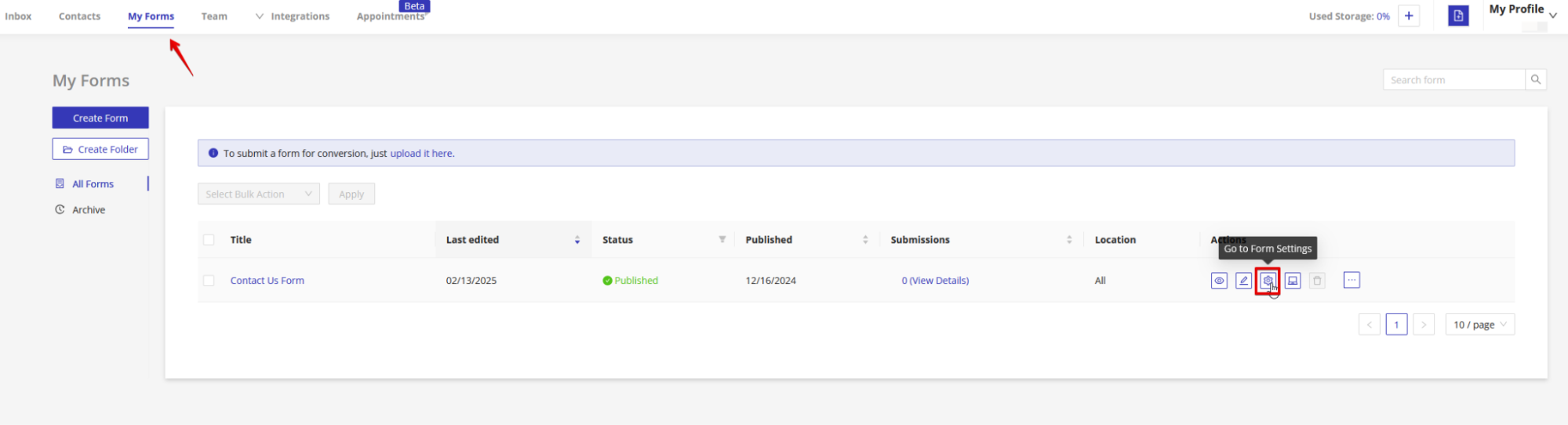
Open your HIPAAtizer dashboard and go to the My Forms section.
Click Go To Form Settings under Actions for the form you'd like to embed.
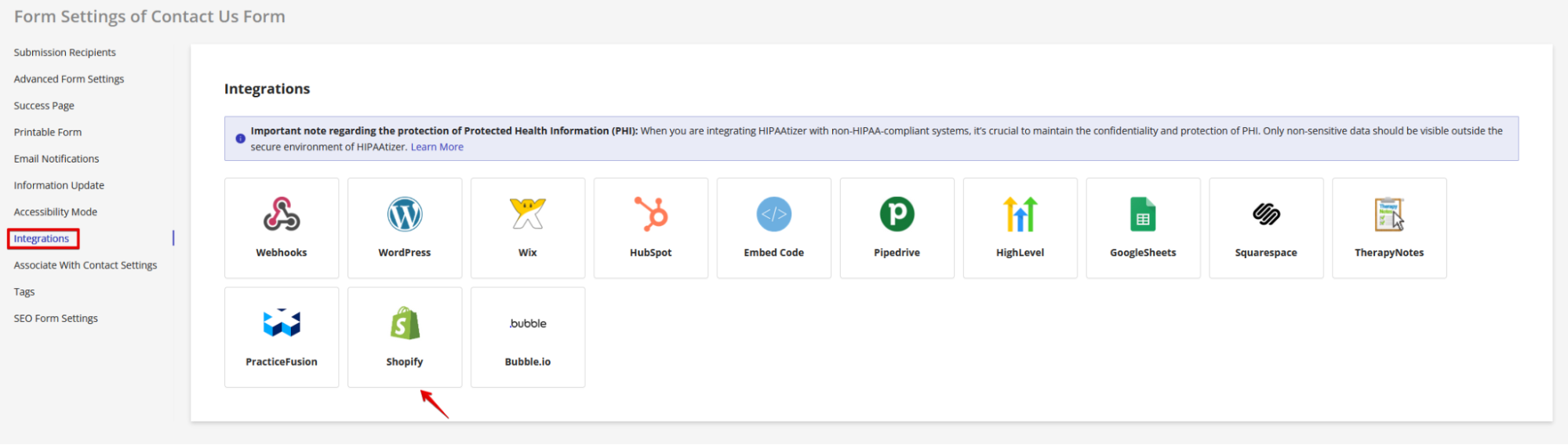
Next, go to the Integrations tab and select Shopify.
Scroll down to the Copy and Paste the Embed Code section and copy the provided code.

Each form has a unique embed code. If you're embedding multiple forms, repeat this step for each one individually.
Return to the Shopify page editor (still in HTML mode) and paste the embed code where you want the form to appear.
Click Save at the bottom of the page to apply your changes.
Form Embedded
Your HIPAAtizer HIPAA-compliant form is now embedded in your Shopify page. You can preview the page to confirm that the form is displaying correctly.
If you need help, contact our support team at support@hipaatizer.com