

WhatConverts
You can connect your HIPAAtizer forms with WhatConverts to track form submissions and gather marketing insights in a centralized dashboard.
This integration allows you to associate each submission with its marketing source, such as Google Ads, social campaigns, referral traffic, or organic searches.
Step 1: Enable Integration in Form Settings
- Open your form in the Form Builder.
- Go to Form Settings → Integrations.
- Select WhatConverts.
- Under "How do users access the form?", choose one of the following:
- "The form is embedded on my website" - if the form appears within a page on your domain.
- "The form is not embedded; I share the HIPAAtizer link directly with my users" - if you send the HIPAAtizer URL via email, SMS, etc.
If Embedded on Your Website
If you selected "The form is embedded on my website", enter the full URL of the webpage where the form is embedded.
Example: https://www.example.com/contact-us
Step 2: Add Your Tracking Code or Profile ID
Choose one of the following two options:
Option 1: Use Tracking Code
- Log in to your WhatConverts dashboard.
- Go to Tracking → Tracking Code.
- Copy the Standard HTML Code block.
- Paste it into the Script field in HIPAAtizer's WhatConverts settings.
Option 2: Use Profile ID
- In your WhatConverts dashboard, go to Tracking → Tracking Code.
- Click Copy Profile ID.
- Paste it into the Profile ID field in HIPAAtizer's integration settings.
After completing this step, click Save.
Step 3: Set Up Form Tracking in WhatConverts
- Log into your WhatConverts account.
- Open your profile and navigate to Tracking → Forms → Web Forms.
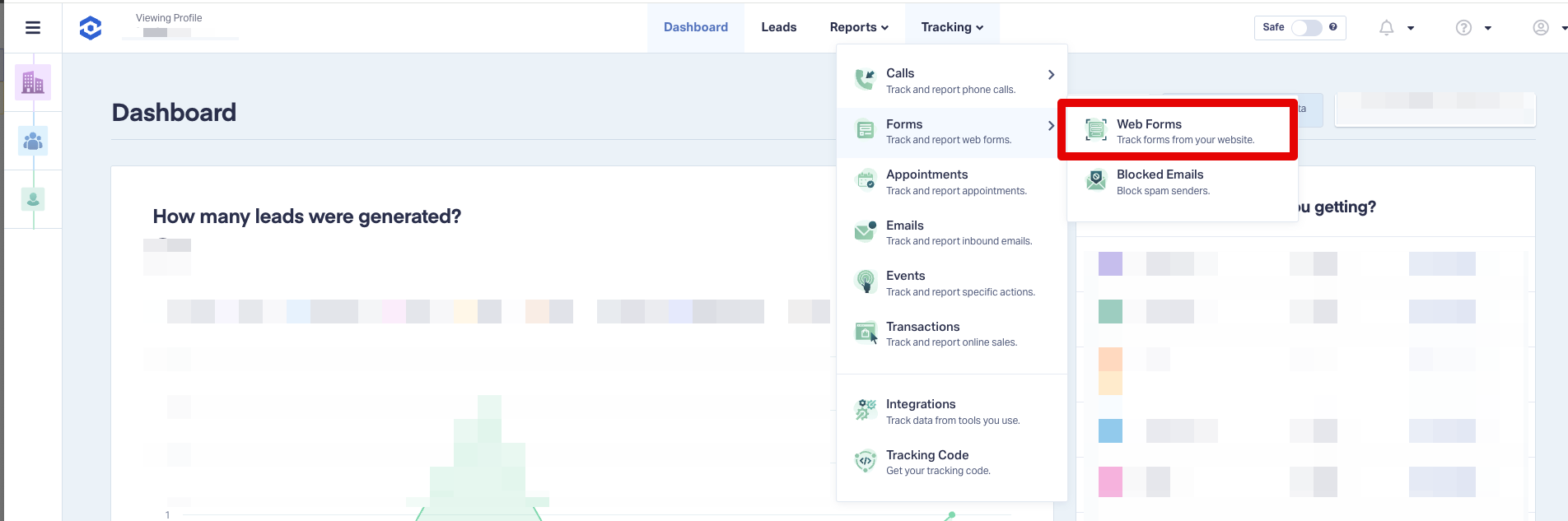
-
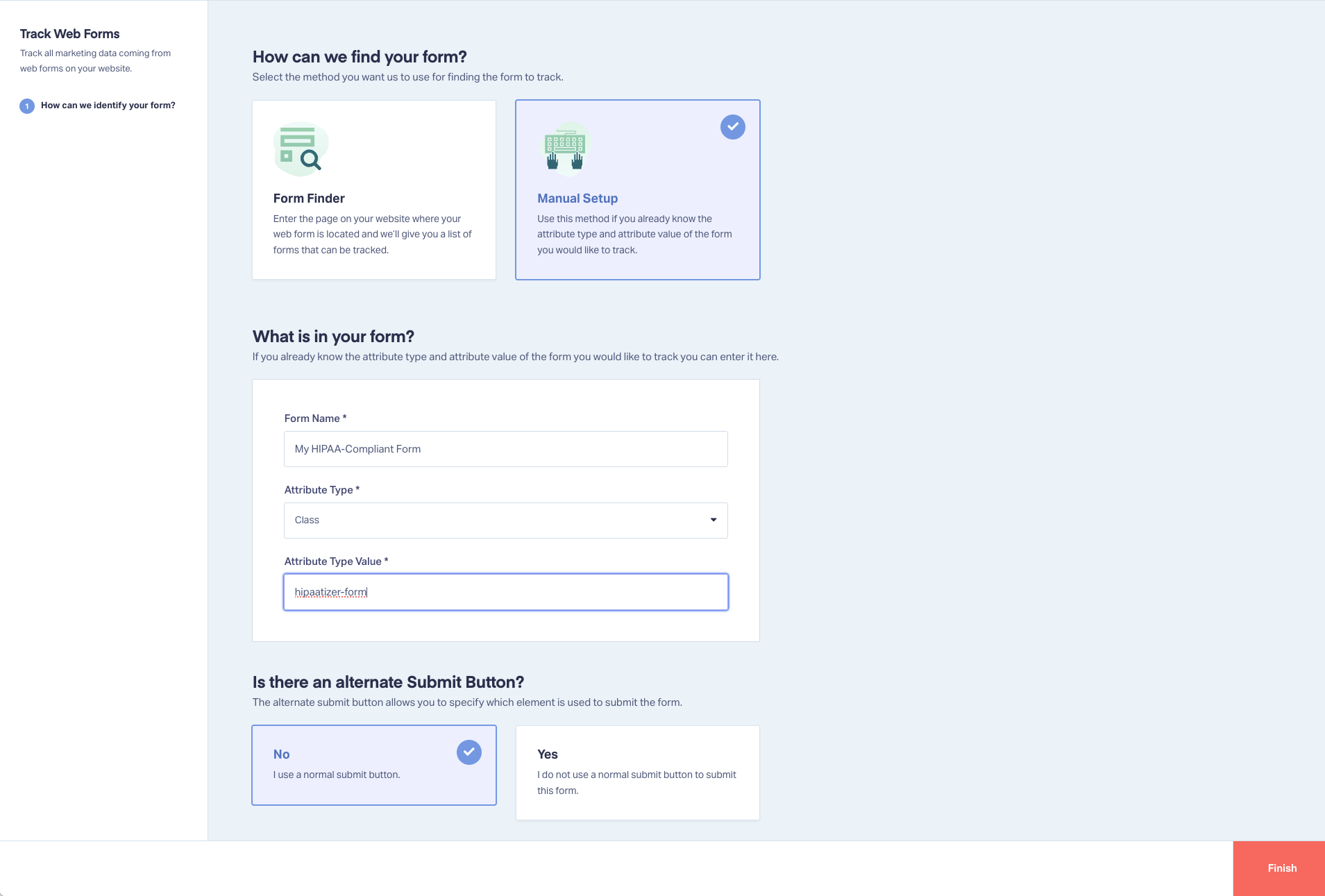
Click Add Web Form and select Manual Setup.
-
Enter a name for your form.
-
For Attribute Type, select Class.
-
For Attribute Value, enter one of the following:
- A form-specific slug (for example,
your-form-name) to track that single form on its own. You'll find the slug back in HIPAAtizer at Form Settings → Integrations → WhatConverts, under Set Up Form Tracking in WhatConverts, step 6. hipaatizer-formto track every HIPAAtizer form on this account together as one aggregated group.
Use the form-specific slug when you want reporting for a single form. Use
hipaatizer-formwhen you want all HIPAAtizer submissions to roll up into one entry in WhatConverts. - A form-specific slug (for example,
-
Leave other options as default and click Finish.
Step 4: Authorize Domains
To ensure tracking works correctly, authorize your website and HIPAAtizer as trusted sources:
- From the top-left hamburger menu, expand your profile.
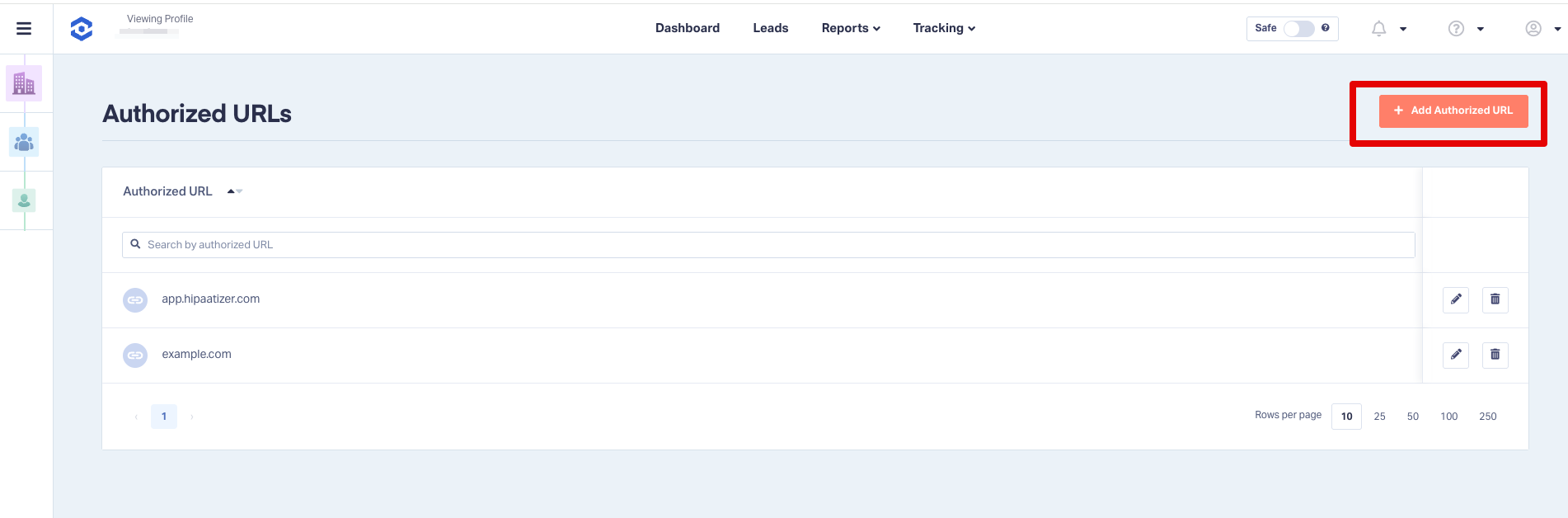
- Click Authorized URLs.
- Add the following:
- Your website domain (e.g.,
https://www.example.com) https://app.hipaatizer.com
For help with setup, contact support@hipaatizer.com.