

Form Builder
The HIPAAtizer Form Builder lets you create secure, HIPAA-compliant online forms without coding. Use the drag-and-drop interface to design multi-step forms, manage layouts, apply logic, and control form behavior.
Version Control
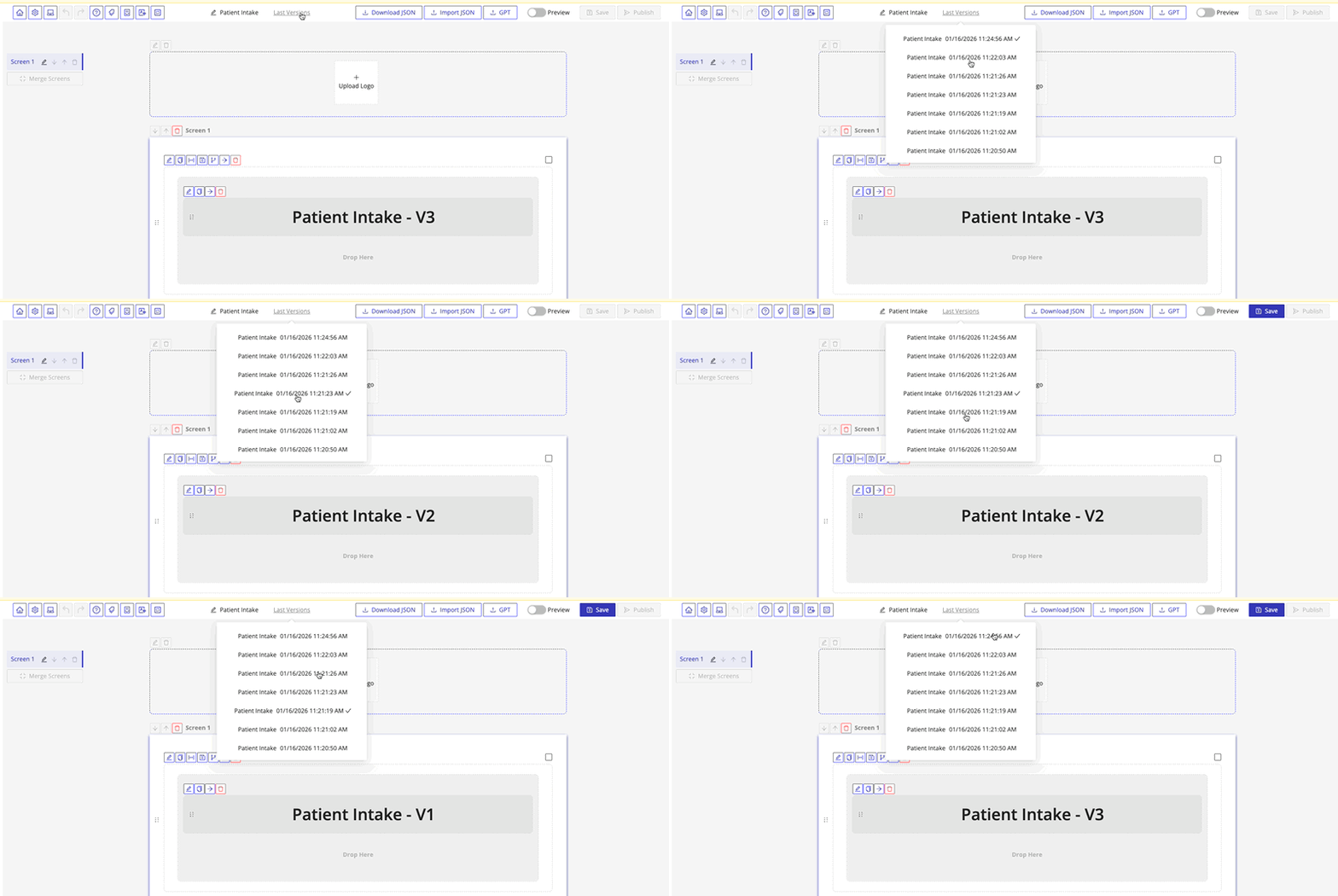
Every time you save a form, a new version is created automatically. You can view and switch between saved versions at any time.
When you publish a form, the currently open version becomes the active one users will see. Each form can have only one published version at a time.
The form's short URL and embed code stay the same after publishing. You don't need to re-embed or share a new link.
Form Structure
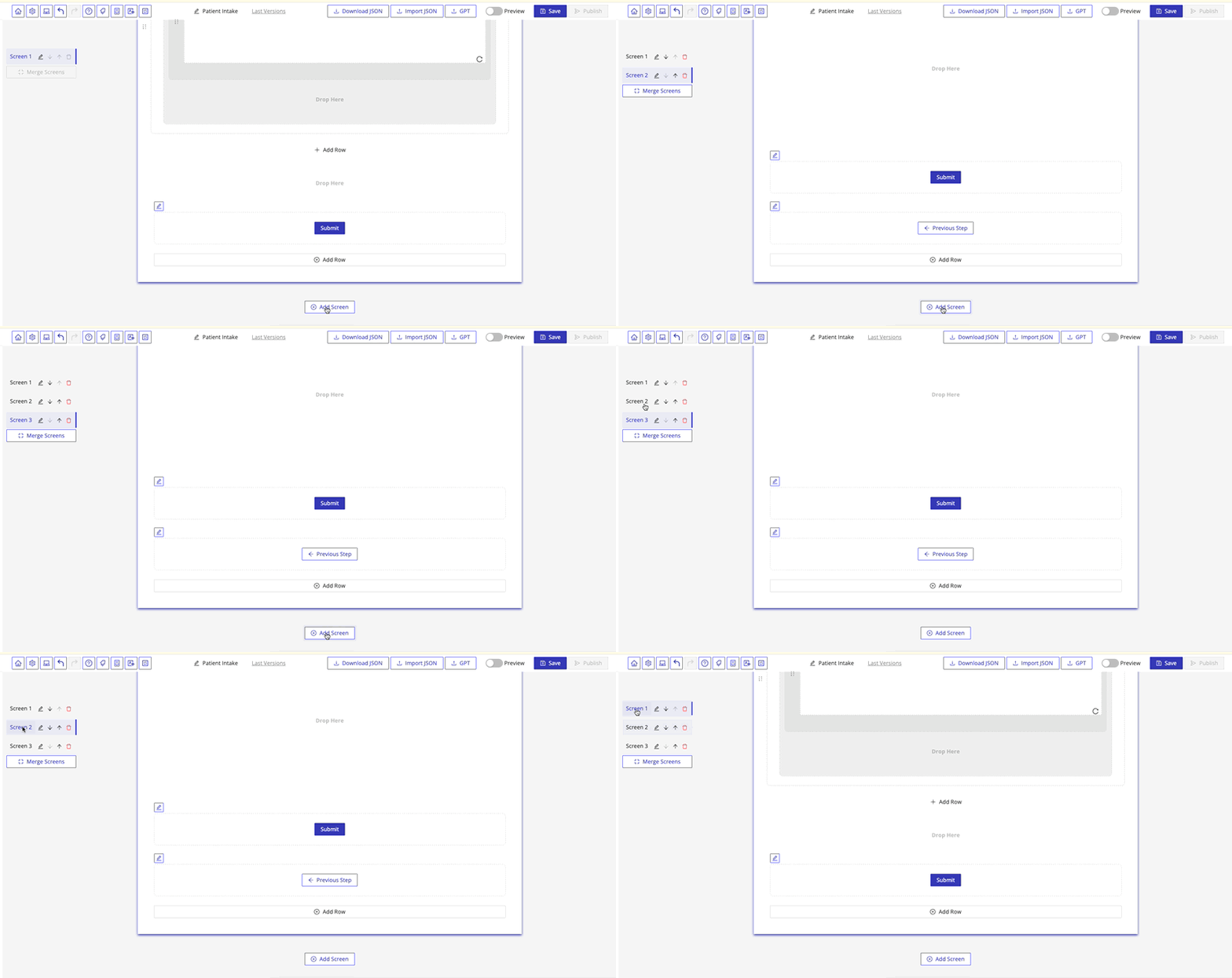
Forms consist of one or more screens. Users must complete required fields on the current screen before continuing. Once the final screen is completed, the form is submitted.
Layout: Screens, Rows, and Columns
Each screen contains rows, which organize both layout and logic. Rows can be configured with:
- Visibility conditions
- Logic rules
- Column settings
Each row contains one or more columns, which hold form components such as text inputs, date pickers, and checkboxes.
Creating a Form
You can build forms using drag-and-drop tools. No technical knowledge is required.
Access the Builder
- In the dashboard, go to My Forms
- Click Create Form
- Choose Create from scratch and click Continue
This opens the form builder interface.
Adding Components
Use the Components panel to drag elements into the form body. You can add:
- Headings, text blocks, and section dividers
- Common inputs like Full Name, Phone, Email, and Date
- Logic components, consent fields, and more
Each component has its own settings. You can:
- Change text and layout
- Adjust required status
- Move fields using the drag handles
- Configure custom logic and formatting
To create a multi-step form, click Add New Screen at the bottom of the form.
Preview and Publish
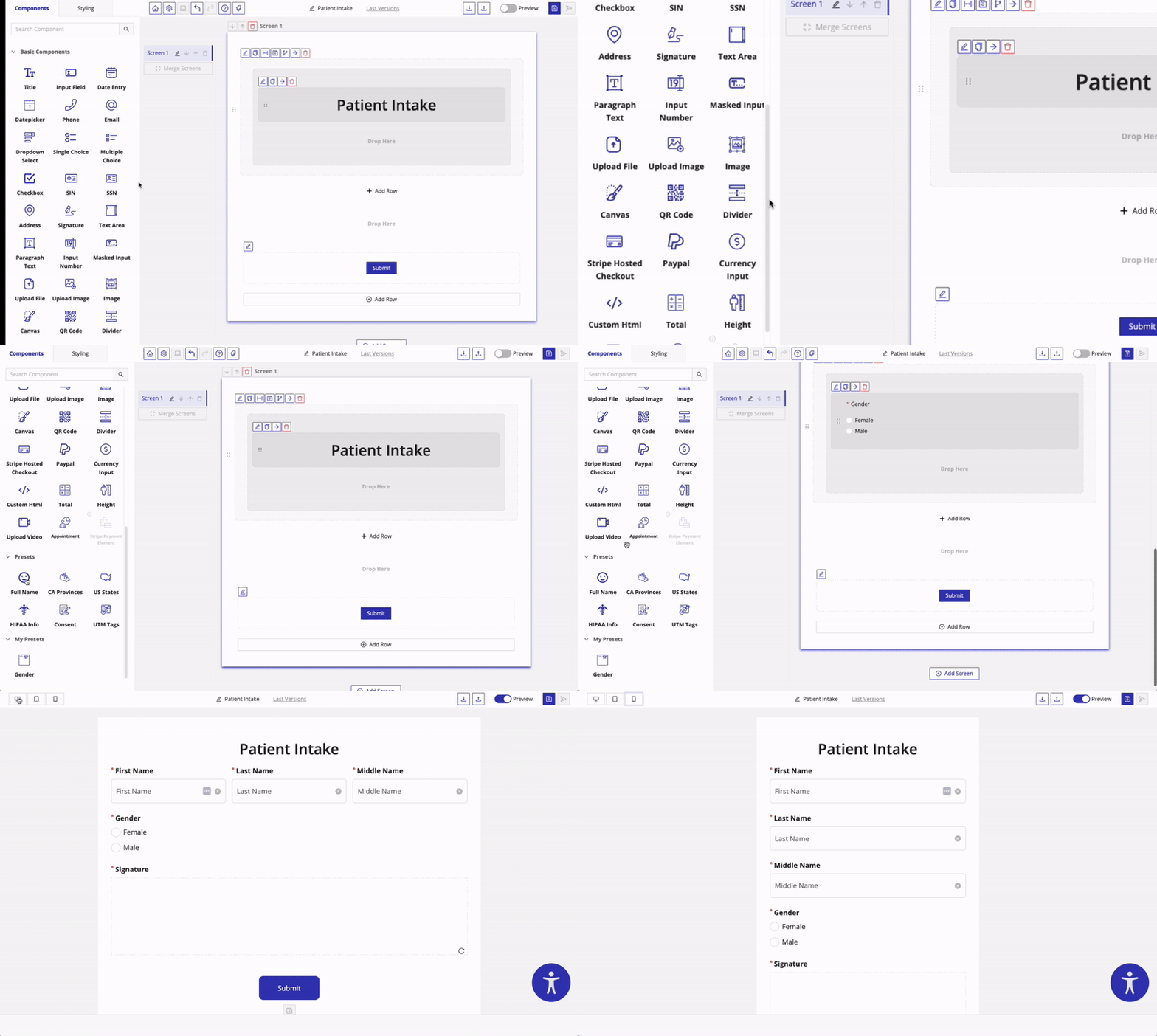
Use the Preview toggle to see how the form appears on desktop, tablet, and mobile devices.
When you're satisfied with the form:
- Click Save
- Click Publish
The form becomes available to users and can be shared or embedded.
Embedding and Sharing
After publishing, click Integrate or Embed Form to choose how to share it:
- Embed on a website using JavaScript or platform plugins (WordPress, Wix, Shopify)
- Share a short link
- Generate a QR code
Unpublishing a Form
To deactivate a form:
- Go to My Forms
- Click the Actions menu
- Select Unpublish
The form returns to Draft status and is no longer accessible. You can publish it again at any time.
HIPAA Compliance Mode
Forms created in a Developer (sandbox) account must be published from a Covered Entity account to meet HIPAA compliance requirements and remove any watermarks.