Switch to a Covered Entity Account
This article applies to Developer accounts.
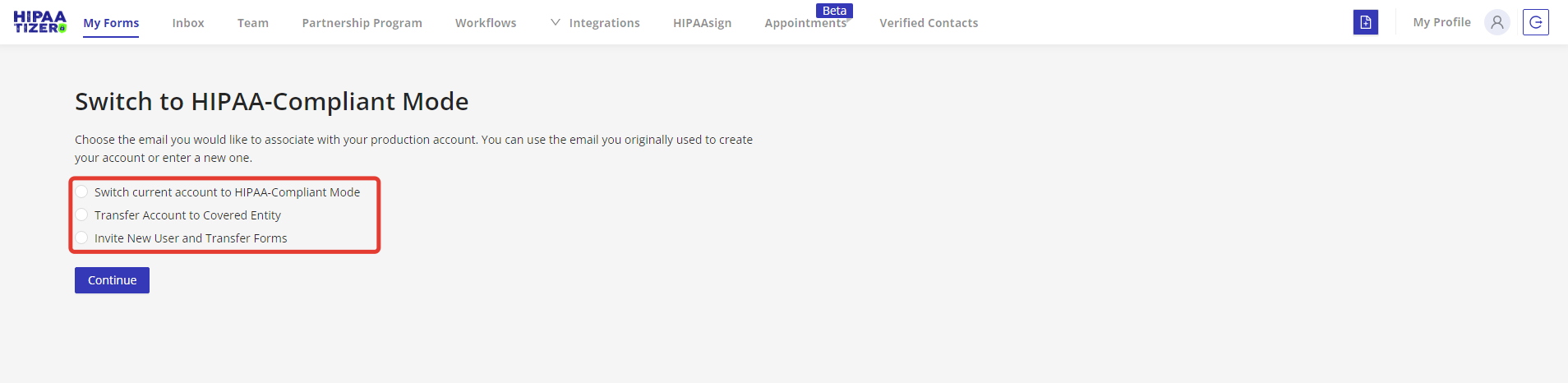
To make the forms in your Developer (Free Sandbox) account HIPAA-Compliant, you have three options:
- Switch your account to HIPAA-Compliant Mode (from a Developer-Free Sandbox account to a Covered Entity account). You keep the account under your name and you accept the Business Associate Agreement. You now become a Covered Entity, as defined by HIPAA.
- Transfer Account to a Covered Entity. You transfer the account to another entity who is a Covered Entity, as defined by HIPAA.
- Invite New User and Transfer Forms: You want to keep your account, but transfer those forms in your account to a Covered Entity.
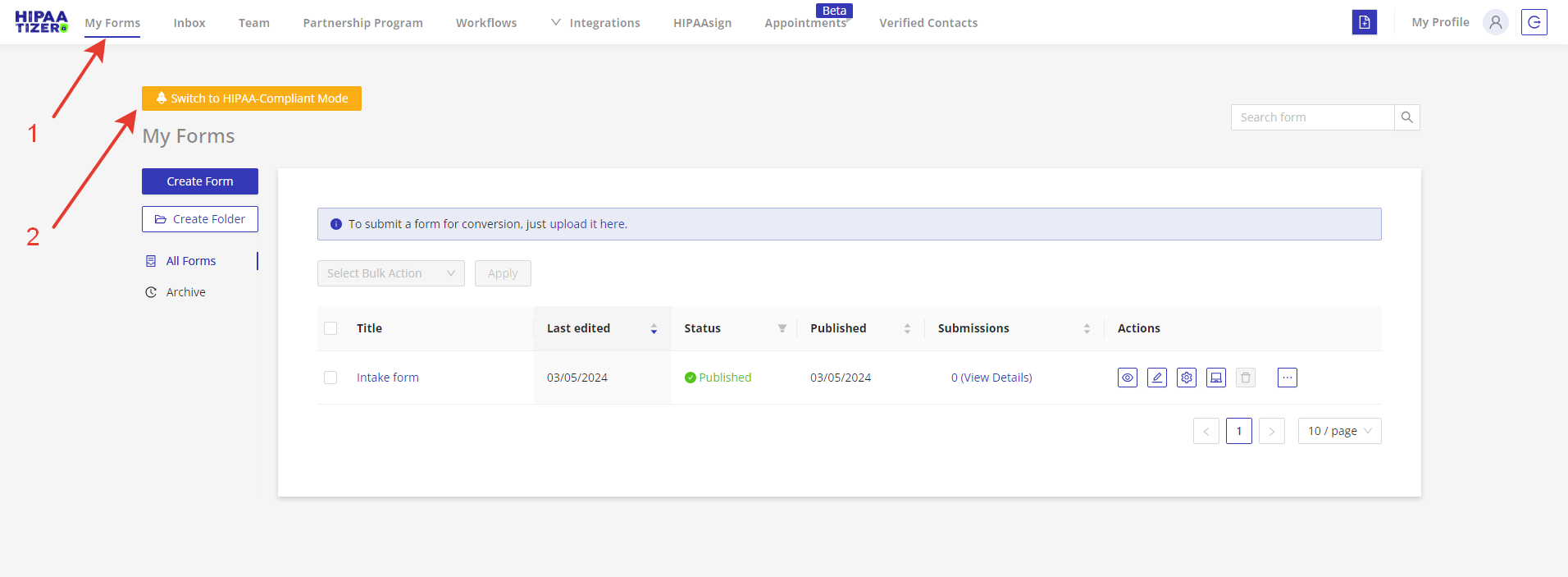
All options begin by going to the My Forms page (1), then clicking on the "Switch to HIPAA-Compliant Mode" button (2).
When you click on "Switch to HIPAA-Compliant Mode", the three options appear in a new window.
Option 1: Switching to HIPAA-Compliant Mode
Accepting the BAA
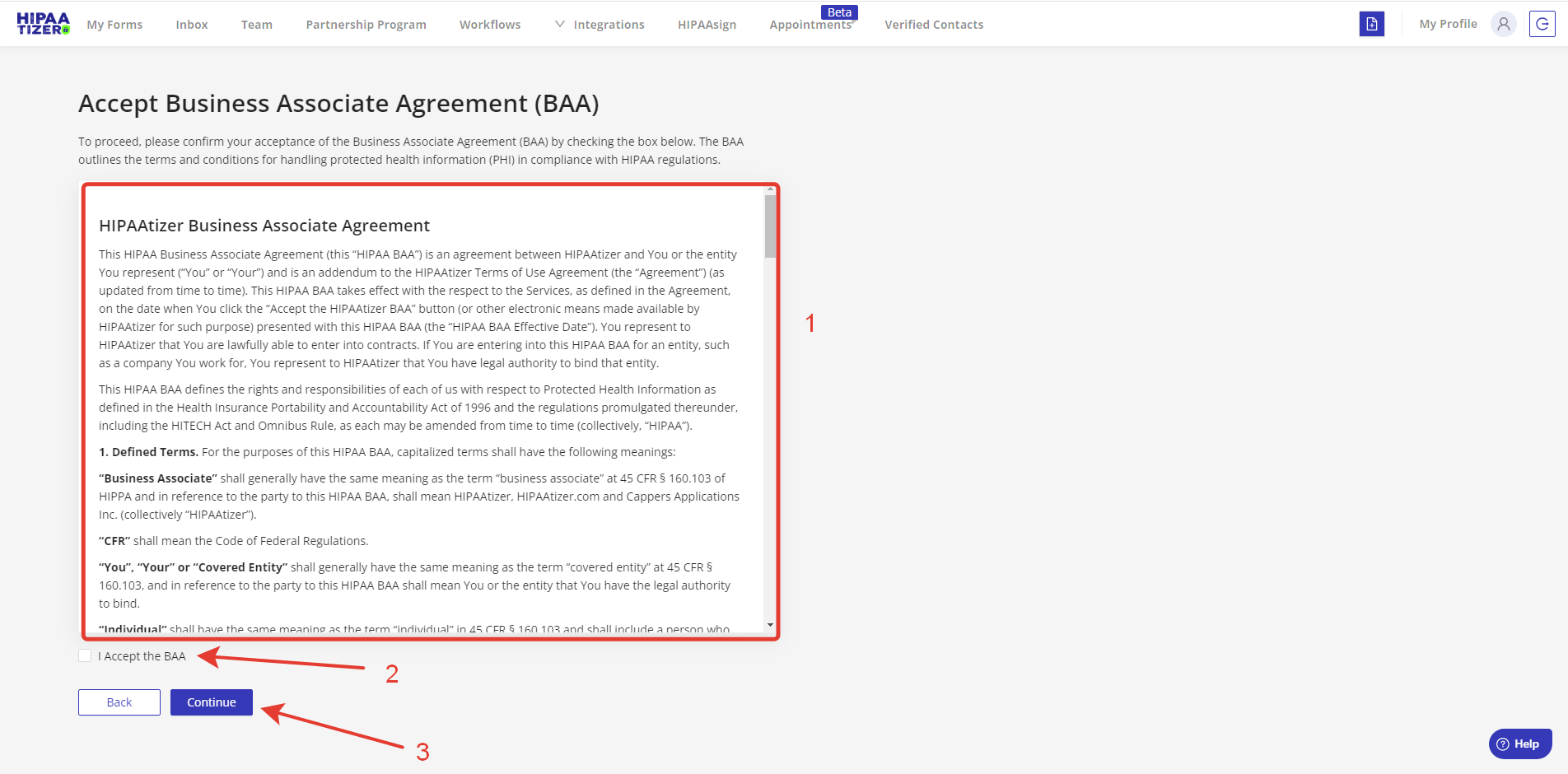
When you choose to switch your Developer (Free Sandbox) account to HIPAA-Compliant Mode (i.e. a Covered Entity account), you'll be prompted to (1) review and (2) accept the HIPAAtizer Business Associate Agreement (BAA). Click on (3) Continue to proceed.
Setting a Submission Password
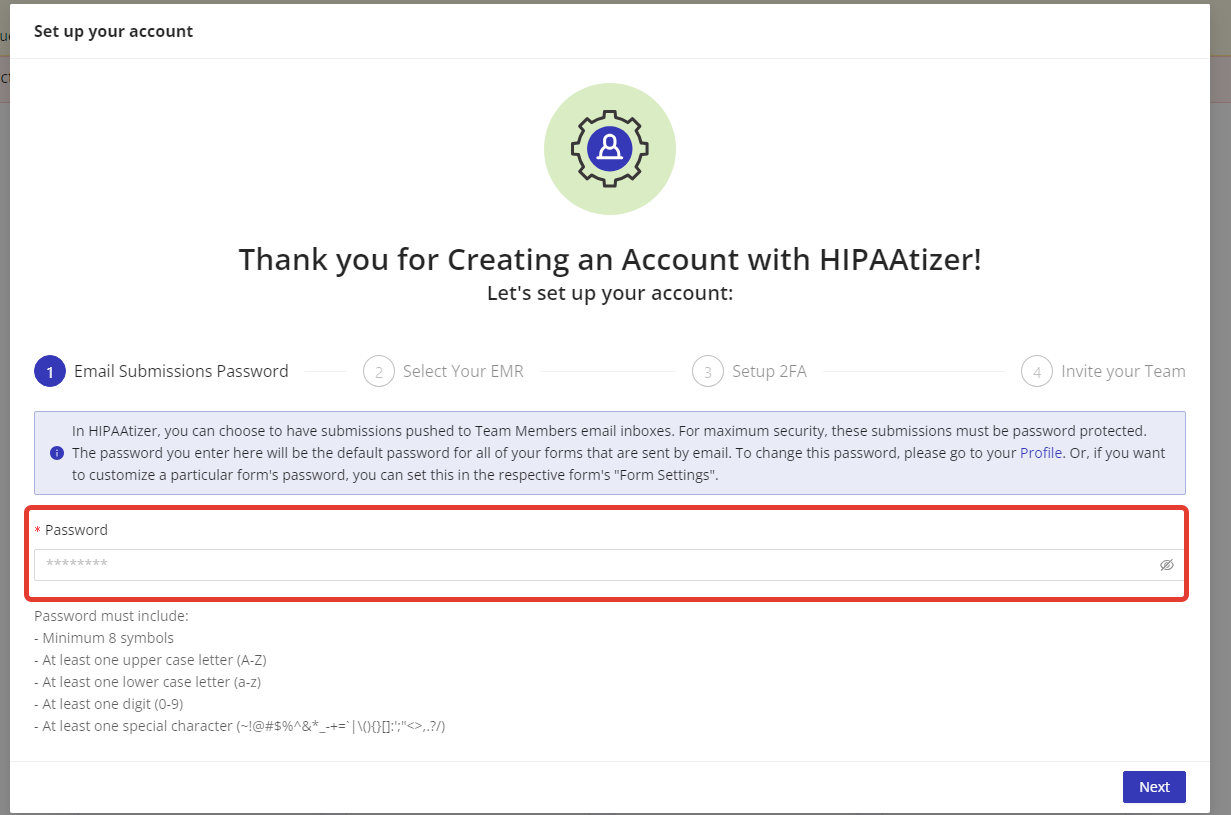
Once the BAA is accepted, your account will be changed to a "Covered Entity" account. As part of the compliance process, you'll need to set up a password for submissions received via email.
Selecting your EMR and Setting UP Two-Factor Authentication
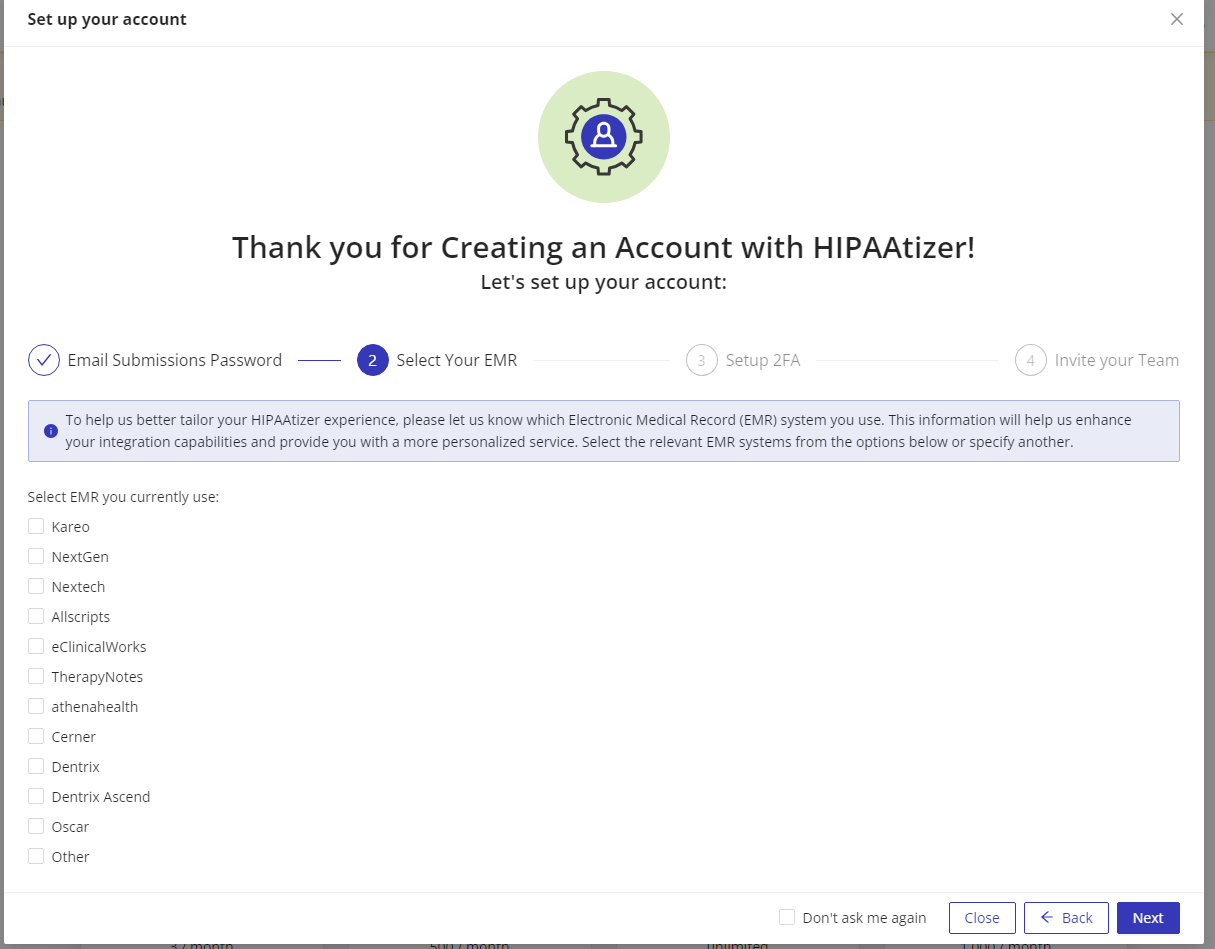
Please indicate which EMR you are using so that our tech team will be up to date on any potential integrations you might need. As well, on the next screens you will be prompted to set up two-factor authentication (2FA), and asked to create your team. The 2FA and addition of team members are optional, you can skip them for now by clicking on the "Close" button or check "Don't ask me again"). You can always add these later.
Start your Free Trial
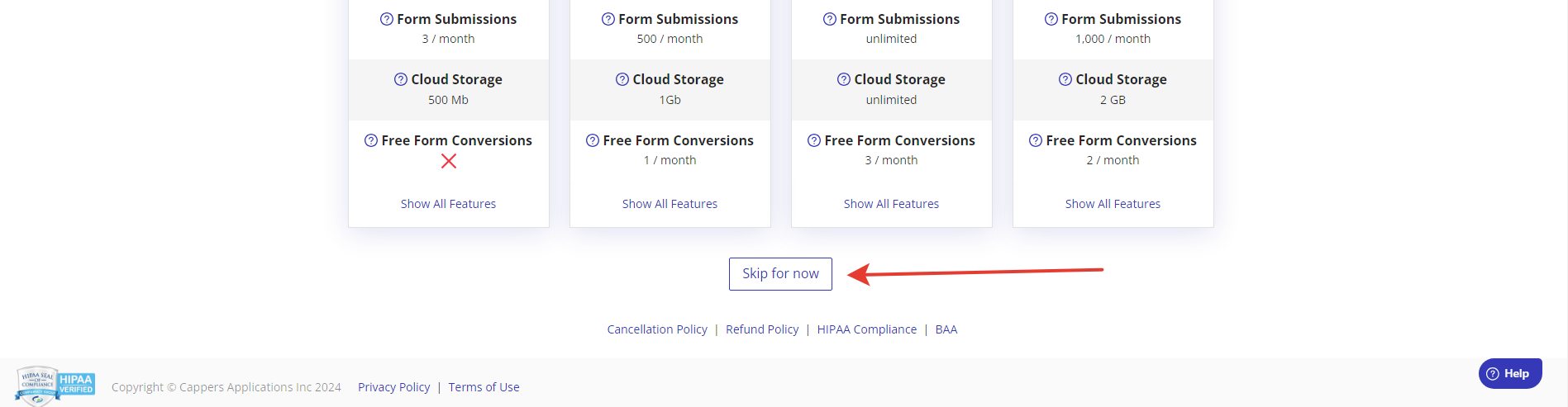
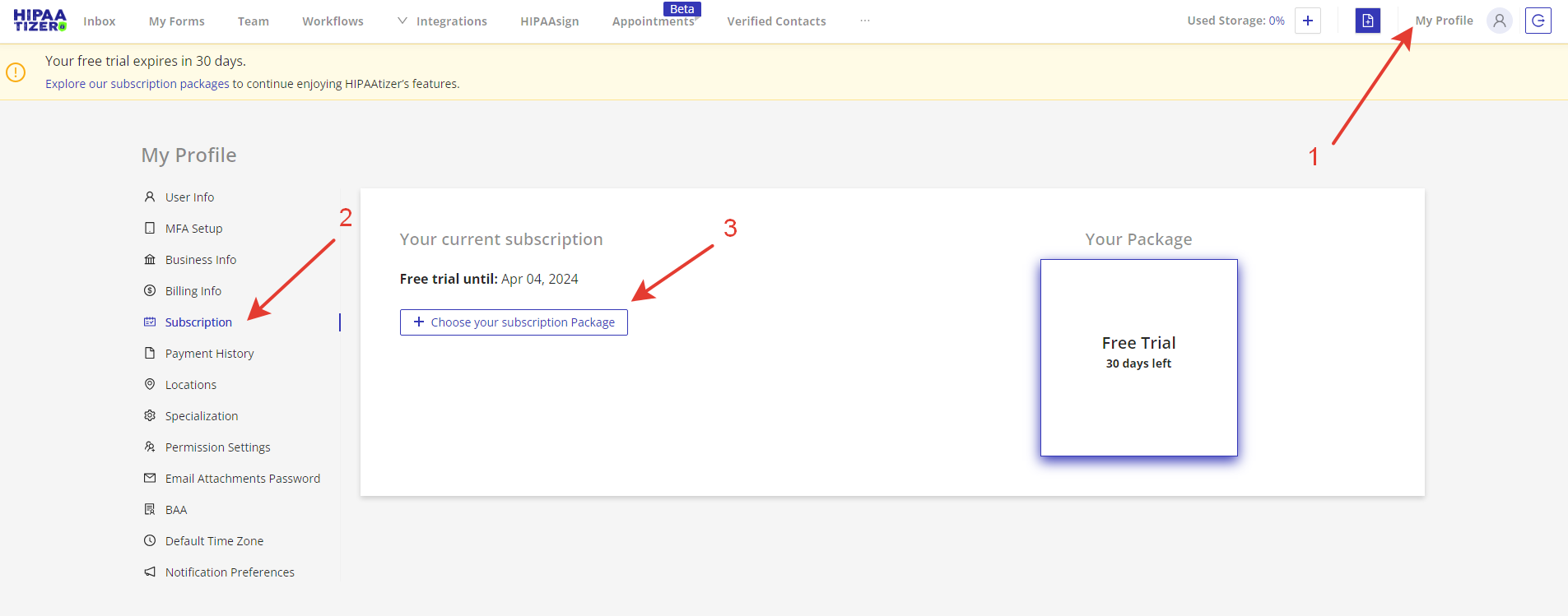
Enjoy a 30-day free trial of your new Covered Entity account. You can choose a subscription package or skip this step. If you skip this step, you can select one later in (1) My Profile -> (2) Subscription.
Option 2: Transferring an Account to a Covered Entity
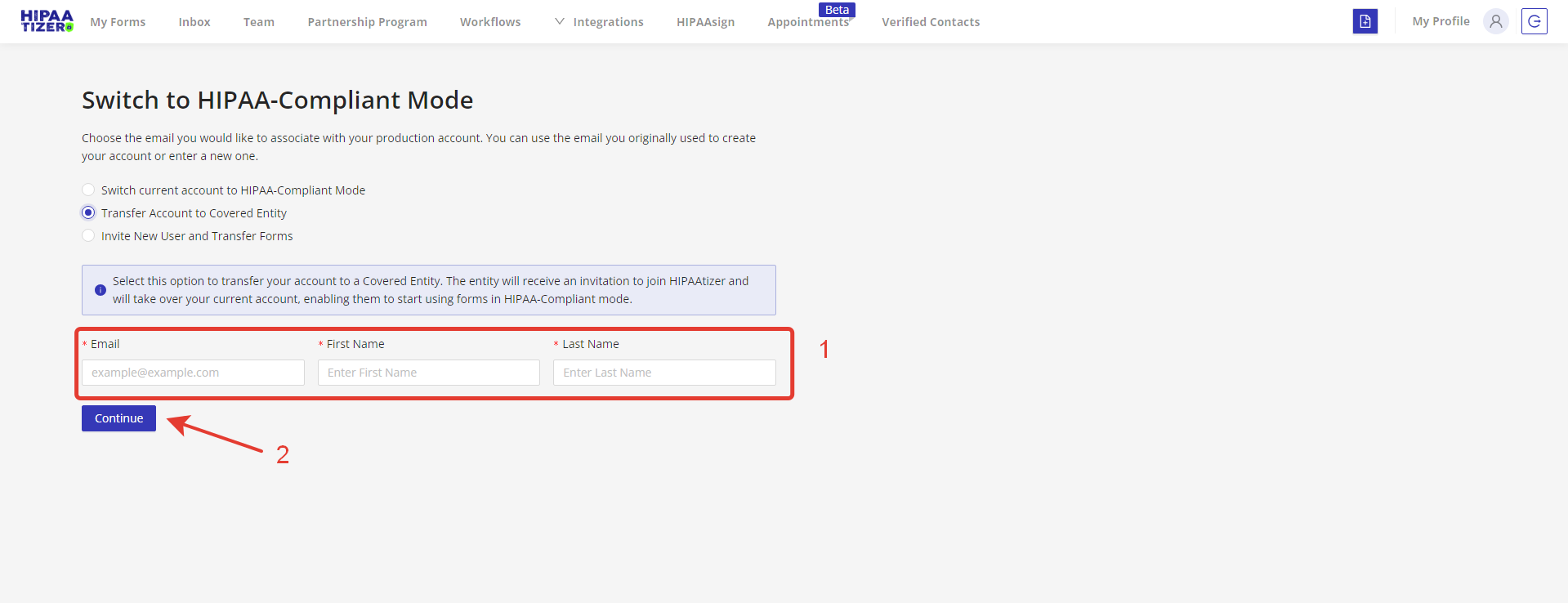
Enter the email, first name, and last name of the Covered Entity to whom you want to transfer your account (1). Click "Continue" to proceed (2).
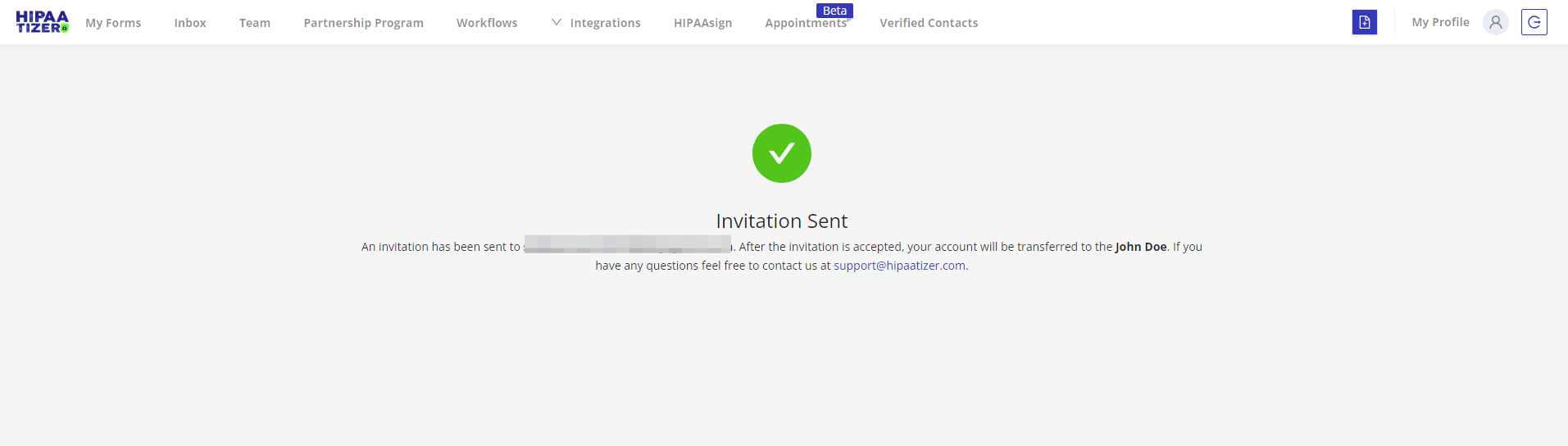
HIPAAtizer will send an invitation to the Covered Entity via email. Once The Covered Entity accepts the Business Associate Agreement and finalizes their registration, the account will be transferred to the new organization.
Your Developer (Free Sandbox Account) will be deleted from the system. To login again, you will need to create a new Developer (Free Sandbox Account) by clicking this link: https://app.hipaatizer.com/sign-up/basic-sign-up?role=Developer. You can re-use the email address you used to previously create an account.
If your client, the Covered Entity, would like you to continue to support their forms and make edits, ask them to invite you as a Developer member to their Team.
Option 3: Inviting a New User and Transferring Forms
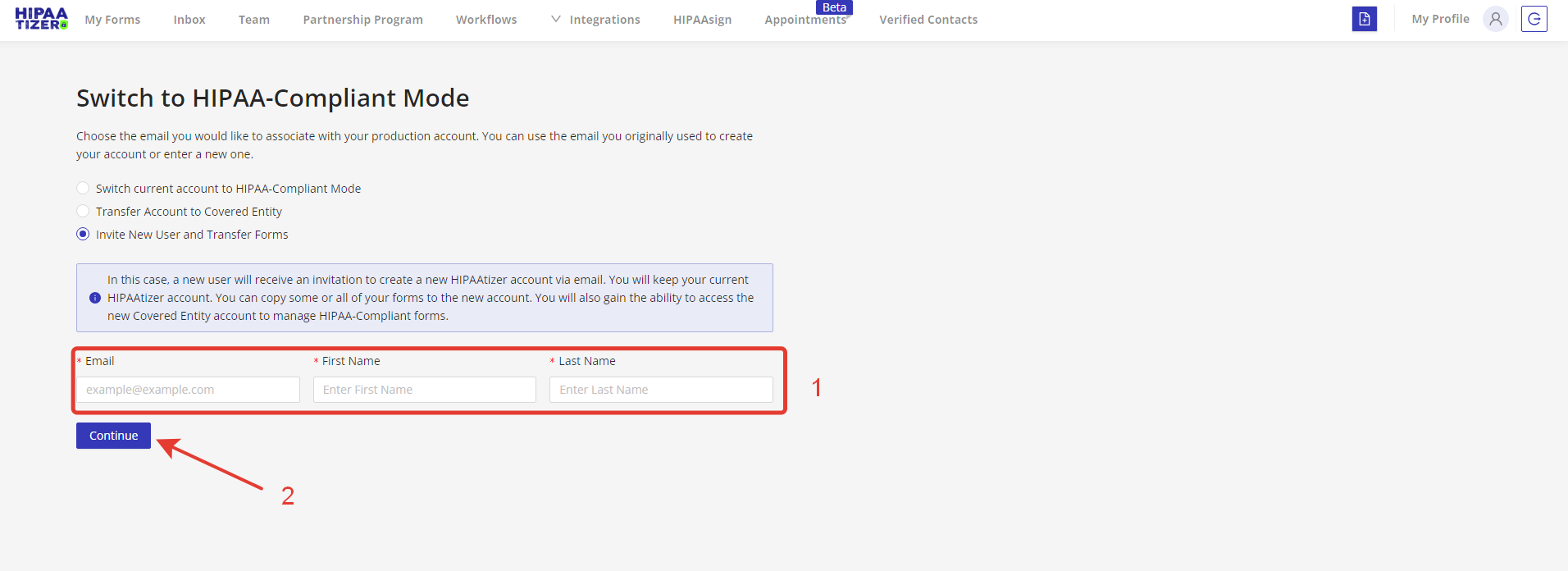
- Enter the email, first name, and last name of the Covered Entity you want to invite to HIPAAtizer (1). Click "Continue" to proceed (2).
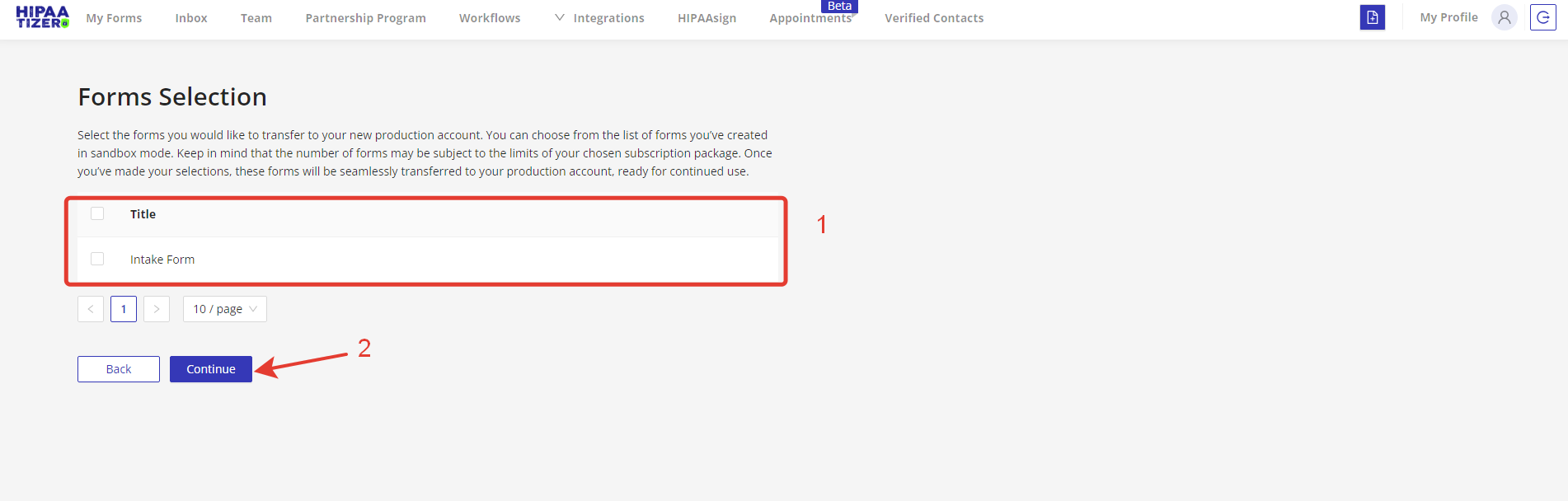
- Select the form(s) you want to share with the Covered Entity (1) and click "Continue" (2).
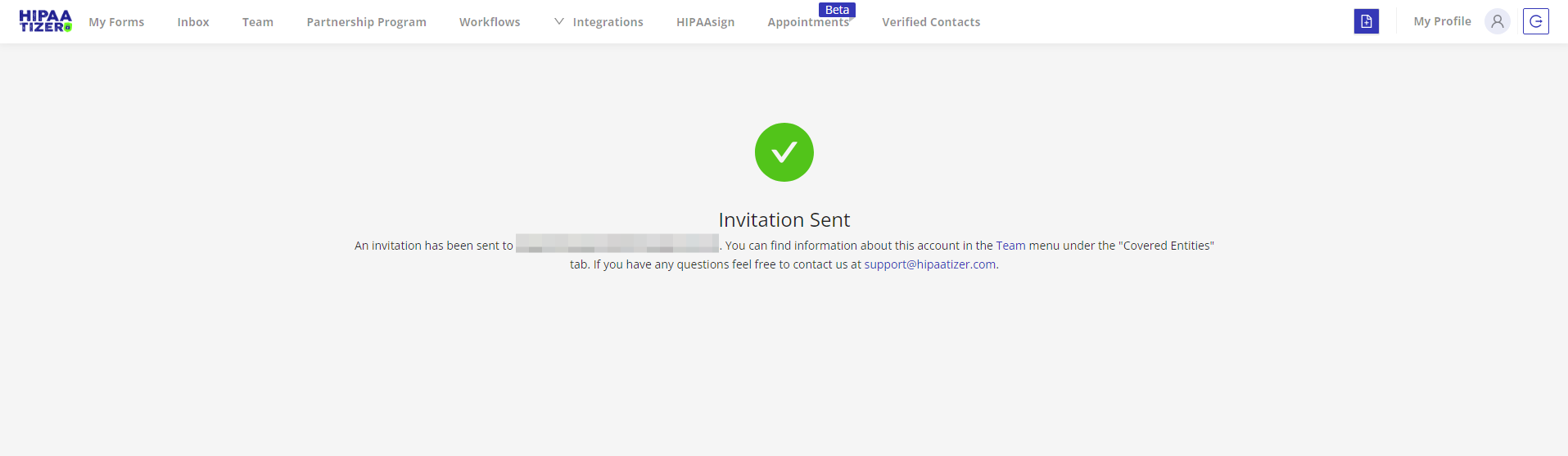
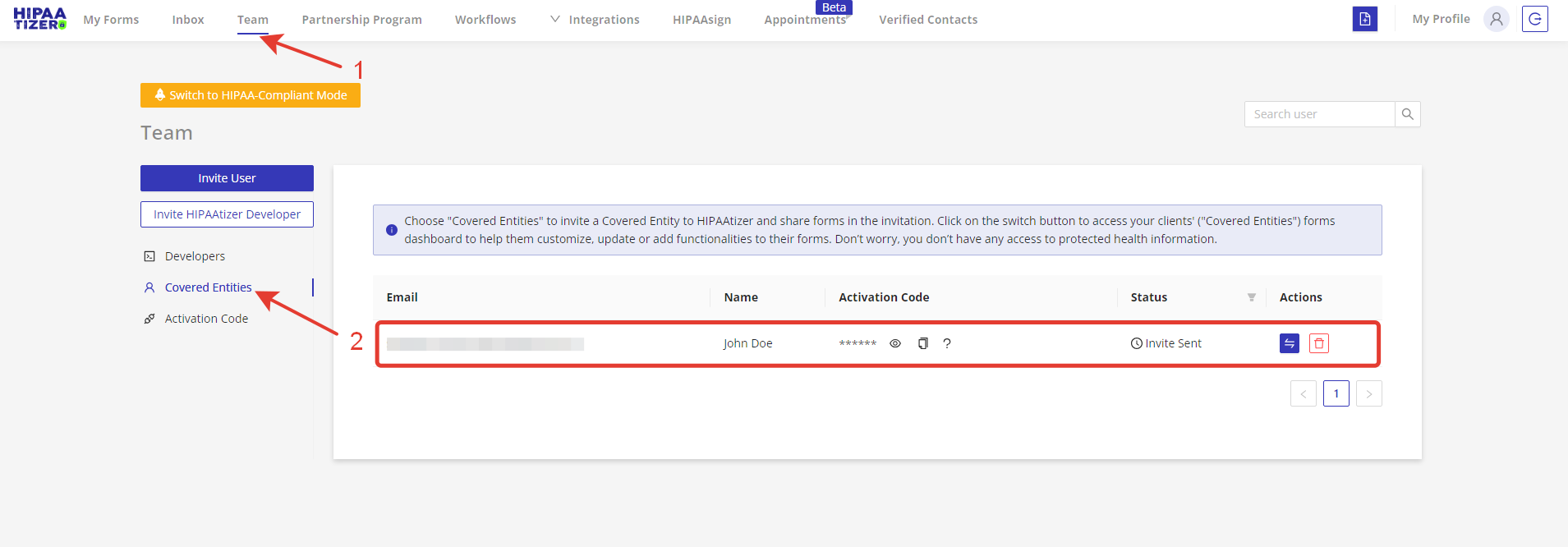
- HIPAAtizer will send an invitation to the Covered Entity via email. You can find information about this account in the Team menu (1) under the "Covered Entities" tab (2).