Account Owner Update
To change the account owner in HIPAAtizer, follow these steps:
Changing Email Address
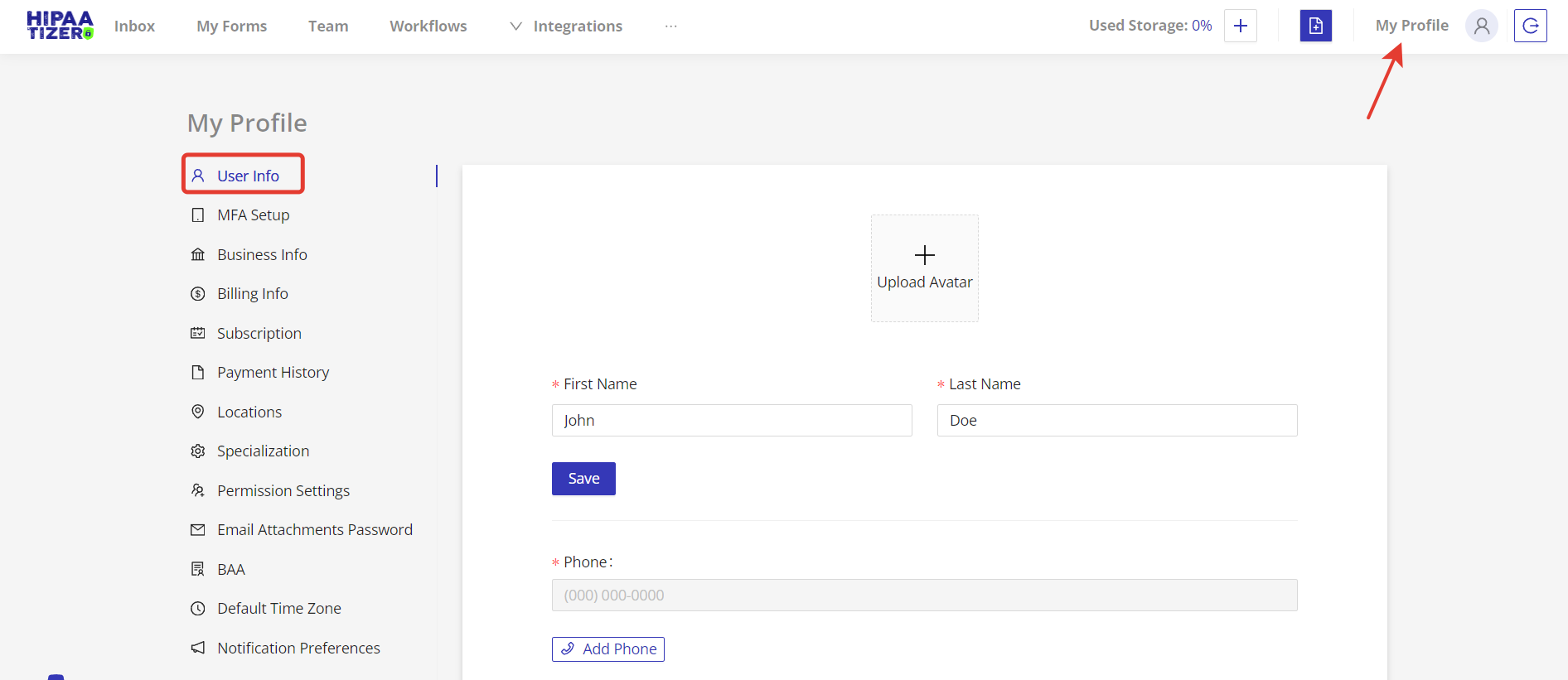
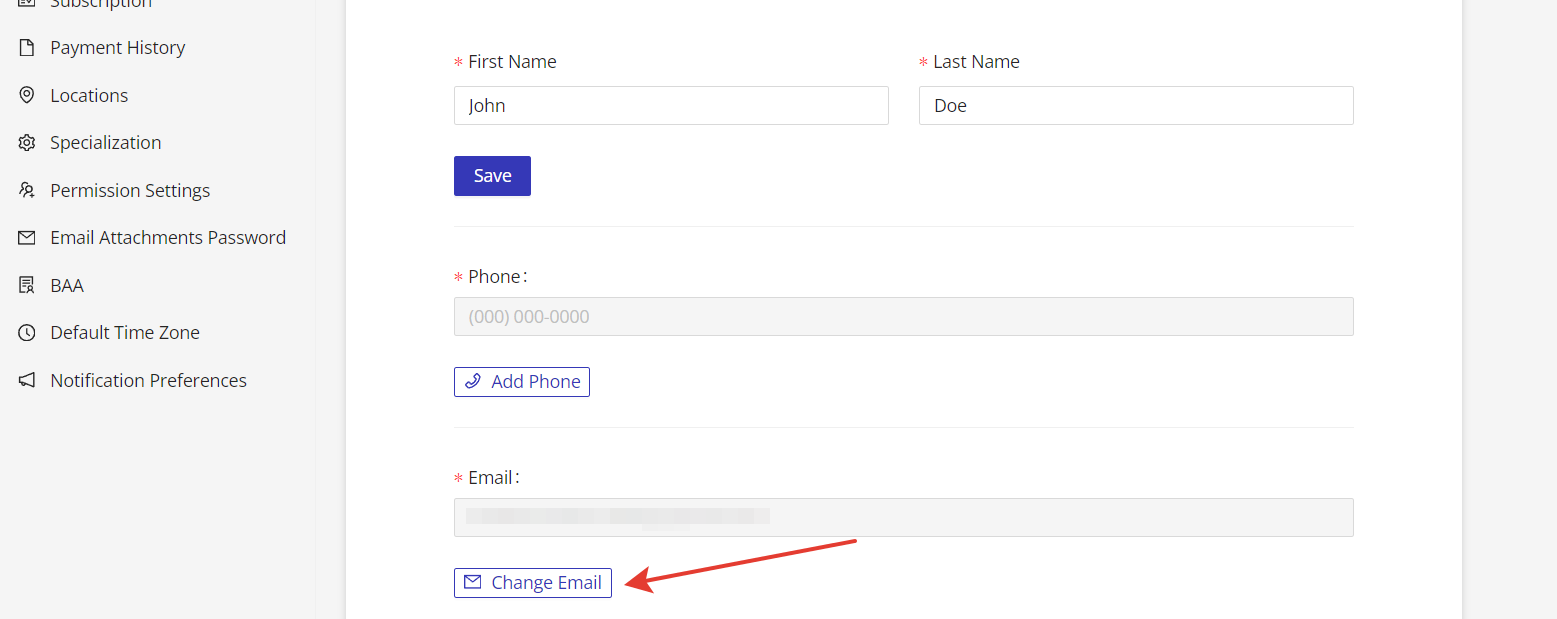
Go to "My Profile" -> "User Info", then click on the "Change Email" button. Enter the email address of the new account user, then click on the "Change Email" button.
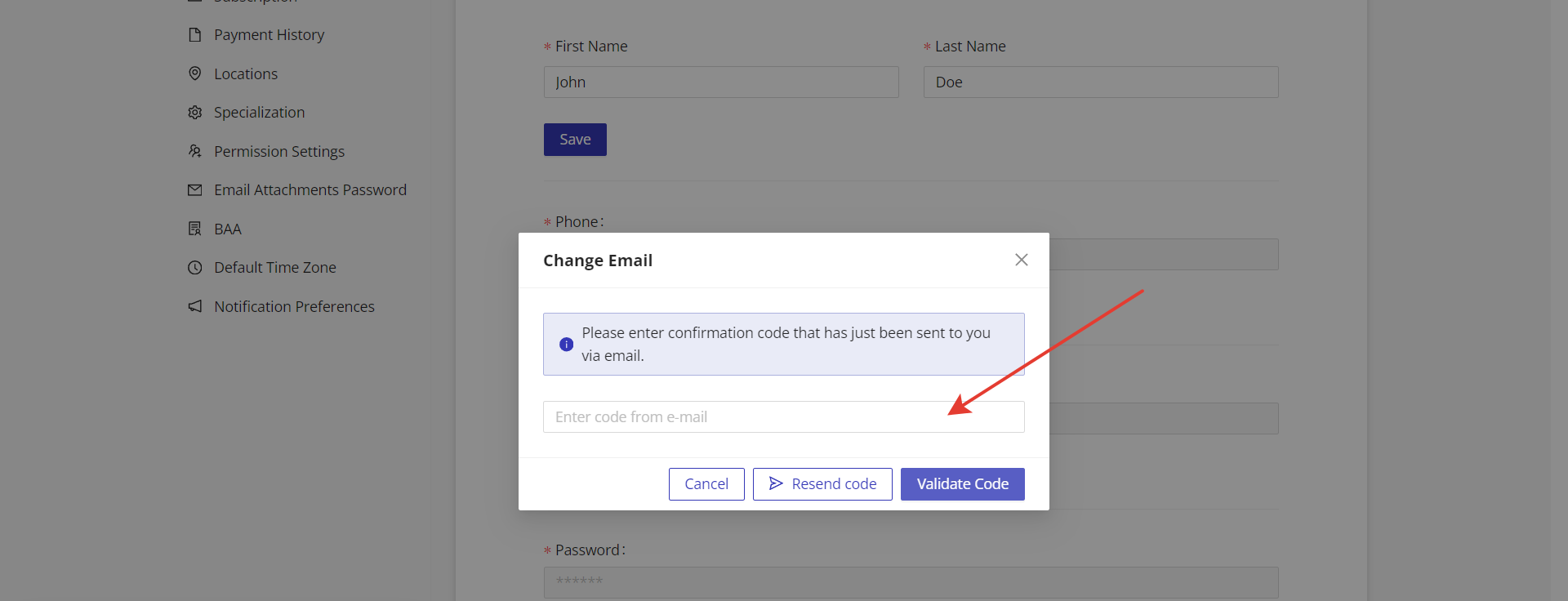
HIPAAtizer will send a confirmation code to the new account owner's email. Enter the confirmation code into the "Enter code from e-mail" field, and click on the "Validate Code" button.
Once the code has been validated, the email address has been successfully changed. The new user can now log in with their email, and all email notifications will be sent to the new email address.

Changing the Password
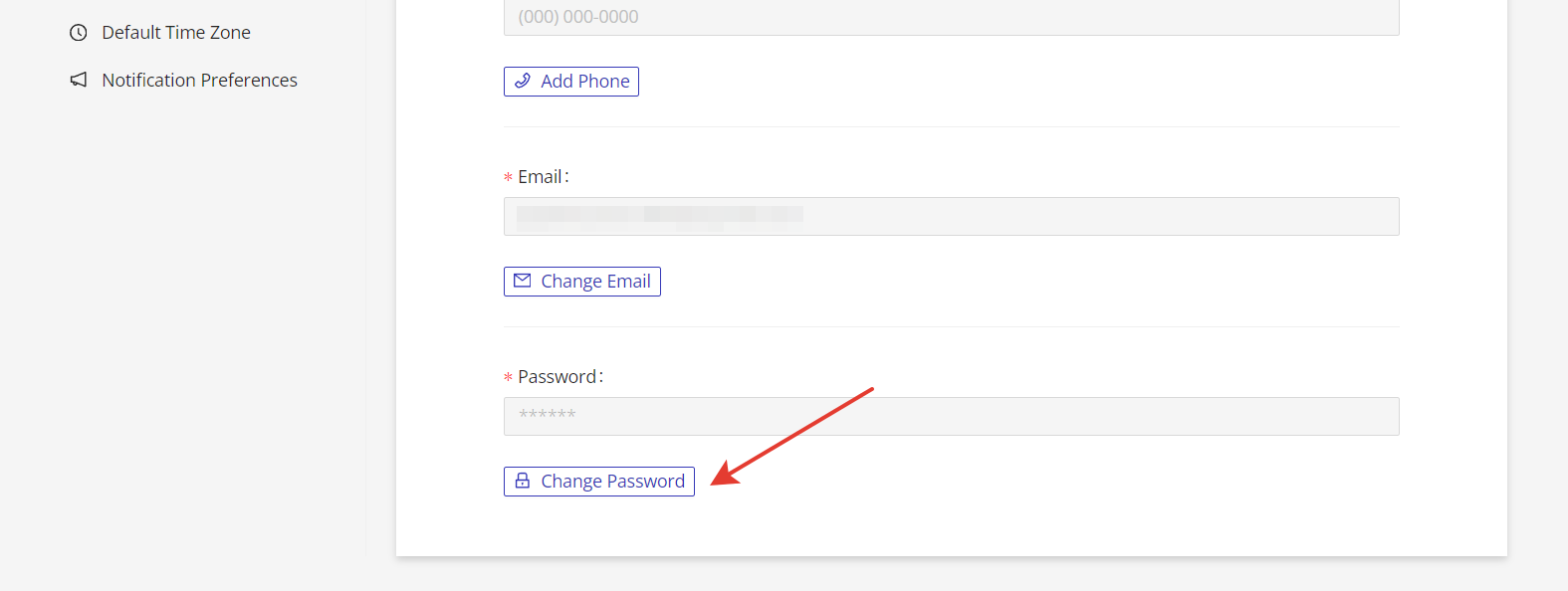
To change your password, click on the "Change Password" button.
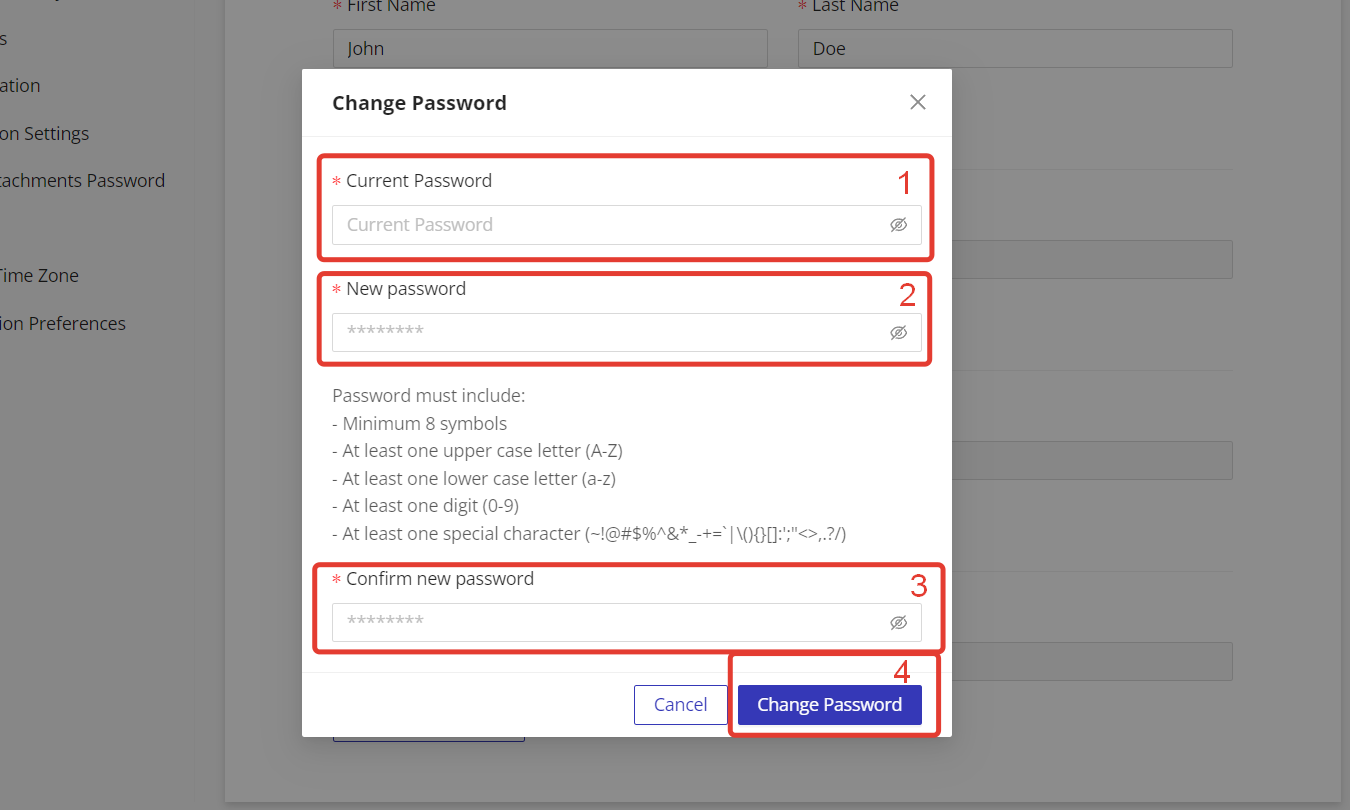
Enter your current account password in the "Current Password" field (1). Then, enter your new password in the "New Password" field (2), and confirm the password in the "Confirm new password" field (3). Click on the "Change Password" button (4).
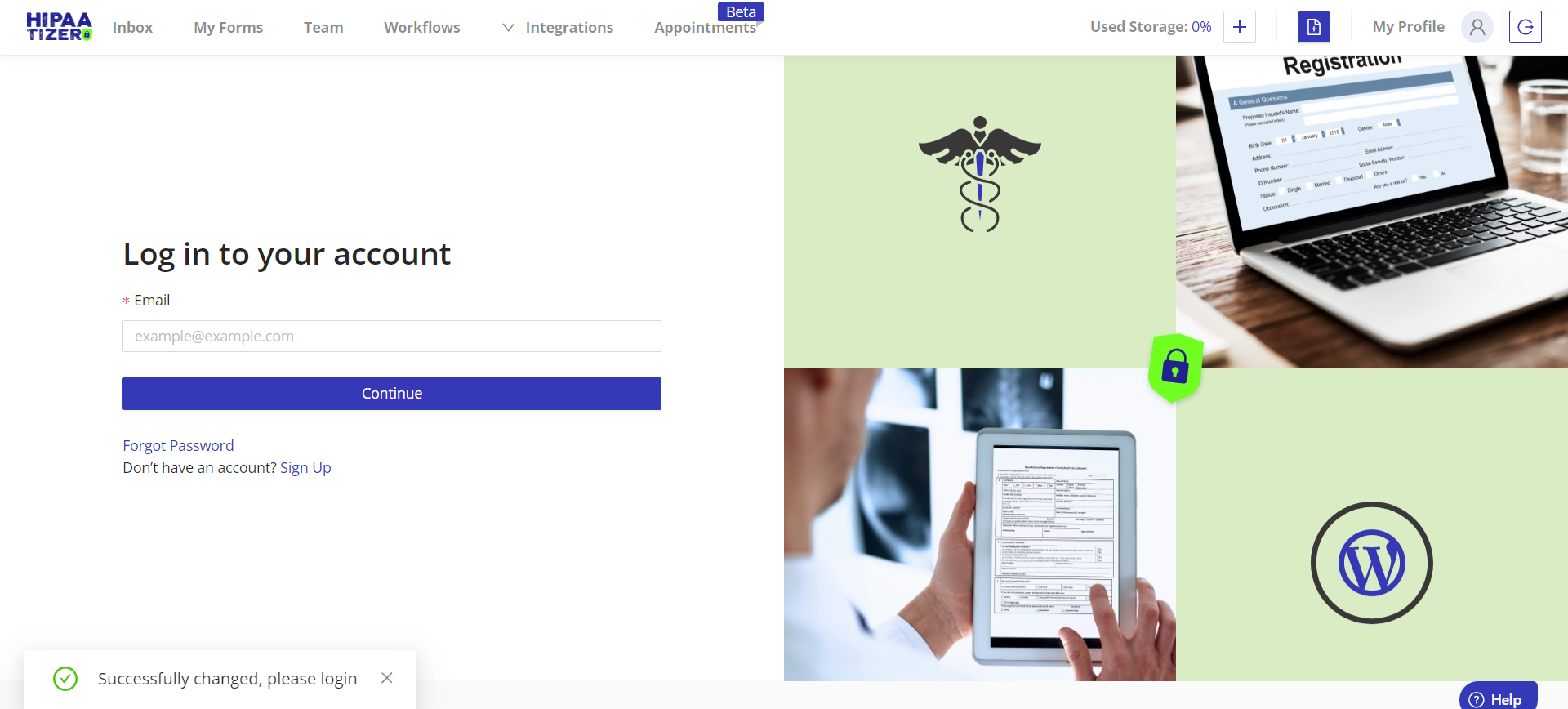
You will be automatically logged out. Log in again with your new email and password.