

Switching Between Accounts in HIPAAtizer
HIPAAtizer allows you to be a member of multiple Covered Entity accounts using the same email address. This is useful if you work with multiple organizations or hold different roles in separate accounts.
Related Guide
To learn how to create multiple accounts under one email address, see: How to Add Users to Your Account.
Main Account vs. Additional Accounts
- Main Account: The first account you created or were invited to when signing up with HIPAAtizer.
- Additional Accounts: Other Covered Entity accounts you have been invited to by their Account Owner or Security Officer.
Each account can assign you a different role (e.g., Security Officer in one account and Assistant in another).
How to Switch Between Accounts
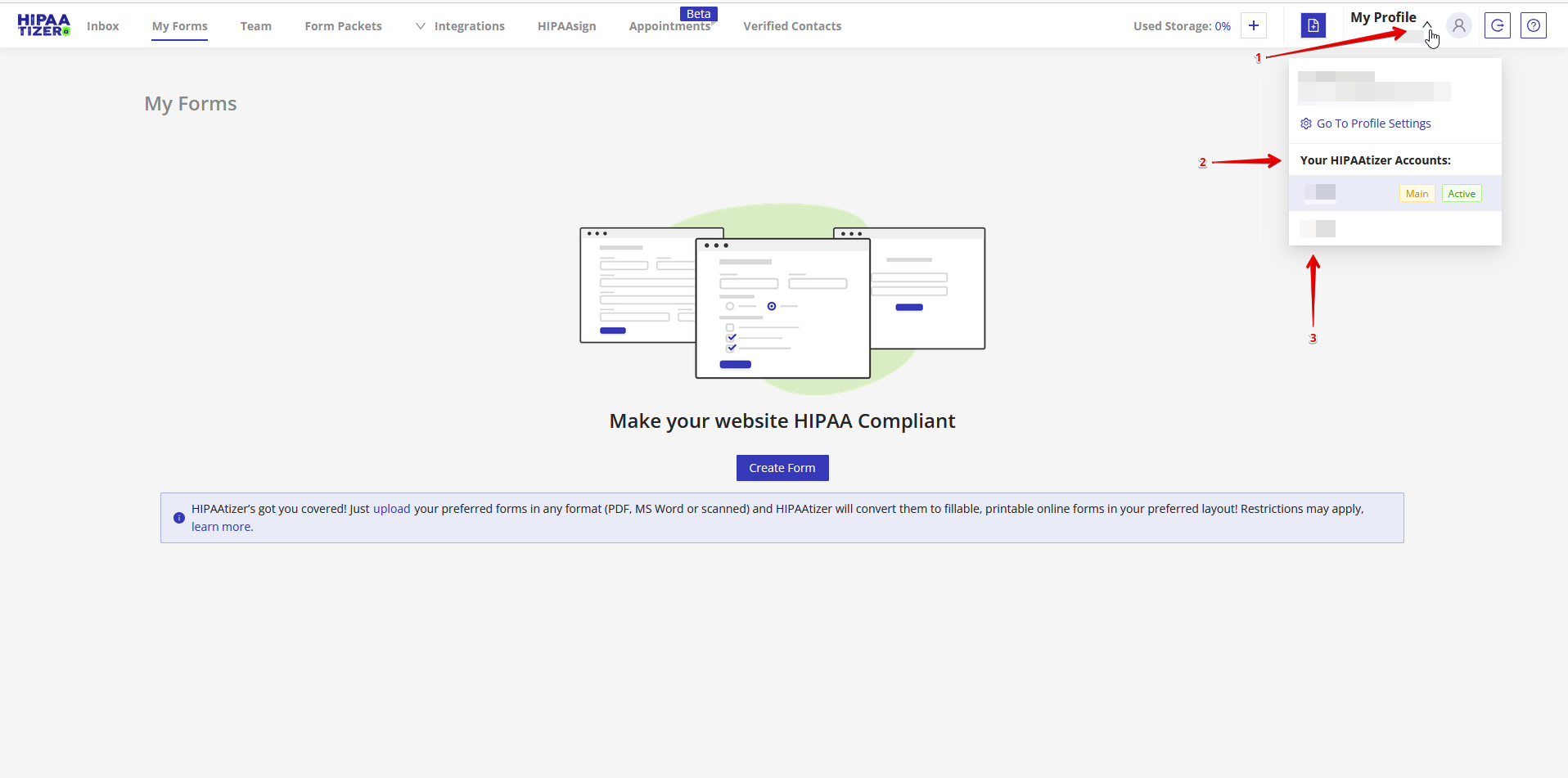
- In the dashboard, open the My Profile menu in the top-right corner.
- Hover over My Profile to see account options.
- At the bottom of the drop-down menu, you will see the name of your current account.
- Hover over it to open a secondary drop-down list of all accounts you can access.
- Click the desired account name to switch.
Identifying Your Current Account
When switching between accounts:
- Your main account will be labeled Main.
- The account you're currently using will be labeled Active.
Additionally:
- A notification bar appears at the top of the dashboard showing: "You are viewing the forms belonging to [Account Name]."
- A Switch Back button is available in this bar for quick navigation.

Switching Back to Your Main Account
You can return to your main account in two ways:
- Option 1: From the My Profile menu → hover over your current account → select your main account.
- Option 2: Click the Switch Back button in the top notification bar.
