

Settings
Each form in HIPAAtizer has its own settings where you can customize how the form behaves, who is notified about submissions, and how it's presented to respondents.
Accessing Form Settings
To edit the settings for a specific form:
- Go to the My Forms dashboard.
- Click on the Form Settings icon next to the form you want to edit.
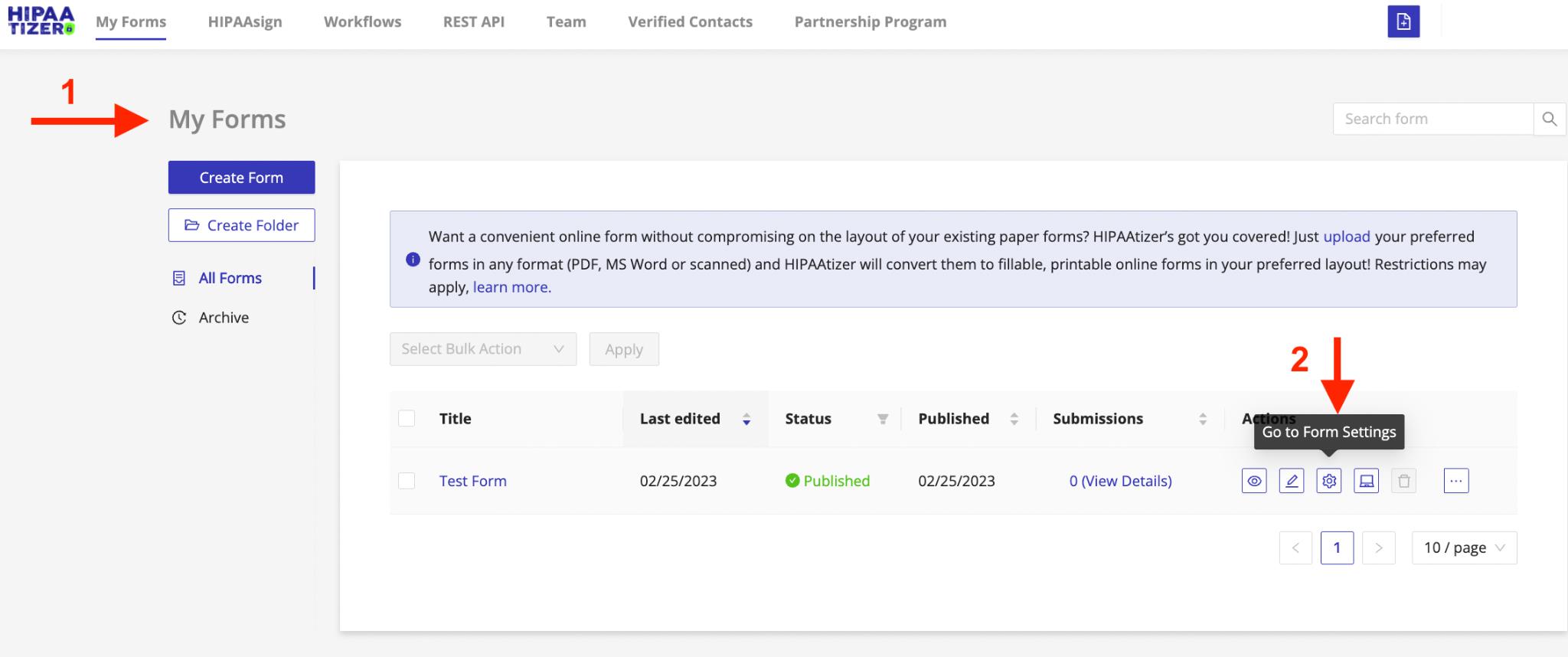
This opens the settings panel where you can configure all form-specific options.
Available settings
- Submission Recipients: team members notified when the form is submitted.
- Email Notifications: PDF submissions emailed to your team.
- Send Copy to Respondent: confirmation emails to the person who submitted the form.
- Success Page: what happens after a user submits the form.
- Printable Form Templates: customize the printable PDF generated from submissions.
- Tags: color-coded Communication Tags applied to submissions automatically or conditionally.
- Folder Routing: file incoming submissions into Inbox folders based on the answers respondents give.
- Integrations: connect the form to external systems.
- SEO: meta information for the public form URL and social sharing.
- Advanced Settings: Save & Continue Later, reCAPTCHA, HIPAA seal, submission limits, and more.
- postMessage API: let the page embedding the form prefill, validate, submit it and receive events.
- Accessibility Mode: enable or disable accessibility features.