

Advanced Form Settings
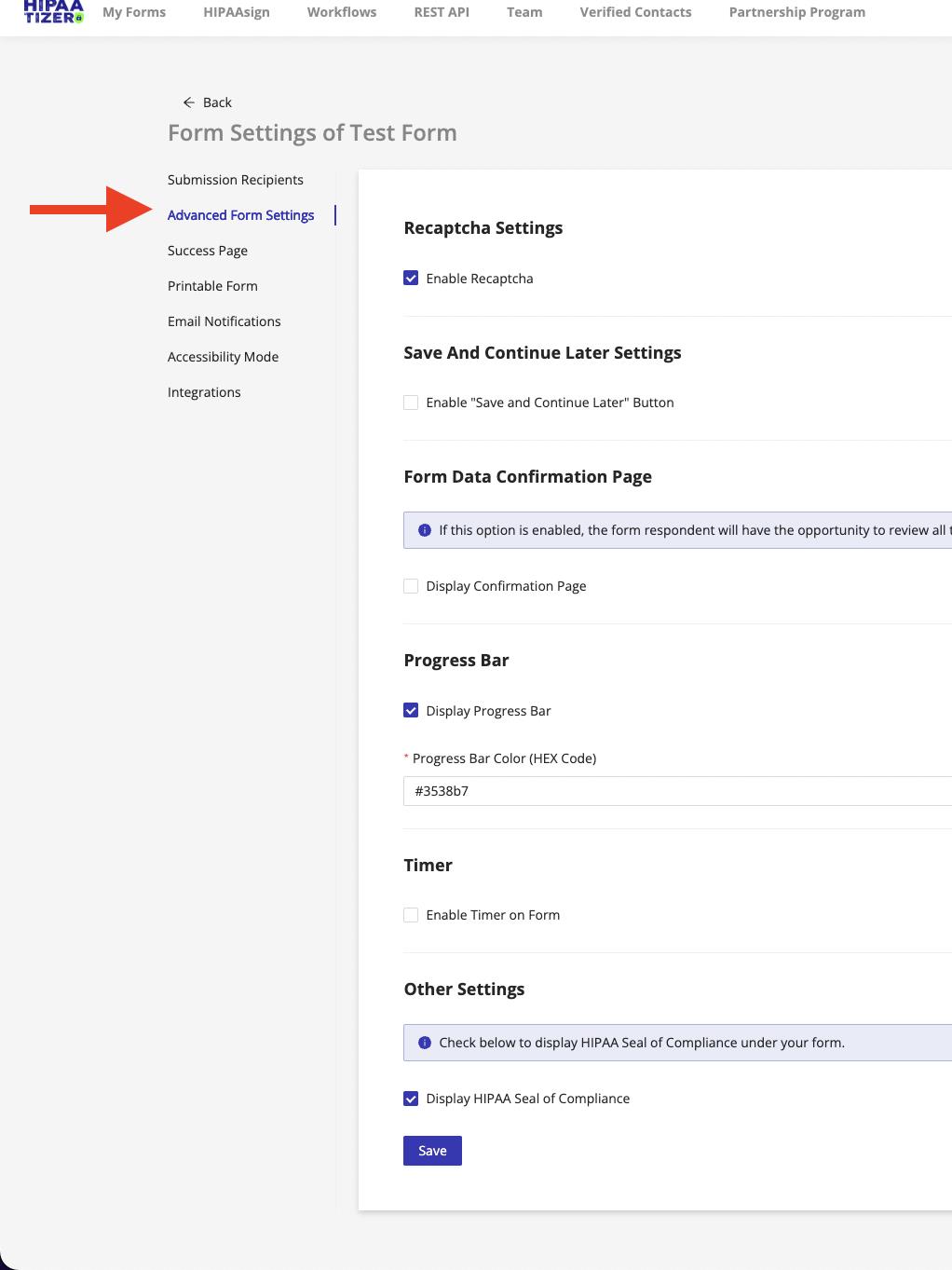
This section allows you to configure additional form behaviors and user experience enhancements such as Save & Continue Later, reCAPTCHA, HIPAA seal, submission limits, and more.
Submission Identifier
Use the Submission Identifier to define how submissions appear in your Inbox.
- This makes it easier to sort, search, and filter submissions.
- It is built using form fields or system variables.
- For best results, include fields like Last Name or Patient ID that are frequently used in lookups.
These identifiers appear in the Subject column of the inbox and can be configured from within the form settings.
Preloader Settings
Upload a custom image to display as a preloader while the form is loading. This can help:
- Brand your form experience
- Reduce perceived loading time
- Provide a visual cue before form content appears
Save & Continue Later
Enable this feature to allow users to save their progress and return later to complete the form.
- Especially useful for multi-step forms or workflows requiring more time.
- Users receive a secure link to resume the form.
Learn more: Save & Continue Later
Progress Bar
- Enabled by default
- Displays a visual progress indicator at the top of multi-page forms
- Helps users understand how far they've progressed and how much is left
Timer
Enable a timer to limit how much time users can spend on the form.
- Ideal for tests, assessments, or time-restricted workflows
- Users will be warned as the limit approaches
Display HIPAA Seal of Compliance
- Enabled by default
- Shows a HIPAA Seal when the form is embedded on your website
- Communicates to users that the form is protected under HIPAA-compliant protocols
Form Submission Limit
Set a maximum number of submissions allowed for a form.
- Once the limit is reached, the form will no longer be shown
- Instead, users will see a custom message (which you can define)
- Useful for limited campaigns, RSVPs, or event registrations
Enable Password
Restrict access to your form using a password.
- Only users who enter the correct password will be able to view and complete the form
- Useful for private surveys, employee-only forms, or limited-access events