

Email Notifications
Managing PDF Submissions Sent by Email
In addition to downloading PDF submissions from the HIPAAtizer dashboard, you can configure a form to automatically send PDF copies of submissions to specified email addresses. This is done in the Email Notifications tab of the form's settings.
This feature helps team members receive secure, password-protected PDFs directly in their inbox, streamlining workflows and supporting HIPAA compliance.
This page covers notifications to your team. To email a confirmation to the person who submitted the form, see Send Copy to Respondent.
Enabling Submission Recipients
- Go to the My Forms dashboard.
- Click on the Form Settings icon for the form you want to configure.
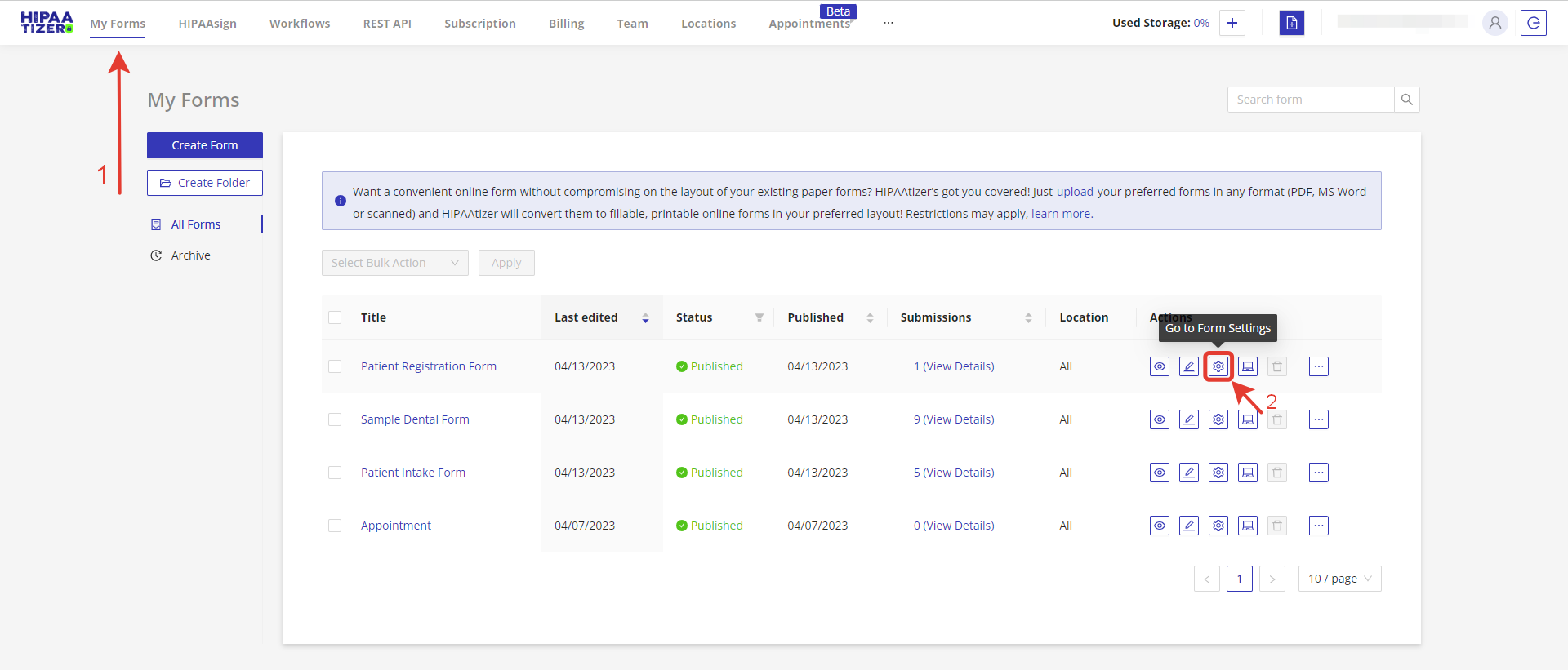
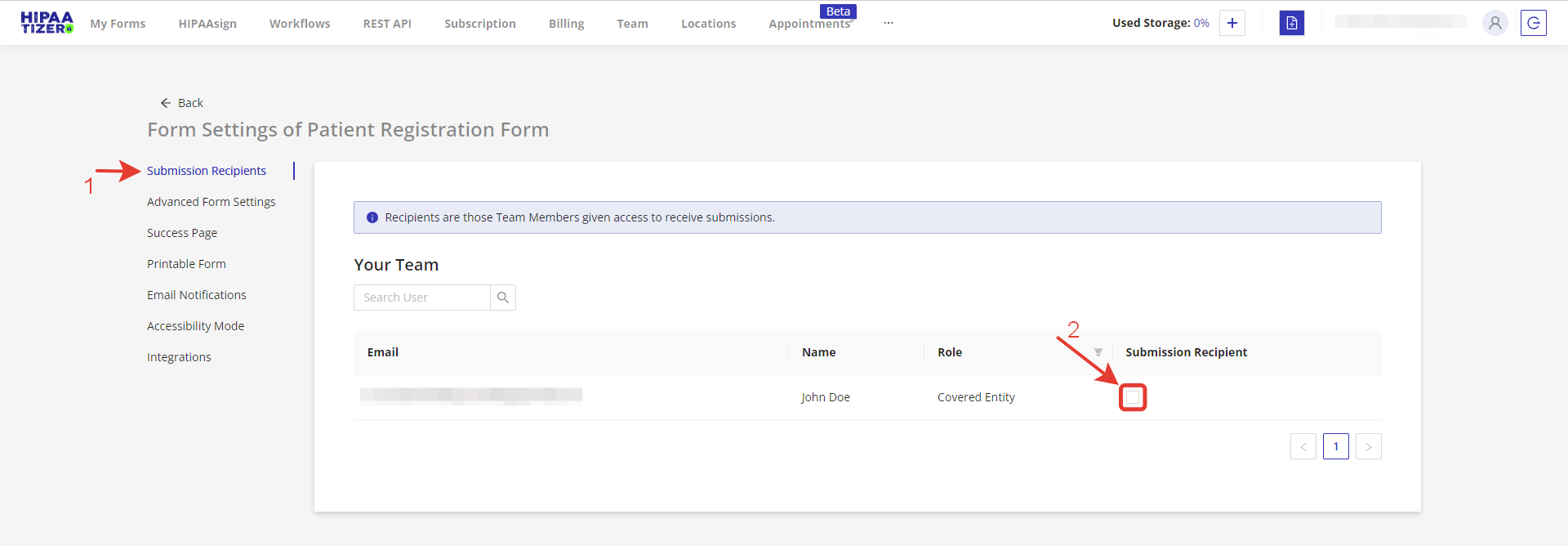
- Open the Submission Recipients tab.
- Check the box under "Submission Recipient" for each team member who should receive the submission PDFs.
Enabling PDF Attachments in Email Notifications
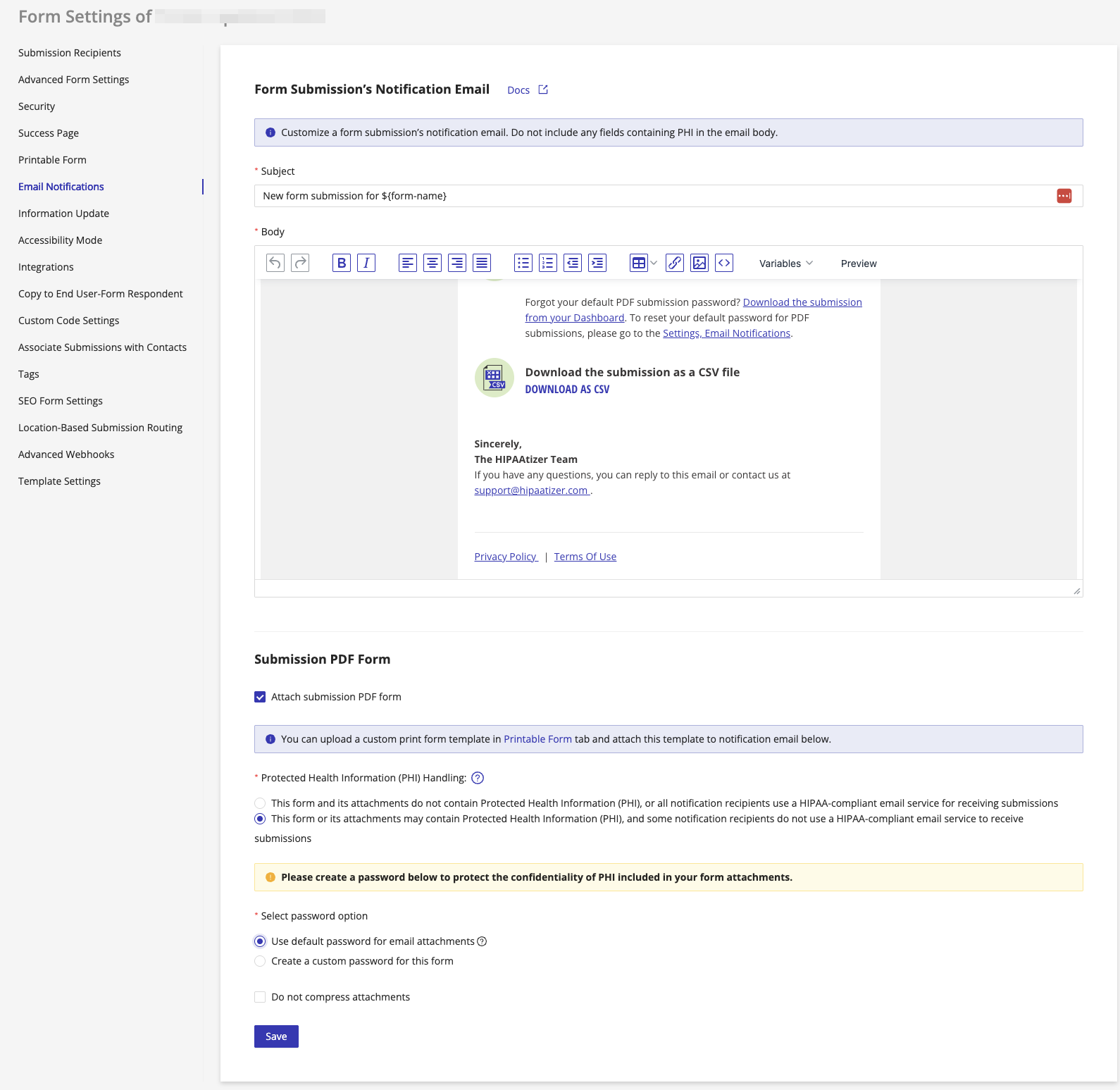
- From the same Form Settings panel, switch to the Email Notifications tab.
- Enable the option "Attach submission PDF form".
PHI Handling
Once "Attach submission PDF form" is enabled, you will be prompted to select how PHI is handled for this form's email notifications:
-
This form and its attachments do not contain Protected Health Information (PHI), or all notification recipients use a HIPAA-compliant email service for receiving submissions: no password protection is required.
-
This form or its attachments may contain Protected Health Information (PHI), and some notification recipients do not use a HIPAA-compliant email service to receive submissions: PDF attachments will be password-protected to protect the confidentiality of PHI sent over standard email.
Password Protection
When the PHI option is selected, you will be asked to set a password to protect the PDF attachments. Choose one of two options:
-
Use default password for email attachments: uses the account-wide password configured in your profile under the Email Attachments Password tab. To set up or update the default password, visit My Profile → Email Attachments Password.
-
Create a custom password for this form: enter a password that will be used exclusively to encrypt PDF attachments for this form.
Once a custom password is set on a form, that form's password becomes independent. It will no longer update if you later change the account-wide default password.
PDFs are only password-protected when delivered as email attachments. This is by design, as standard email is not a HIPAA-compliant channel. When you download PDFs directly from your HIPAAtizer dashboard, no password is required since you are already authenticated over an encrypted connection.
Finding your PDF password in notification emails
When you receive a submission notification email containing a password-protected PDF, look for the View Password link at the top of the email. Clicking it opens your secure HIPAAtizer dashboard where the password for that submission is displayed.
This design keeps the PDF and its password in separate channels for added security. The password is always accessible from your dashboard regardless of whether you remember it.
Compressing Attachments
When "Attach submission PDF form" is enabled, an additional option appears:
- Do not compress attachments: when checked, any files uploaded by the patient (e.g. images, documents) will be sent as individual attachments in the notification email. When unchecked (the default), all uploaded files are bundled together into a single password-protected ZIP file.
The settings on the Email Notifications tab, PDF attachment, PHI handling, password and compression, are per form only. To apply them to more than one form, repeat these steps for each one.
Choosing who gets notified is not limited this way. To set one team member's notifications across many forms at once, use the Submission Recipient column on the Team page.
With these settings, selected team members will receive secure, password-protected PDF submissions via email whenever a form is completed.