

Presets
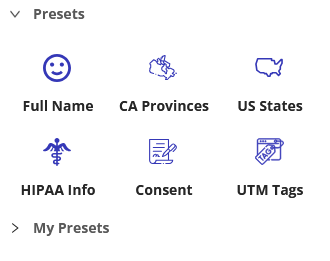
Presets in the HIPAAtizer Form Builder allow you to save and reuse pre-configured combinations of form fields. These are especially useful when you frequently use the same layout or field configuration across different forms.
HIPAAtizer Presets
The form builder includes default Presets provided by HIPAAtizer. These are designed to help you build commonly used sections faster. You'll find these in the Components panel under the Presets section.
My Presets
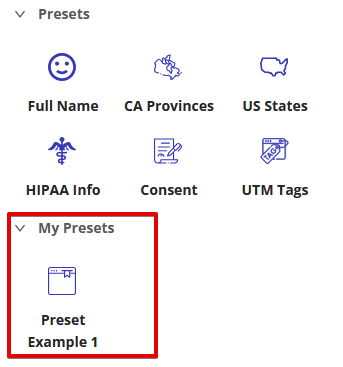
In addition to default options, you can create your own custom Presets. These appear under My Presets in the left-hand Components panel.
How to Create a Preset
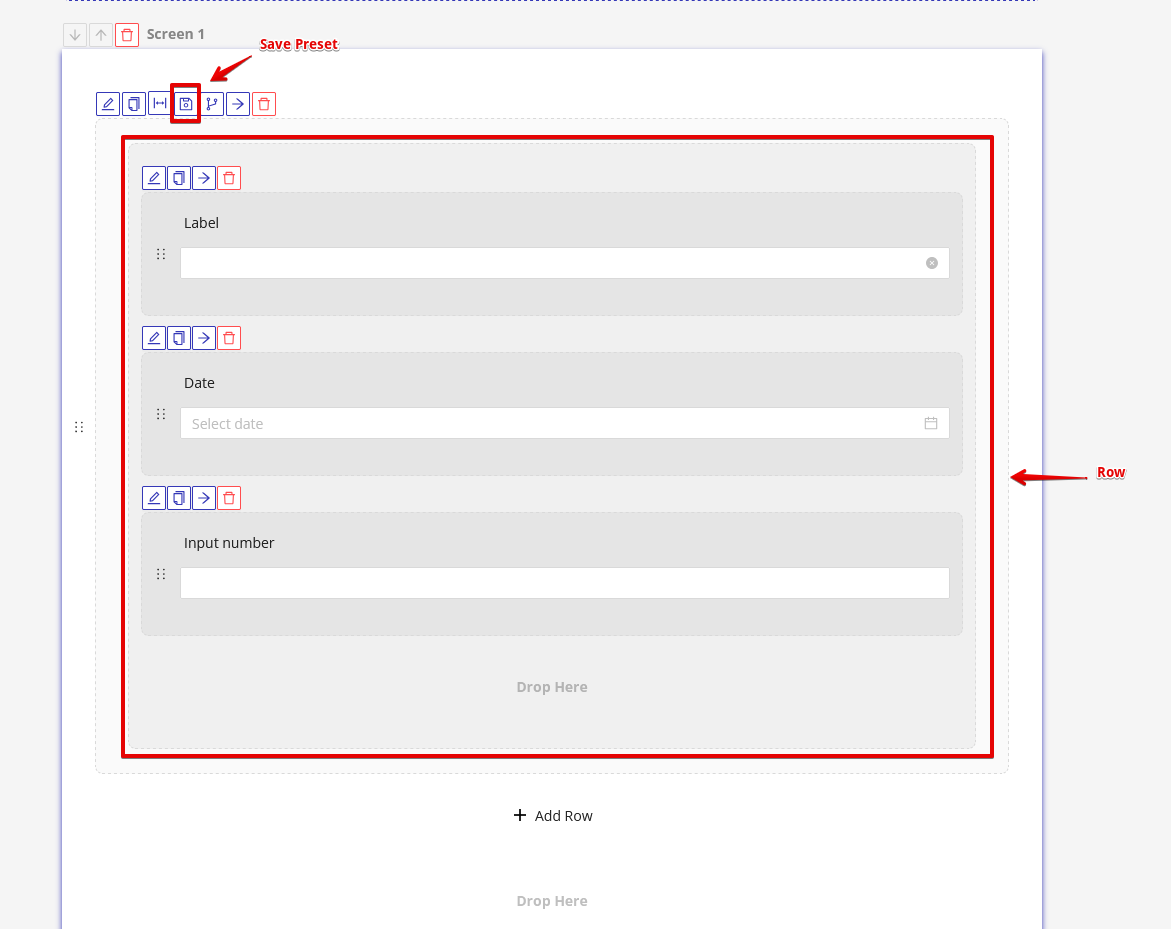
To create your own preset, you must drag your desired components into the same row. This is because presets are saved as a collection of items within a singular row. You can have any amount of columns in a preset, but only one row.
In the example image below, the three displayed fields are in the same row, and thus would all be saved to the same preset.
The settings configuration of each component in the preset will be saved as it is set at the time of creating the preset. So, if you want your preset to have a text field labelled 'First Name', you will first need to adjust the label of the text field to 'First Name' before saving the preset.
Once you have added all of the desired components to the same row, and configured the components with the correct setting, you can save your preset by using the 'Save as Preset' button in the top left corner of the row. You will be prompted to enter a name for the preset. Do so, then click the 'Save' button.
Your preset will now appear under 'My Presets' in the 'Components' window on the left side of the form builder.
Editing a Preset
To edit your preset, drag it from the component list to a row so that the fields in the preset appear. You can edit or remove components, as well as adjusting their settings.
Once you have made the desired adjustments to your preset, click the 'Save as Preset' button on the top left of the row, input a name for the adjusted preset, and click 'Save'. Your edited preset will now appear under 'My Presets' in the 'Components' window on the left side of the form builder.