

Translations & Language Settings
Add multilingual support to your forms.
Enabling Translations
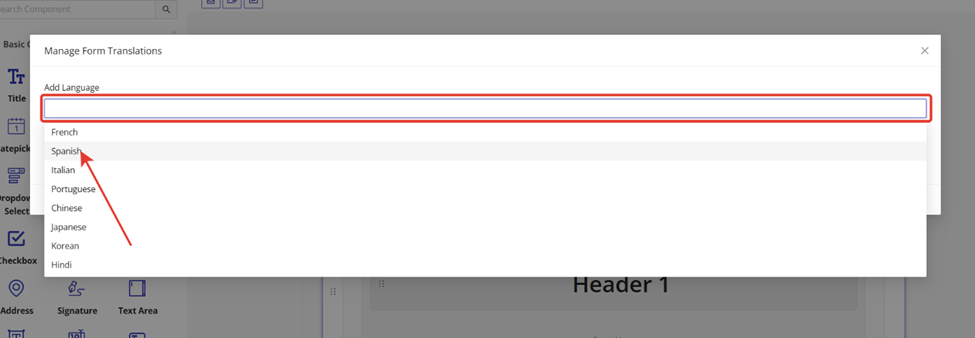
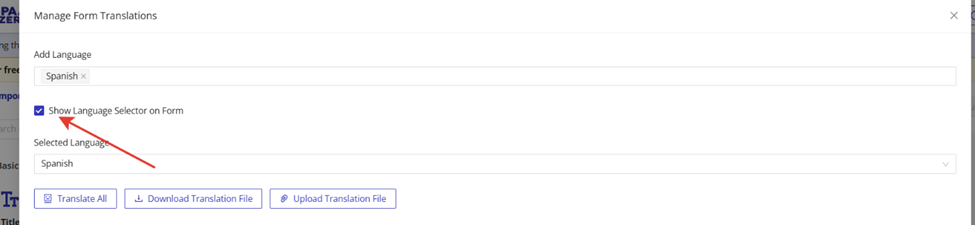
To begin translating a form, open the form from the dashboard and access the "Manage Form Translations" modal. From there, add a target language, such as Spanish. Once added, enable the "Show Language Selector on Form" option to allow end users to choose their preferred language via a dropdown menu displayed on the form.

Append ?hptz_lang=<code> to a form's short URL to open it directly in that language. Supported codes:
| Code | Language |
|---|---|
en | English |
fr | French |
es | Spanish |
it | Italian |
pt | Portuguese |
zh | Chinese |
ja | Japanese |
ko | Korean |
hi | Hindi |
The language must also be added to the form's translations for the preselection to take effect.
Inputting Translations
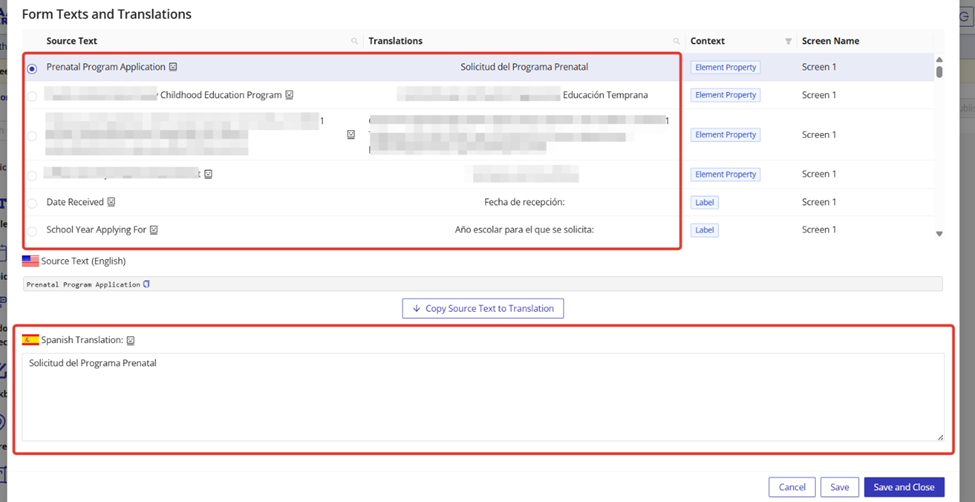
Translation management is handled in the "Form Texts and Translations" section. Each field on the form has a source text and a corresponding translation input. Select each field, then enter the translated value in the appropriate language field. Repeat this process for all fields that require localization. Once all translations are entered, click "Save and Close" to apply changes.
Automatic Translation Option
A "Translate All" button is available to auto-populate all text fields in the selected language using machine translation. This can expedite the process but must be reviewed for accuracy. These translations are visible only when previewing the form or when it is published for end-user input.
PDF Output Behavior
By default, printable PDFs generated from the form use the English layout, even when users complete the form in another language. While input values will reflect the user's selected language, field labels and structure remain in English. To produce fully translated printable outputs, custom printable templates must be created and uploaded in either PDF or MS Word format. These templates allow full localization of both labels and structure. Template support is available upon request.