Save and Continue Later
Enabling "Save and Continue Later"
- To enable "Save and Continue Later" button, open the "Form Settings" for the form, then select "Advanced Form Settings" from the list on the left and tick the "Enable Save and Continue Later button" checkbox. Two fields will appear that allow you to customize the buttons name and color in the form.
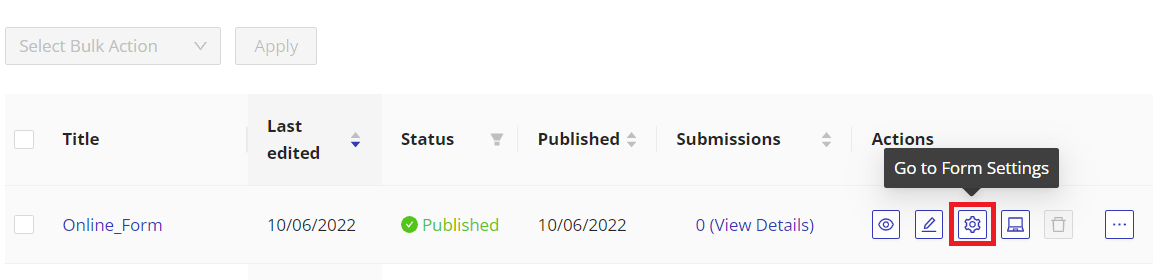

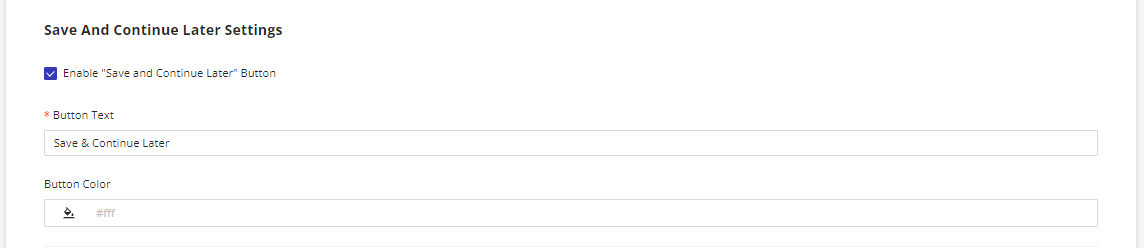
- Save your settings and publish the form. The new "Save and Continue Later" button will now be displayed under the "Submit" button in the form.
Automatic Reminder Emails
You can configure reminder emails for users who saved their progress but have not yet completed the form.
Available options:
- First Reminder -- number of days after the form was saved
- Second Reminder -- number of days after the form was saved
These reminders help ensure patients return to complete the form.
The "Save and Continue Later" button will only be displayed in the published version of the form, and is not displayed in preview mode.

How "Save and Continue Later" functions for the User
Creating a 4-digit code
If a user decides to partially complete a form, they should click on the "Save and Continue Later" button. Then, a modal window appears, prompting the user to enter:
- Their email address
- A 4-digit code to access the form later
- A hint to help them remember the code (optional)

Continuing the Form
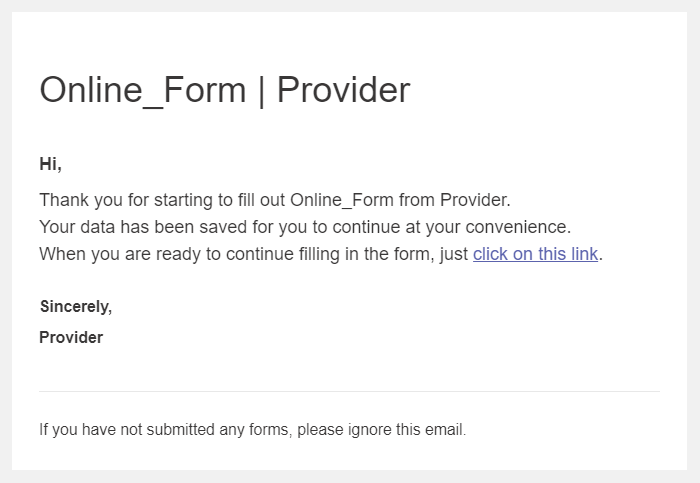
An email will be sent to the user's email containing the link to the partially completed form. By clicking on this link, the form will reopen and user will be prompted to enter the unique 4-digit code that they created earlier. If the user created a hint for their code, it will be displayed above the "Code" field to assist them in remembering the unique 4-digit code they created earlier.
Ater sucessfully inputting their 4-digit code, the user can continue filling out the form from where they left off.
The "Save and Continue Later" button can be used as many times as necessary.