

Screens
HIPAAtizer allows you to build multi-screen forms, making it easier to organize long forms into smaller, user-friendly sections. Each screen acts as a separate "page" within your form, and users are automatically navigated from one screen to the next as they fill out the form.
Adding and Managing Screens
To add a new screen:
- Click the Add Screen button at the bottom of the Form Builder.
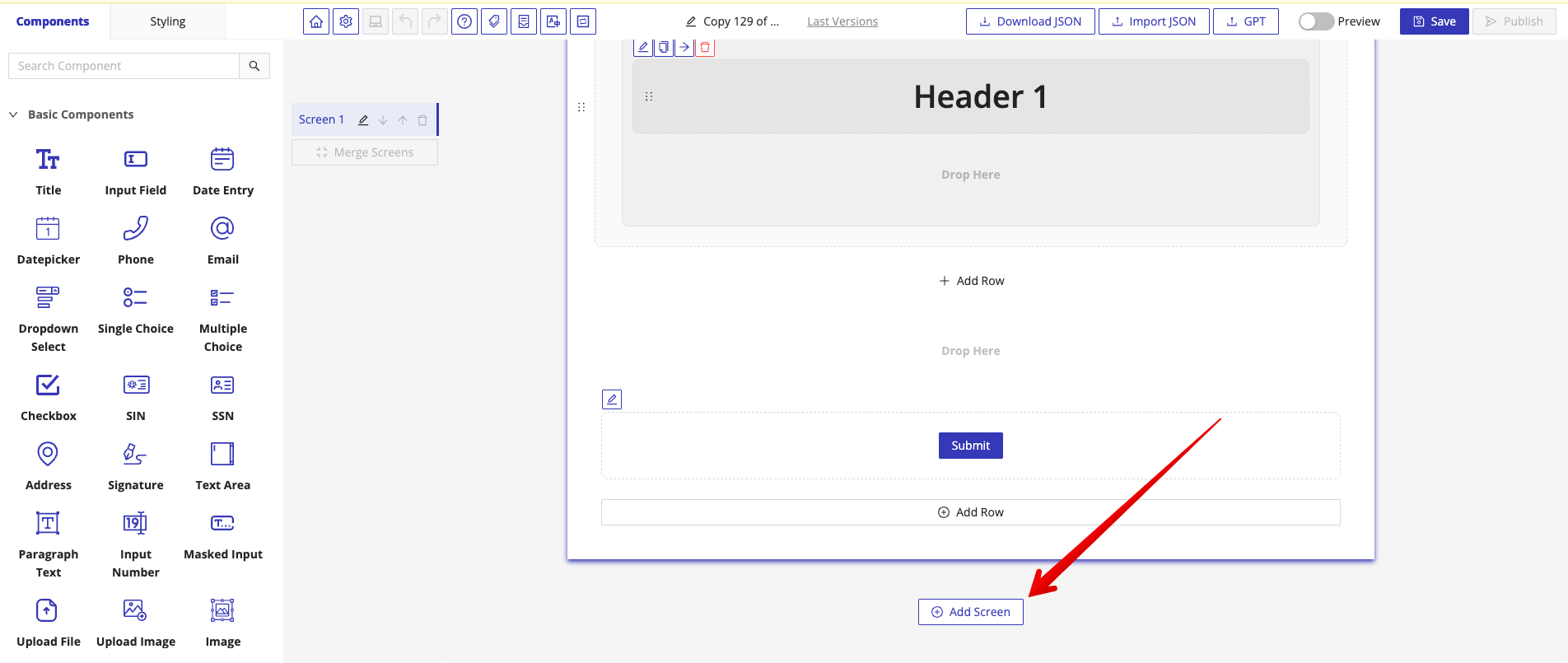
You can manage your existing screens from the left panel:
- Rename Screens - Give each screen a descriptive name.
- Reorder Screens - Drag screens up or down to adjust their sequence.
- Delete Screens - Remove unwanted screens.
- Merge Screens - Combine the contents of two screens into one.
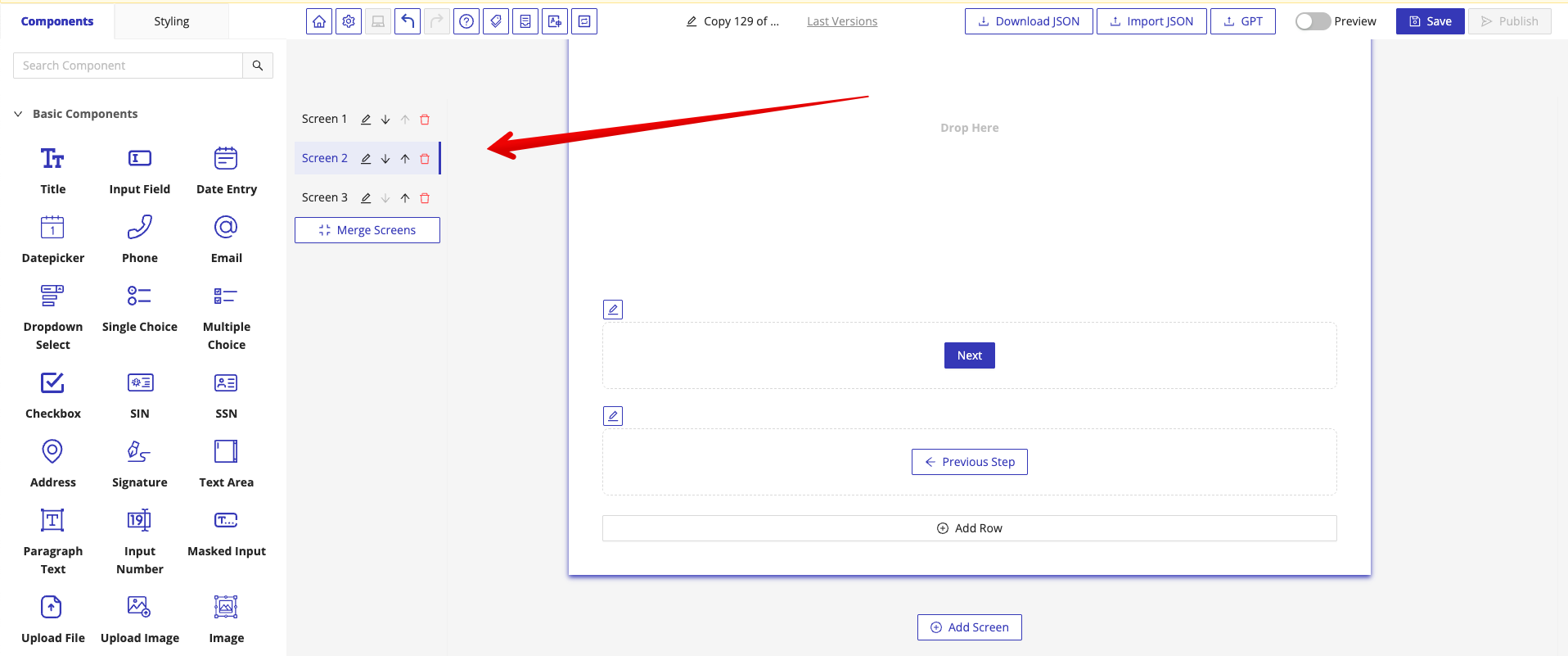
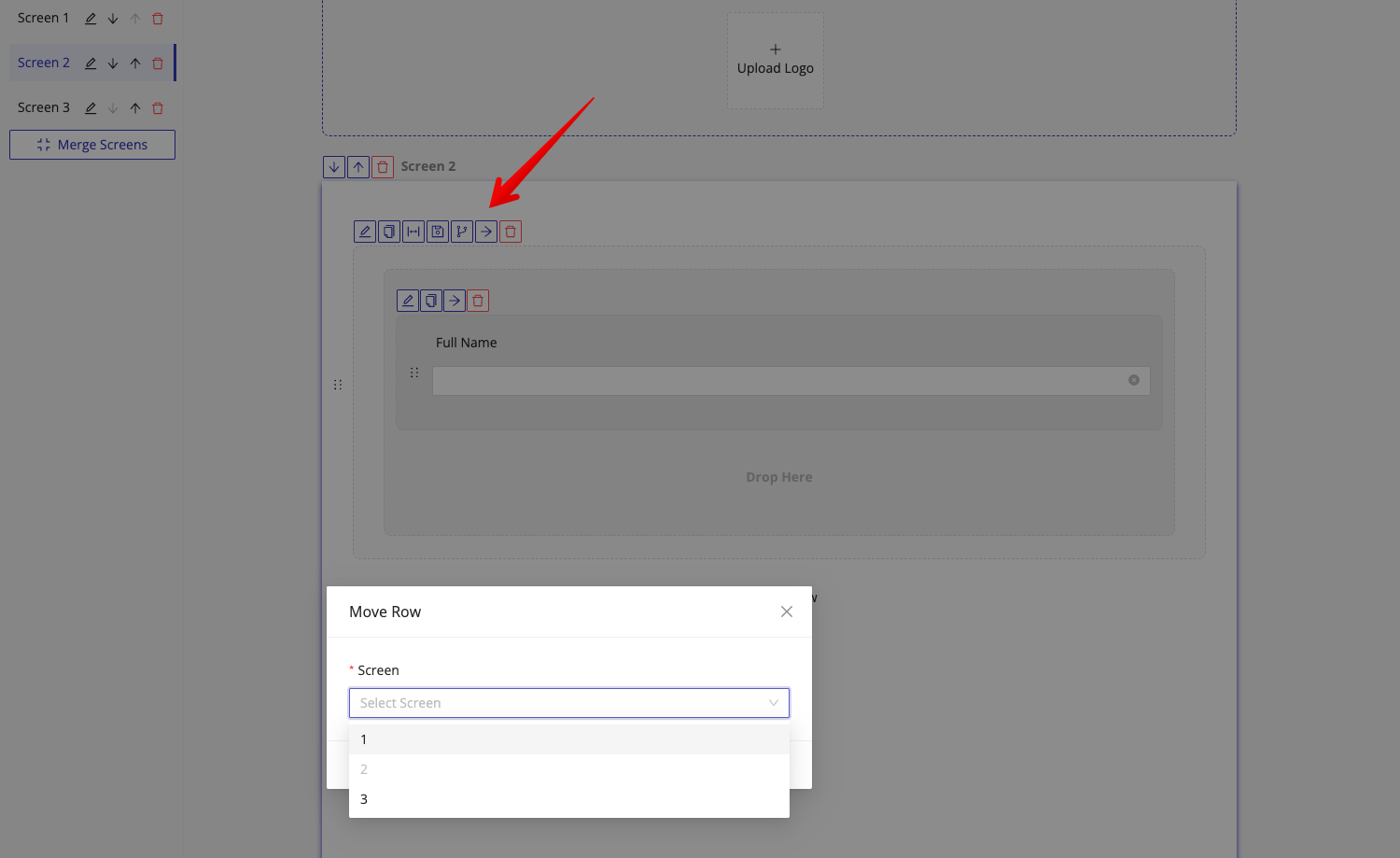
Moving Components or Rows Between Screens
You can move any component or entire row to another screen:
- Click the Move to Screen button (located at the top-left corner of the component or row).
- Select the target screen where you want it placed.
Important Notes
- Users are automatically navigated from one screen to the next when filling out the public version of the form.
- The form submission is only completed when the user clicks the Submit button on the last screen.
note
If all rows on a screen are hidden by conditional logic, the entire screen will be skipped during form completion.
By using multiple screens, you can create forms that feel less overwhelming to users, improving completion rates and making complex workflows easier to manage.