Google Sheets
Please Note
Google Sheets is not HIPAA-compliant by default. Do not send fields containing Protected Health Information (PHI) to Google Sheets.
Covered Entities and Business Associates must ensure that no PHI is included when integrating with non-HIPAA-compliant tools. 👉 Learn what counts as PHI
Share Your Spreadsheet with HIPAAtizer
-
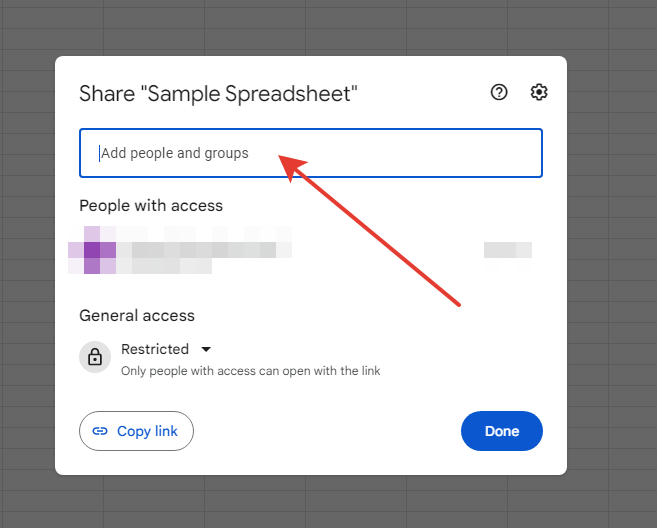
Open your Google Spreadsheet and click Share in the top-right corner.
-
In the Add people and groups field, enter:
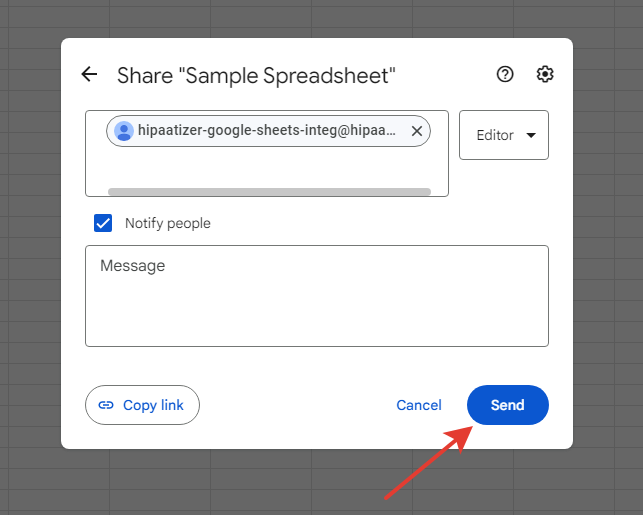
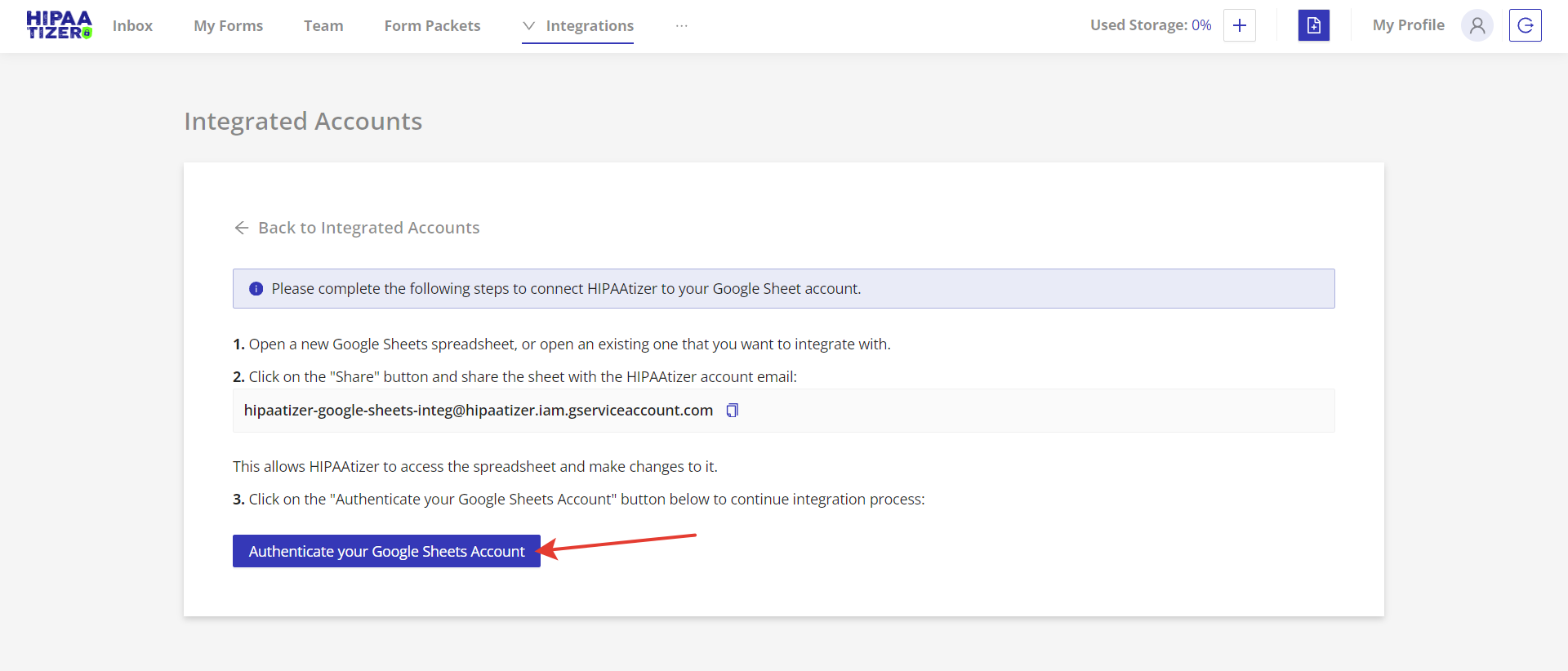
hipaatizer-google-sheets-integ@hipaatizer.iam.gserviceaccount.com -
Set the role to Editor, then click Send.
Authenticate Your Google Sheets Account
- Click Share again and select Copy link to copy the spreadsheet URL.
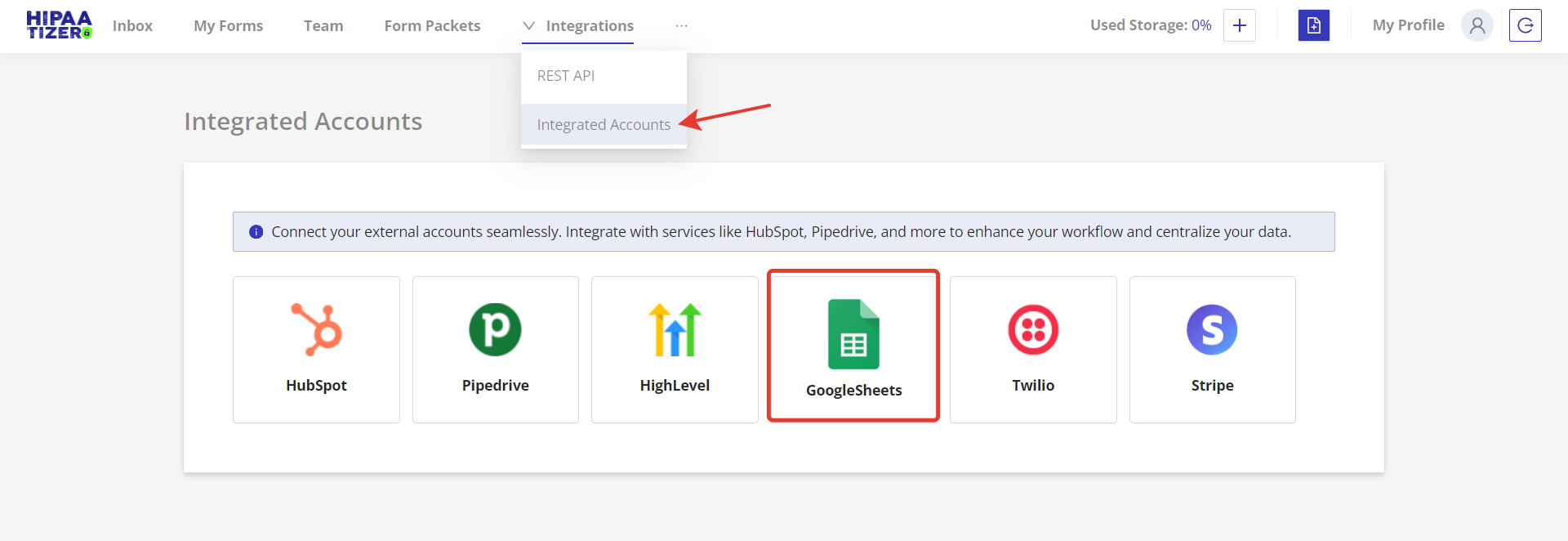
- In HIPAAtizer, go to Integrations → Integrated Account.
- Select Google Sheets, then click Authenticate your Google Sheets Account.
Link Your Form to Google Sheets
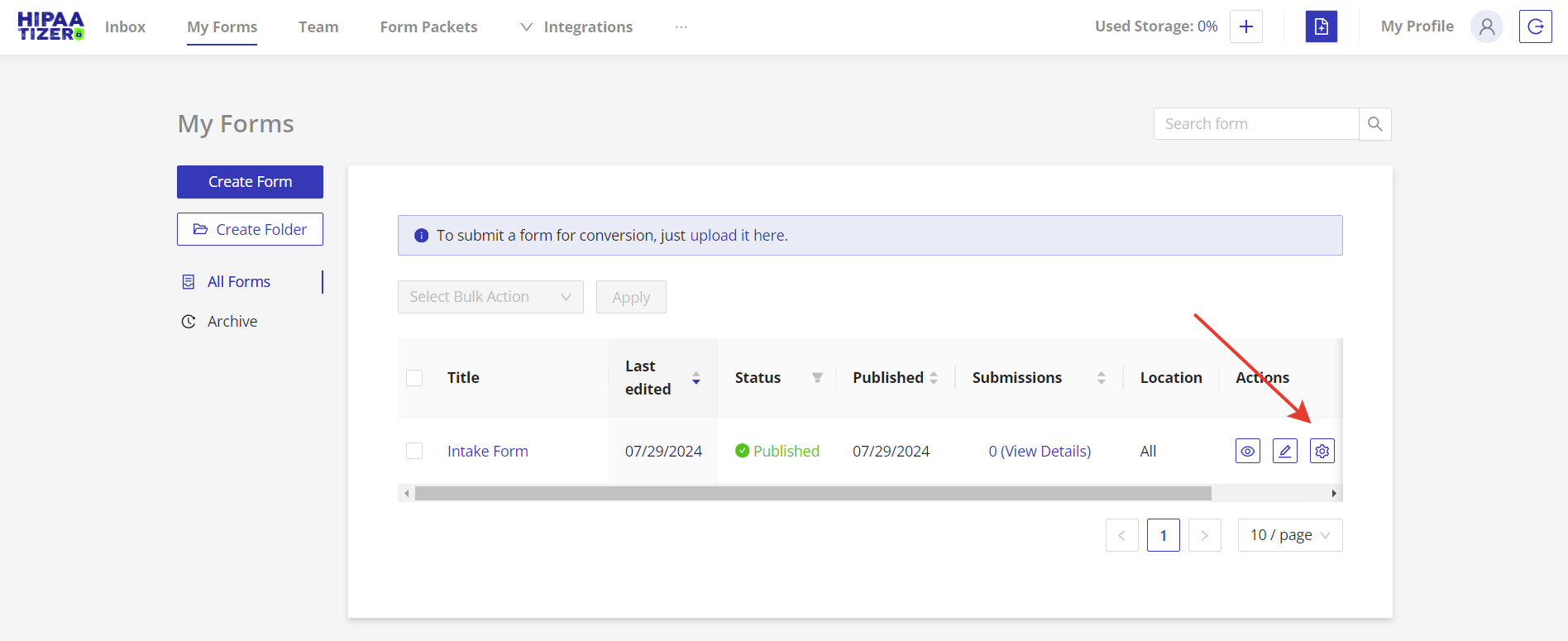
- Navigate to My Forms in HIPAAtizer and click the Settings icon for the form you want to integrate.
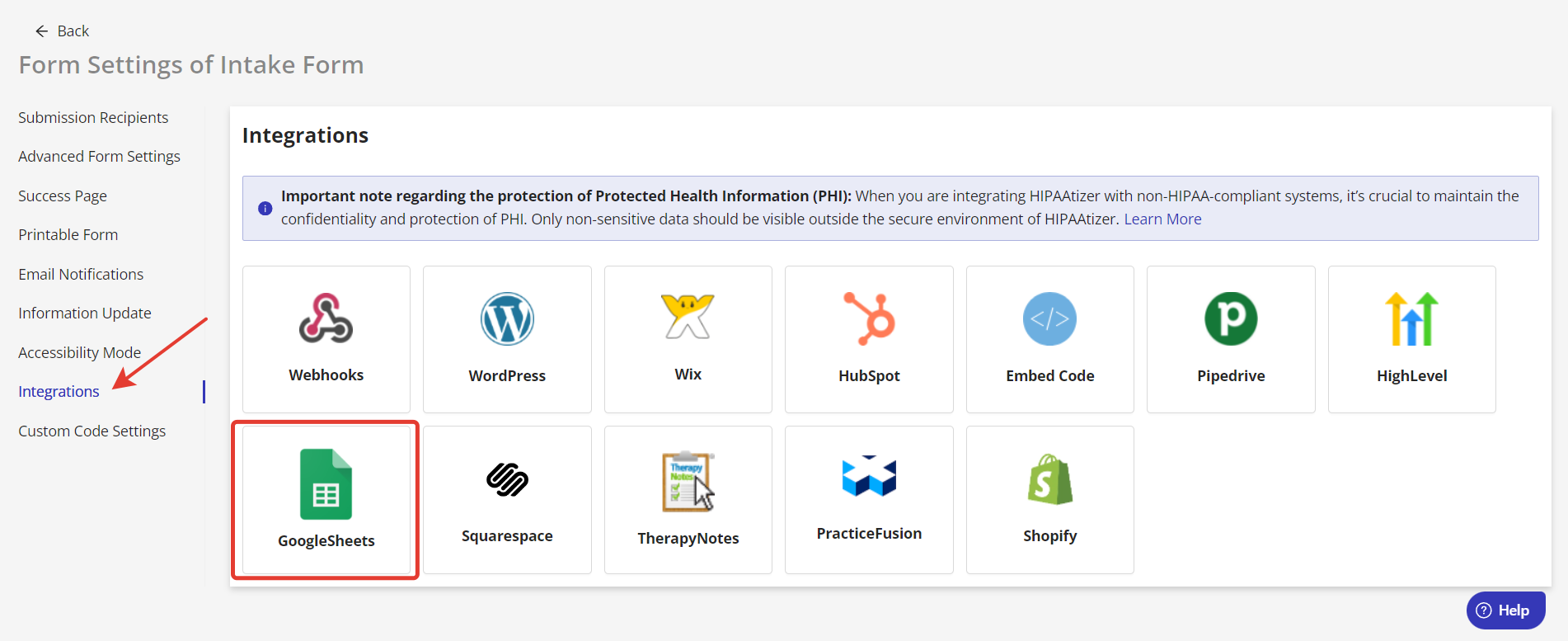
- Open the Integrations tab and choose Google Sheets.
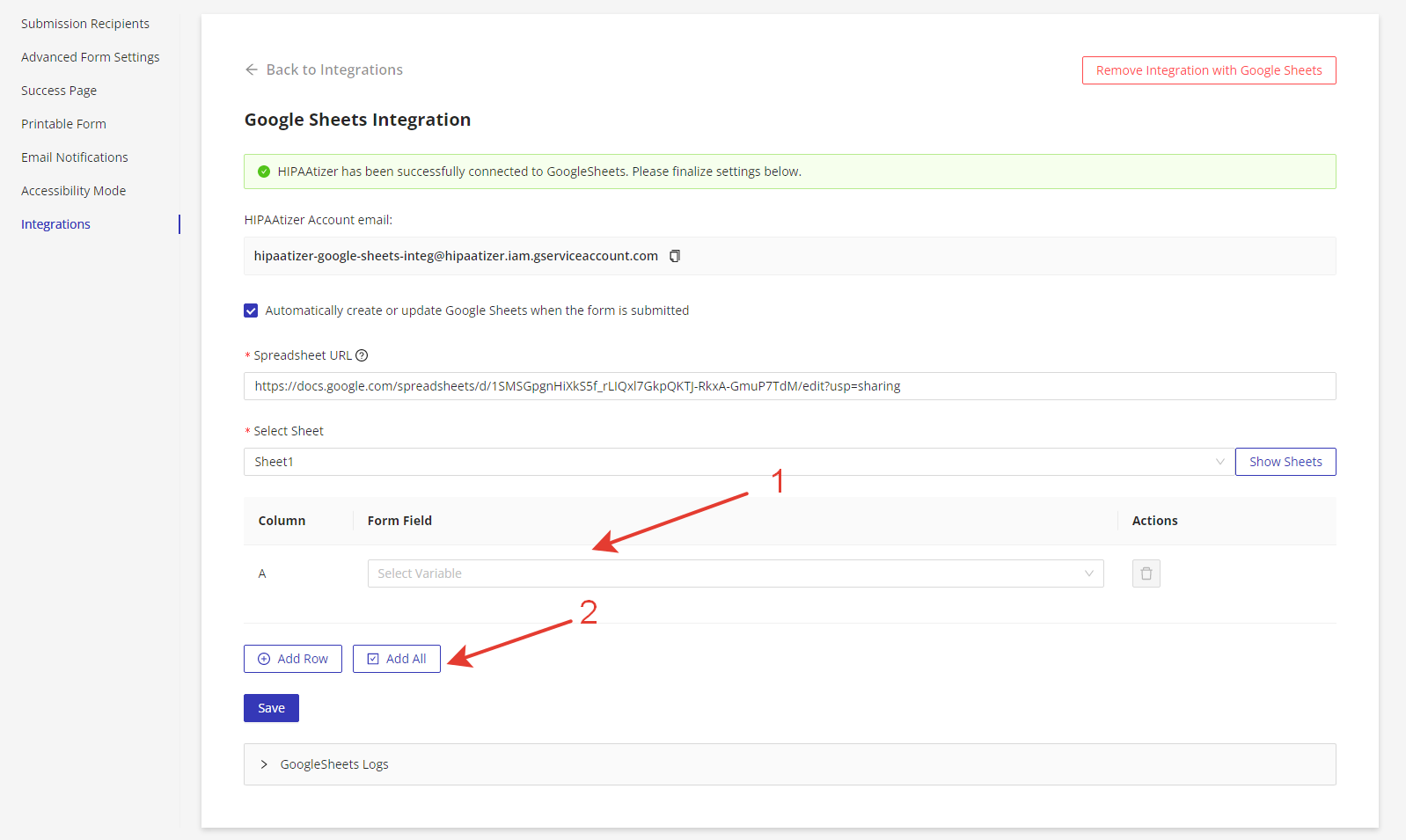
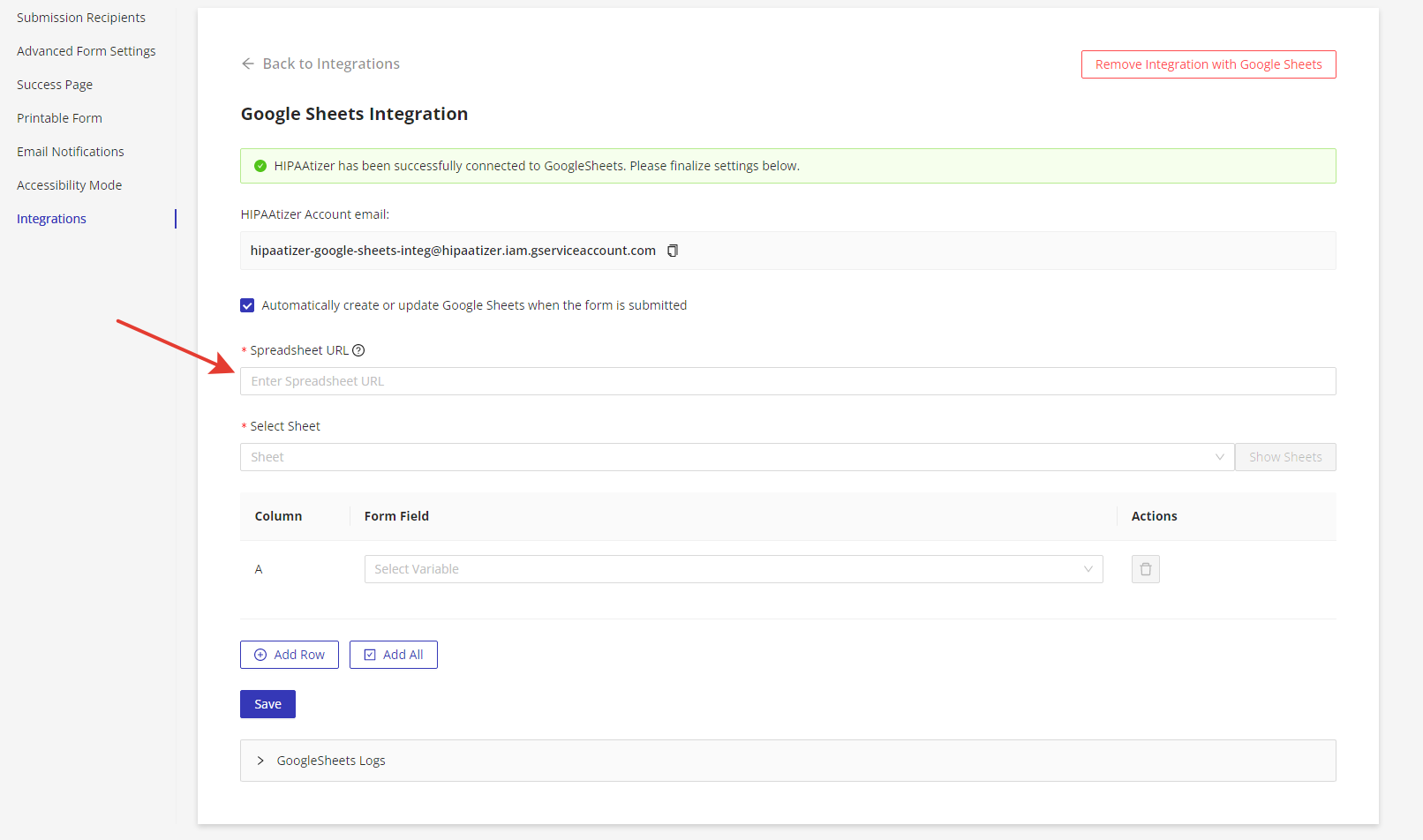
- Paste the copied spreadsheet URL into the Spreadsheet URL field.
Configure Your Integration
- Click Show Sheets to load available sheets.
- Select the target sheet from the dropdown.
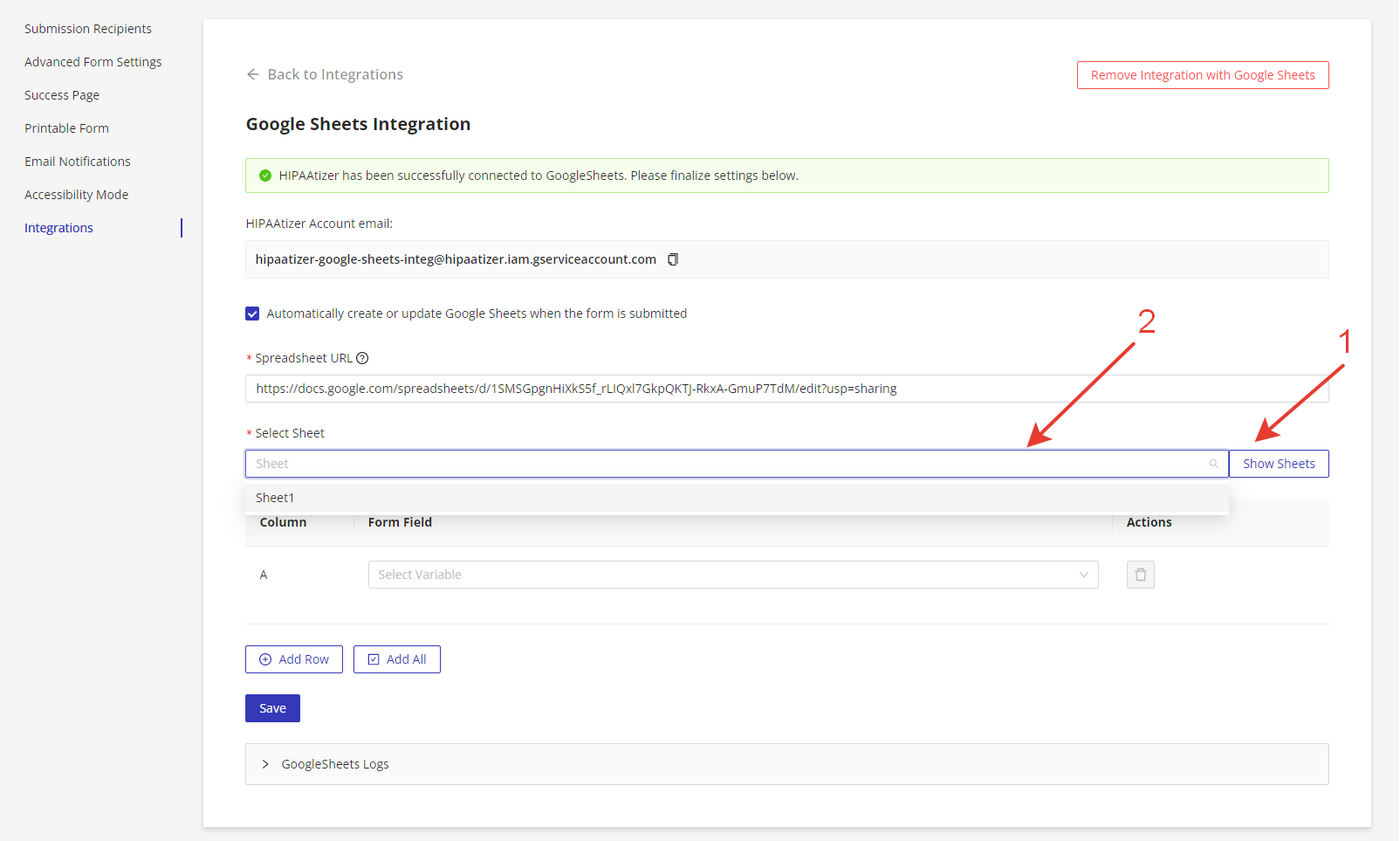
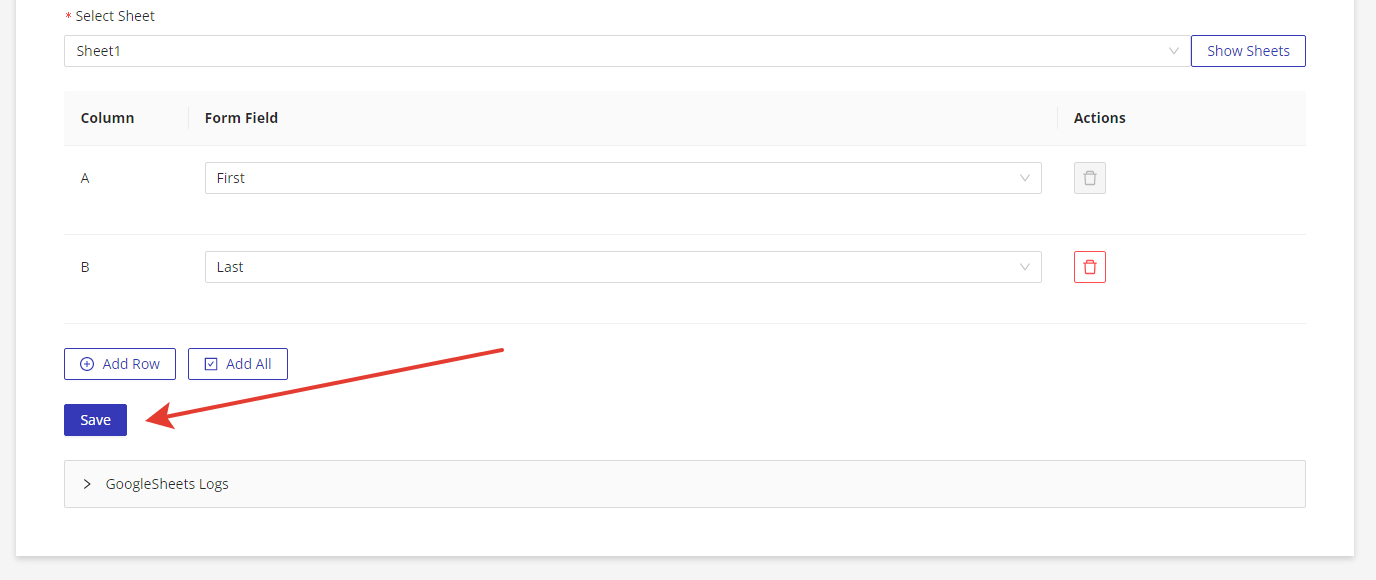
- Match your form fields to the columns in your spreadsheet using the dropdowns.
tip
Avoid mapping any fields that contain PHI.
- Use the Add All button to auto-map fields, then click Save.