

TherapyNotes
This guide shows you how to integrate a HIPAAtizer form into TherapyNotes using the HIPAAtizer for TherapyNotes Chrome Extension.
Install the HIPAAtizer Extension
Install the HIPAAtizer for TherapyNotes Chrome Extension from the Chrome Web Store.
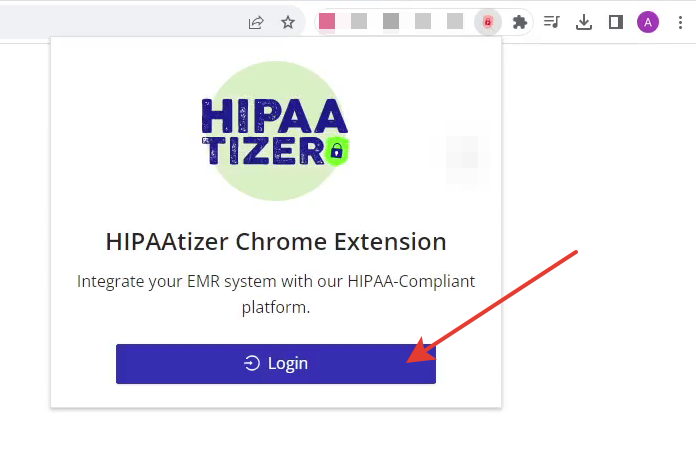
Once installed, log in to the extension using your HIPAAtizer account credentials.
Enable TherapyNotes Integration in HIPAAtizer
Configure Form Settings
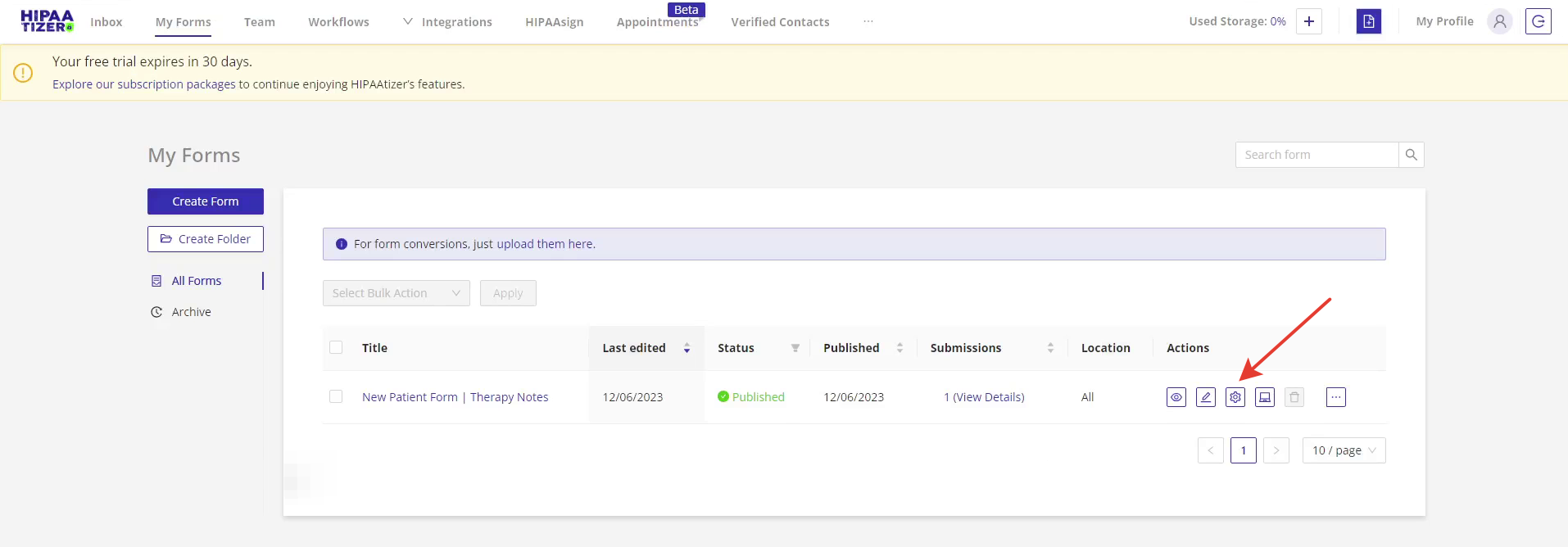
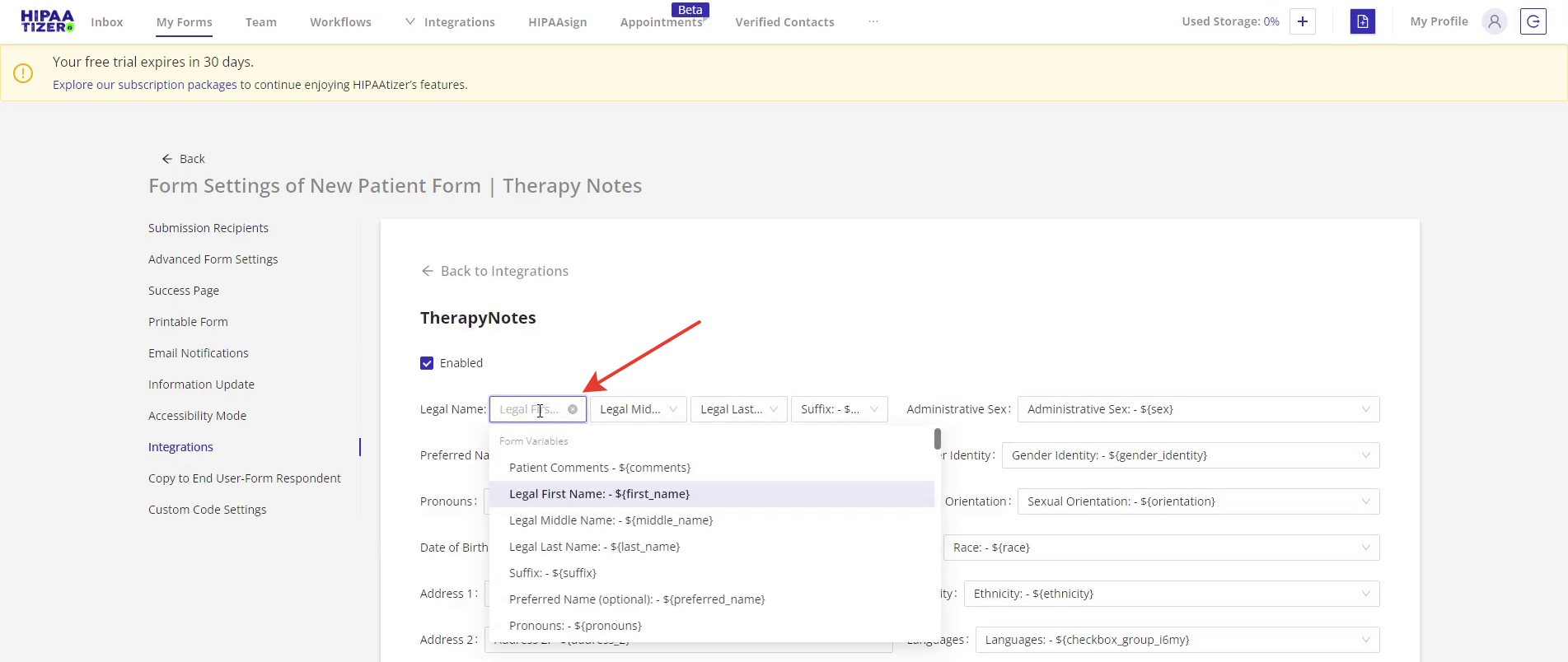
In your HIPAAtizer dashboard, go to the My Forms page. Select the form you want to integrate and open Form Settings.
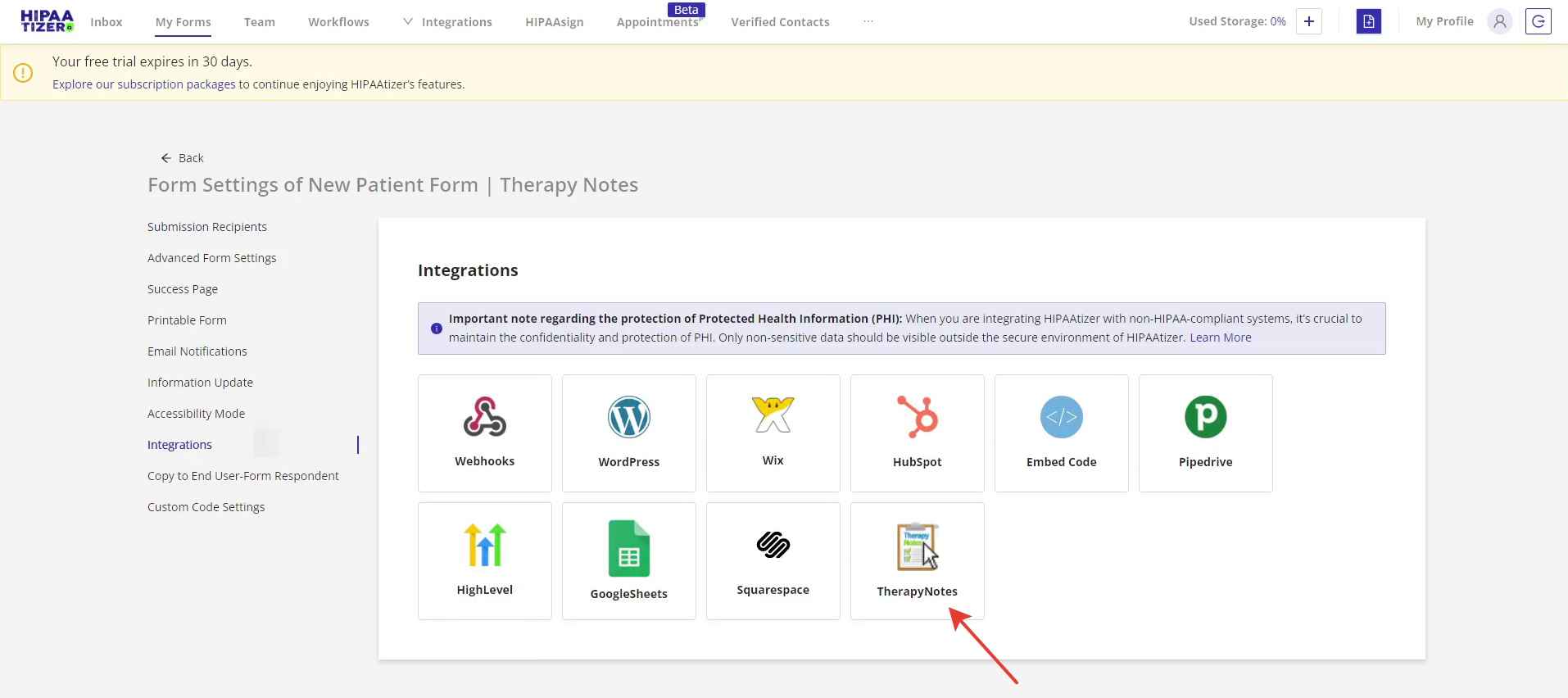
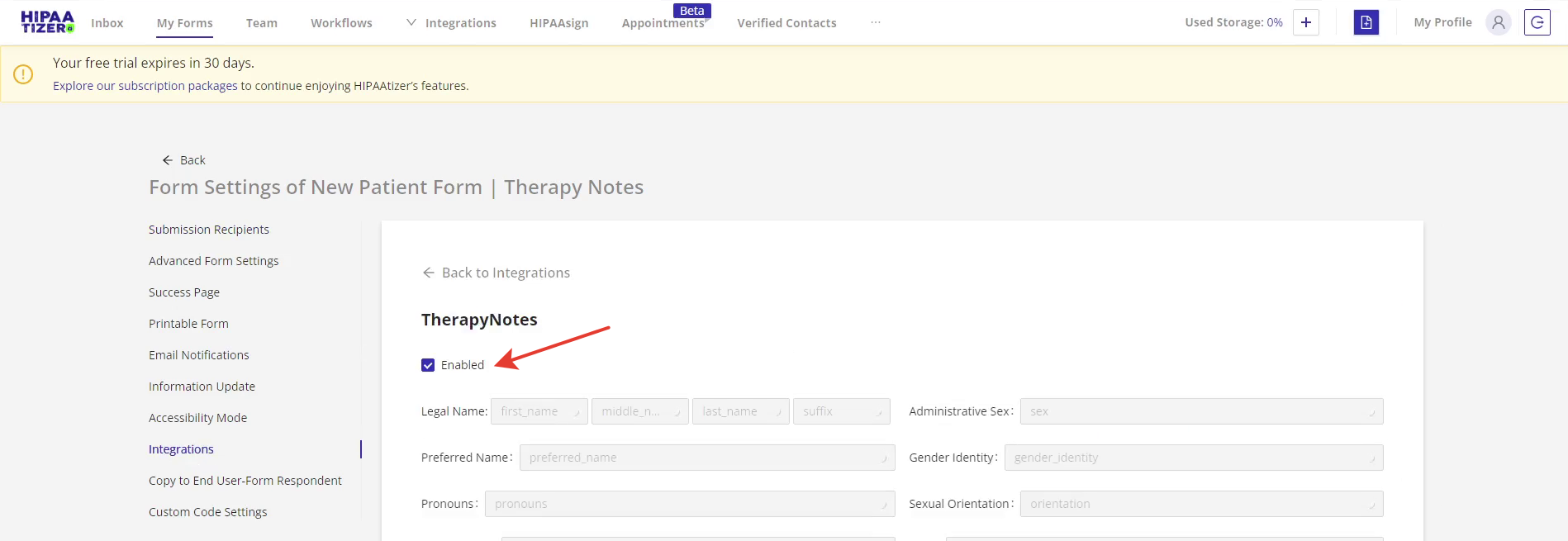
Navigate to the Integrations tab and choose TherapyNotes. Enable the integration by checking the Enable box to display configuration fields.
Match Form Fields
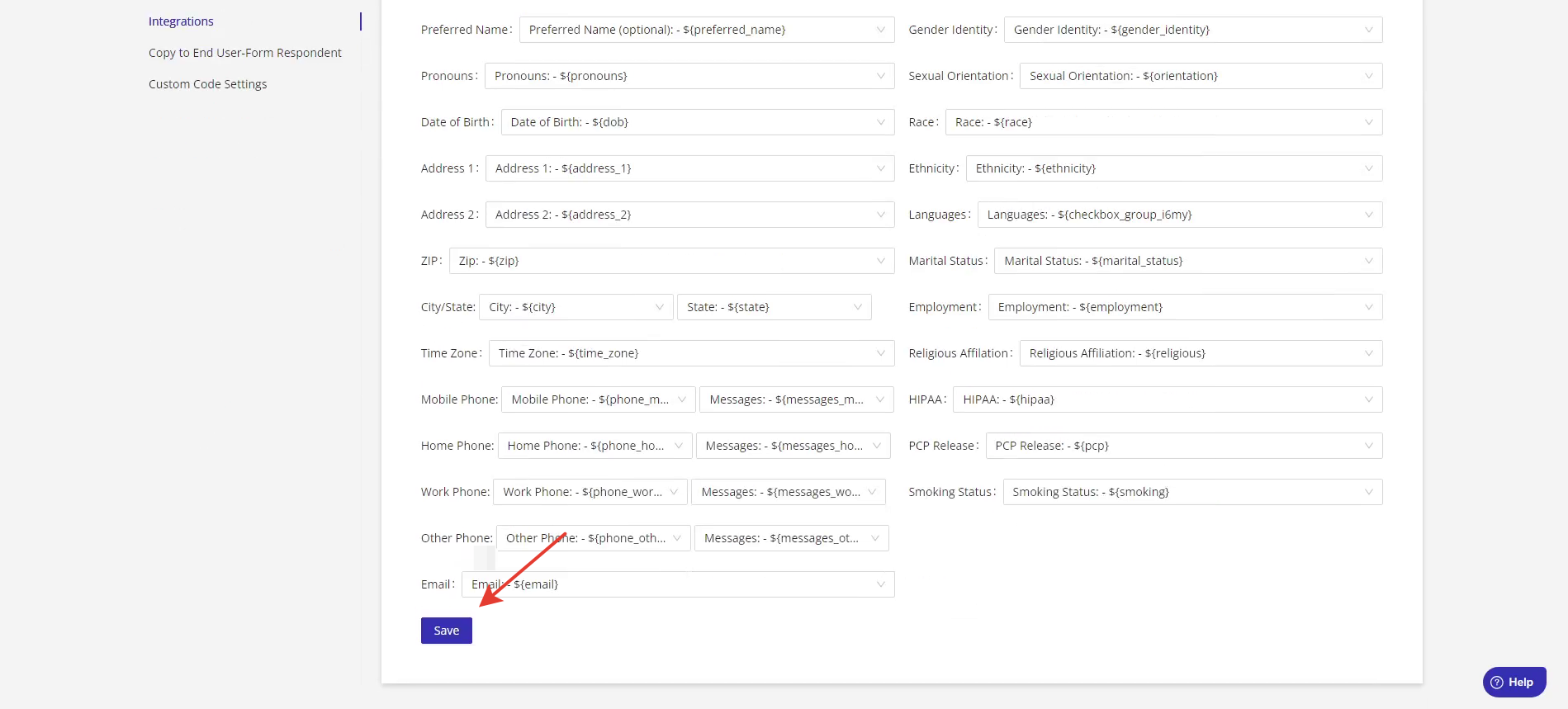
Map each field’s Unique Name from your HIPAAtizer form to the corresponding field in TherapyNotes.
Click Save to apply the configuration.
Import Data into TherapyNotes
Log in to your TherapyNotes account. Make sure the HIPAAtizer Chrome extension icon is green, indicating it’s active.
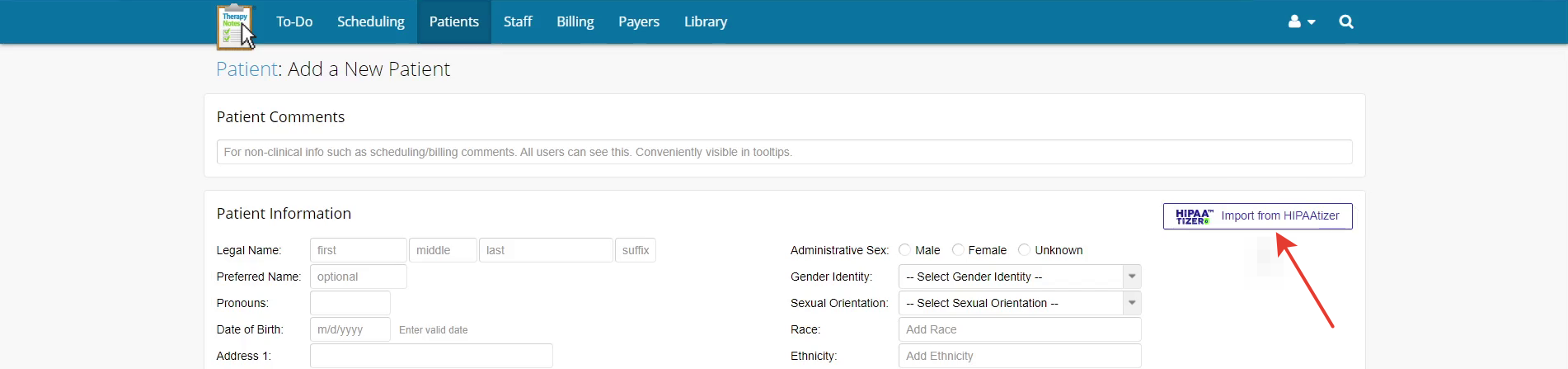
Navigate to the Patients section and click + New Patient.
You will see a new Import from HIPAAtizer button added by the extension.


Select Submission and Import
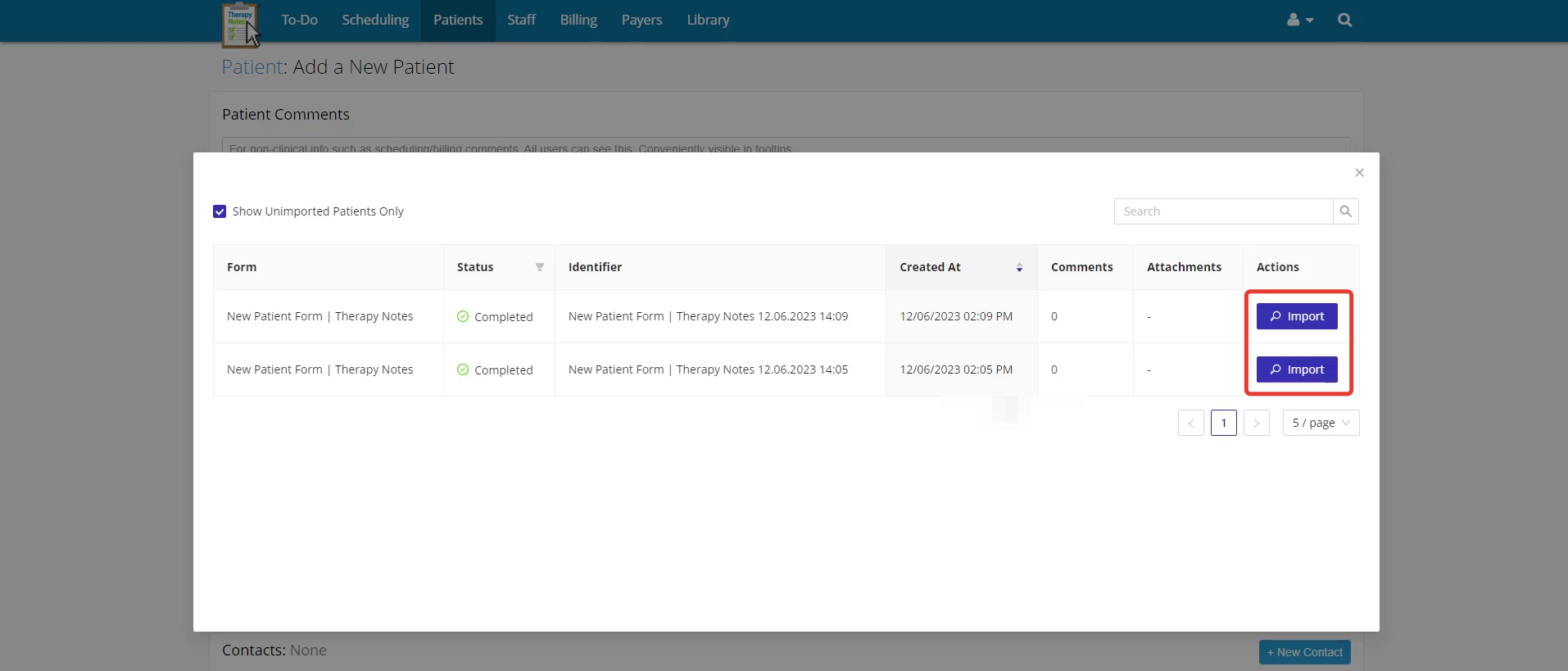
Choose the form submission you want to import, then click Import.
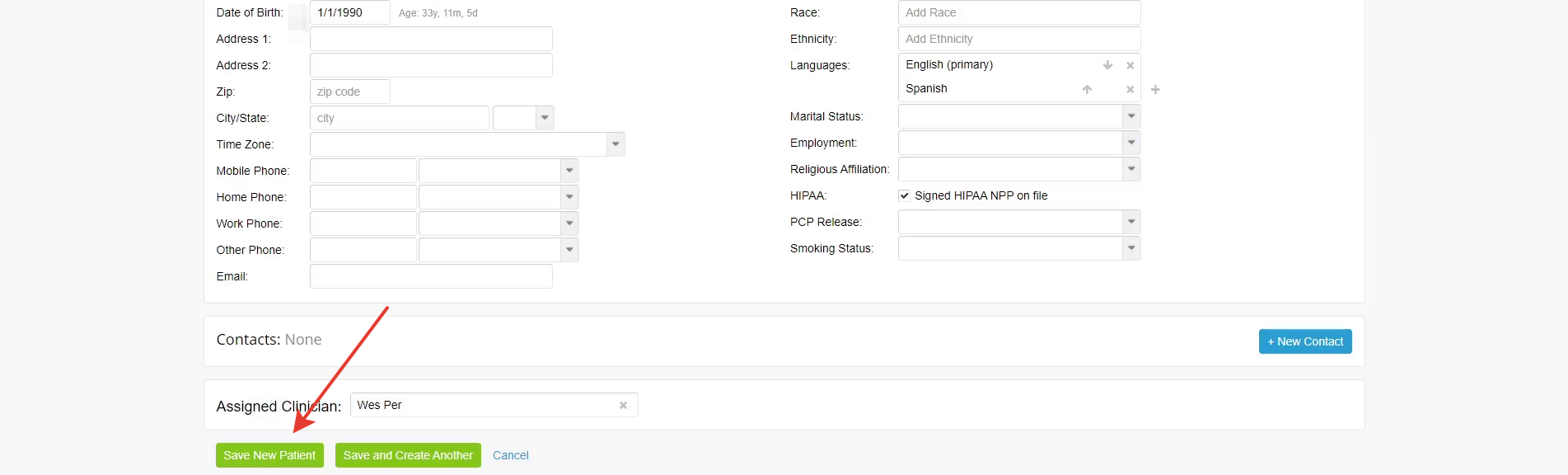
Wait for the process to complete, review the imported data for accuracy, then click Save New Patient.
Access the Printable Form
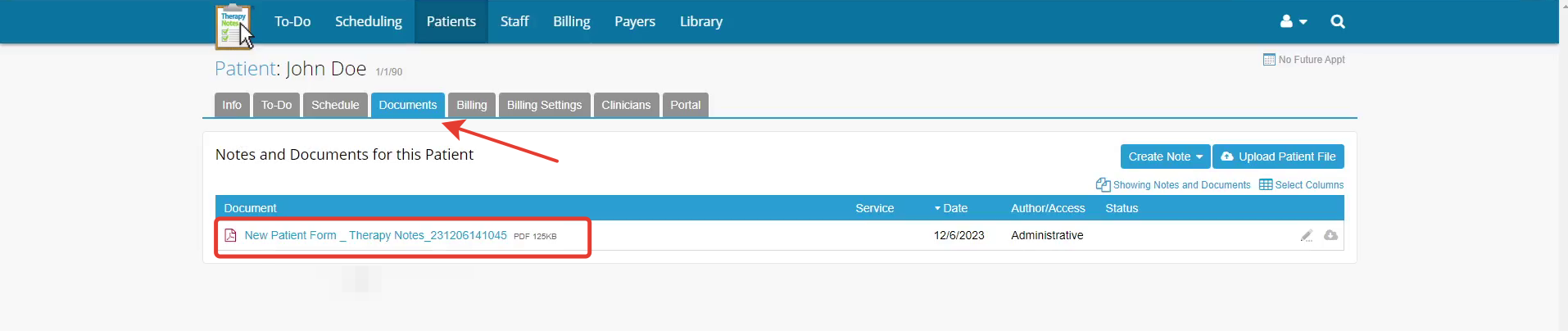
Once a patient is created, go to the Documents tab in TherapyNotes. From there, you can view, edit, and download the printable version of the HIPAAtizer form submission.
Need help? Reach out to support@hipaatizer.com.