

HubSpot Integration
This guide walks you through connecting a HIPAAtizer form to your HubSpot CRM.
HubSpot is not HIPAA-compliant by default. You must not send fields containing Protected Health Information (PHI) to HubSpot unless your organization has an executed Business Associate Agreement (BAA) with HubSpot and has taken all required steps to configure your account for HIPAA compliance.
By default, HIPAAtizer only sends non-PHI metadata (e.g., submission links). 👉 What counts as PHI?
Authenticate Your HubSpot Account
-
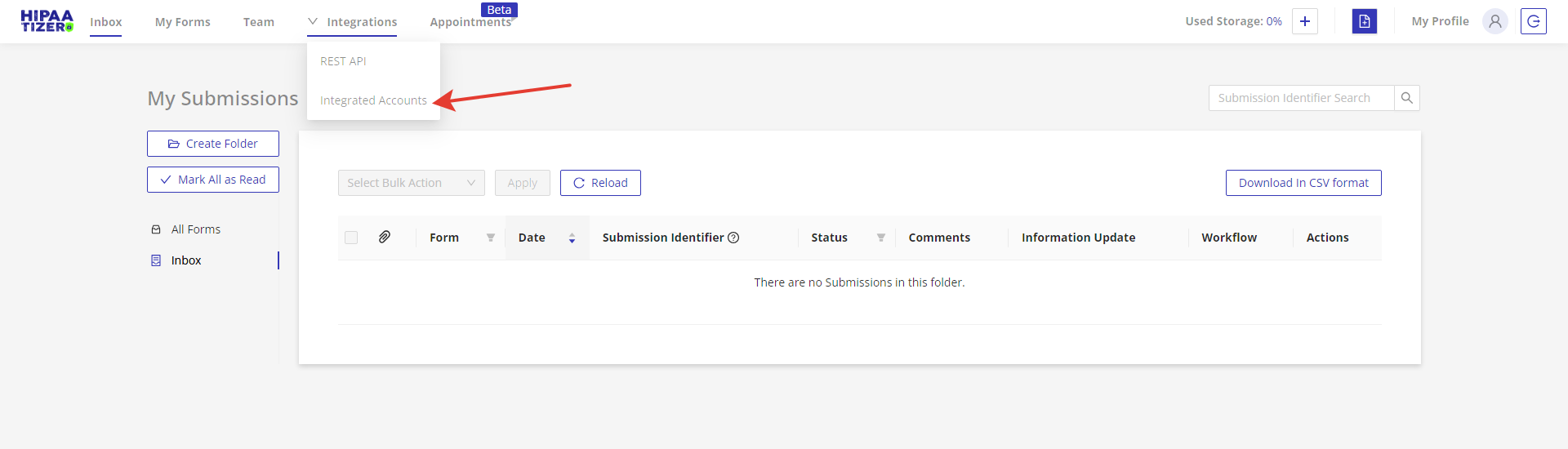
In the Integrations menu, select Integrated Accounts.
-
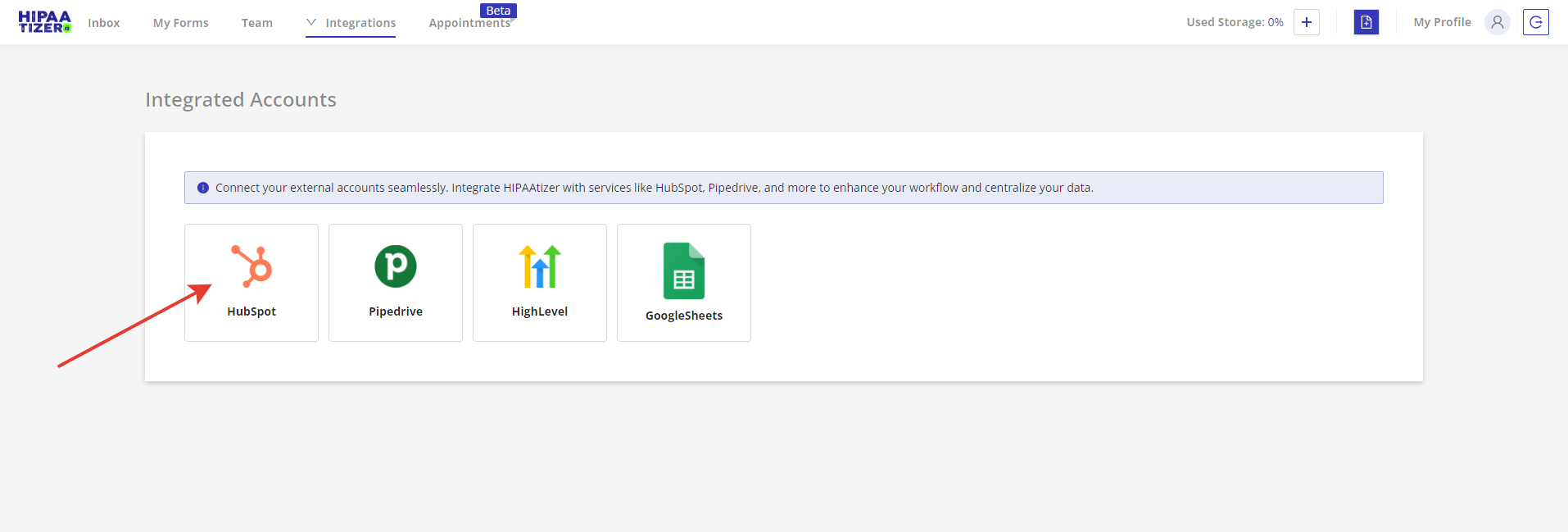
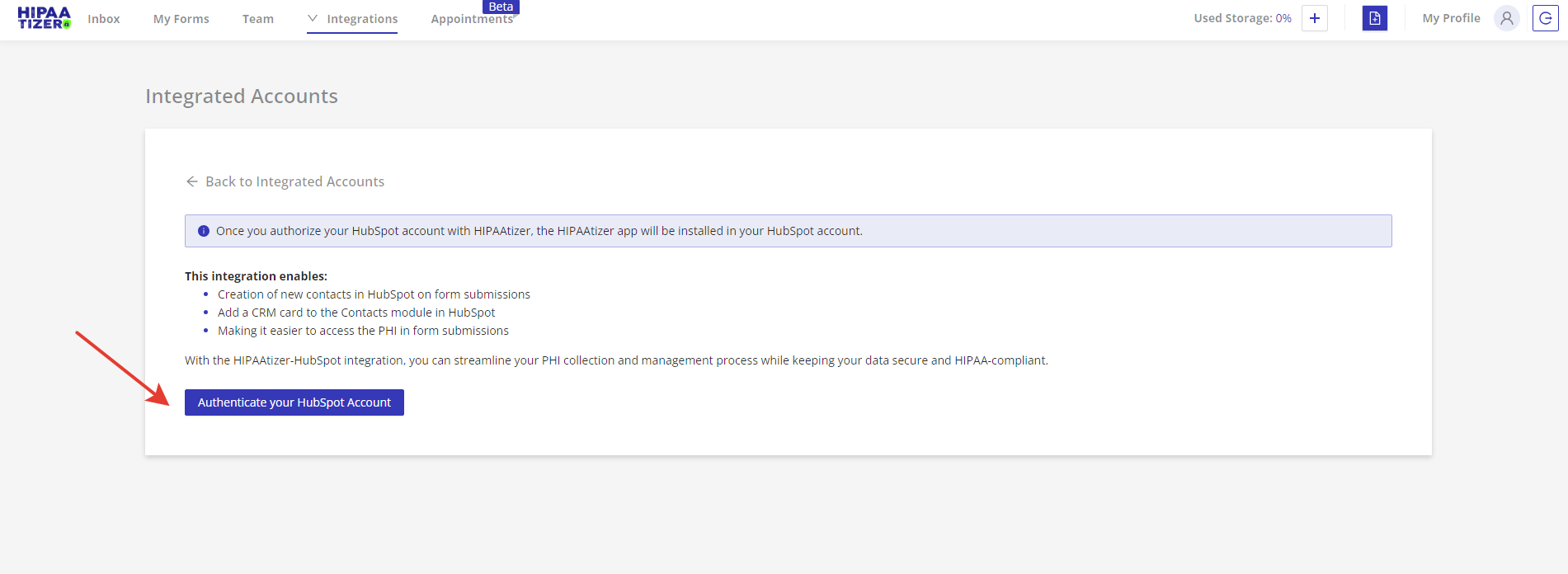
Choose HubSpot as your integration option, then click Authenticate your HubSpot Account.
-
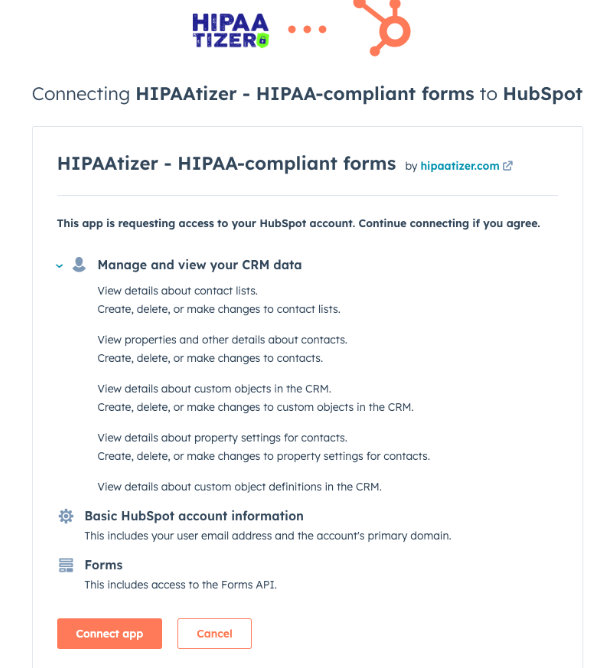
When the HubSpot confirmation page appears, click Connect app to complete authentication.
Integrate Your Form
-
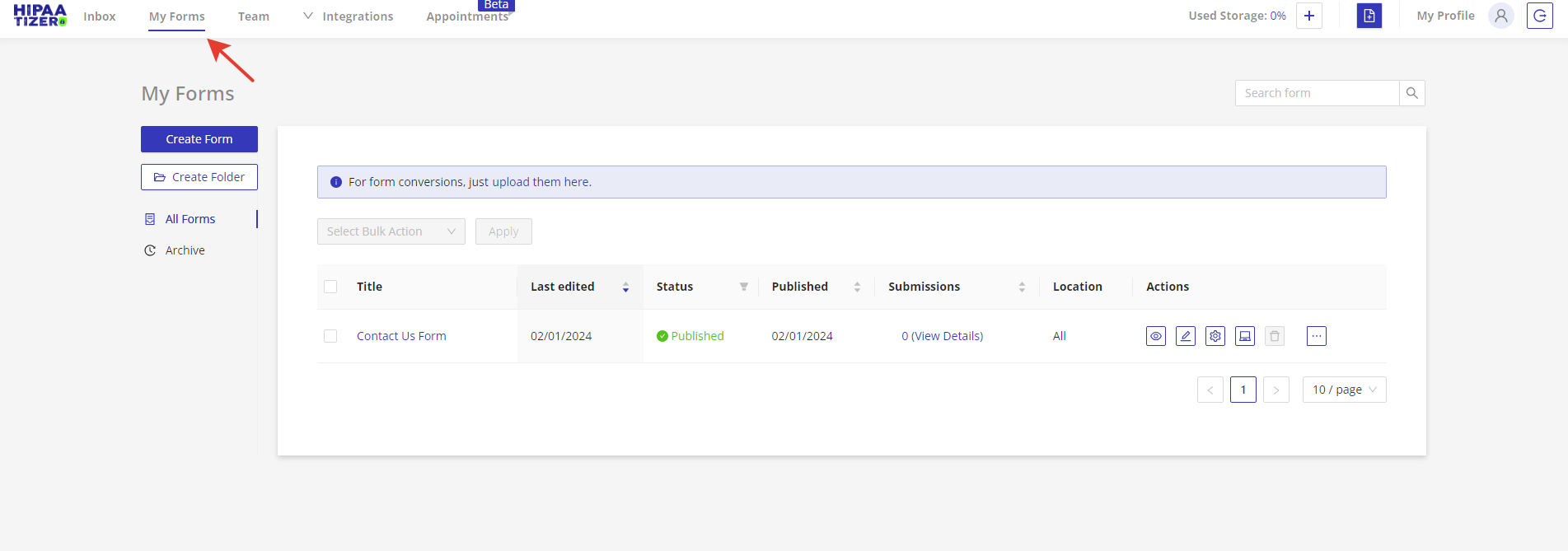
Go to the My Forms section and choose the form you want to integrate.
-
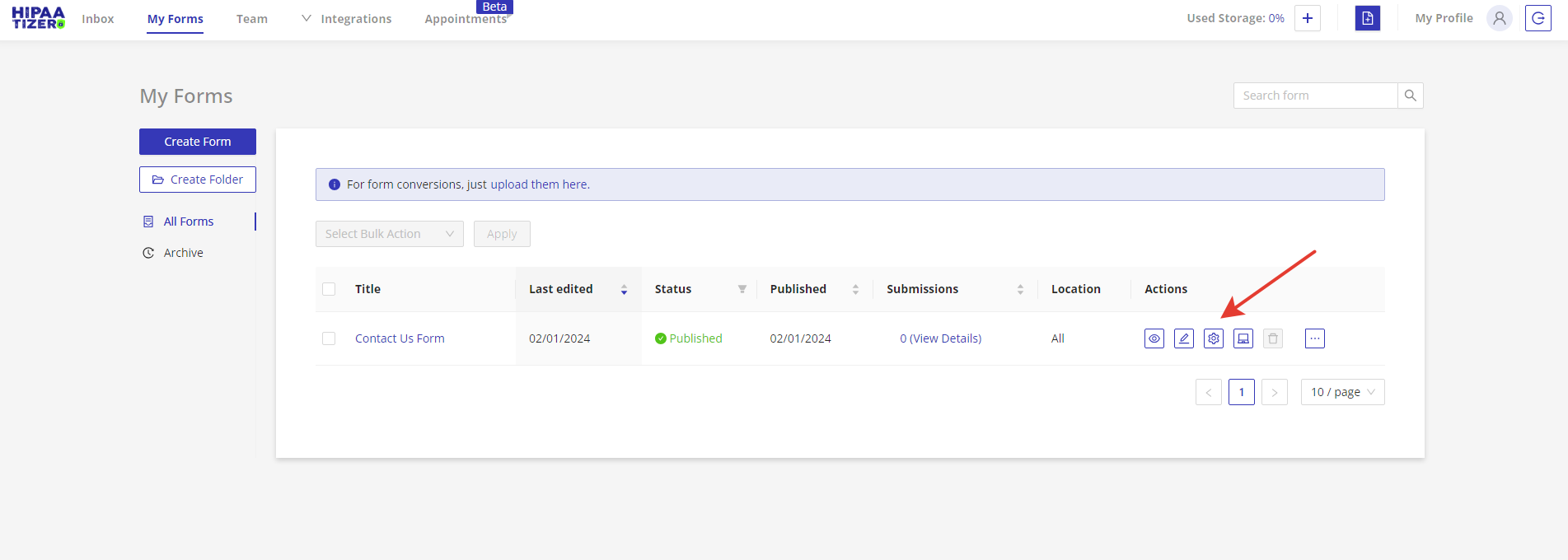
Click the Form Settings icon.
-
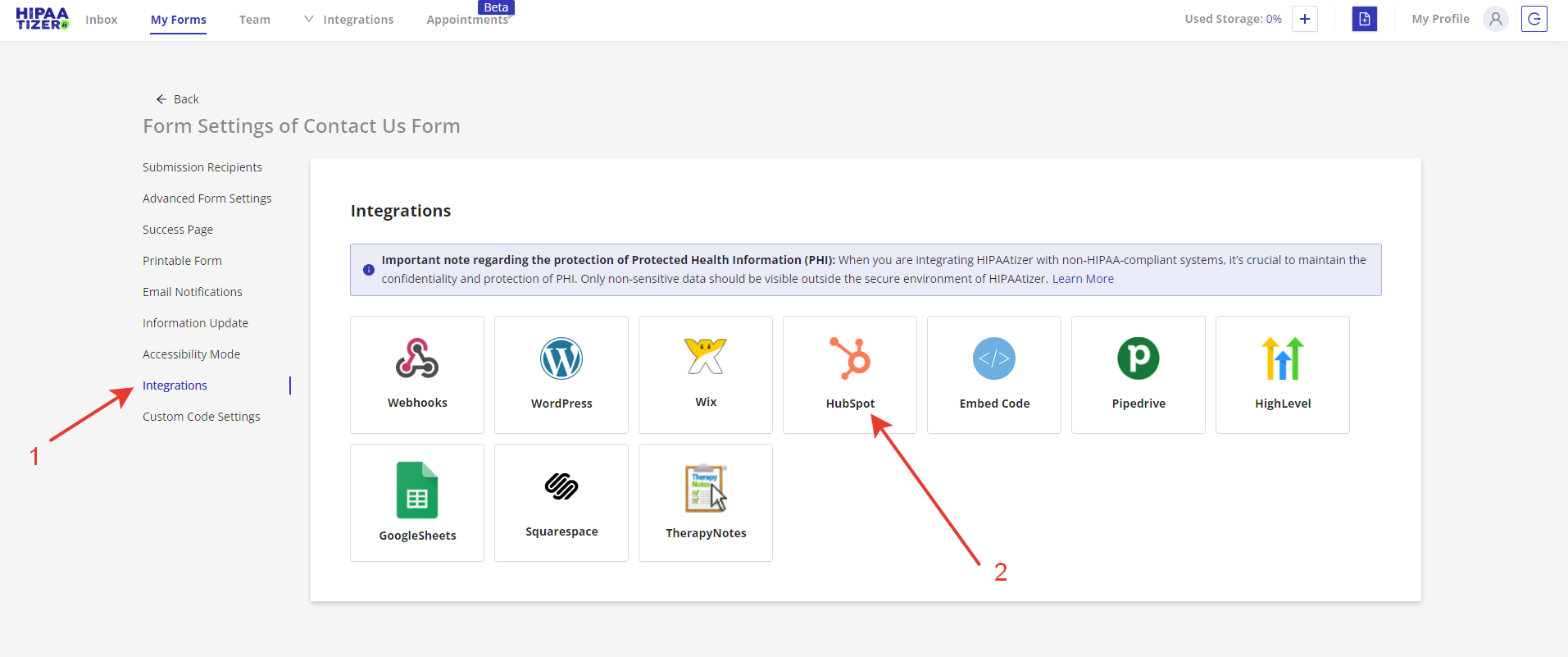
Open the Integrations tab and select HubSpot.
-
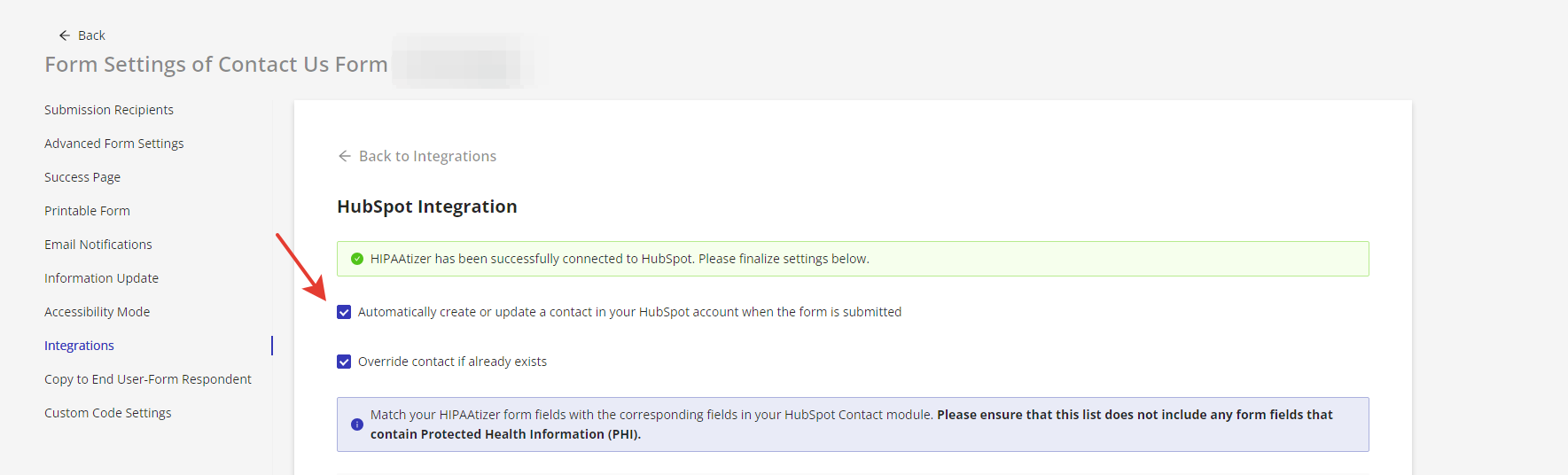
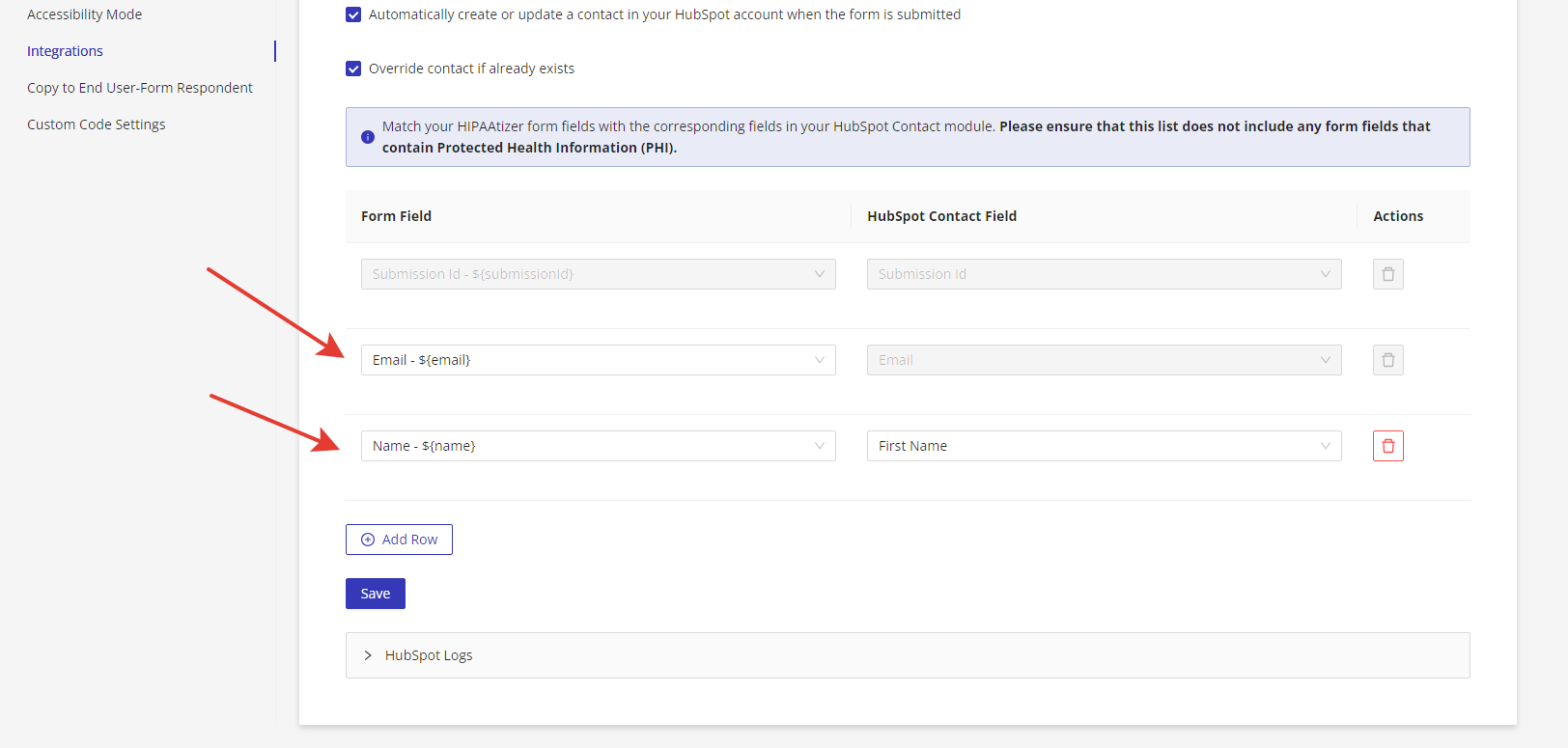
Check the box labeled "Automatically create or update a contact in your HubSpot account when the form is submitted." This will display the field mapping options.
-
Match each HIPAAtizer form field to the corresponding HubSpot field to ensure accurate data transfer. ⚠️ Avoid mapping fields that contain PHI unless your HubSpot account is HIPAA-configured with a signed BAA.
-
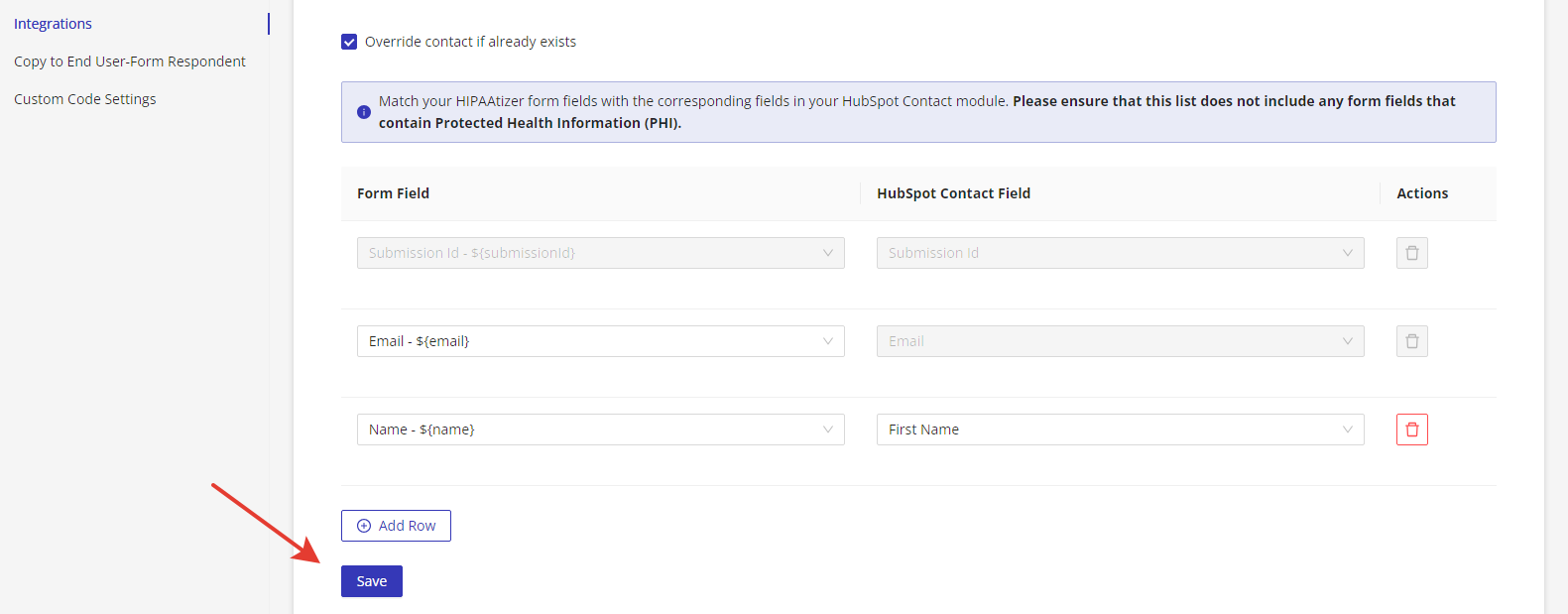
Click Save to finalize your integration settings.
Test the Integration
Submit the Form
-
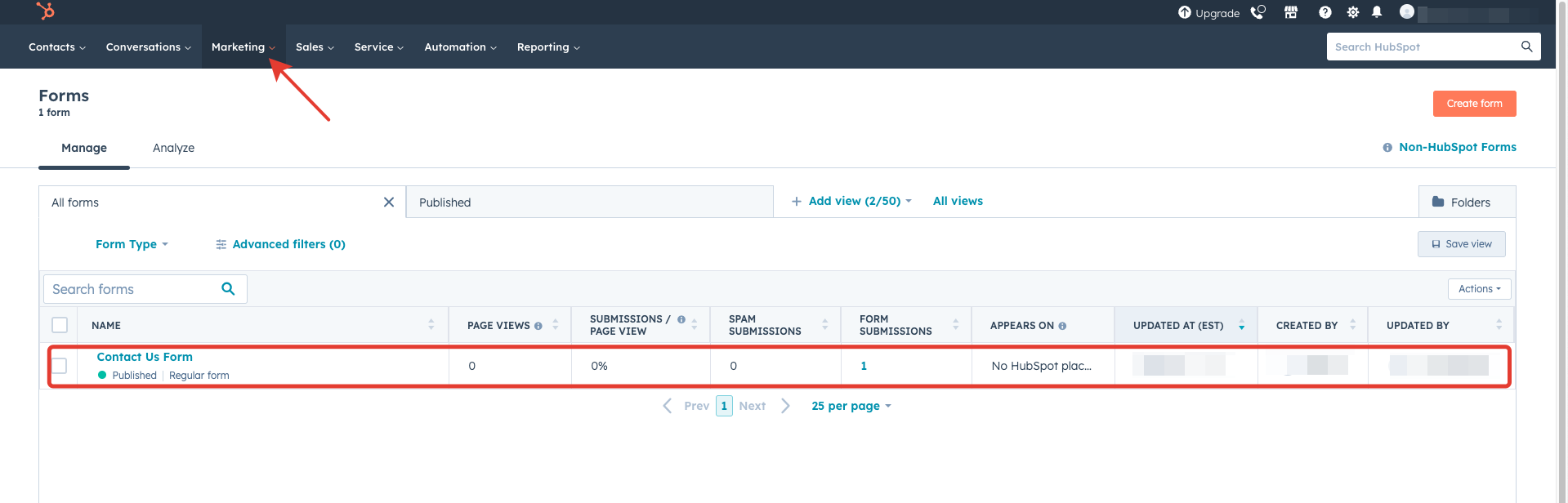
After saving, HIPAAtizer will automatically create a corresponding form in HubSpot. You can view it under Marketing → Forms in your HubSpot dashboard.
-
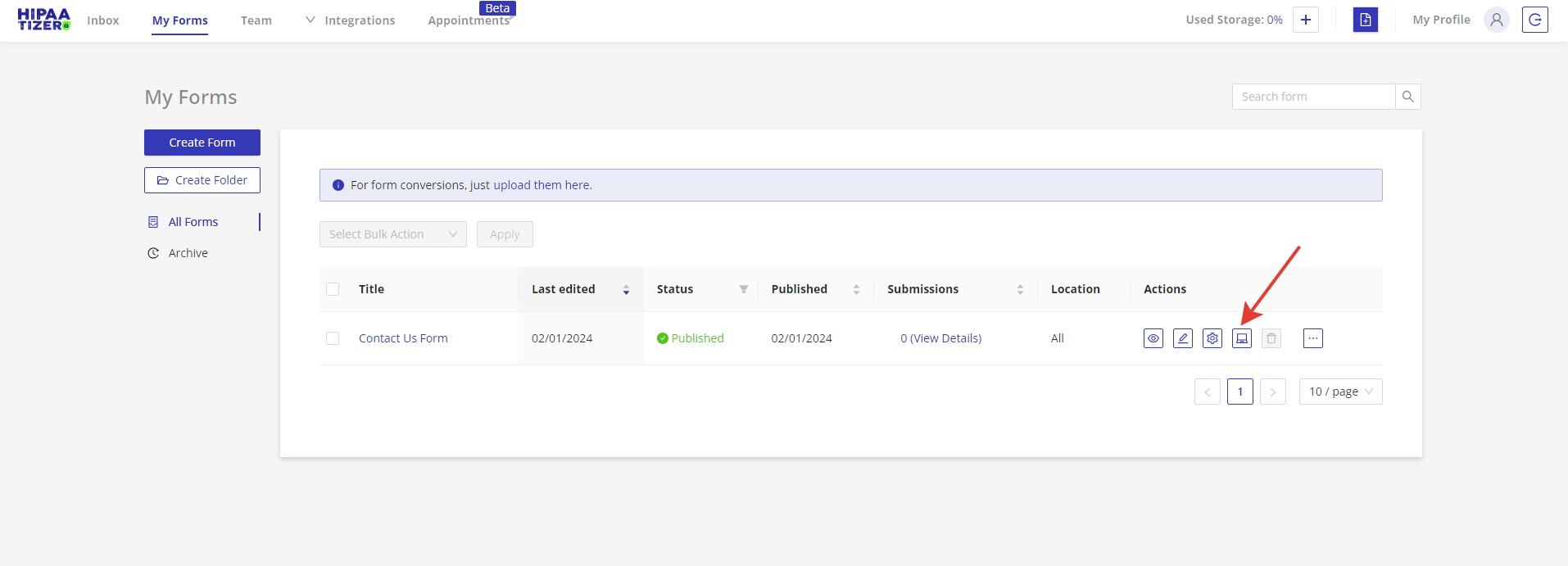
Create a test submission by opening the form and using the Embed Form icon to generate a shareable link or QR code.
Review the Submission in HubSpot
-
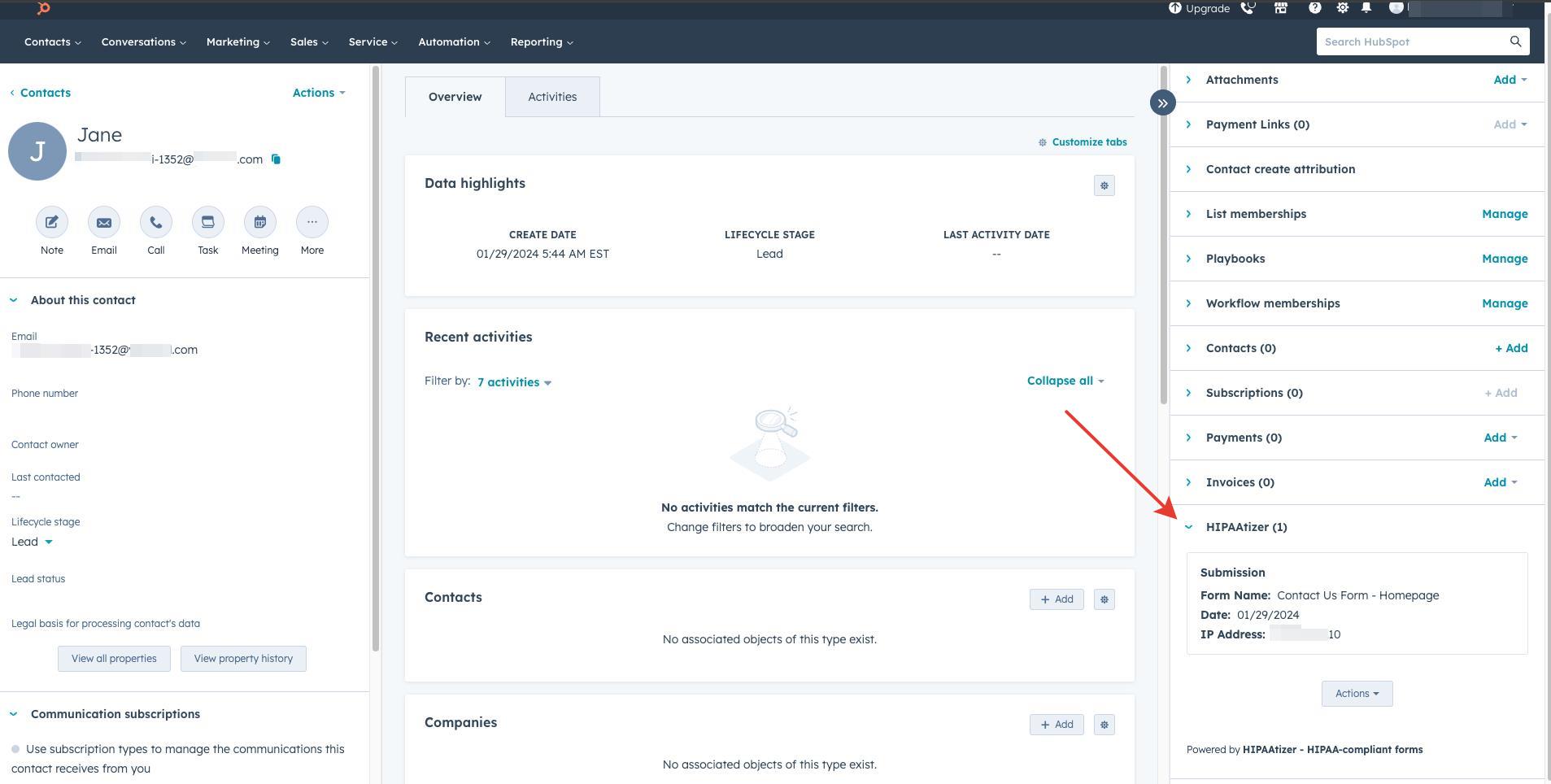
After submitting the form, go to Contacts in your HubSpot account. A new contact should appear.
-
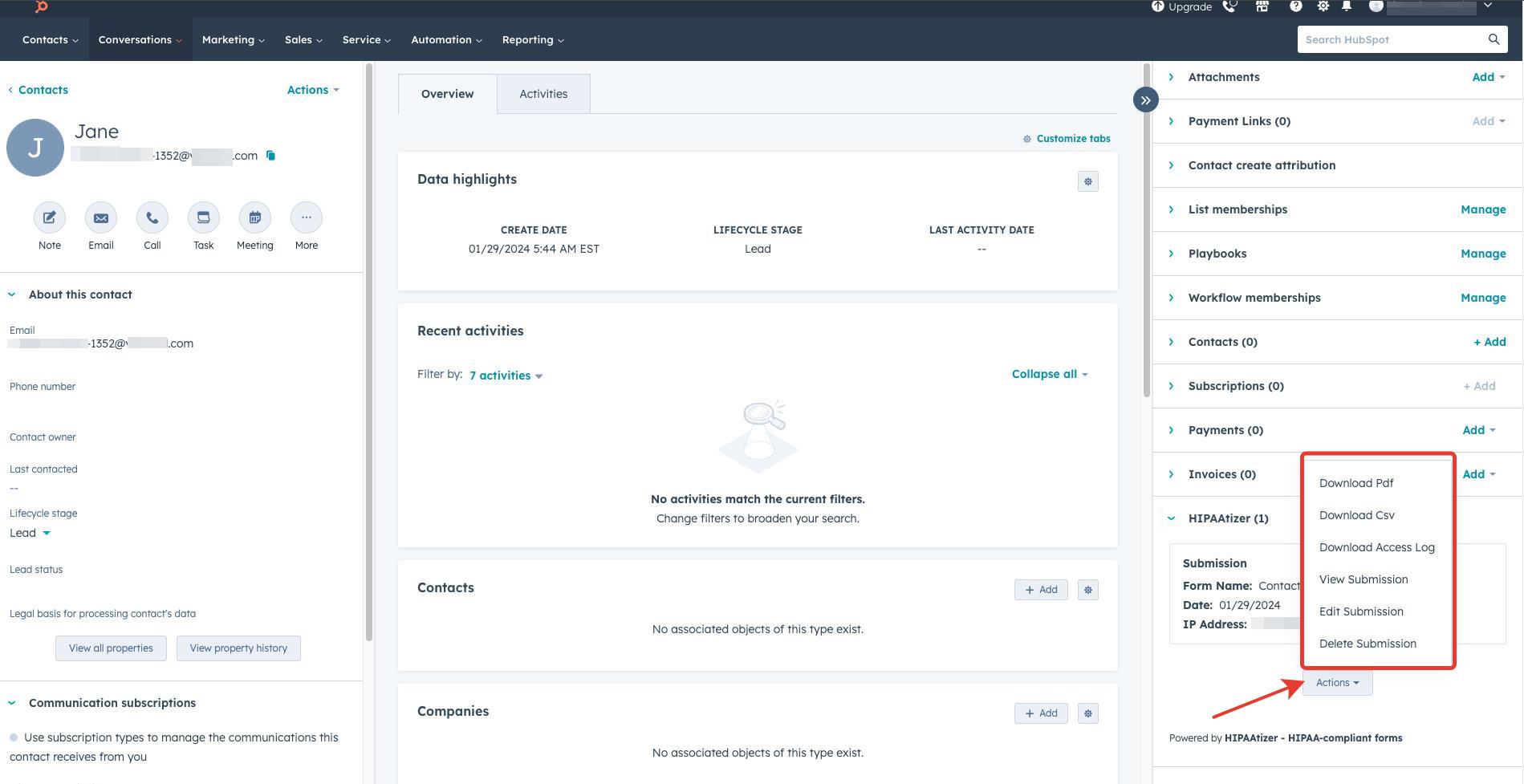
In the contact record, click the HIPAAtizer tab in the right sidebar. From here, click Actions to:
- View the submission
- Download a PDF or CSV
- Access the submission log
- Edit or delete the submission
✅ Your HIPAAtizer form is now successfully integrated with HubSpot.
If you need help or have questions, feel free to contact our support team at support@hipaatizer.com