

Stripe
This guide will walk you through the process of generating API keys, authenticating your Stripe account in HIPAAtizer, and adding the Stripe Payment Element to your form.
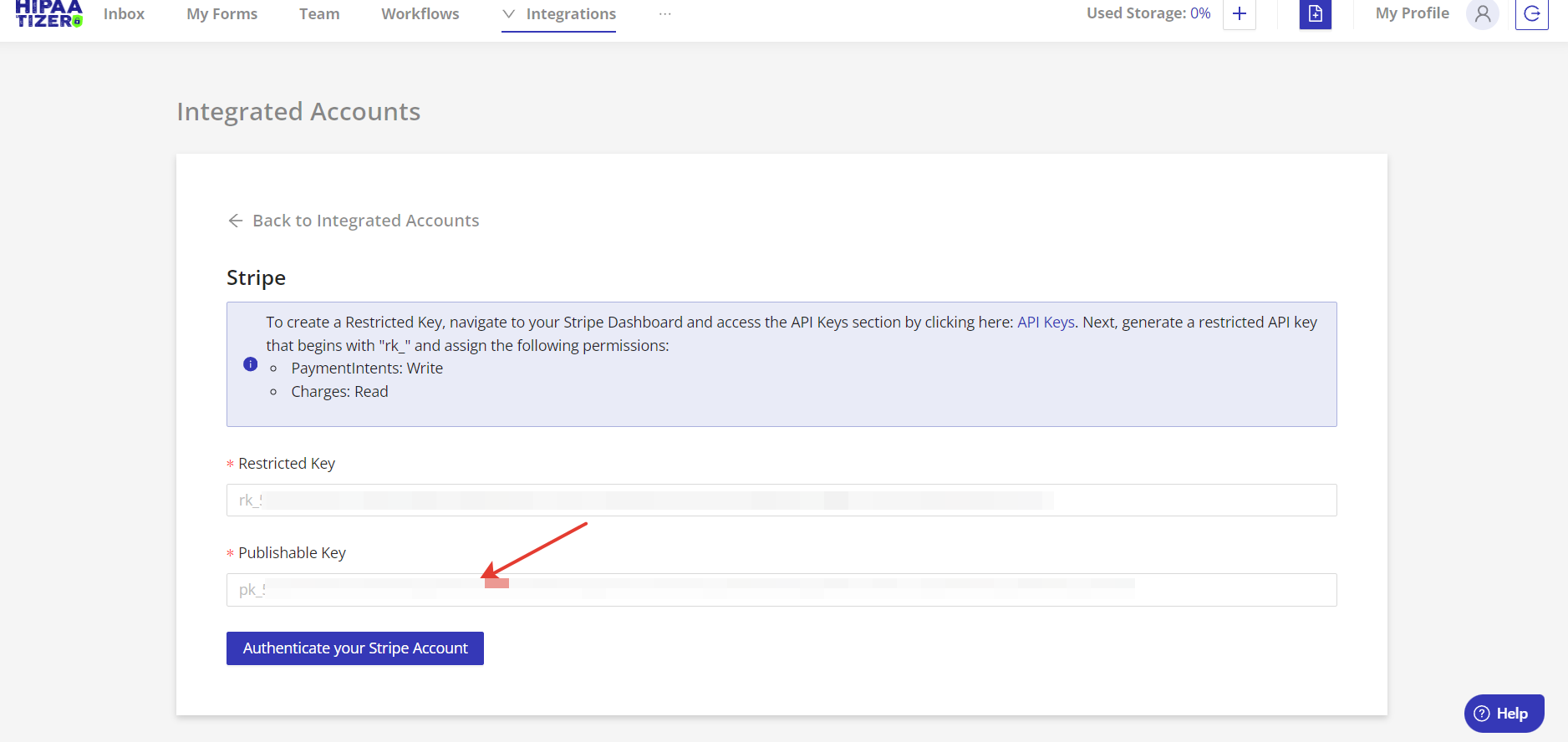
Create a Restricted Key
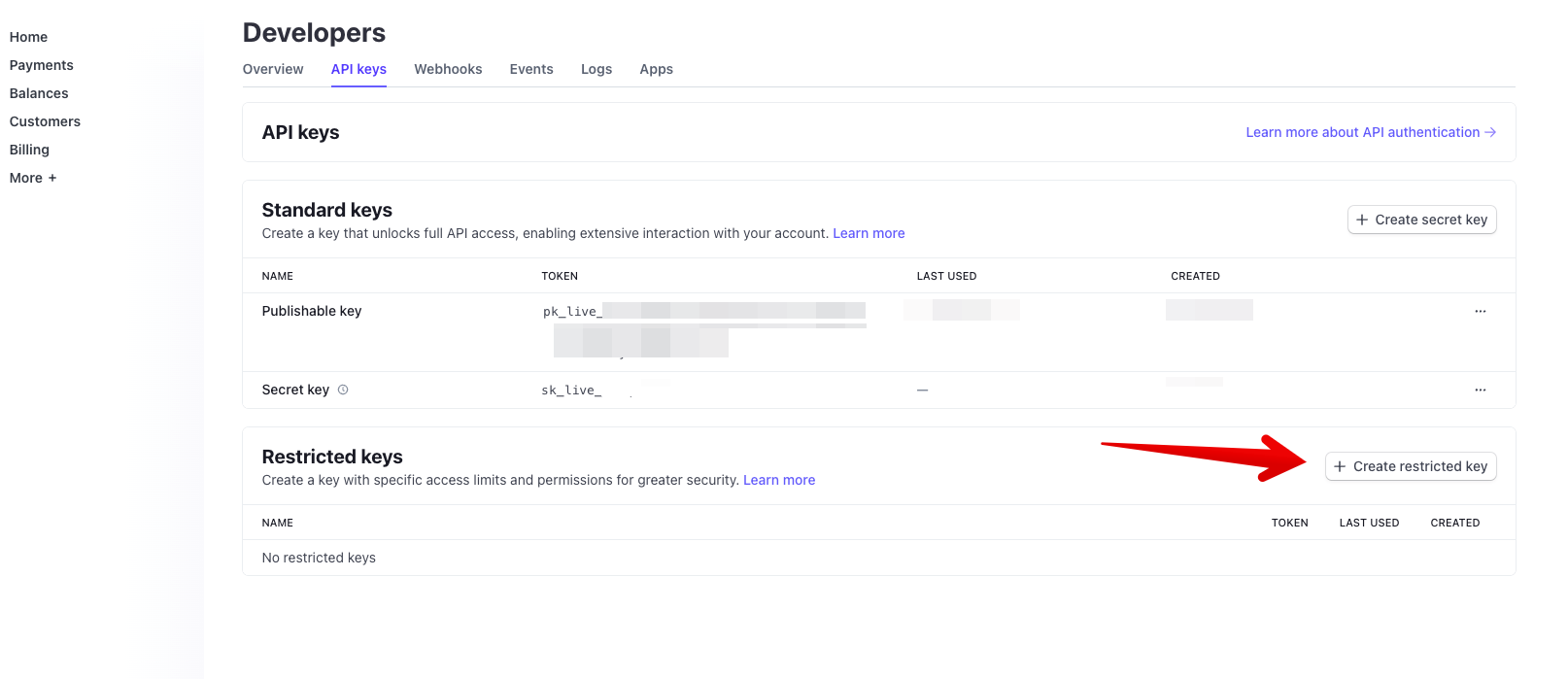
To create a Restricted Key, navigate to your Stripe Dashboard and access the API Keys section by clicking on the 'API Keys' tab found at the top of the page.
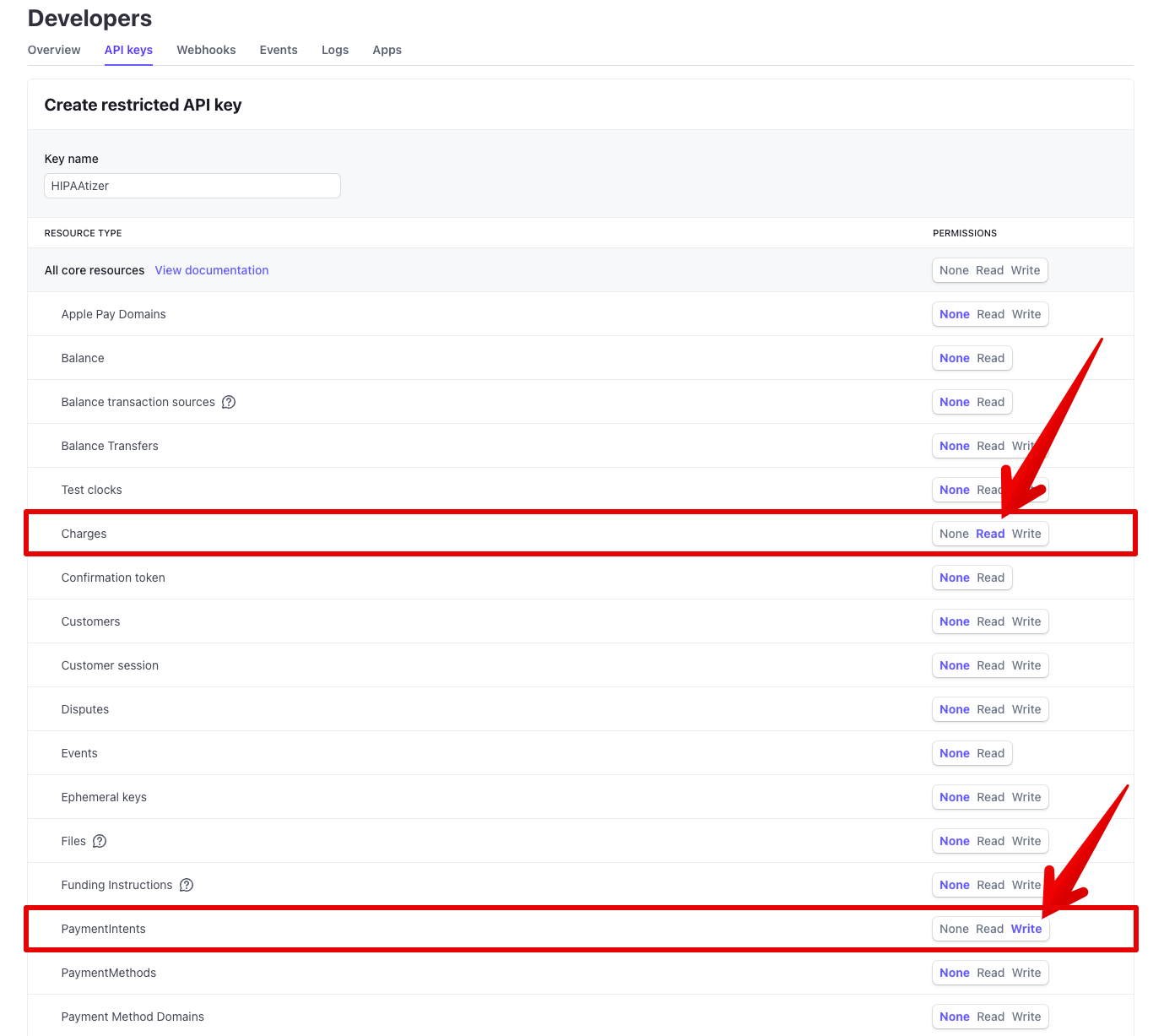
Next, generate a restricted API key that begins with "rk_" and assign the following permissions:
- PaymentIntents: Write
- Charges: Read
Authenticate Your Stripe Account in HIPAAtizer
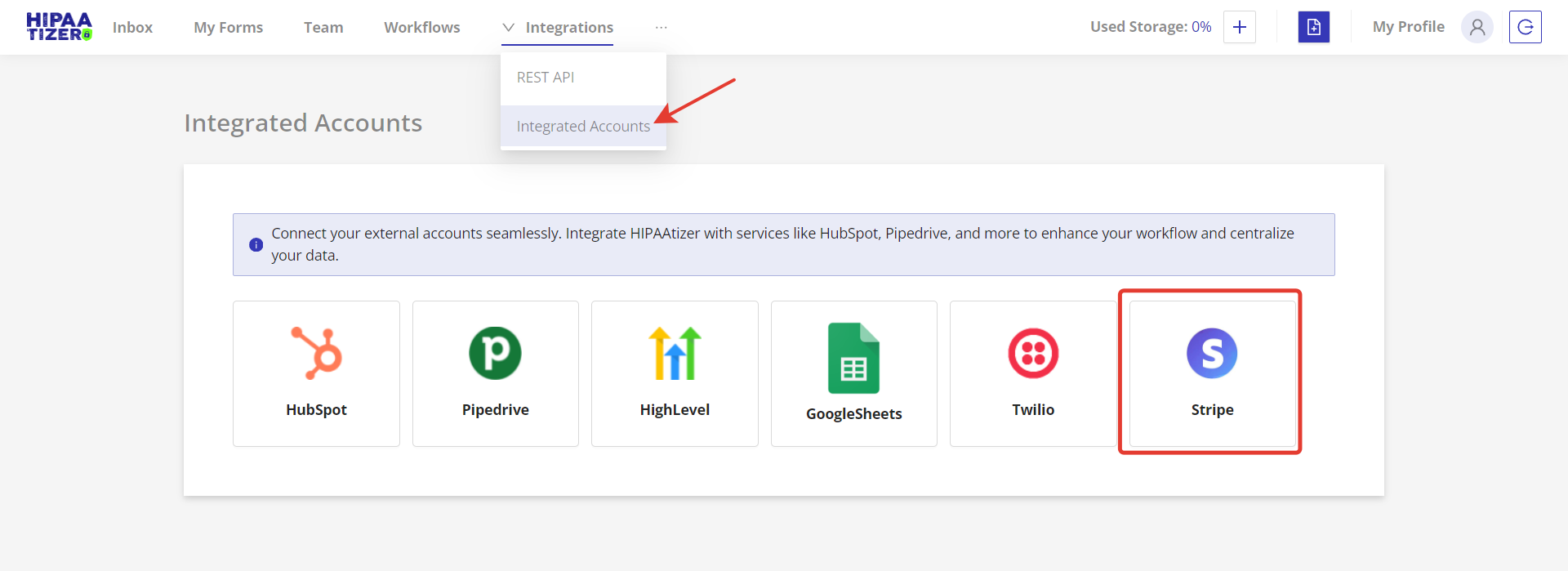
- Go to the Integrations menu found at the top of the page, and click 'Integrated Account'. Then, select 'Stripe' integration from the boxes below. Enter the Restricted Key you created earlier.
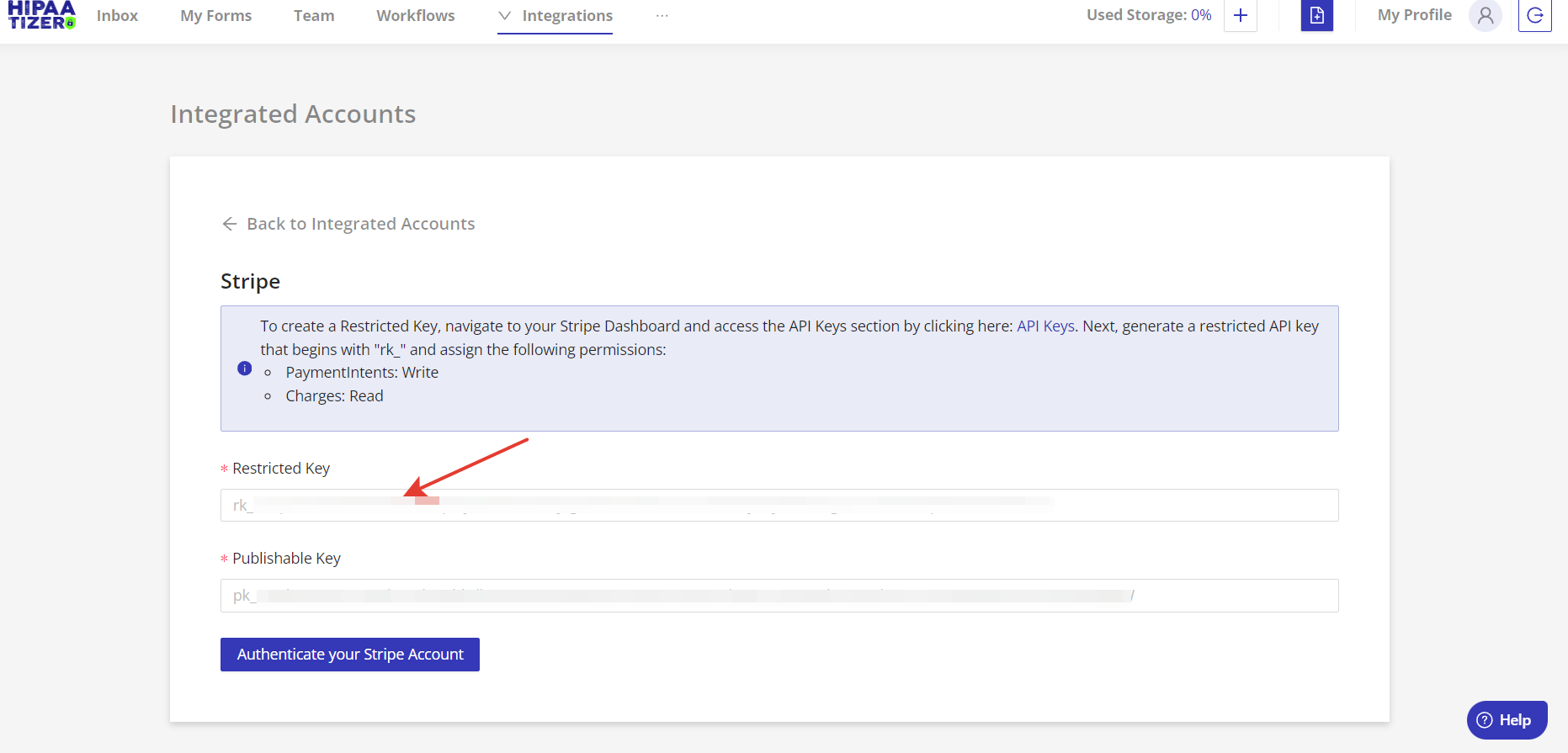
- Next, retrieve your Publishable Key. It is available from your Stripe Dashboard here. Then, paste the Publishable Key in HIPAAtizer. Click on the 'Authenticate your Stripe Account' button to add your account in HIPAAtizer.
Add a Stripe Payment Element to your Form
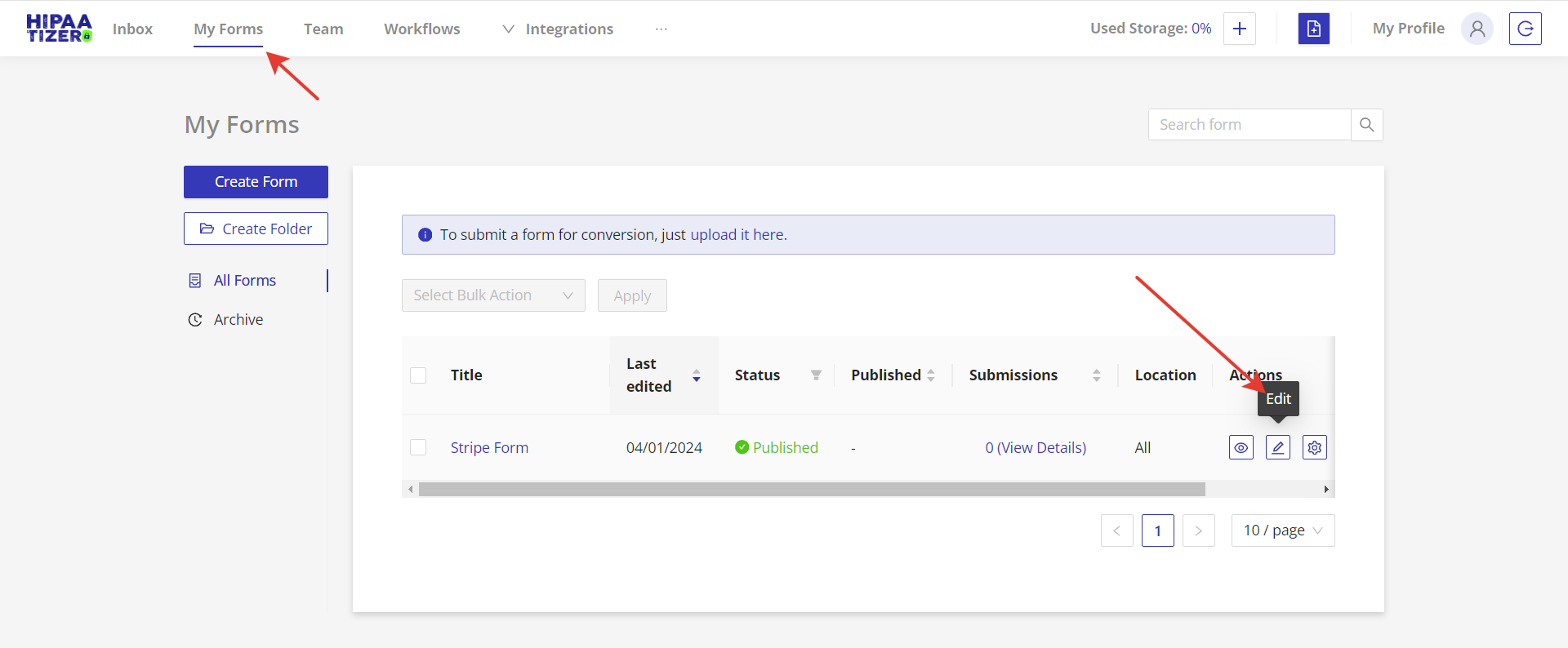
Go to the 'My Forms' tab found at the top of the page and click the 'Edit' icon of the form that you would like to add the Stripe Payment Element .
Drag and drop the Stripe Payment Element component onto your form.

Set Up Products
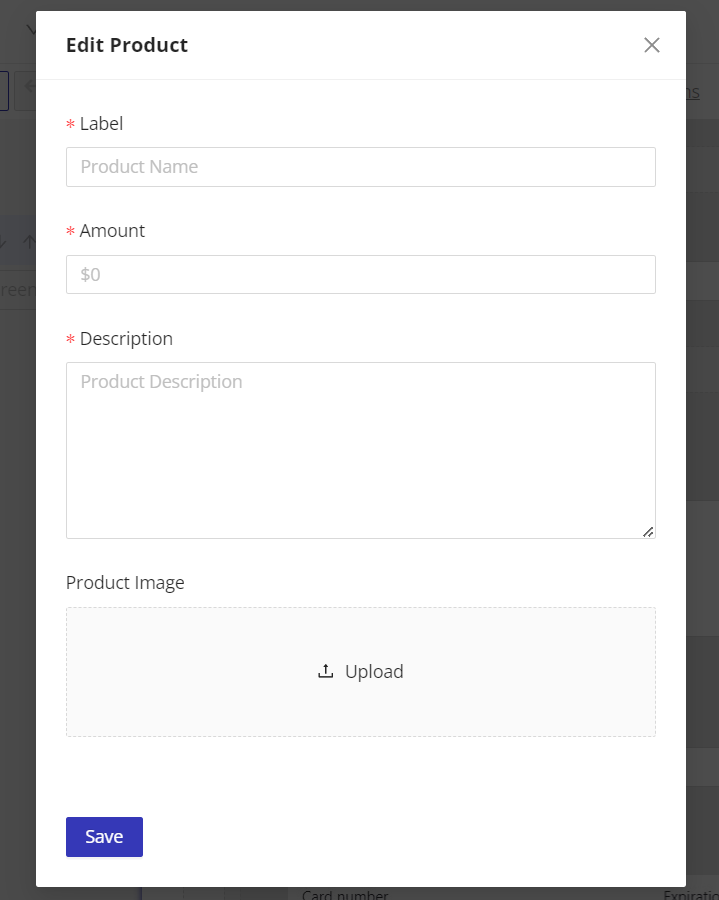
- Add products by clicking the 'Add Product' button. Enter product details such as the name, amount, description, and upload an image if needed.
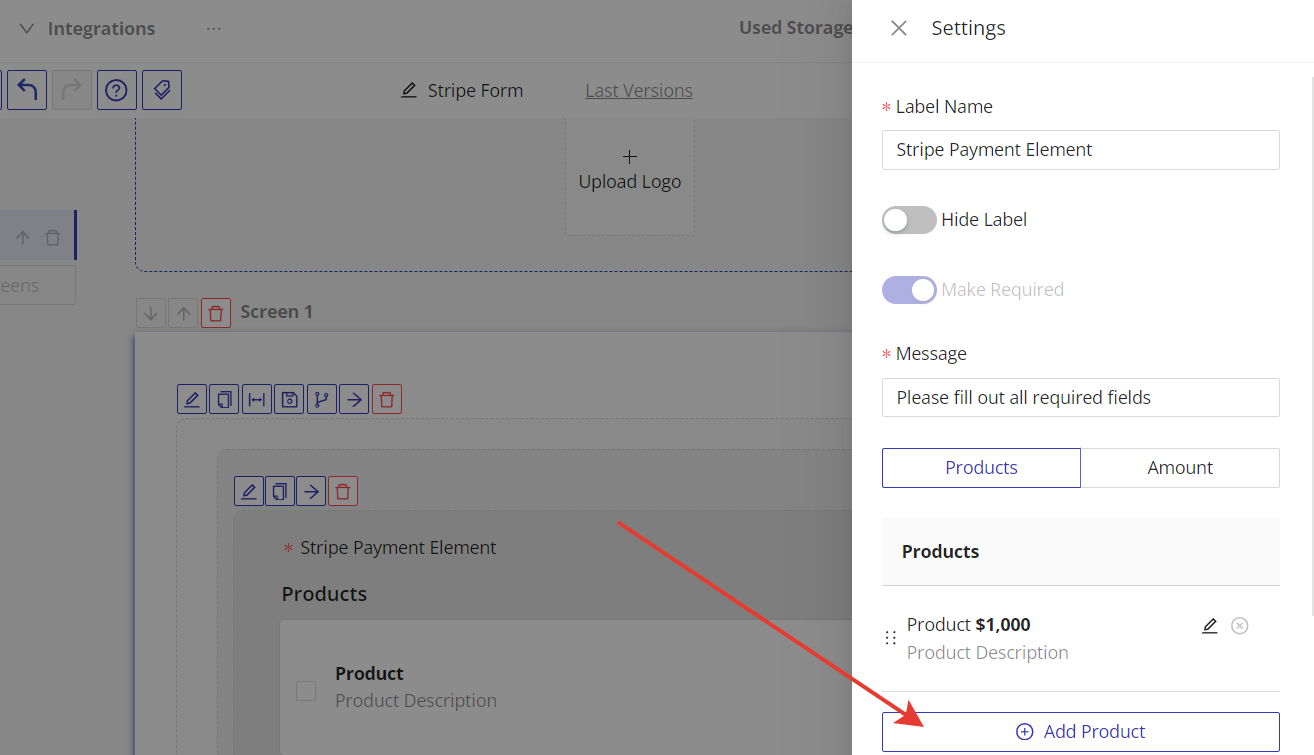
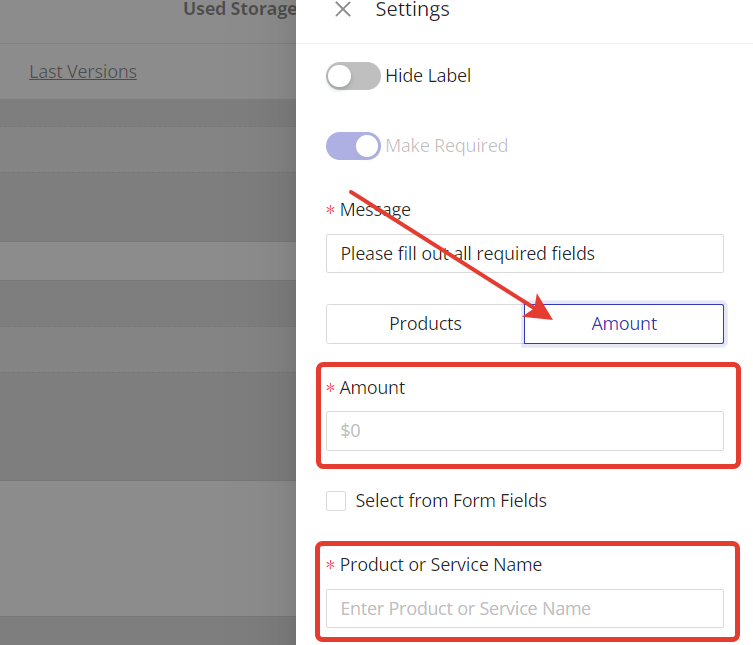
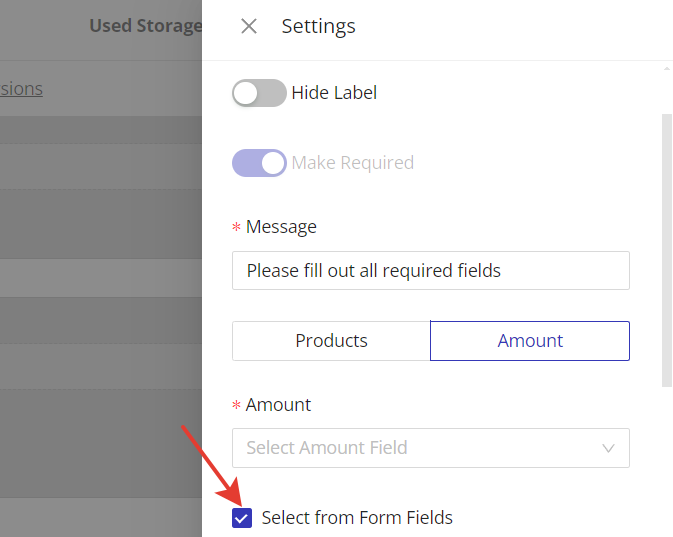
- For a single product, enter the amount and name in the 'Amount' tab. You can also automatically source an amount from the form field. Check 'Select from Form Fields' to select the form field with the amount.
Set Up Receipt Submission (Optional)
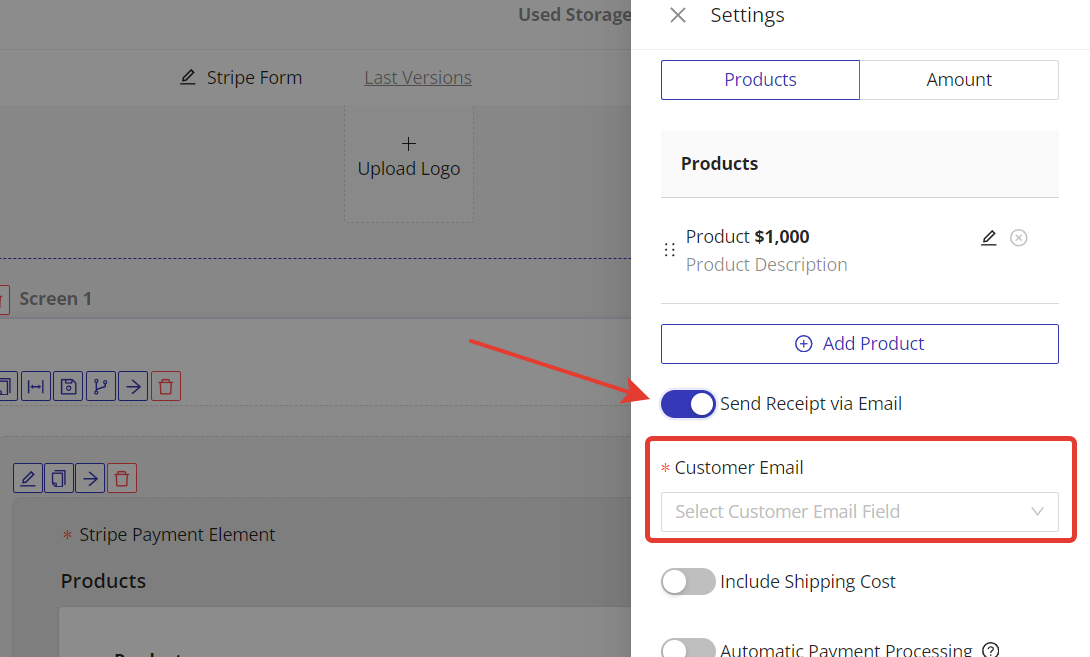
Enable 'Send Receipt via Email' and choose the customer email field.
Set Up Shipping (Optional)
Ensure you have fields for customer first name, last name, and address.
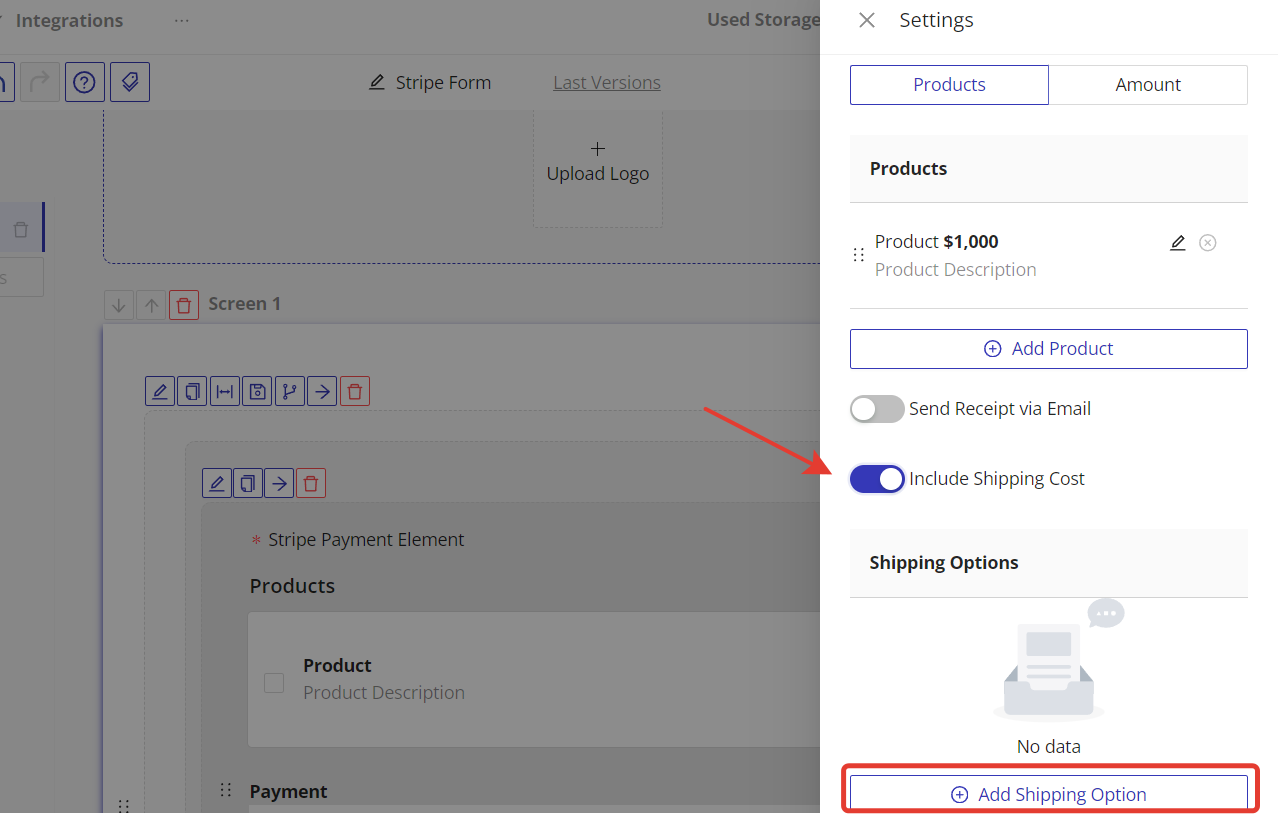
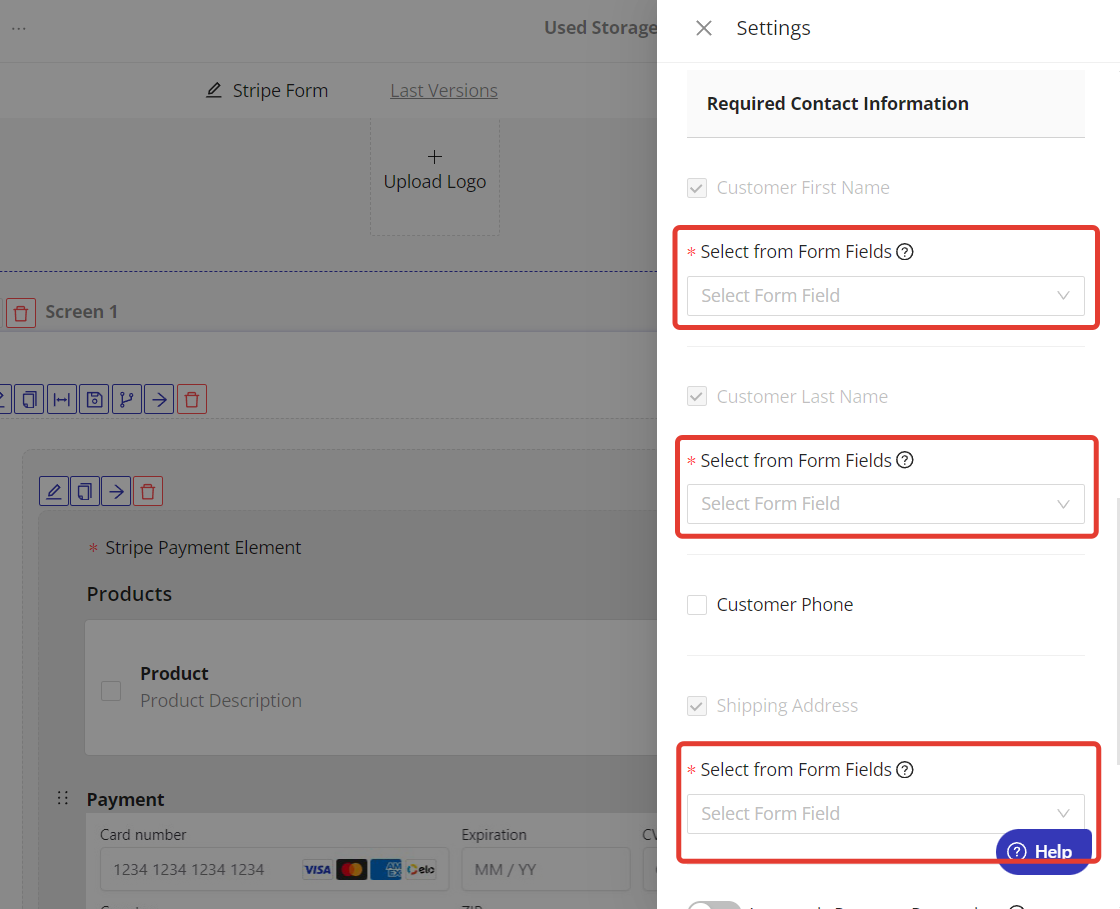
Enable 'Include Shipping Cost' and add shipping options. Configure the required contact information for shipping. Select the customer's first name, last name, and address from the form fields.
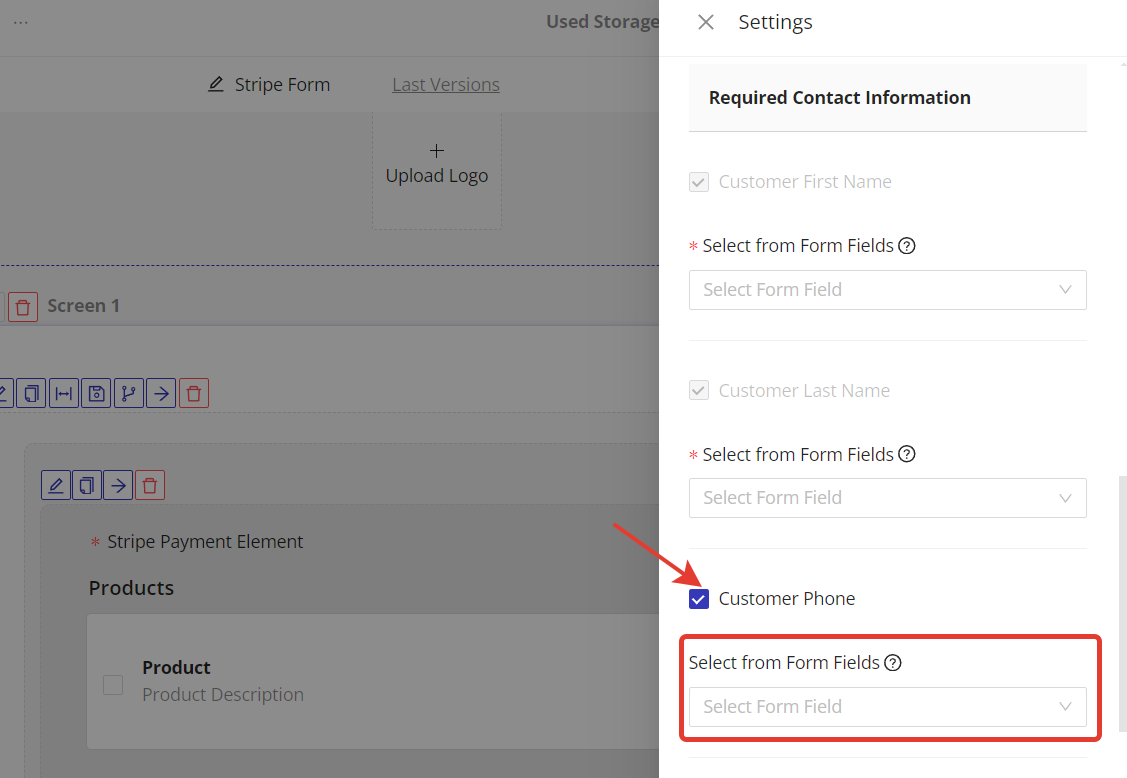
If necessary, select the 'Customer Phone' checkbox to include this field in the required contact information. Then, choose the customer's phone number from the form fields.
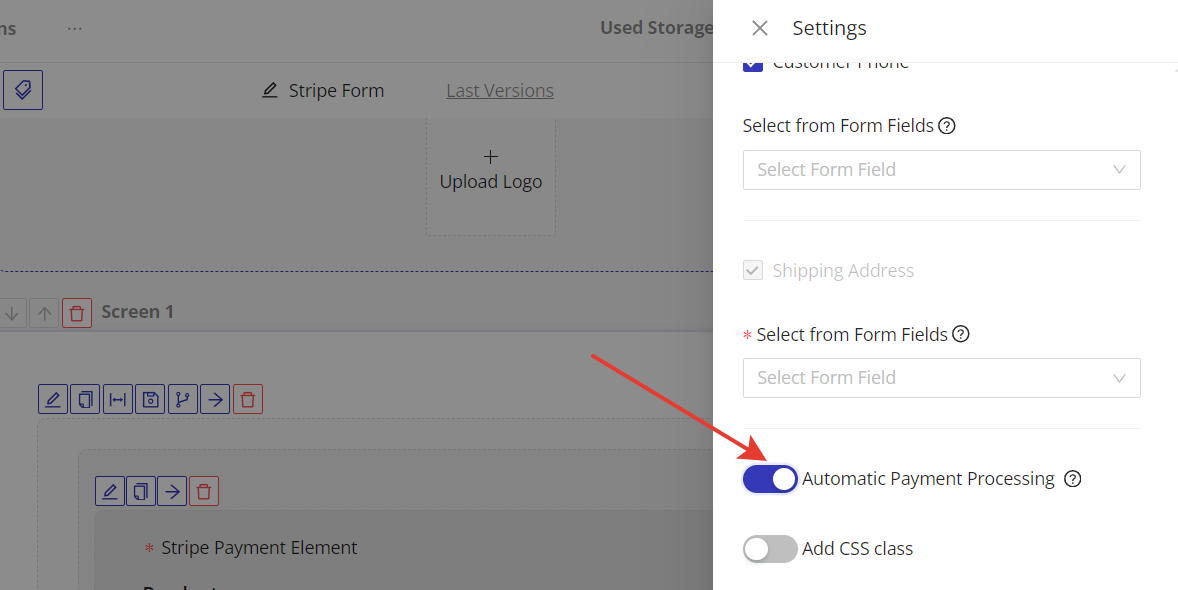
Set Up Automatic Payment Processing (Optional)
Enable to automatically process payments upon form submission, hiding the 'Pay' button.
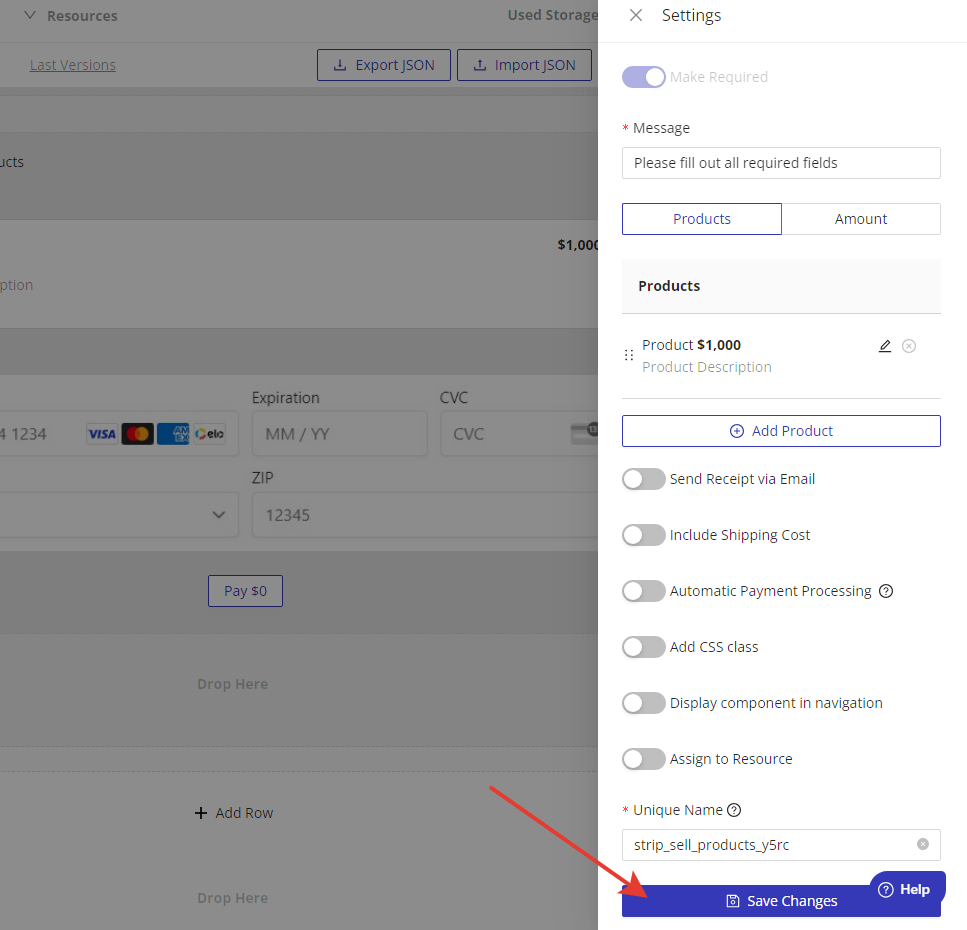
Save your Settings
Click on the 'Save Changes' button in the bottom of the Settings window.
Save and Publish your Form
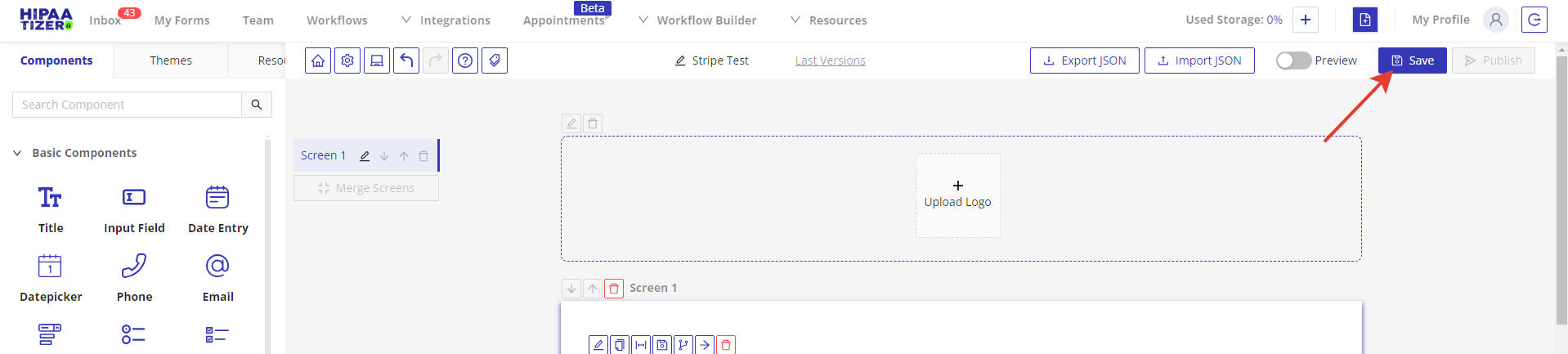
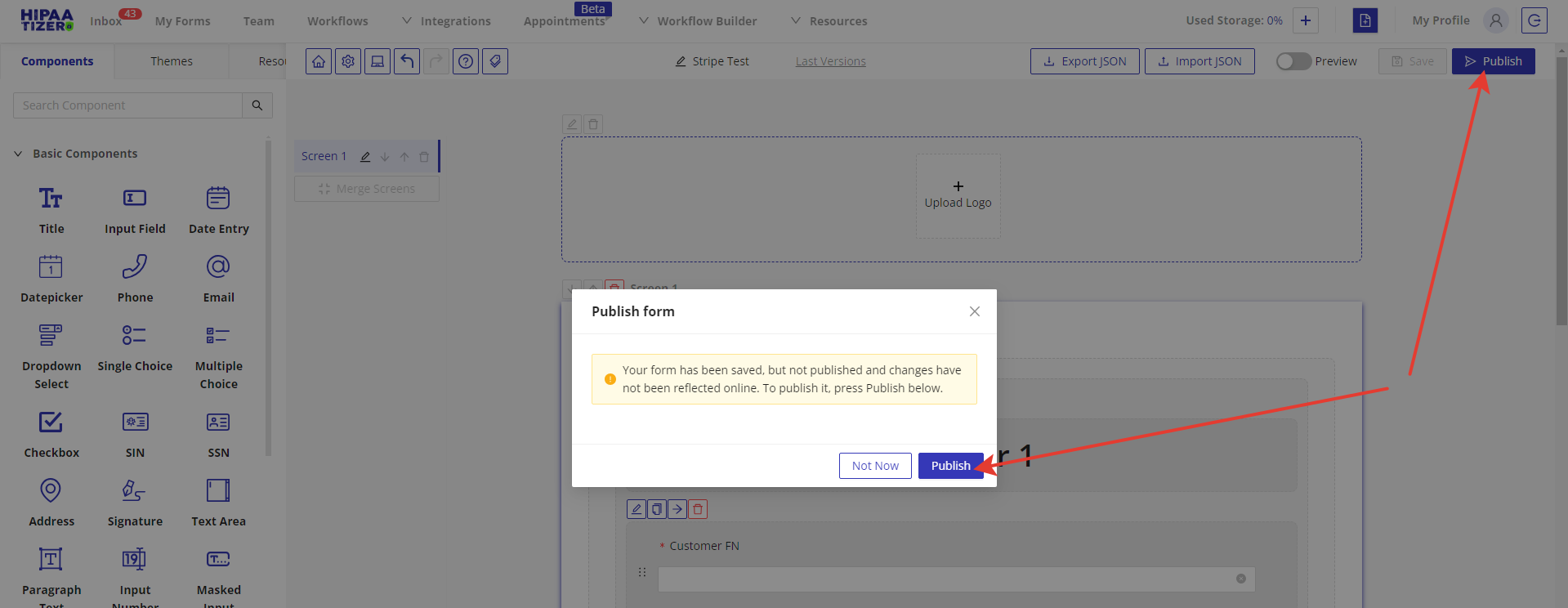
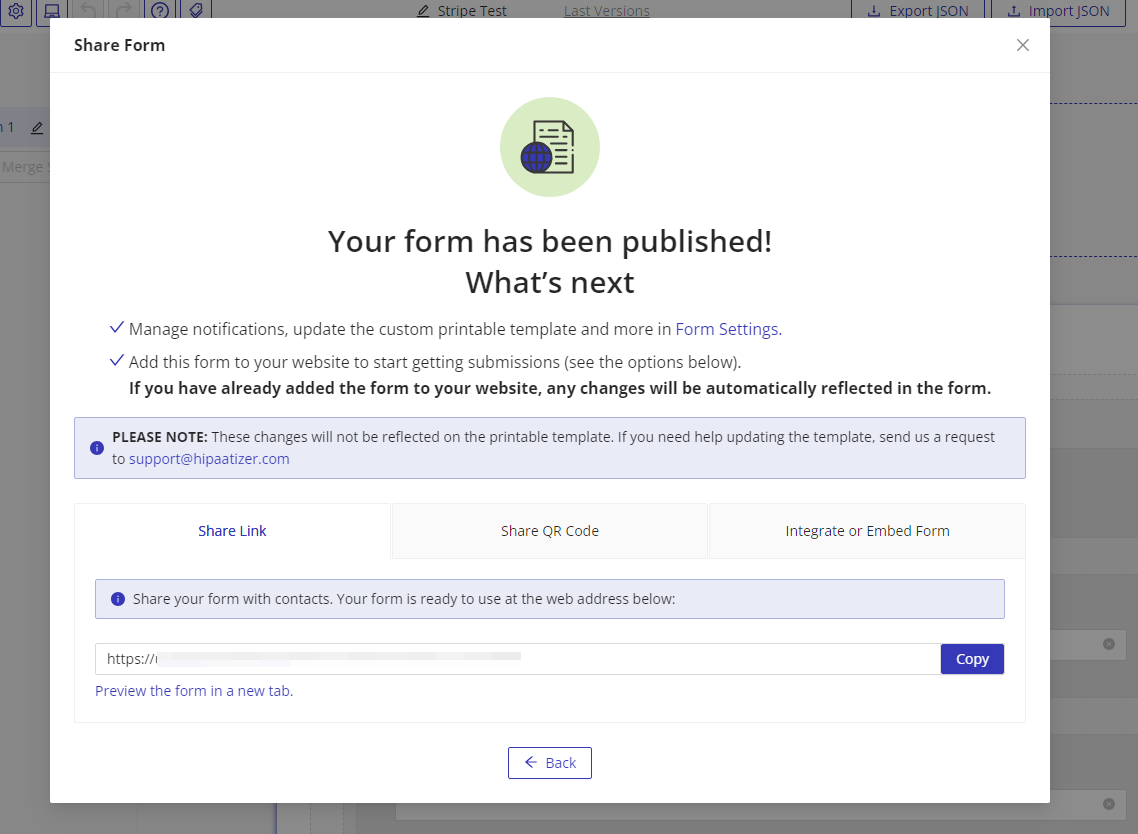
Click on the 'Save' button to save your form. Then click on the 'Publish' button to get a link to the form that you can share with your customers, or to access the 'Embed and Integration' options.
Enable Apple Pay and Google Pay
The Stripe Payment Element can show Apple Pay and Google Pay automatically, but Stripe only displays them once the domain that shows the form is registered as a payment method domain in your connected Stripe account.
Register your payment method domains
- In your Stripe Dashboard, go to Settings → Payment method domains.
- Click Add a new domain.
- Register the domain(s) where your form is displayed (see below).
Because the form already loads Stripe.js, Stripe verifies the domain and handles Apple Pay merchant validation for you, so no file upload is required.
Which domain(s) to register
HIPAAtizer forms render inside an iframe served from app.hipaatizer.com. Apple Pay requires every domain in the chain to be registered:
- Using the hosted form link (the
app.hipaatizer.comURL): registerapp.hipaatizer.com. - Embedding the form on your own website: register both
app.hipaatizer.com(the iframe source) and your site's domain, e.g.www.example.com(the top-level page). Registering only one is the most common reason Apple Pay does not appear.
A Payment Link is hosted on Stripe's own registered domain, so Apple Pay always appears there. Your embedded form's top-level page is your site, so that domain must be registered too.
Notes
- Apple Pay only appears on Safari / iOS and requires the domain registration above.
- Google Pay appears in supported browsers (e.g. Chrome) and generally does not require domain registration, which is why it can show even when Apple Pay does not.
- After adding a domain, refresh the page hosting the form and re-test on the device.