

Practice Fusion
Follow the steps below to incorporate a HIPAAtizer form into Practice Fusion using the HIPAAtizer Chrome Extension:
Configuring Form Settings in HIPAAtizer
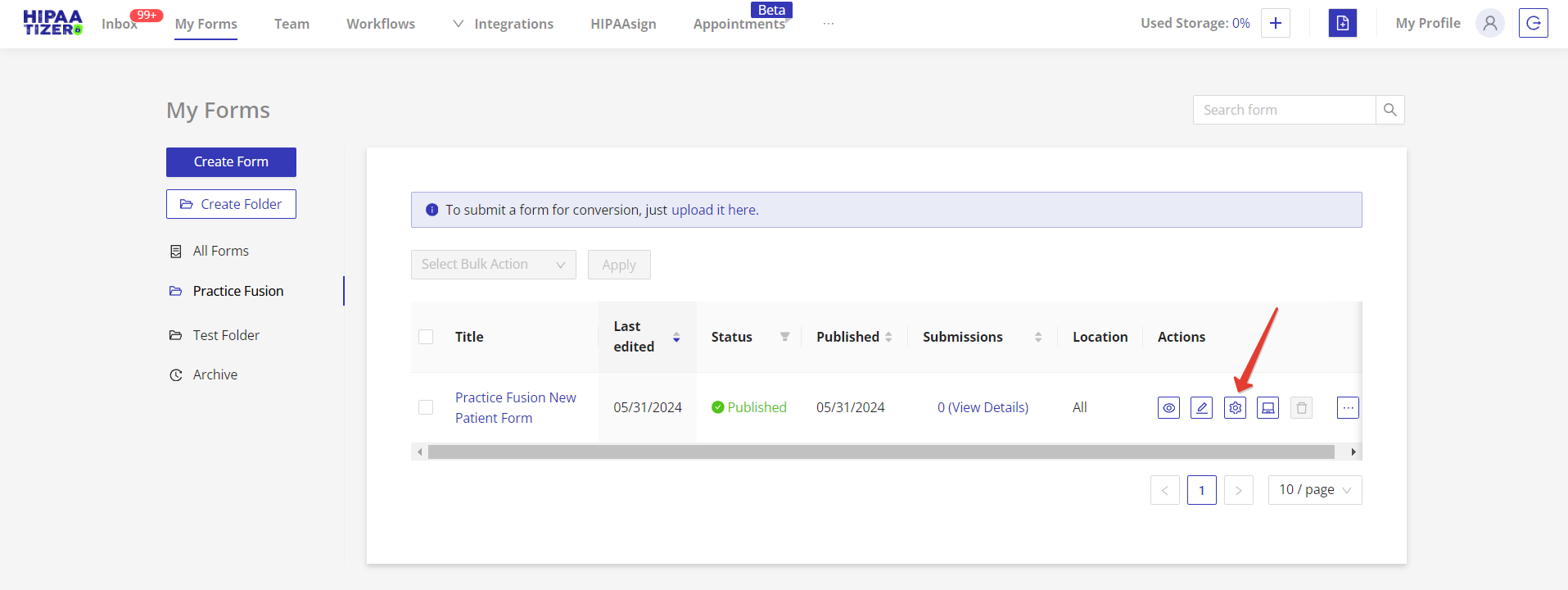
In the HIPAAtizer dashboard, navigate to the "My Forms" page. Select the specific form you wish to integrate and click on "Form Settings".
Enable the Integration
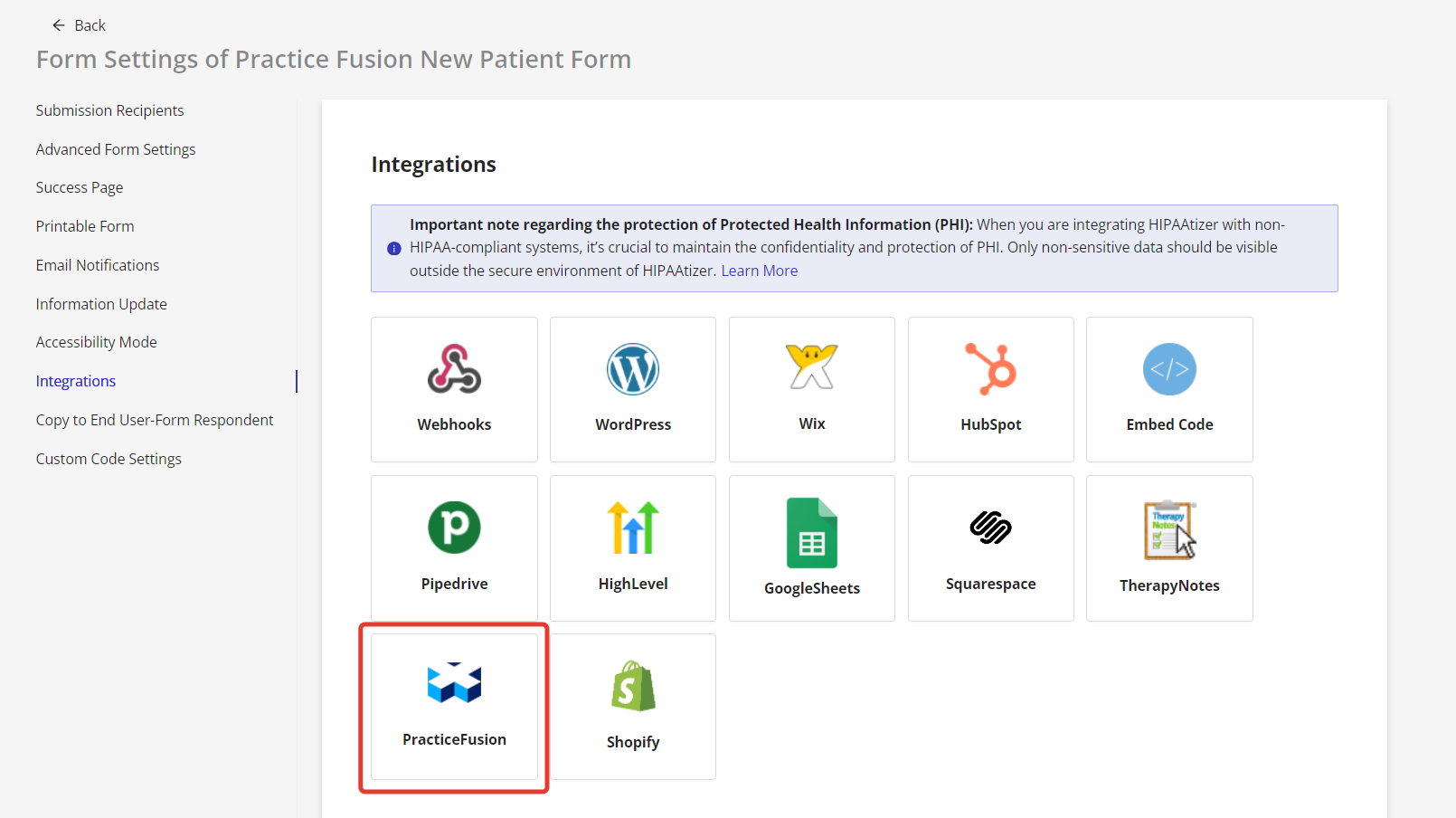
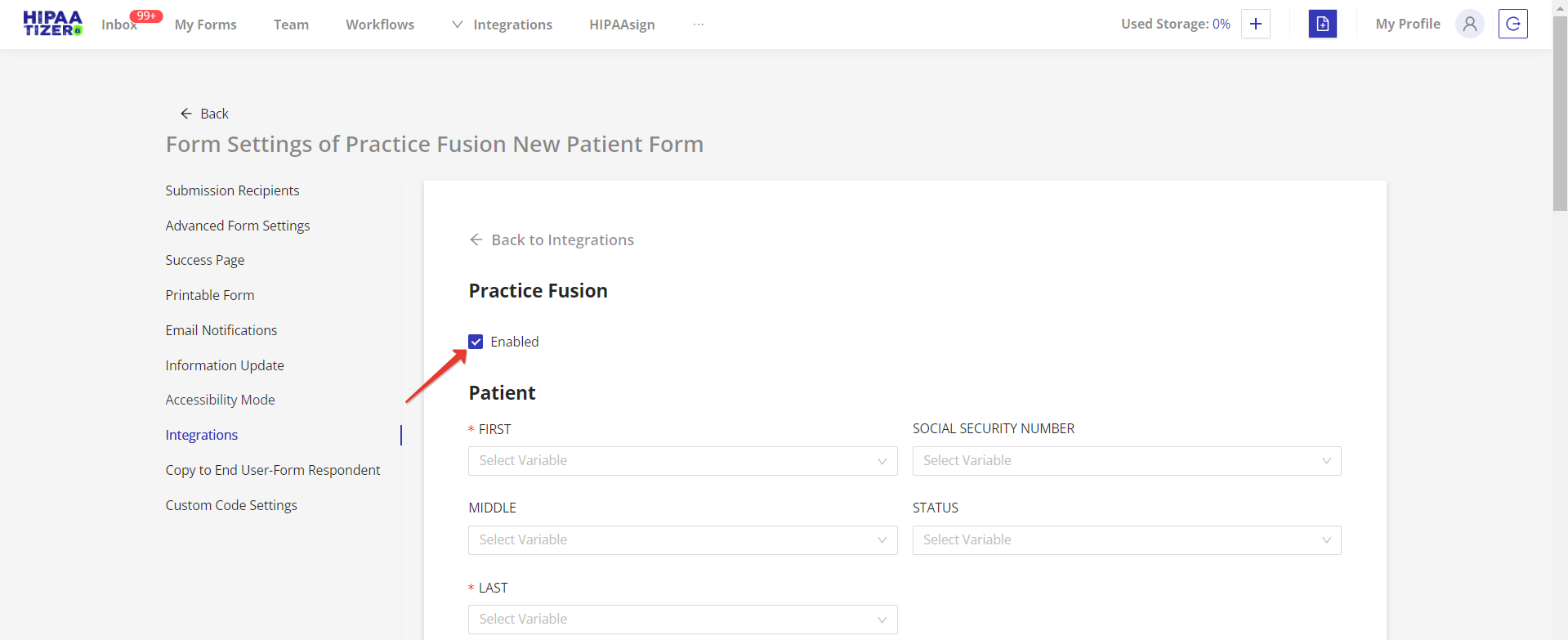
Click on the "Integrations" tab on the left, then choose Practice Fusion. Activate the integration by checking the "Enable" box. This will reval form fields for configuration.
Linking HIPAAtizer Form Fields to Practice Fusion Patient Chart Fields
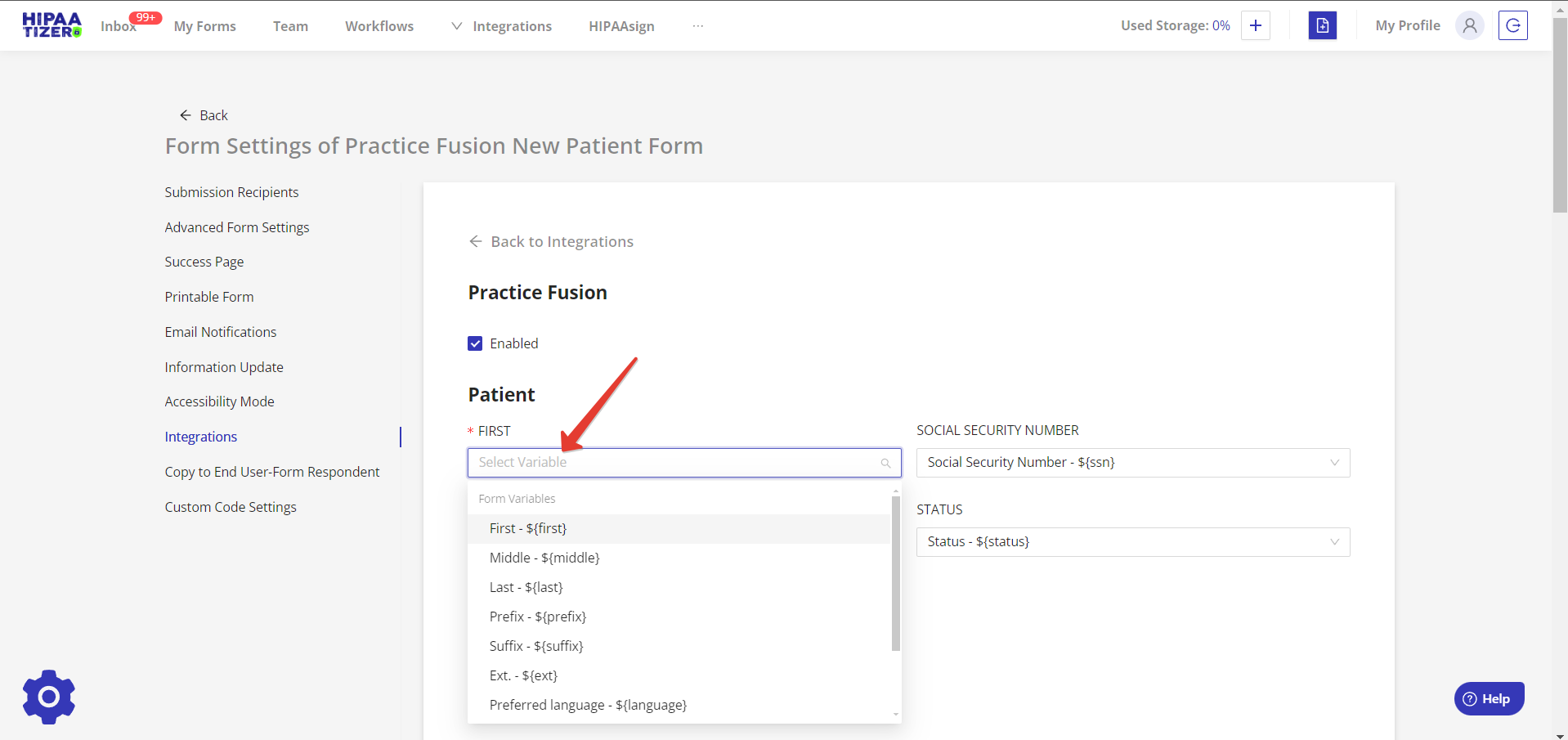
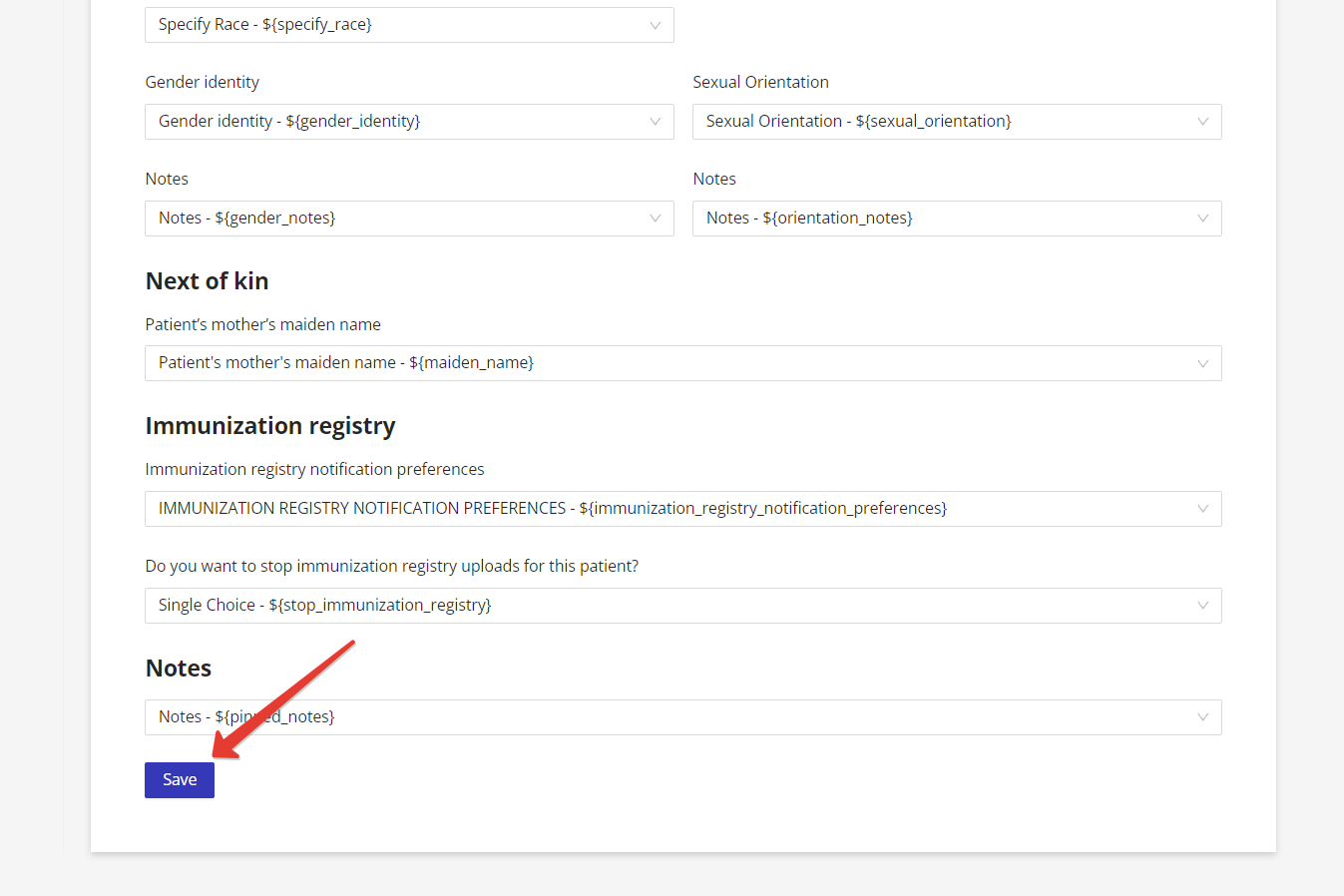
When linking the HIPAAtizer form’s fields to the fields in the Patient Chart in Practice Fusion, please note that some fields are required and some are optional . The required fields are “First Name”, “Last Name”, “Sex”, “Date of Birth”, “Mobile” and “Email”. The other fields are optional.
When building a form in HIPAAtizer, you must use the specific component (i.e. text field for a name, email component for emails, phone number component for phone numbers, etc.) to ensure that the data is integrated correctly with the Practice Fusion Patient Chart.
Save your configuration changes to apply the Practice Fusion integration settings.
Install the HIPAAtizer for Practice Fusion Extension
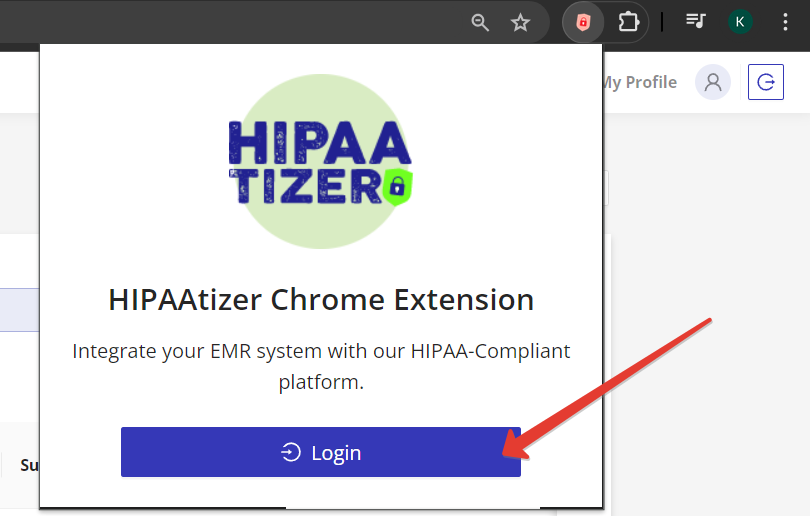
Install the HIPAAtizer for Practice Fusion Chrome Extesion from the Chrome Web Store. Click on the Extensions icon (puzzle piece) in the top-right corner of your browser, find the HIPAAtizer extension, and click the "Pin" icon to pin it to your browser's toolbar. Then, sign in to HIPAAtizer through the chrome extension.

Form Sharing and Test Submission
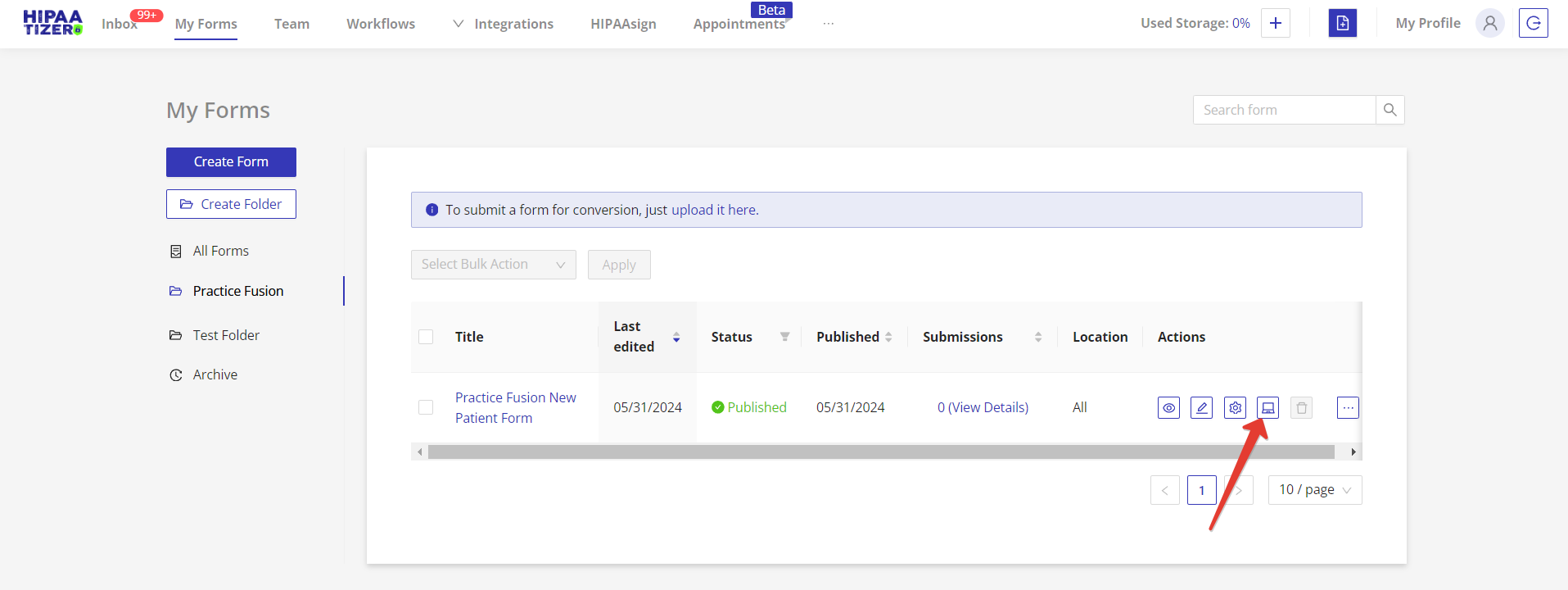
To test the extension’s functionality or to start using a live form, click on Embed Form to get a shareable link, QR Code or other embed option. Then, fill out the test form and create a form submission.
Importing Data into Practice Fusion
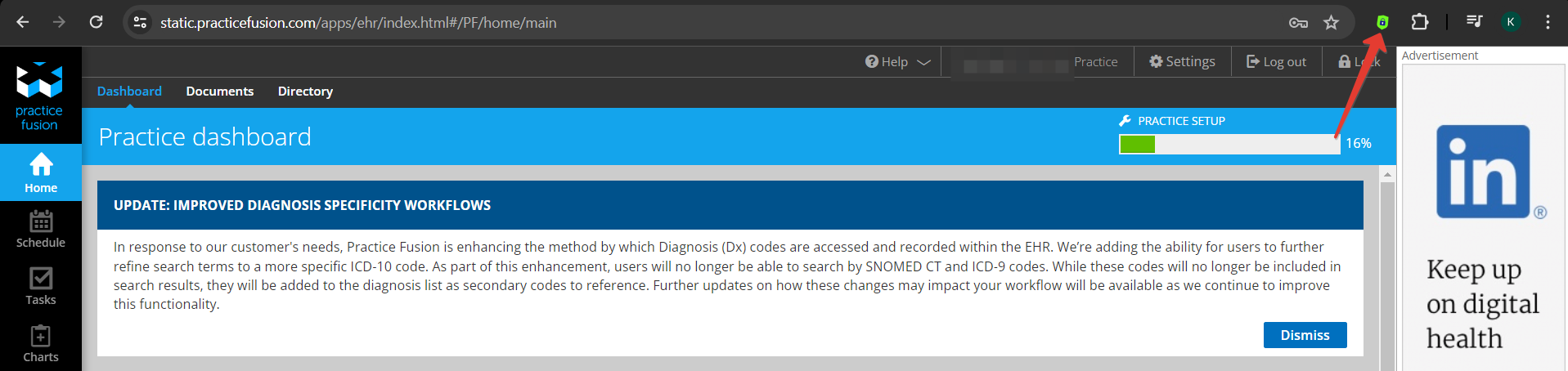
- Access your Practice Fusion account and verify the HIPAAtizer Extension Status. You can do so by checking the HIPAAtizer extension icon in your Chrome browser toolbar: green icon means the extension is active, while a red icon means the extension is inactive.
If the icon is red, activate the extension by clicking on the HIPAAtizer icon in your browser's toolbar and logging in using your HIPAAtizer account credentials.
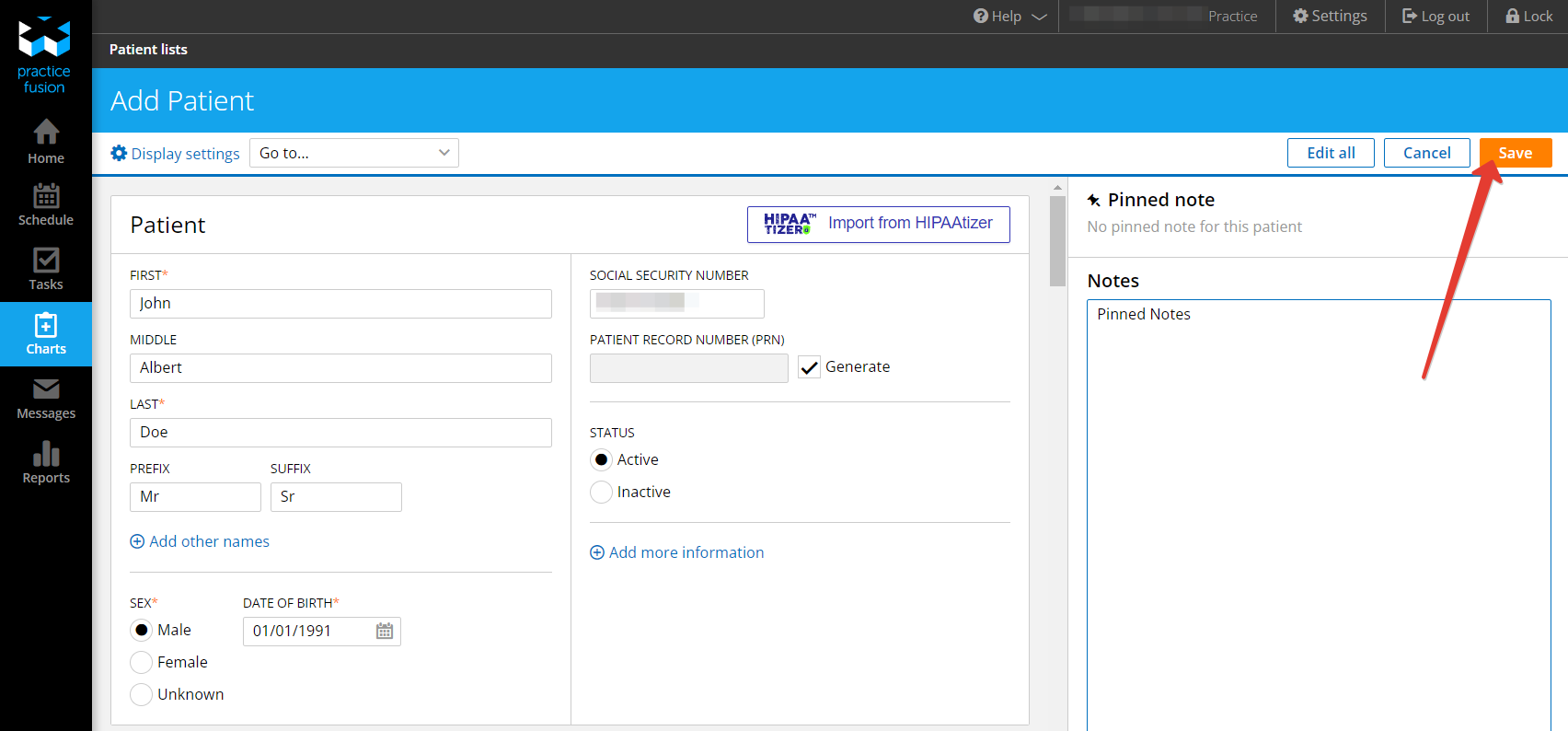
- Navigat to the Charts page, then click on the "Add Patient" button. Finally, click on the "Import from HIPAAtizer" button.
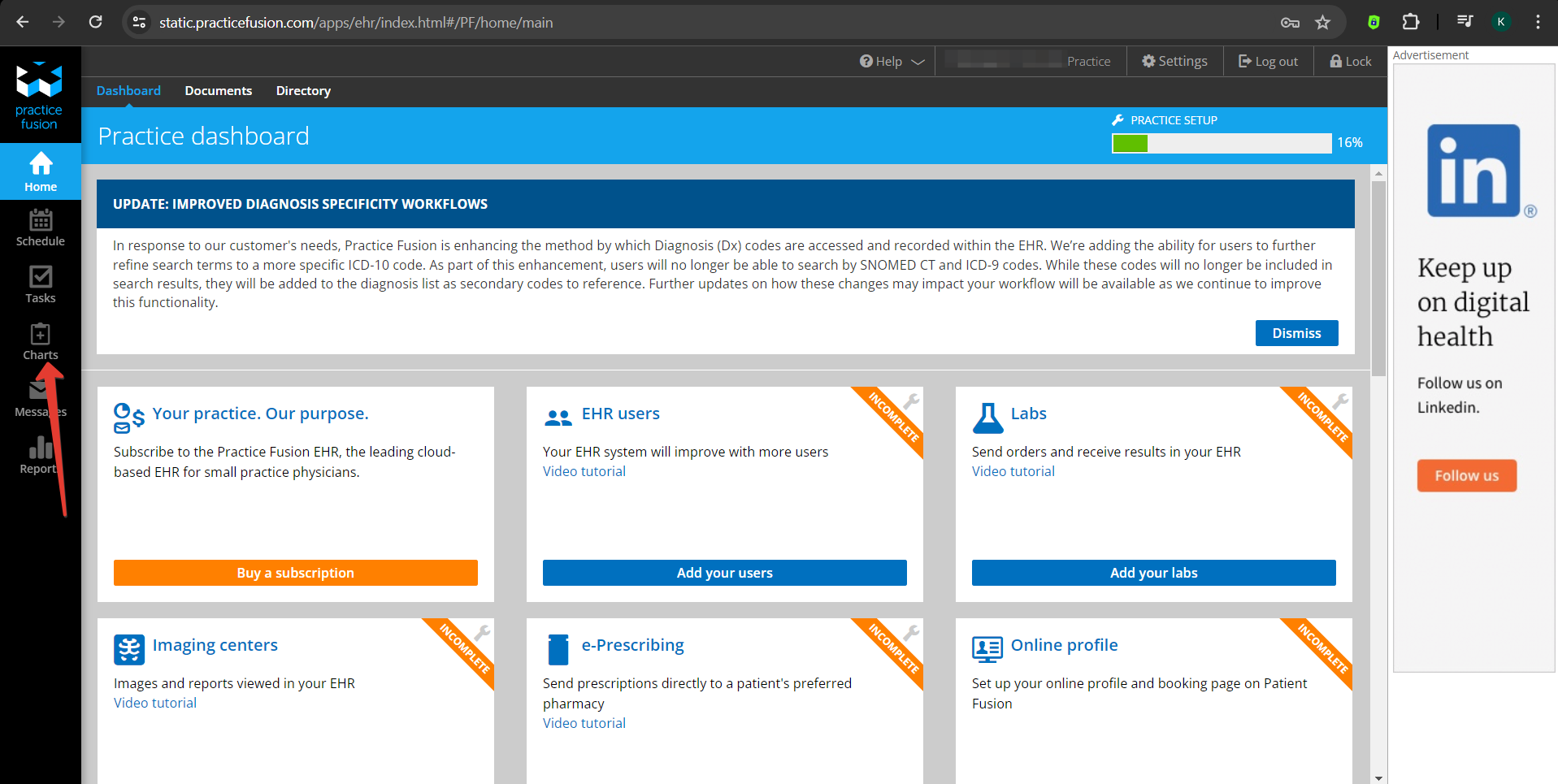
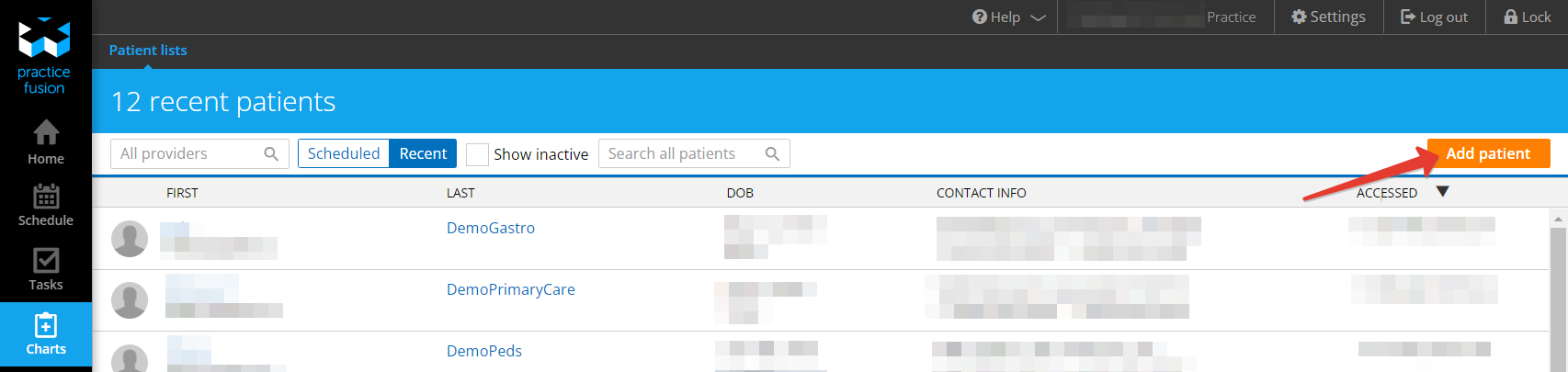
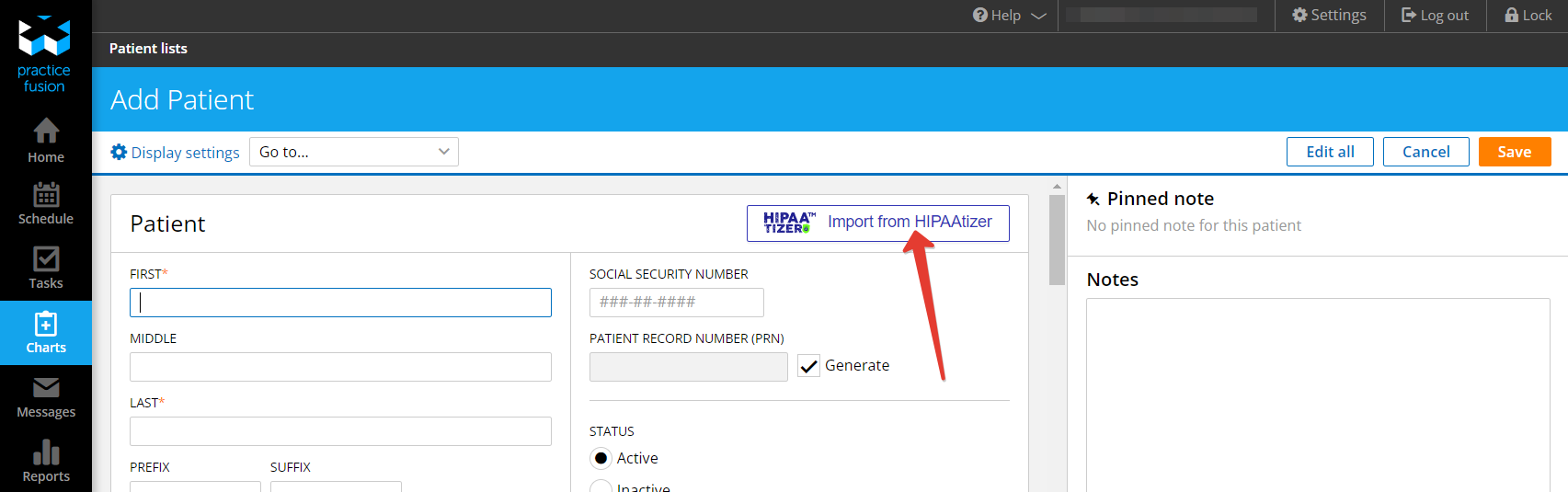
Selecting Form Submissions and Initiating Imports
Choose the relevant form submission for importing data, then click the "Import" button to begin the data import process. Allow time for the import to complete successfully. Once imported, check the imported data for accuracy and click "Save".
To filter out already imported patients, use the “Show Unimported Patients Only” checkbox. You can also search for patient demographics.
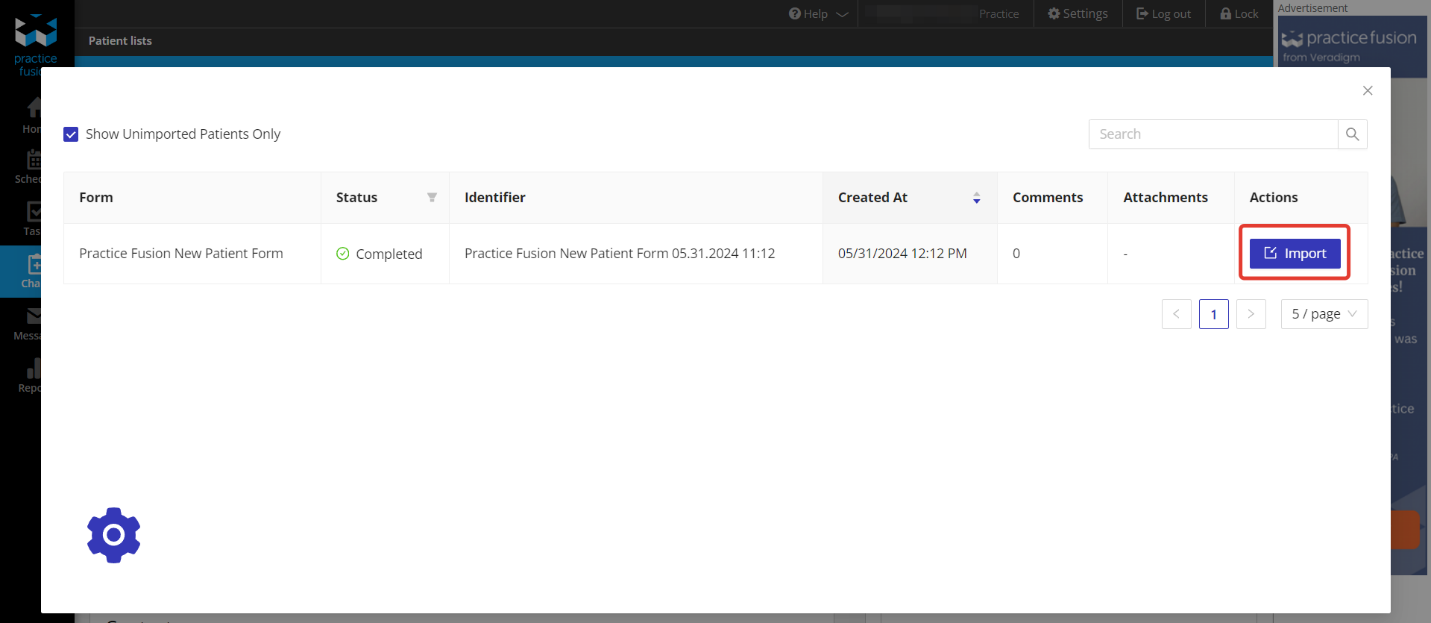
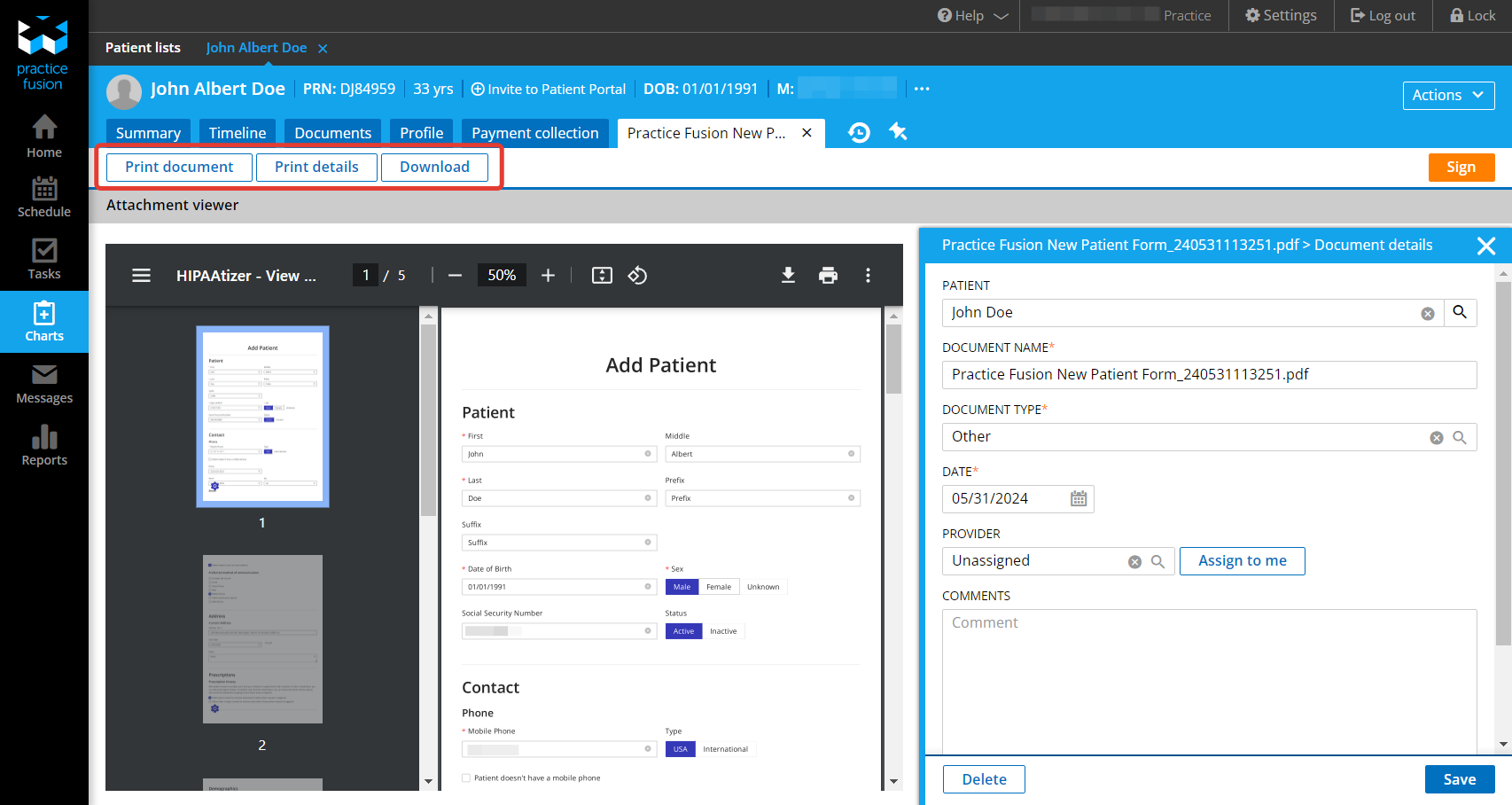
After saving the imported data, a printable form template will be available to print or download.
Troubleshooting
Extension Status Error
-
Cause: The HIPAAtizer extension icon appears red in the browser toolbar.
-
Fix: Log in to your HIPAAtizer dashboard through the extension to activate the extension.
Import Error
-
Cause: Data import into Practice Fusion fails.
-
Fix: Ensure that the selected form submission is compatible with Practice Fusion’s import requirements, and allow sufficient time for the import process to complete successfully.
Form Field Mapping Error
-
Cause: Incorrect mapping of form fields with Practice Fusion patient chart fields.
-
Fix: Review the field mapping settings in HIPAAtizer and ensure that each form field type matches the corresponding Practice Fusion field type accurately. (where are the field mapping settings in HIPAAtizer located?)
Extension Compatibility Error
-
Cause: Incompatibility issues between the HIPAAtizer extension and the browser.
-
Fix: Verify that you are using a compatible browser version and try reinstalling the HIPAAtizer extension from the Chrome Web Store.
Data Display Error
-
Cause: Imported data in Practice Fusion appears incorrectly formatted or incomplete.
-
Fix: Double-check the data formatting in the original form submission and ensure that all necessary fields are accurately captured and imported into Practice Fusion.
Printable Form Template Error
-
Cause: Inability to access the printable form template after importing data.
-
Fix: Refresh the page in Practice Fusion or log out and log back in to the system to ensure that the imported data and associated printable form template are displayed correctly.