

Using and Sharing your HIPAA-Compliant Forms
This instruction is for users operating in a Covered Entity account (not a Developer Account).
If you have signed-up as a Covered Entity and accepted the HIPAAtizer Business Associate Agreement, your forms are automatically HIPAA Compliant.
To make a form that is in your dashboard HIPAA-Compliant and remove the watermark that appears on forms that are in a Developer's dashboard, a Covered Entity account must be activated with HIPAAtizer and the forms must be activated from the Covered Entity account.
Covered Entities under HIPAA are all Healthcare providers, health plans, and healthcare clearinghouses. Healthcare providers include, but are not limited to:
- Clinics
- Doctors
- Psychologists/therapists
- Dentists
- Physical Therapists
- Pharmacies
- Health and Diet coaches
- Chiropractors
- Alternative Medicine Specialists
- Nursing Services and Home Care
Once the BAA is accepted, you can start using your HIPAA-Compliant forms and they are ready to be published, shared or embedded on your website.
Sharing and Publishing Your Forms
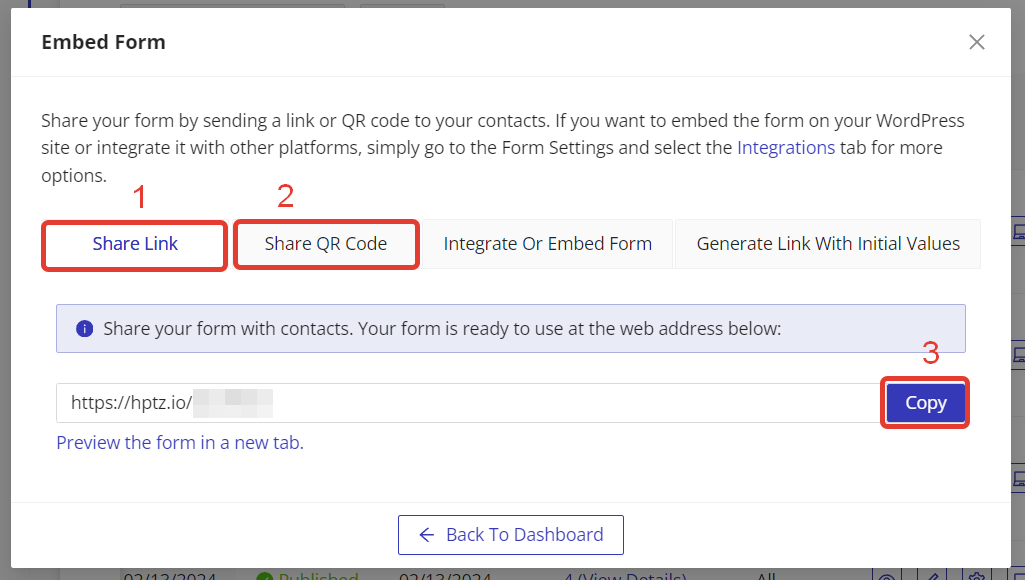
From the "My Forms" dashboard, click on "Embed Form". A modal window will appear. From this window, you have two options to share forms:
- Share Link - Copy the link and paste it into emails or other messages.
- Share QR Code - Download the image and upload it or attach it to emails or other messages.
Embedding the Form
From the above modal window, you or your developer can embed the form in a website. Find more information here: https://www.hipaatizer.com/docs/how-to-activate-the-form-and-make-it-hipaa-compliant/
Using the Form
Please refer to these instructions to learn more about form builder functionality:
- Working with Custom Printable Forms
- Save and Continue Later Instruction
- For Internal Use Only Feature Instruction
- HIPAAtizer Workflows-Linking Multiple Forms
- Using and Managing Conditional Logic
- Instruction for adding the Canvas Component to a form
- Editing Form Settings
- How to create a custom PDF for HIPAAtizer's online form
- How to add or link a custom printable PDF template to an online form in HIPAAtizer
- Creating and Managing Appointments in HIPAAtizer
- Calculating Points from Customer Submissions in HIPAAtizer
- Instruction for Adding Locations and Controlling Access to Different Locations
Accessing the Form
Please refer to these instructions to find and manage your submissions: