

Inbox
The Inbox is the central place in HIPAAtizer where all form submissions and patient secure messages arrive. It is designed for reviewing incoming data, responding to patients, and managing submission workflows.
You can also view submissions per form from the My Forms menu by clicking View Details in the Submissions column for a specific form.
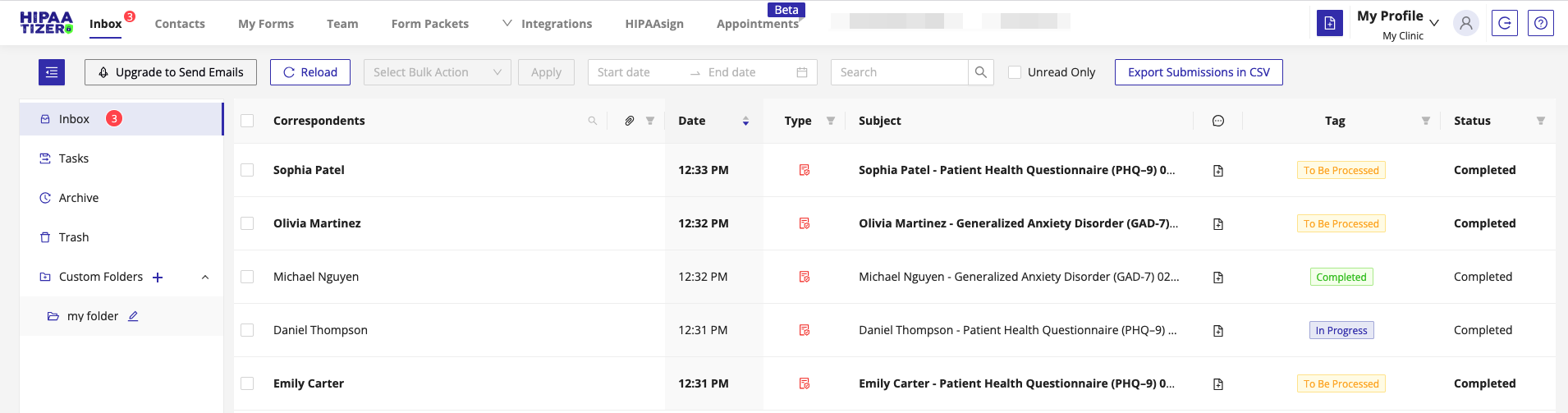
What you can do in Inbox
- View and search new and historical form submissions
- Read and reply to patient secure messages
- View submission details, generated PDFs, and related attachments
- Download submission files and PHI access logs
- Track processing status (New, In Progress, Completed)
- Perform bulk actions such as export, move, delete, or archive
- Apply tags to organize and track submission workflows
Where to find it
Path: Inbox
The Inbox is available from the main navigation menu in your account.
Inbox layout
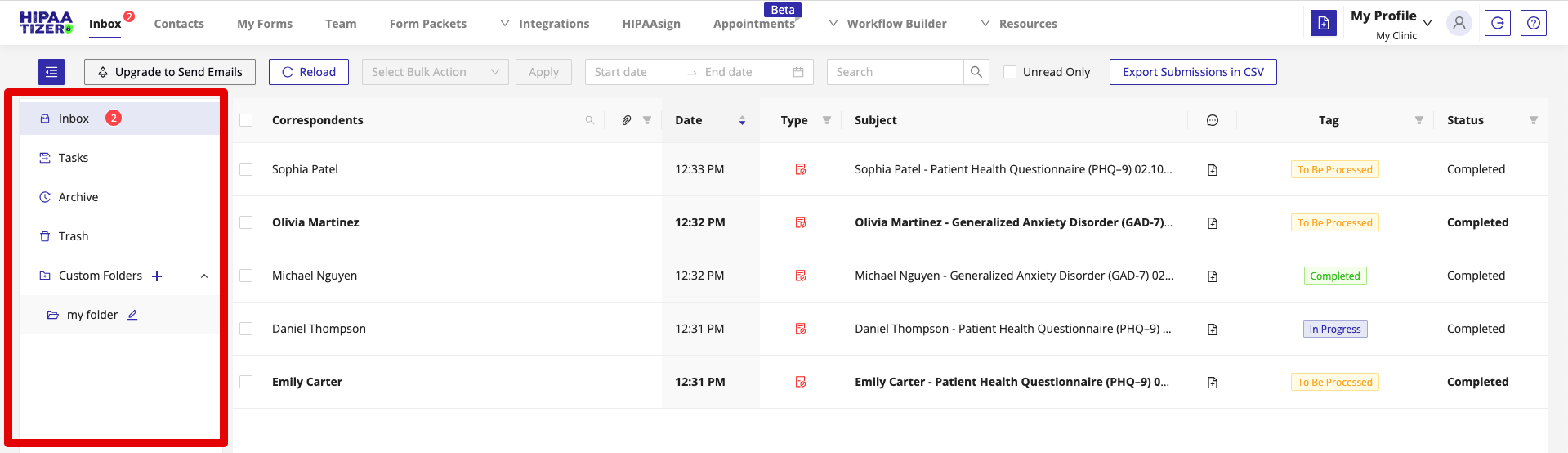
Folders
On the left side of the screen, you'll find folders used to organize Inbox items.
Default folders
- Inbox
- Sent
- Spam
- Drafts
- Archive
- Trash
You can also create Custom Folders to match your internal workflows.
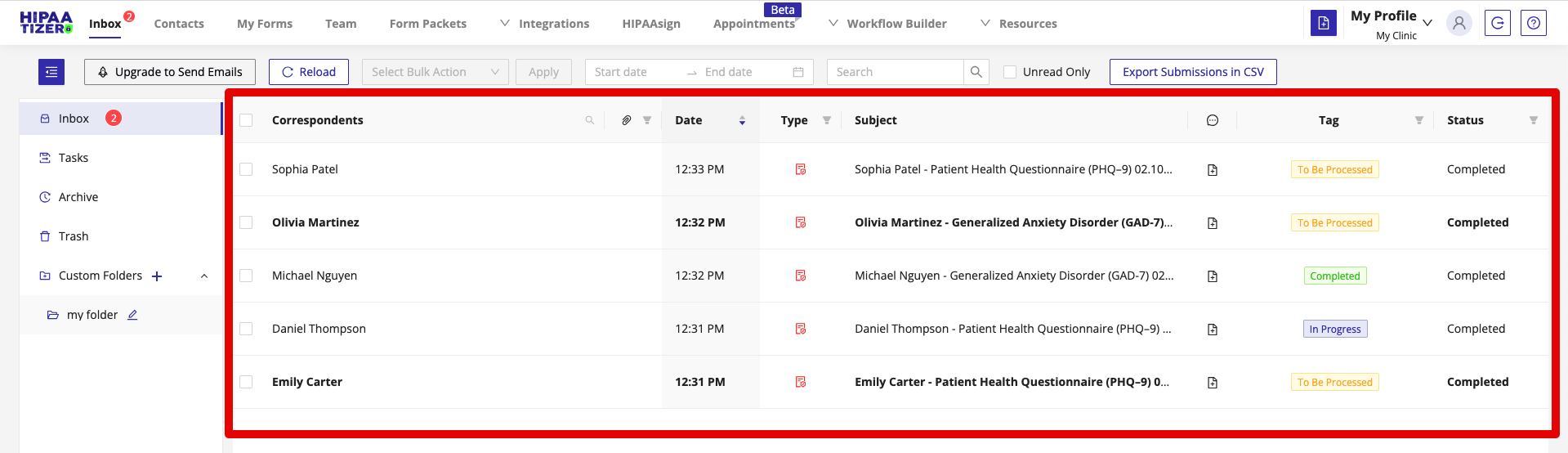
Inbox list
Each row in the Inbox list represents a single incoming item. Clicking a row opens the item details panel on the right.
You may see:
- Form submissions - data collected from published forms
- Patient messages - secure messages sent by patients
Columns
- Correspondents: Displays the patient or sender. If Contacts are enabled, this may show the associated Contact.
- Date: When the submission or message was received.
- Type: Submission or Secure Email.
- Subject: The submission identifier (configurable in Form Settings → Advanced Settings) or the secure email subject.
- Comments: Internal notes added by your team. You can view or add comments by clicking the Add Comment icon for the Inbox item.
- Tag: Tags applied for workflow tracking. You can assign tags by clicking the Add Tag icon for the Inbox item.
- Status: Processing status such as New, In Progress, or Completed.
Top actions bar
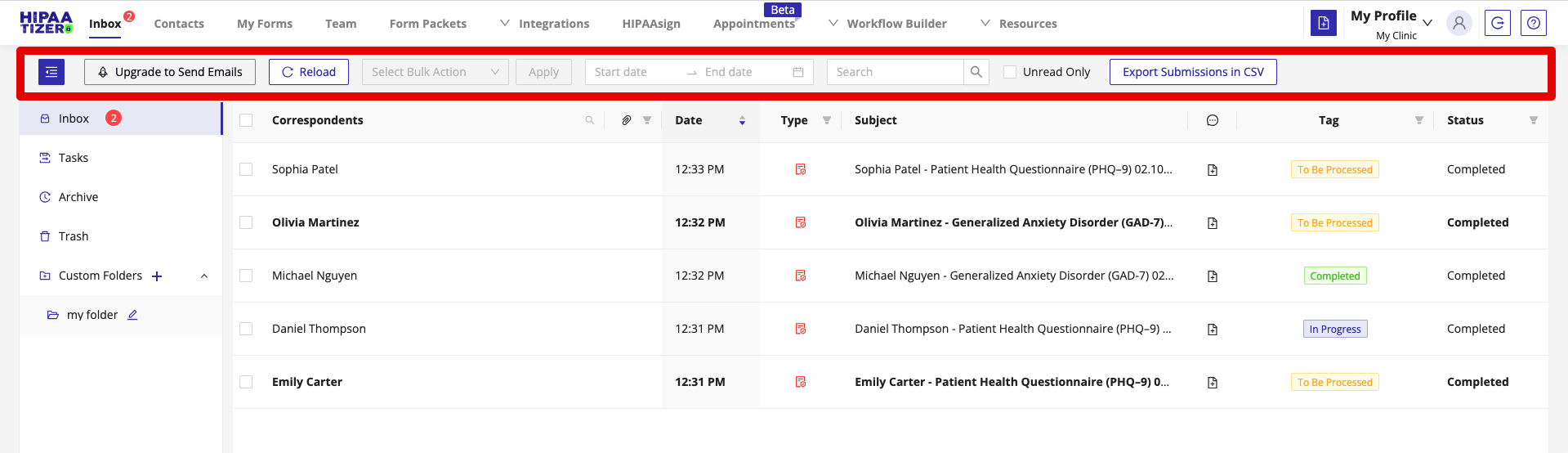
The top actions bar allows you to work with multiple Inbox items efficiently.
Available actions include:
- Reload - fetch the latest Inbox items
- Bulk actions - perform actions on selected items, such as:
- Delete
- Move to folder
- Mark as read / unread
- Move to archive
- Update tags
- Date range filters
- Search by keyword or identifier
- Unread only filter
- Export submissions to CSV
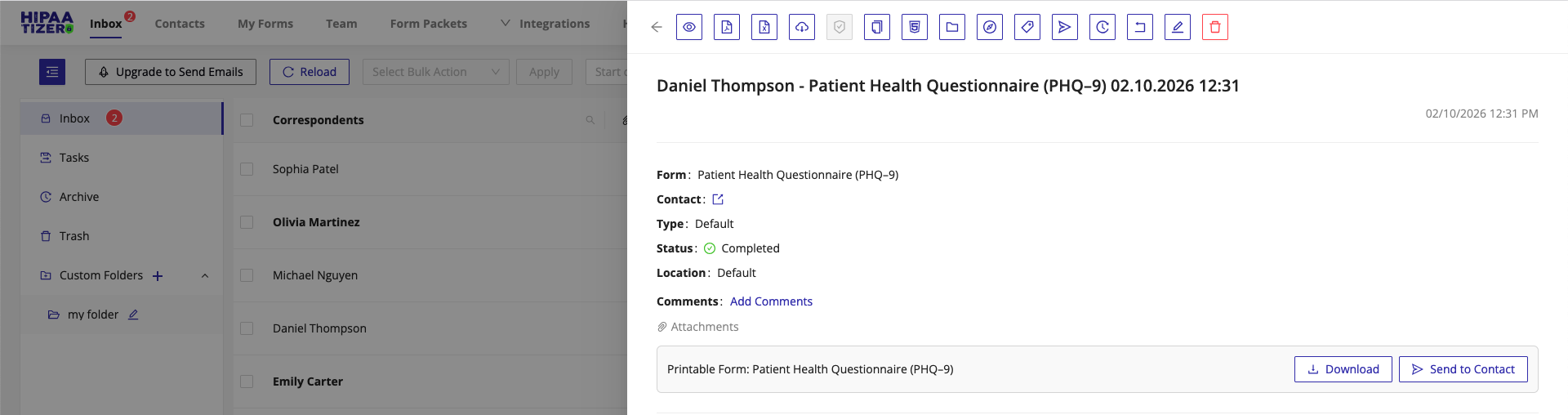
Item details panel
When you select an Inbox item, a details panel opens on the right side of the screen.
From this panel, you can:
- View submission data or message content
- Download generated PDFs
- Download submission data as CSV
- Generate and download the PHI access log
- Download certificates (if applicable)
- Copy submission data as:
- Plain text
- HTML
- Move the item to a different folder
- Assign or update the associated location
- Add or update tags
- Archive the item
- Return a submission to the patient for edits
- Edit the submission (if permitted)
- Delete the submission
- View uploaded files and attachments
- Review submission metadata (form, date, source)
Permissions & access
Inbox visibility and available actions depend on:
Some users may only see submissions for specific forms or locations.