

Form submissions in My Forms
In addition to the Inbox, you can view and manage submissions for a specific form from the My Forms menu.
This view is ideal when you want to:
- Focus on submissions for a single form
- Customize which form fields appear as columns
- Review and export submission data in a table format
Accessing submissions for a form
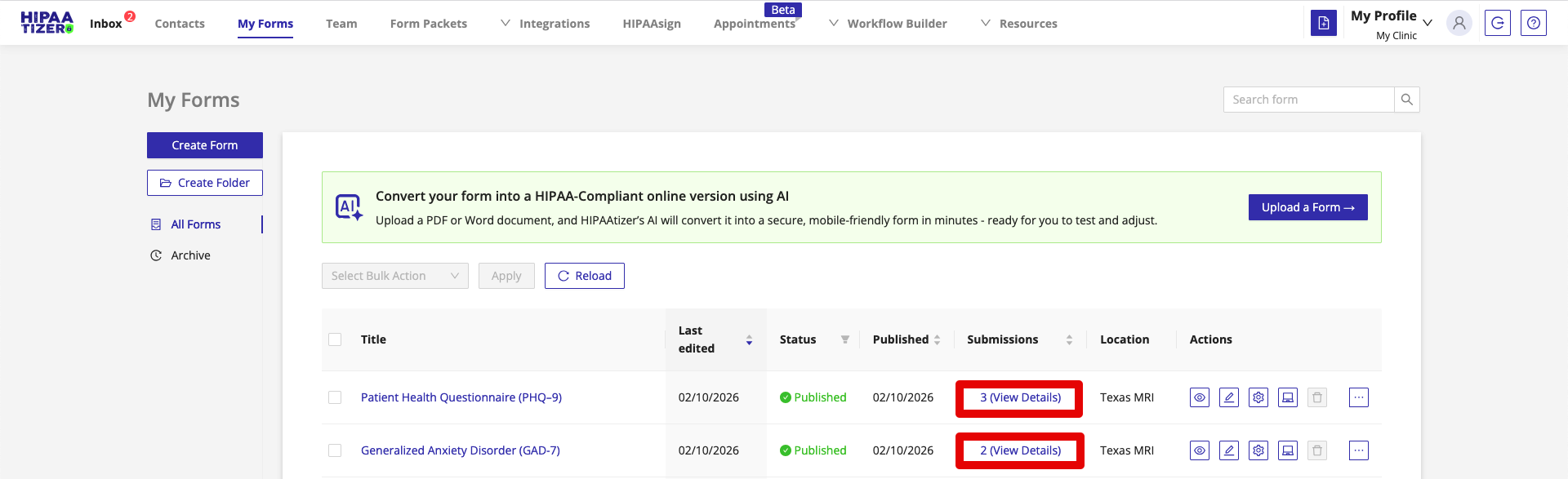
- Go to My Forms.
- Locate the form you want to review.
- In the Submissions column, click View Details.
This opens the Form Submissions view for the selected form, where all submissions for that form are listed.
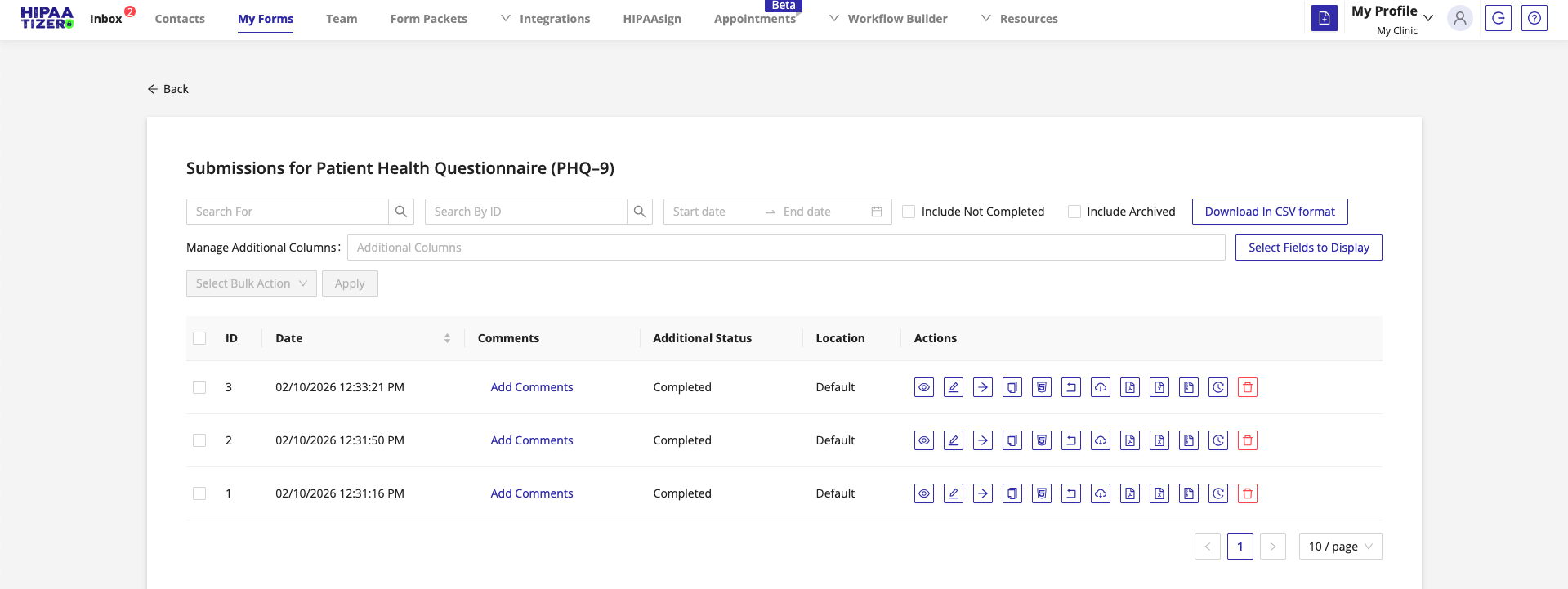
Form Submissions view
The Form Submissions view displays submissions in a table and includes:
- Submission ID and submission date
- Processing status
- Location
- Available actions for each submission
- Optional additional columns based on form fields
This view is scoped only to the selected form and is independent of Inbox folders.
Selecting fields to display
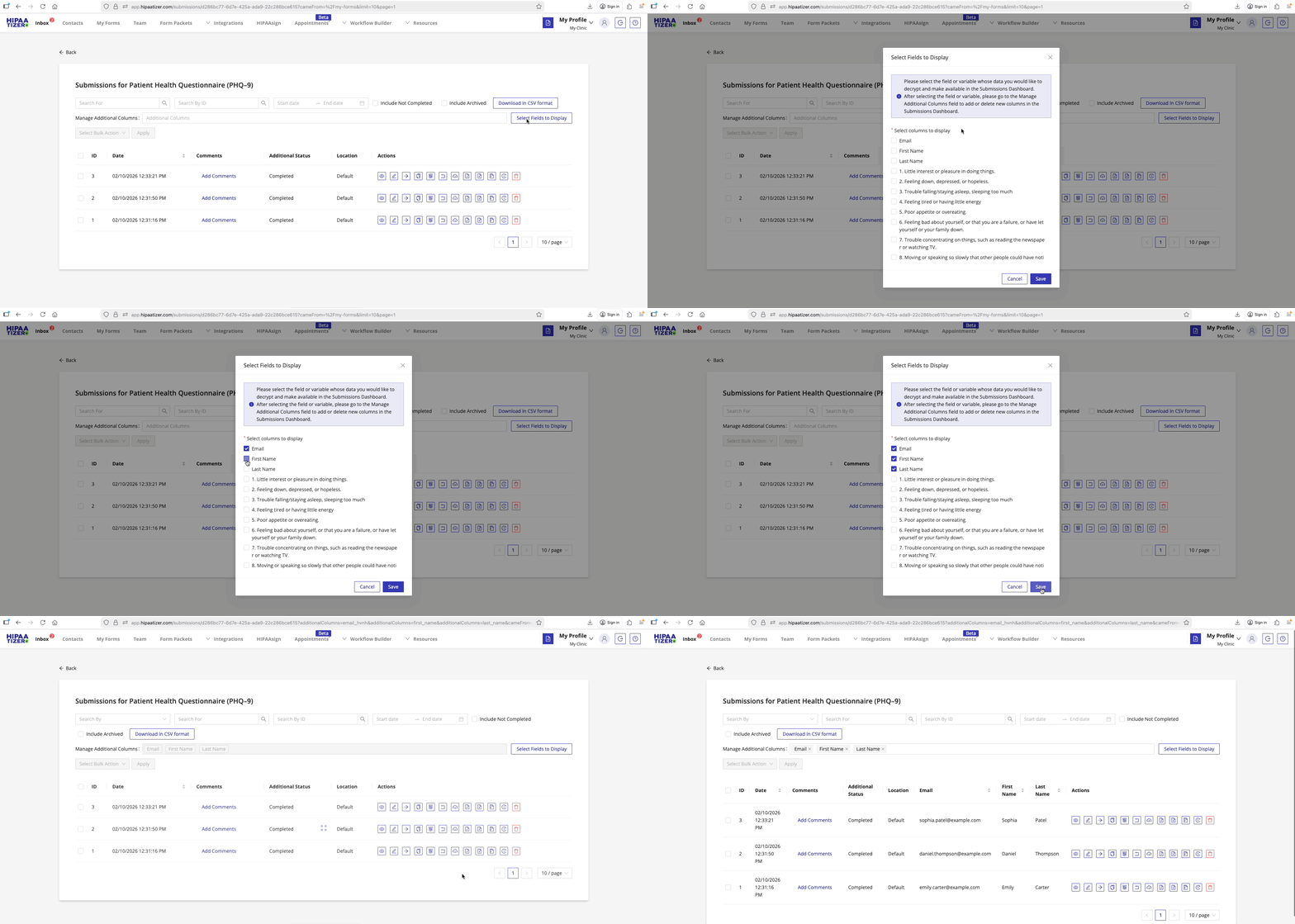
You can control which form fields appear as columns in the Form Submissions table.
Step 1: Select fields to display
- Click Select Fields to Display.
- Choose the form fields whose data you want to decrypt and display as table columns.
- Save your changes.
Only selected fields will be available for use as additional columns.
Step 2: Manage additional columns
After selecting fields:
- Click Manage Additional Columns.
- Add or remove columns based on the fields you selected.
- Save your changes.
For longer forms, many fields may be available. You may need to scroll horizontally or vertically to locate the desired column.
Result: customized submissions table
Once columns are added:
- Selected form fields appear as new columns
- Each row displays the corresponding data from the submission
In the example below:
- New columns (Email, First Name, and Last Name) have been added
- Each column displays data from its corresponding form field for every submission
Sorting submissions
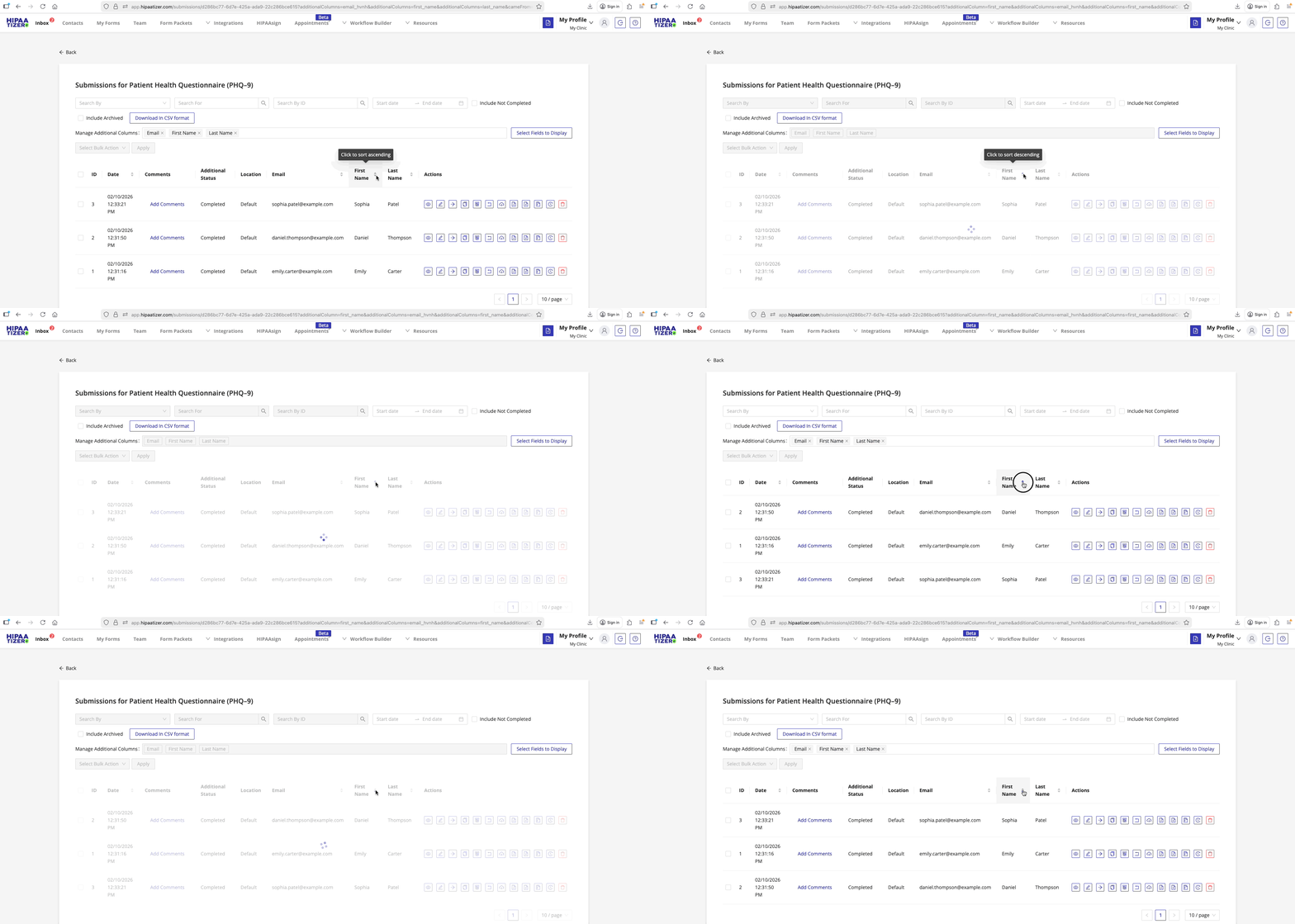
You can sort submissions by date or by any column that supports sorting.
To sort submissions:
- Click a column header (for example, Date or First Name).
- Toggle between:
- Ascending (oldest to newest)
- Descending (newest to oldest)
Sorting is available for all columns that display up/down arrows.
When to use this view vs Inbox
| Use case | Recommended view |
|---|---|
| Work across multiple forms and messages | Inbox |
| Focus on submissions for one form | My Forms → Form Submissions |
| Customize visible form fields | My Forms → Form Submissions |
| Respond to secure patient messages | Inbox |