Managing Recipients for PDF Submissions Sent by Email
Follow these instructions to learn how to manage reicipients for PDF submissions sent by email:
Accessing Submission Recipient Settings
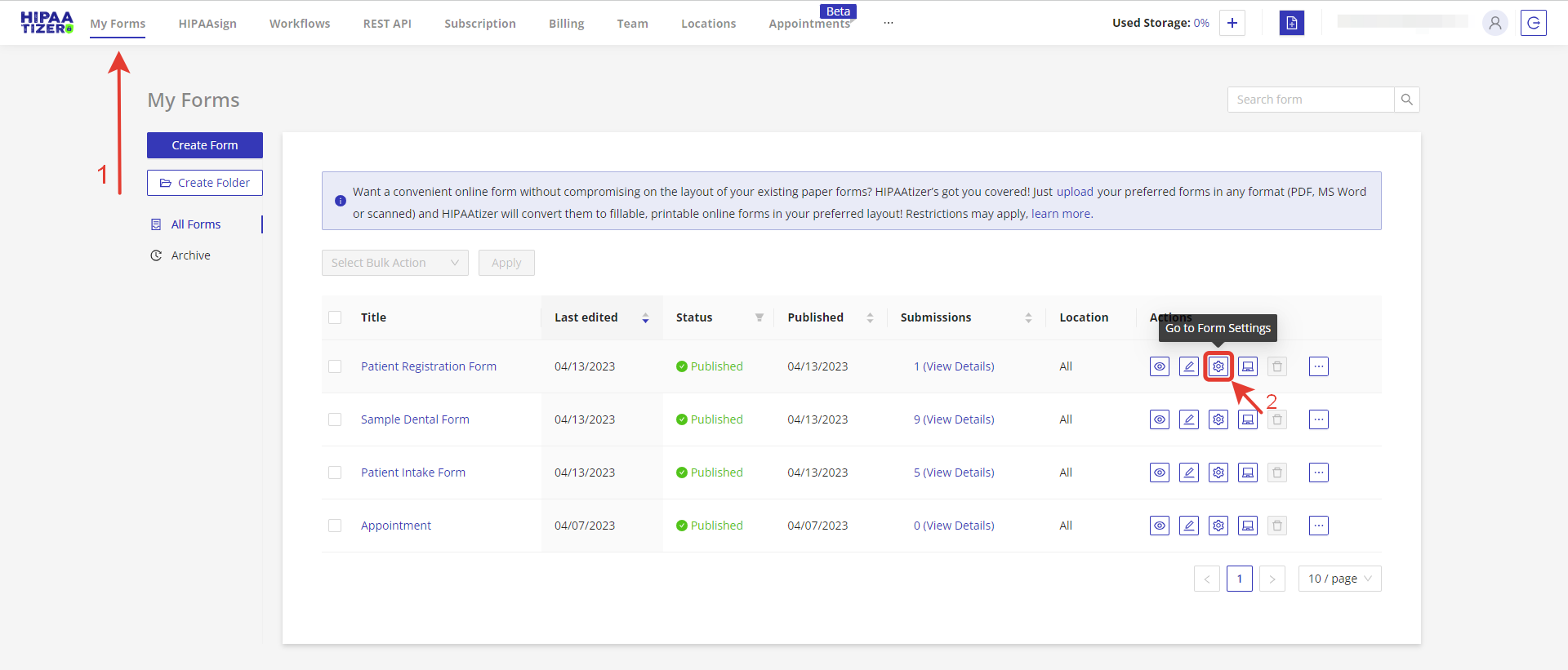
Go to the (1) "My Forms" dashboard and (2) click on Form Settings of the form you would like to have sent to an employee's email.
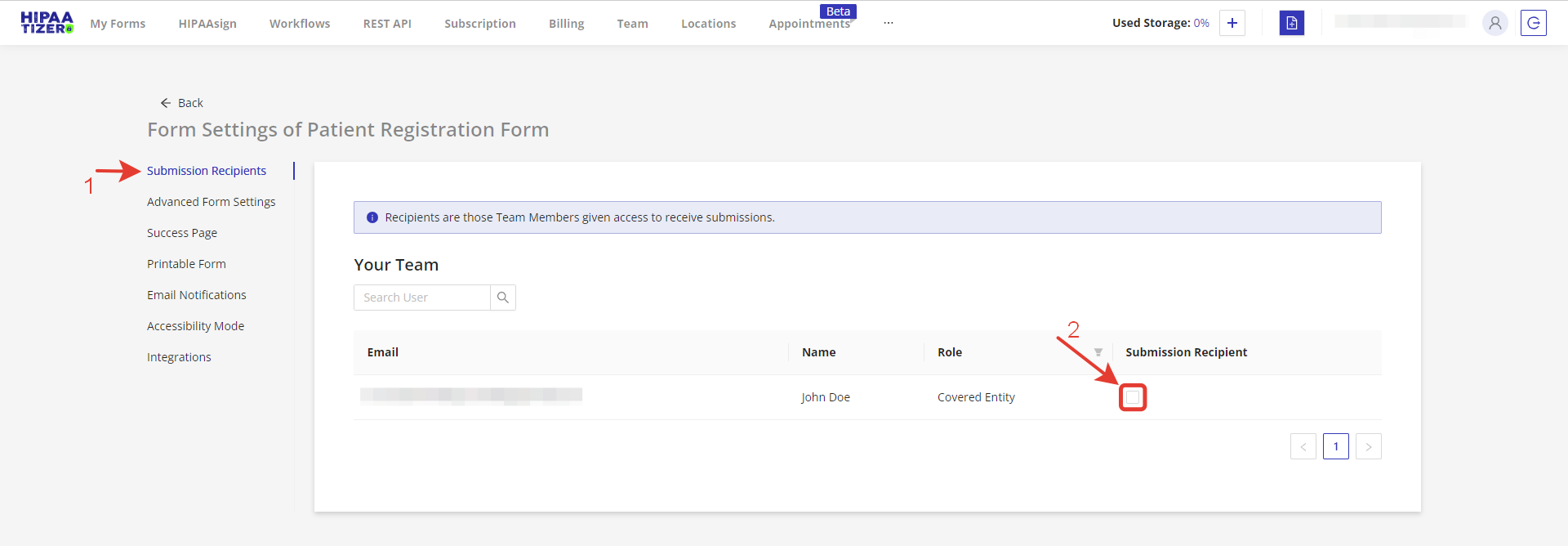
Under the form's Form Settings, click on (1) Submission Recipients and note if the desired Submission Recipient is checked. If not, please check the box (2).
To set one team member's recipient checkbox across many forms at once instead, use the Submission Recipient column on the Team page.
Adjusting Submission Recipients Settings
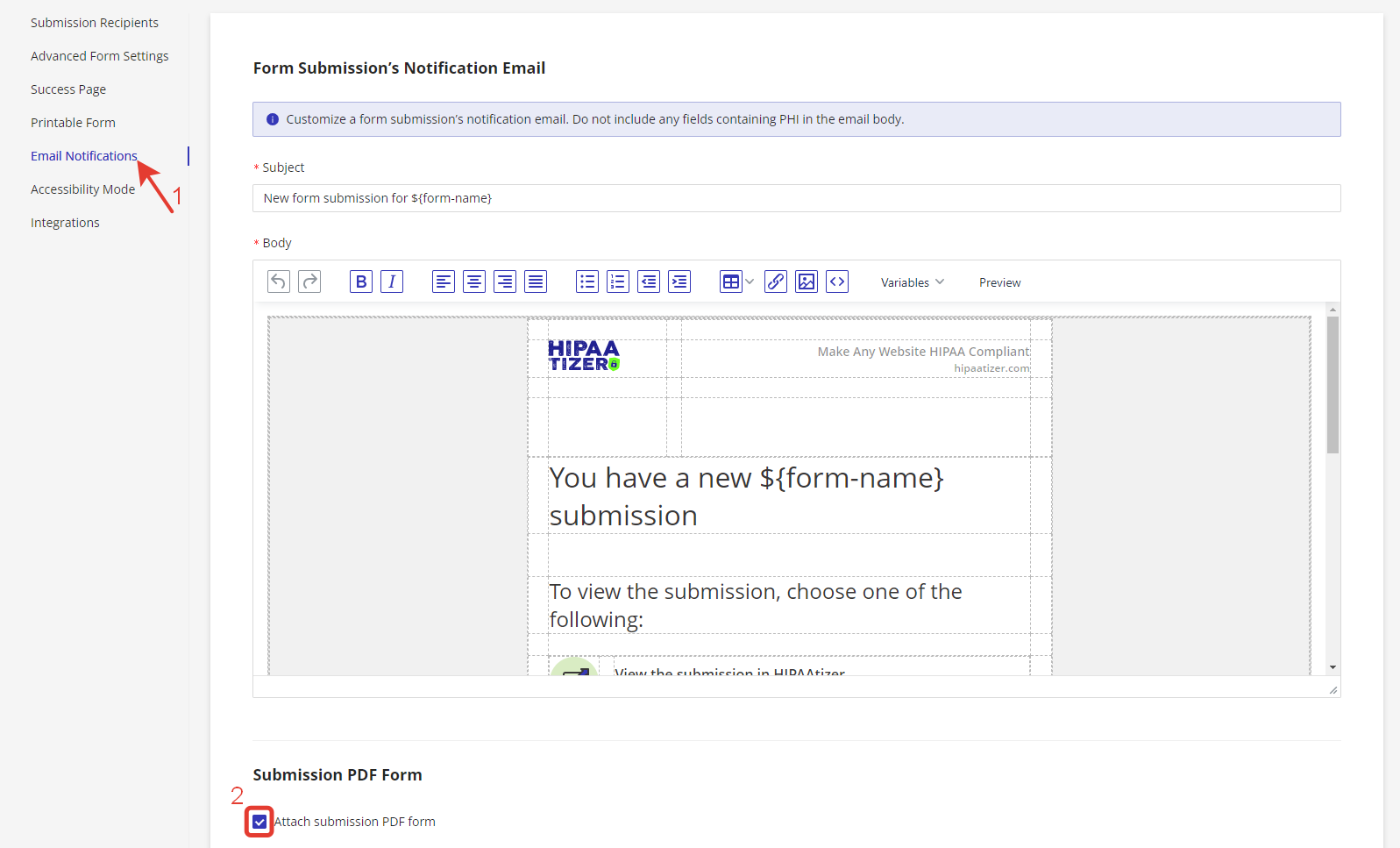
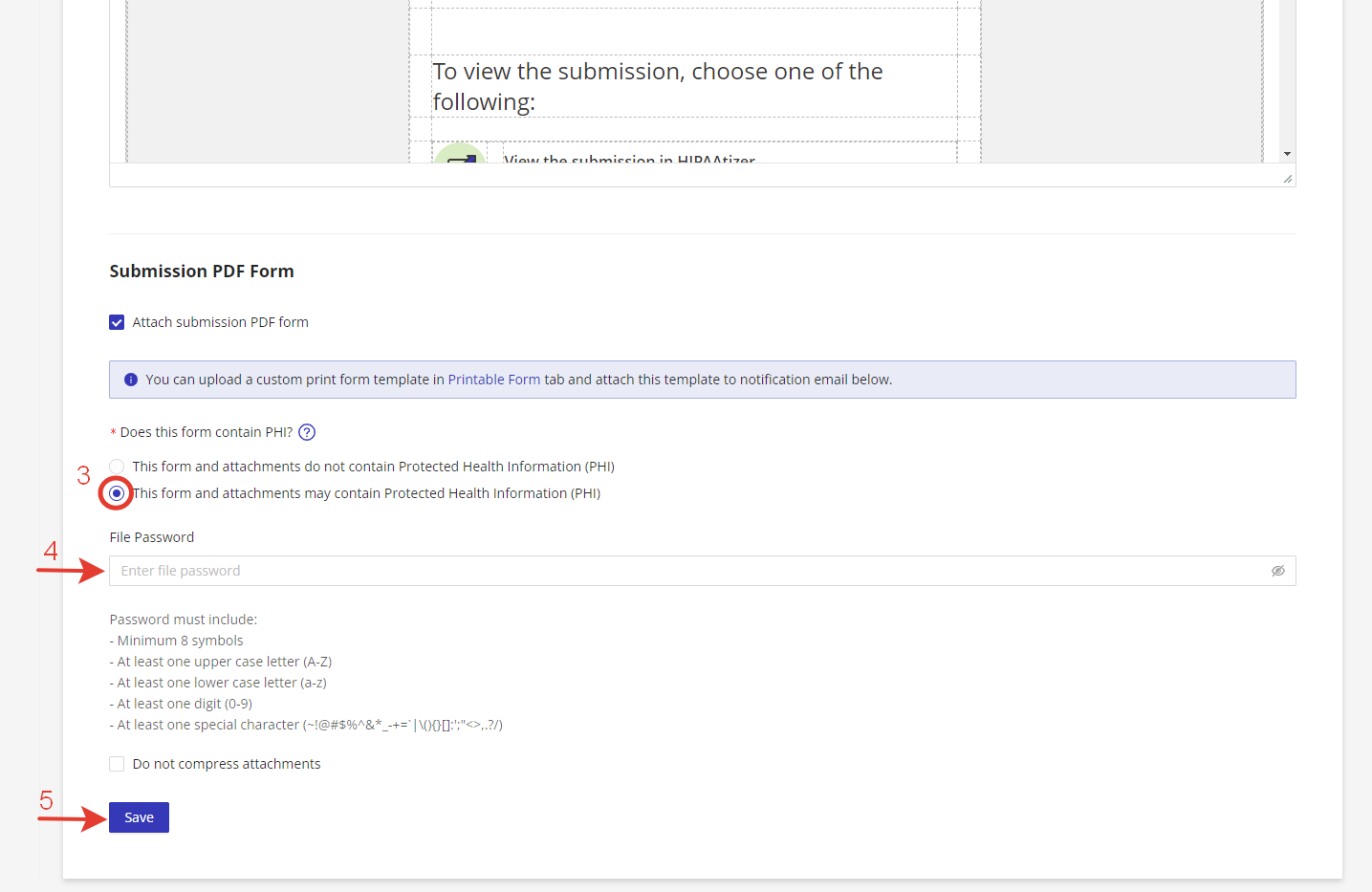
click on (1) Email Notifications. Next, check (2) Attach submission PDF form. This action will open further fields where, if you are collecting PHI, you should check (3) "This form and attachments may contain Protected Health Information (PHI)". To be fully HIPAA Compliant, the encrypted PDF should be password protected. Add a password for this form (4). Finally, save your changes (5).