How to Create a Custom PDF for HIPAAtizer's Online Forms
Here is an example online form for which we will create a custom PDF: https://hptz.io/0uuwruC
Opening the Form in Adobe Acrobat
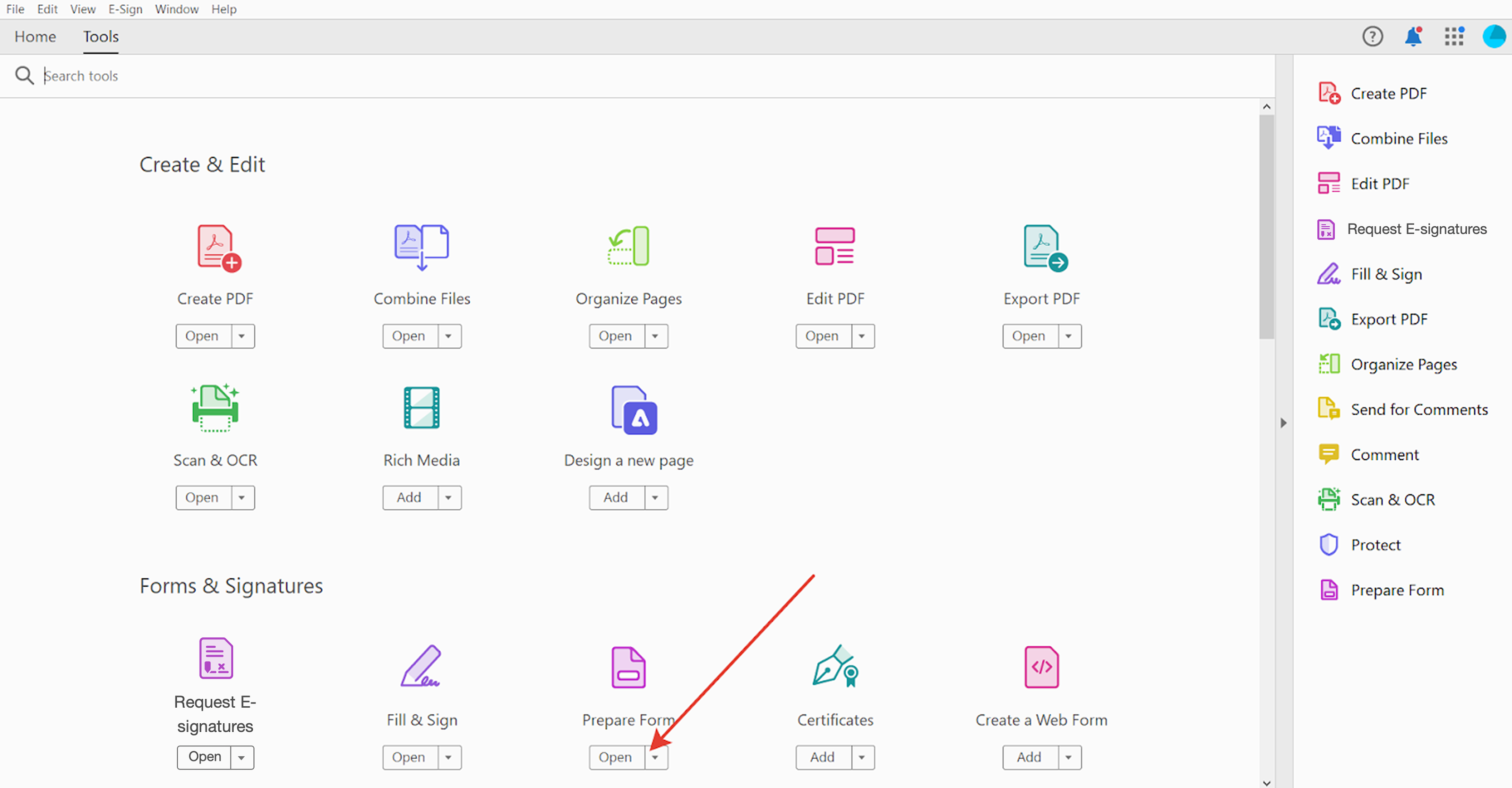
Open Adobe Acrobat and select the "Tools" tab from the top menu. Click on the "Prepare Form" option and select the PDF file that you want to work with.
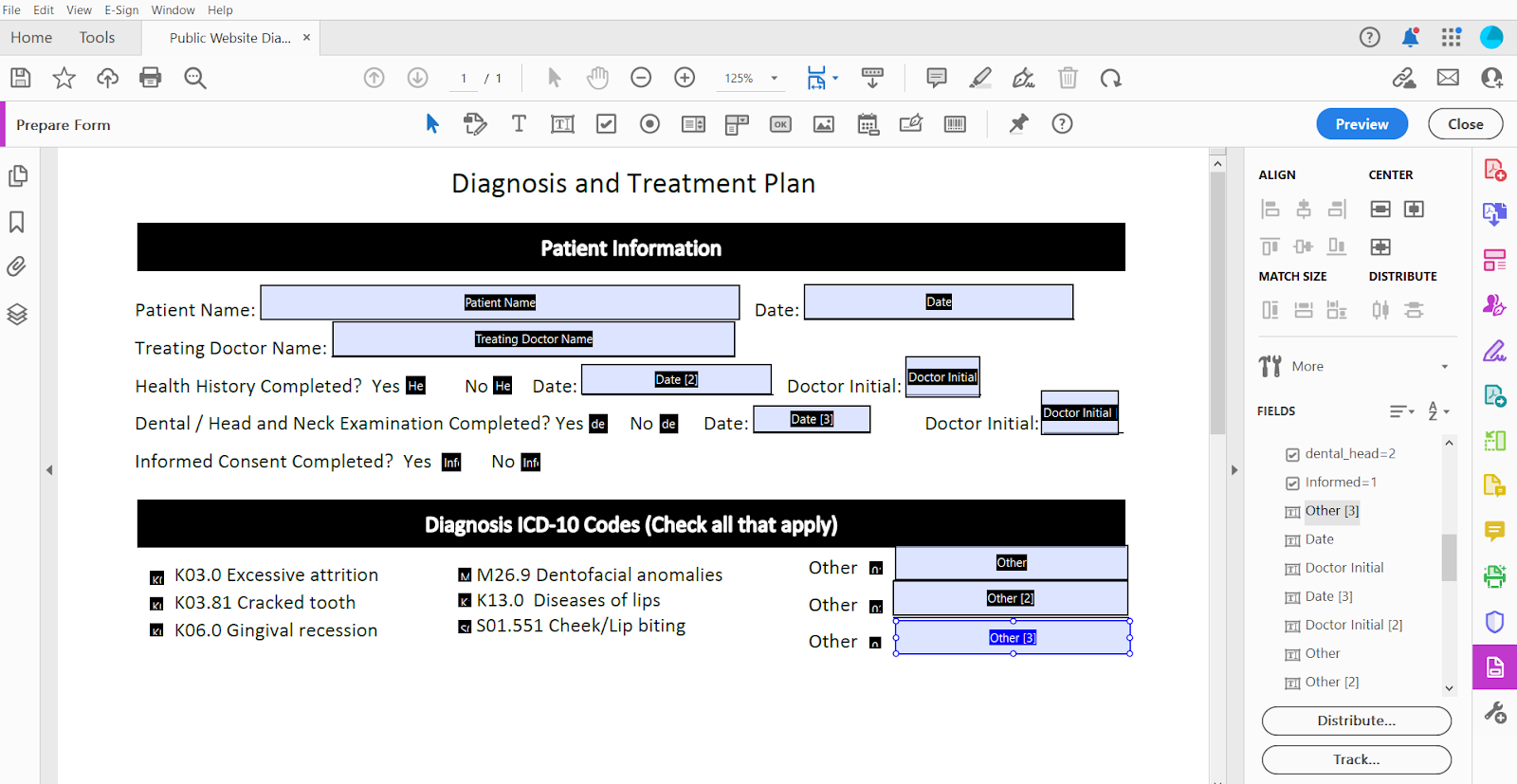
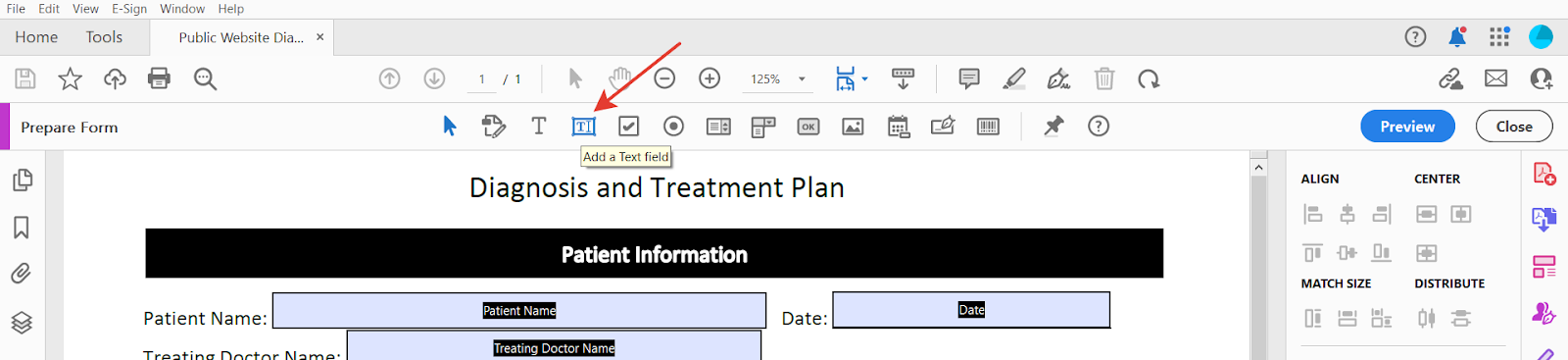
Acrobat will automatically detect any interactive form fields in the PDF document. If it doesn't, you can manually add text fields, checkboxes, and radio buttons by clicking on the respective icons in the toolbar on the right side of the screen.

Working with Text Fields
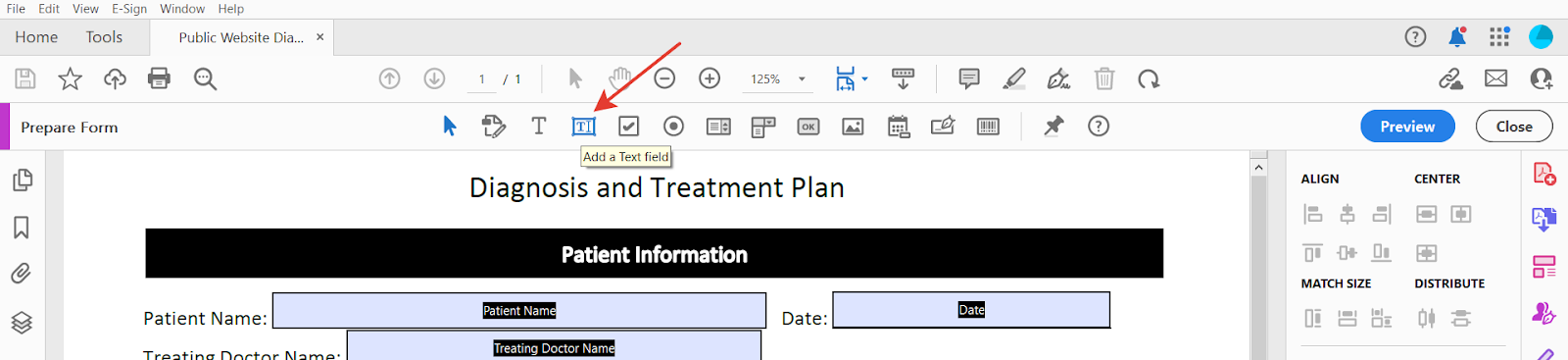
- Click on the "Add Text Field" icon and click on the location where you want to place the field. You can adjust the size and shape of the text field by dragging its corners.
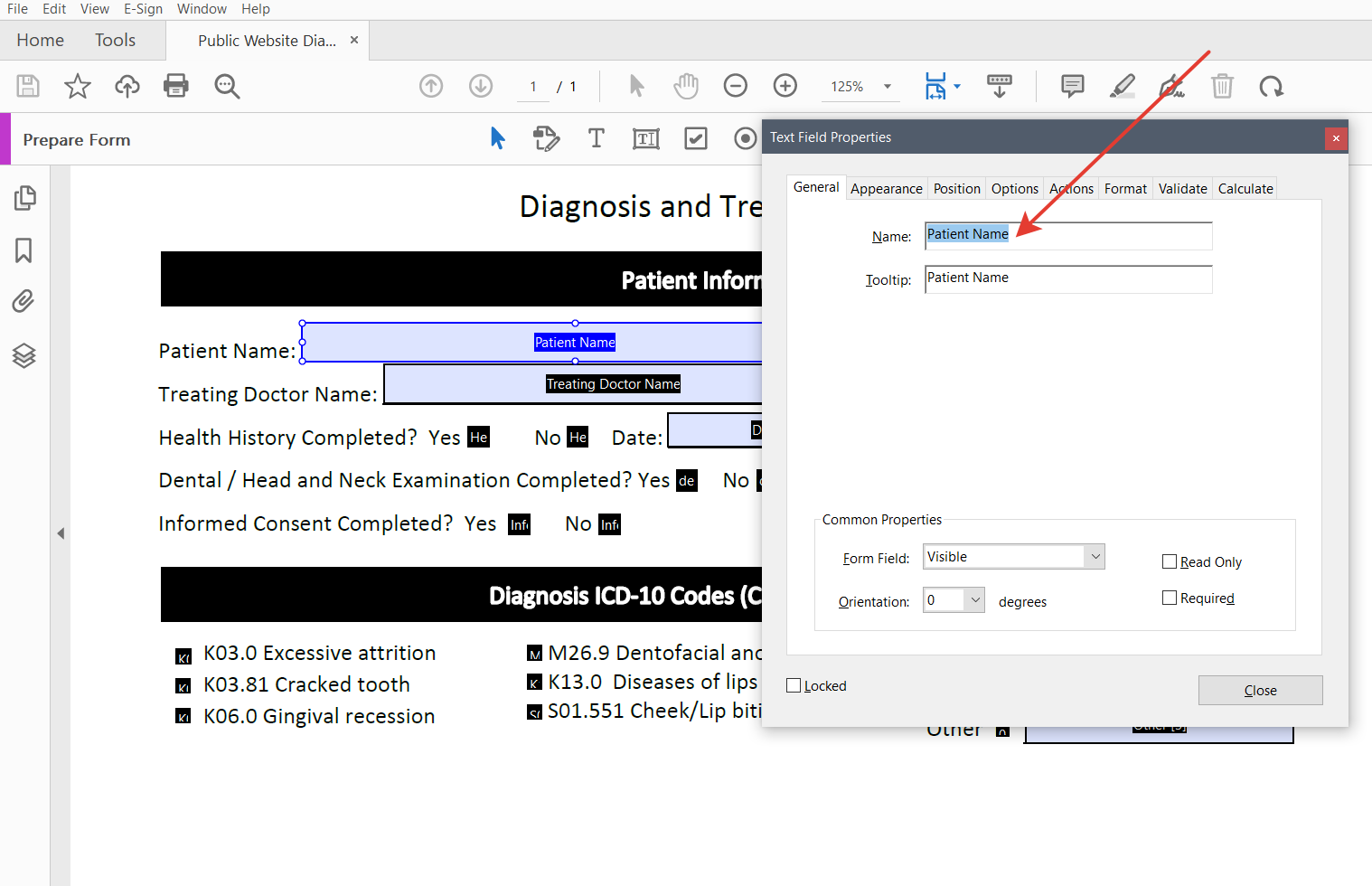
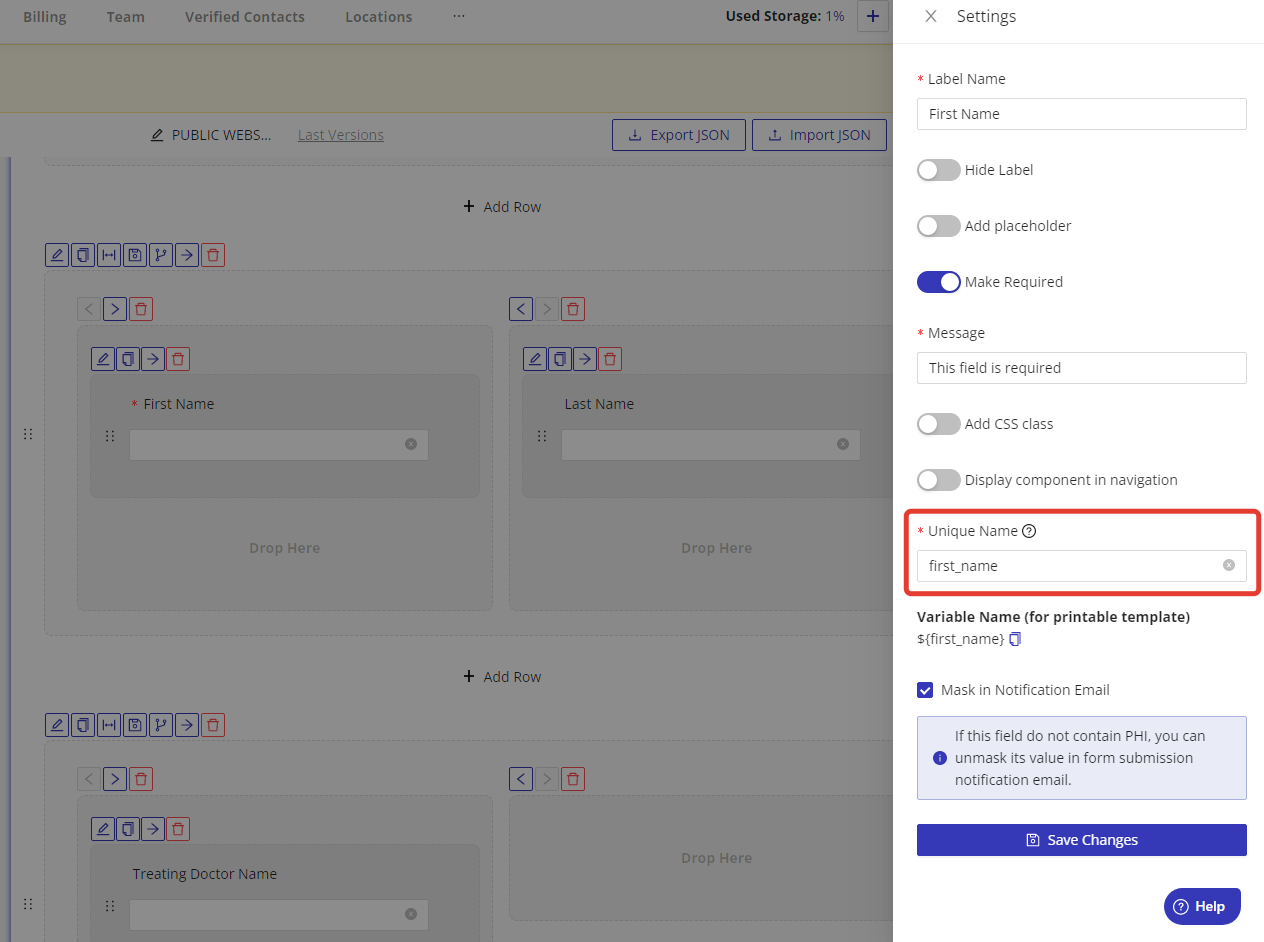
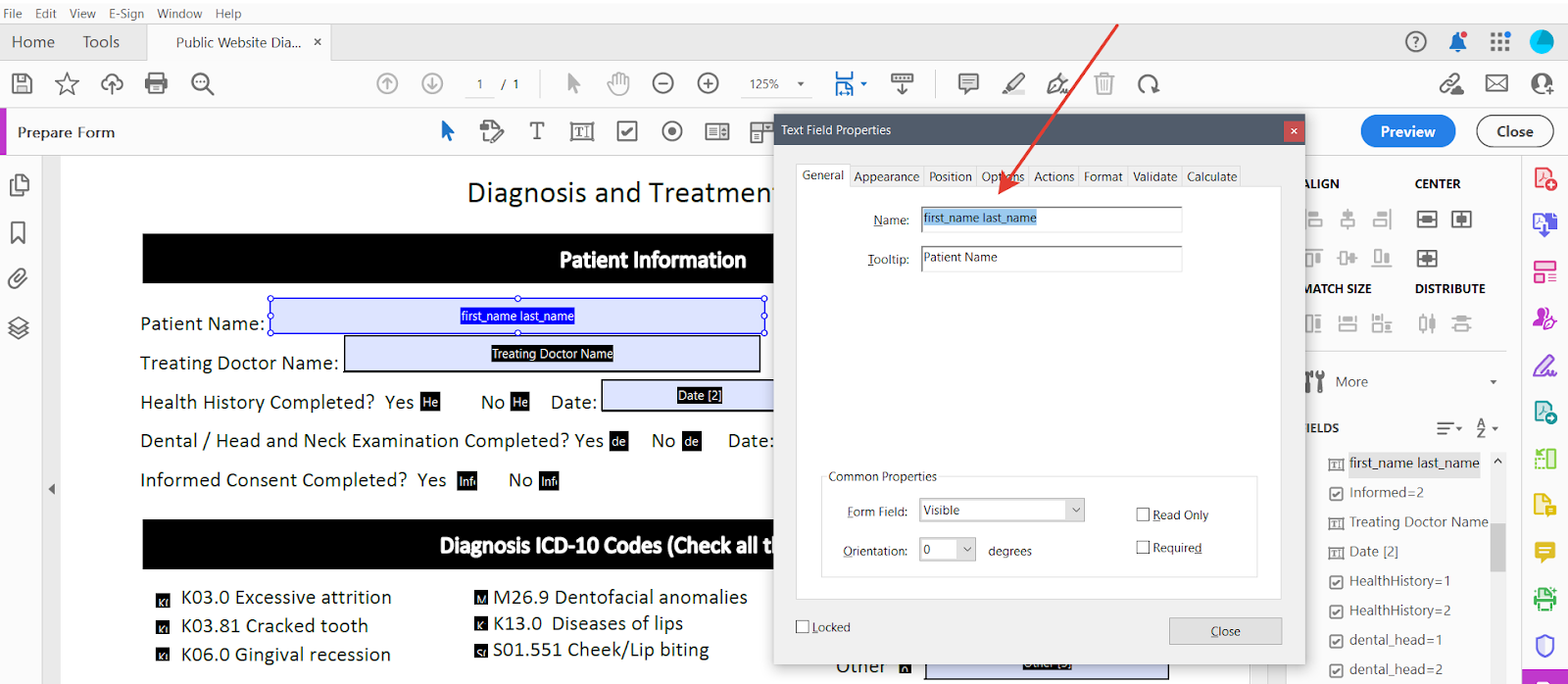
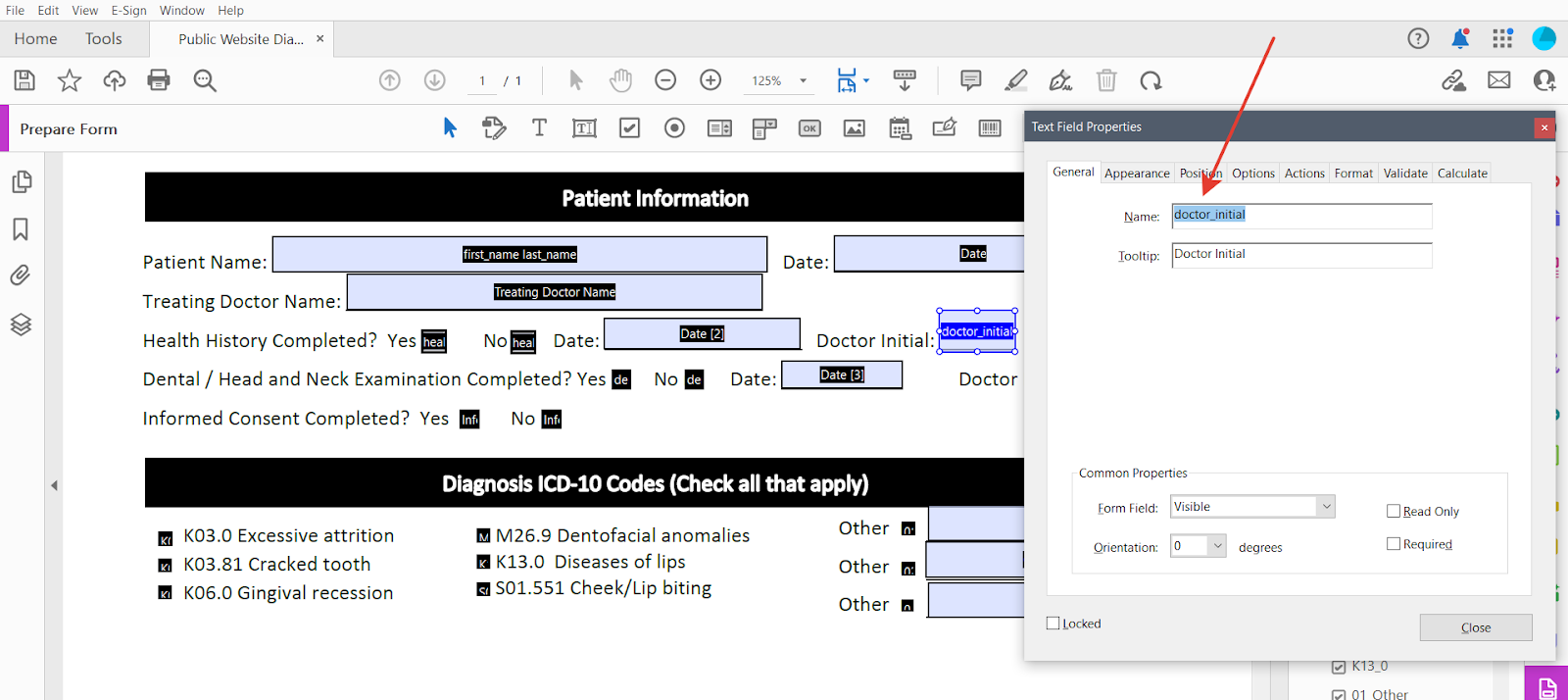
- Right-click on the field and select "Properties" from the dropdown menu. In the Properties dialog box insert the unique name of related field from your online form to the "Name" field. If you want to include several unique names, please insert these names to the "Name" field and divide them with a space or comma.
Please note: for correct work of custom forms, we recommended you to write the unique name with underline between the words (e.g. "first_name")
For example, a field named first_name last_name prints both values separated by
a space. This is useful where a form collects a name once but the printed
document repeats it on several consent pages.
System variables work in PDF templates as well as in e-mails and file names. A
text field named date-today receives the submission date. See
Variables.
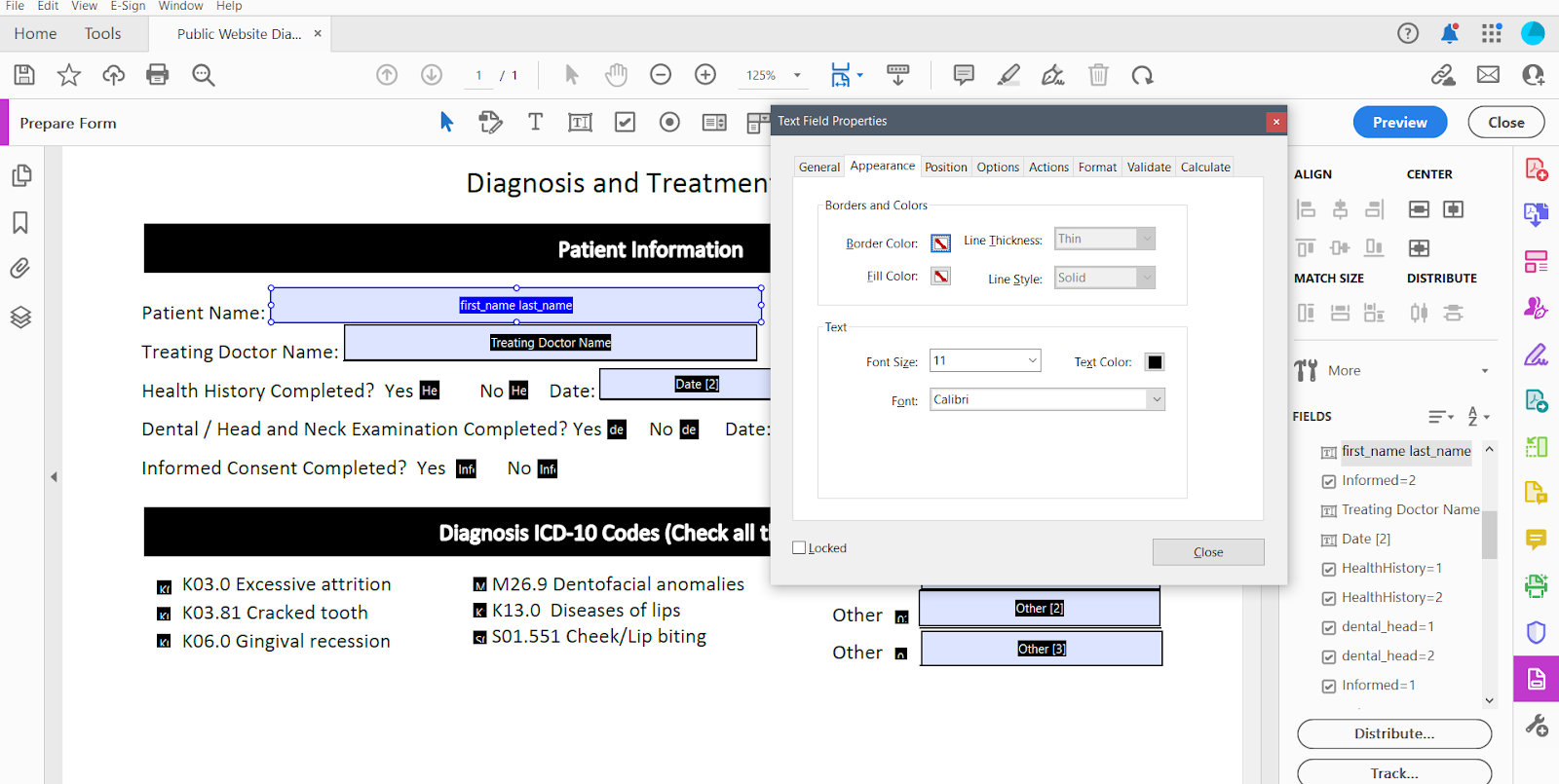
- In the Properties dialog box, you can change the appearance, behavior, and options for the field. For example, choose a font family, adjust a font size, etc.
On the "Appearance" tab, set an explicit font size rather than leaving it on "Auto". With "Auto", each value is scaled to fill the height of its field, so a short answer in a tall field prints very large. A fixed 10 pt suits most forms.
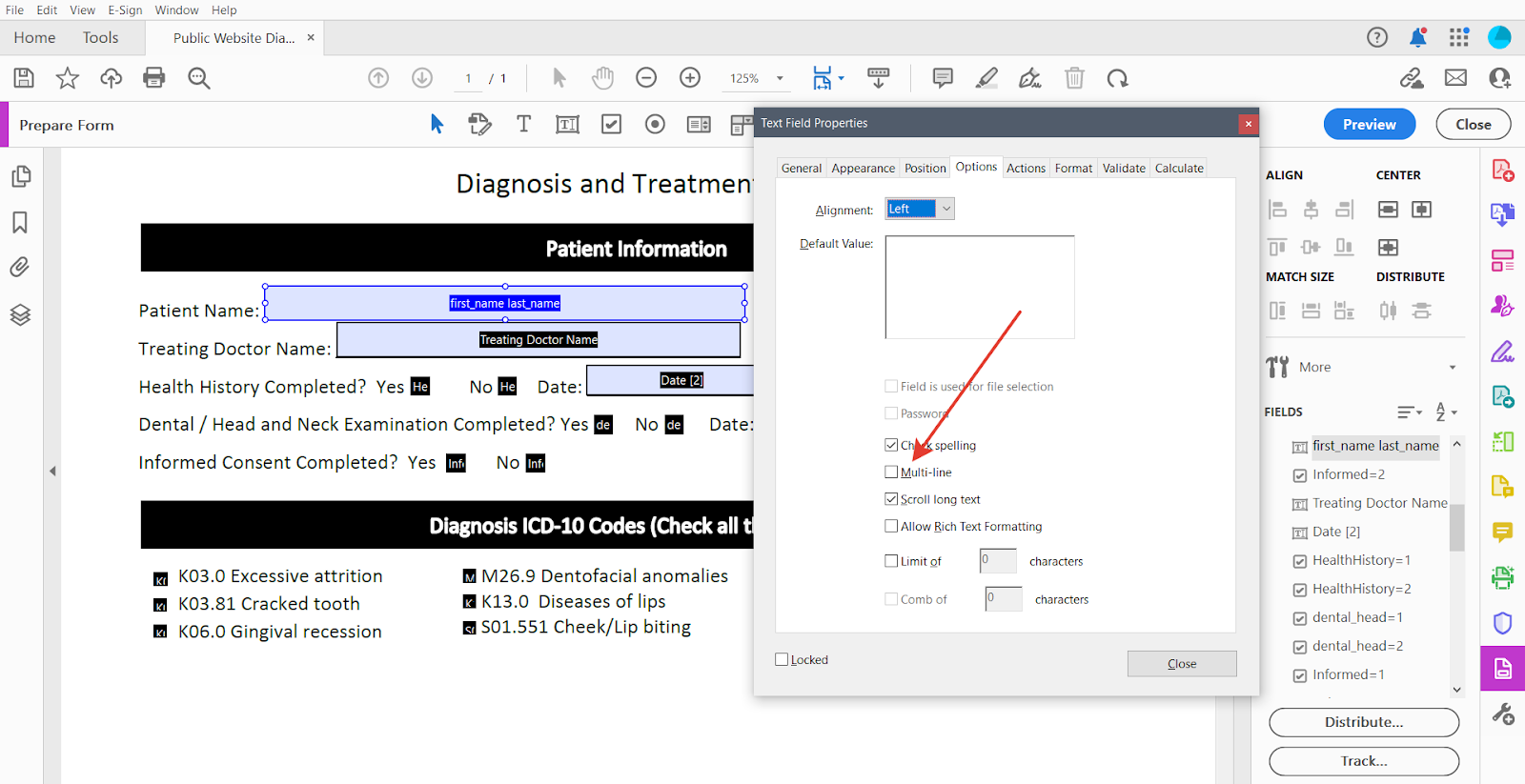
Enable the "Multi-line" checkbox on the "Options" tab for any field that may receive more than a short phrase: always for a Text area component, and also for single-line fields with prompts like "please describe" or "please specify". A single-line field holds roughly 90 characters across the width of a page at 10 pt and silently discards the rest; with Multi-line enabled the answer wraps instead.
Working with Address Components
An Address component holds several values, so give each part its own text field:
| Field name | Contains |
|---|---|
patient_address.street | street address |
patient_address.street2 | apartment, suite or unit |
patient_address.city | city |
patient_address.state | state or province |
patient_address.zipcode | ZIP or postal code |
patient_address.country | country |
Use one field named patient_address if you want the whole address on a single
line. See the Address component for the
full list of its variables.
Working with Checkboxes
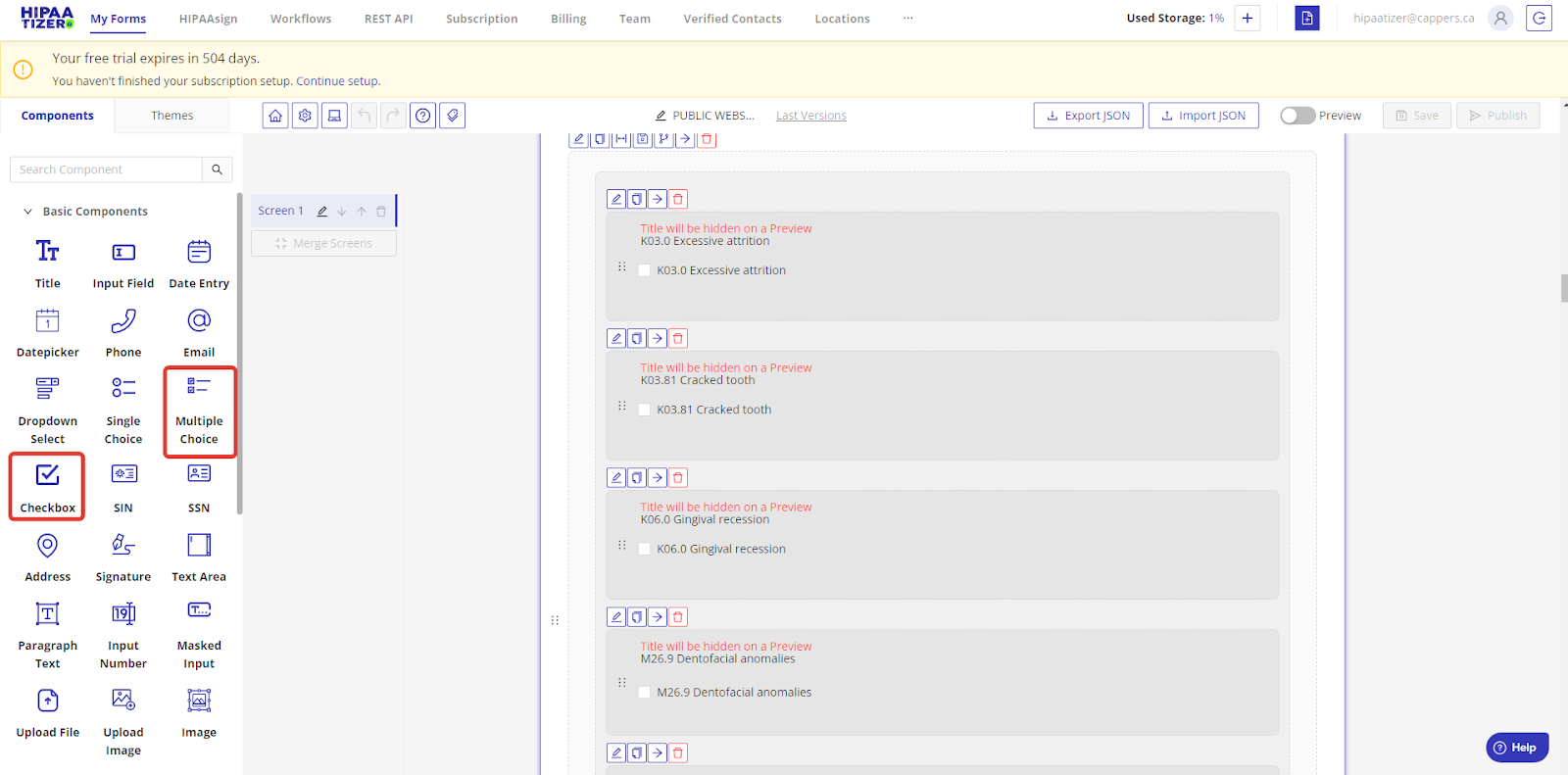
Checkboxes are used to create multiple-choice options. In the HIPAAtizer form builder, you can use either the single "Checkbox" component or the "Multiple Choice" component.
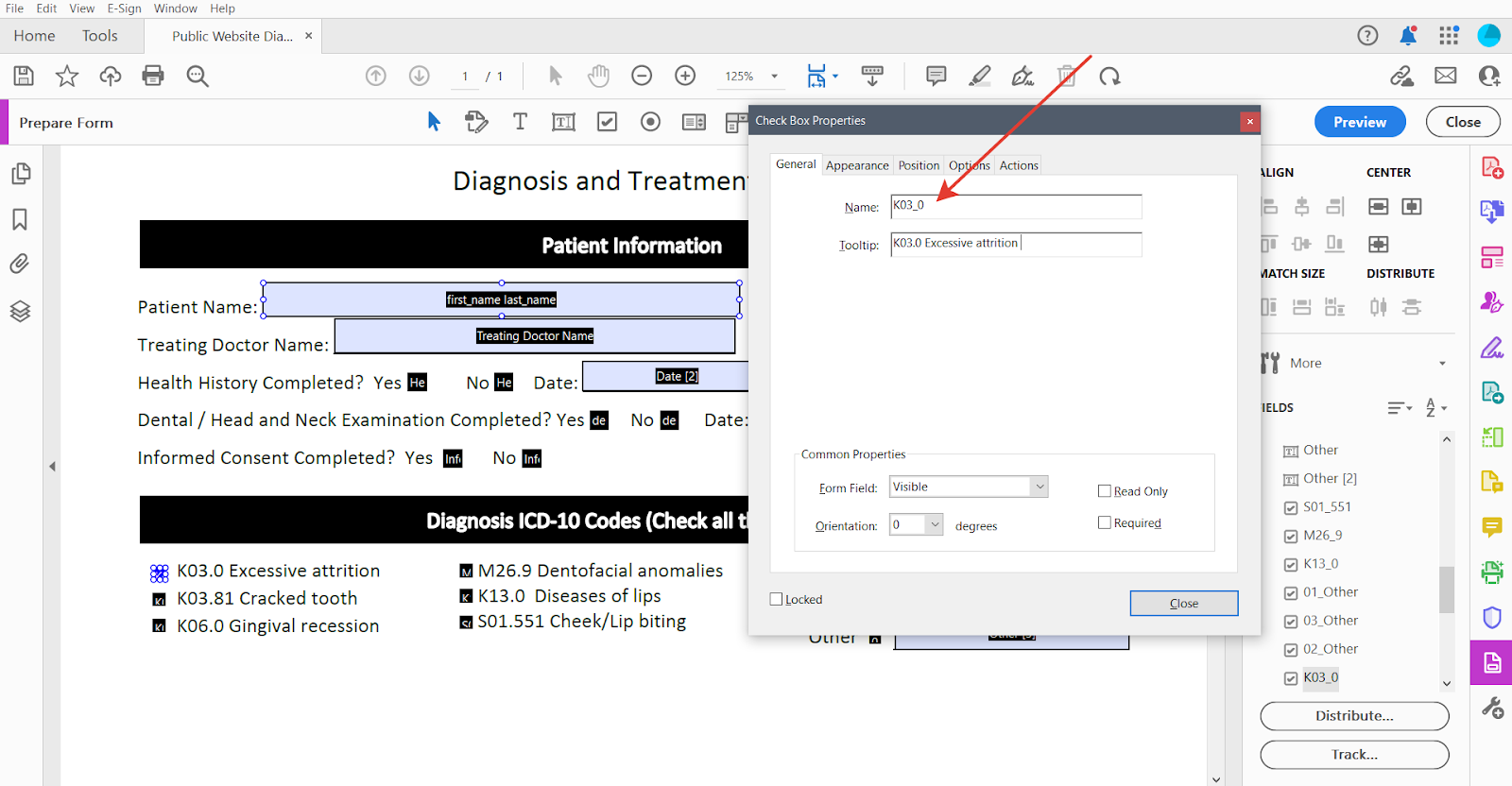
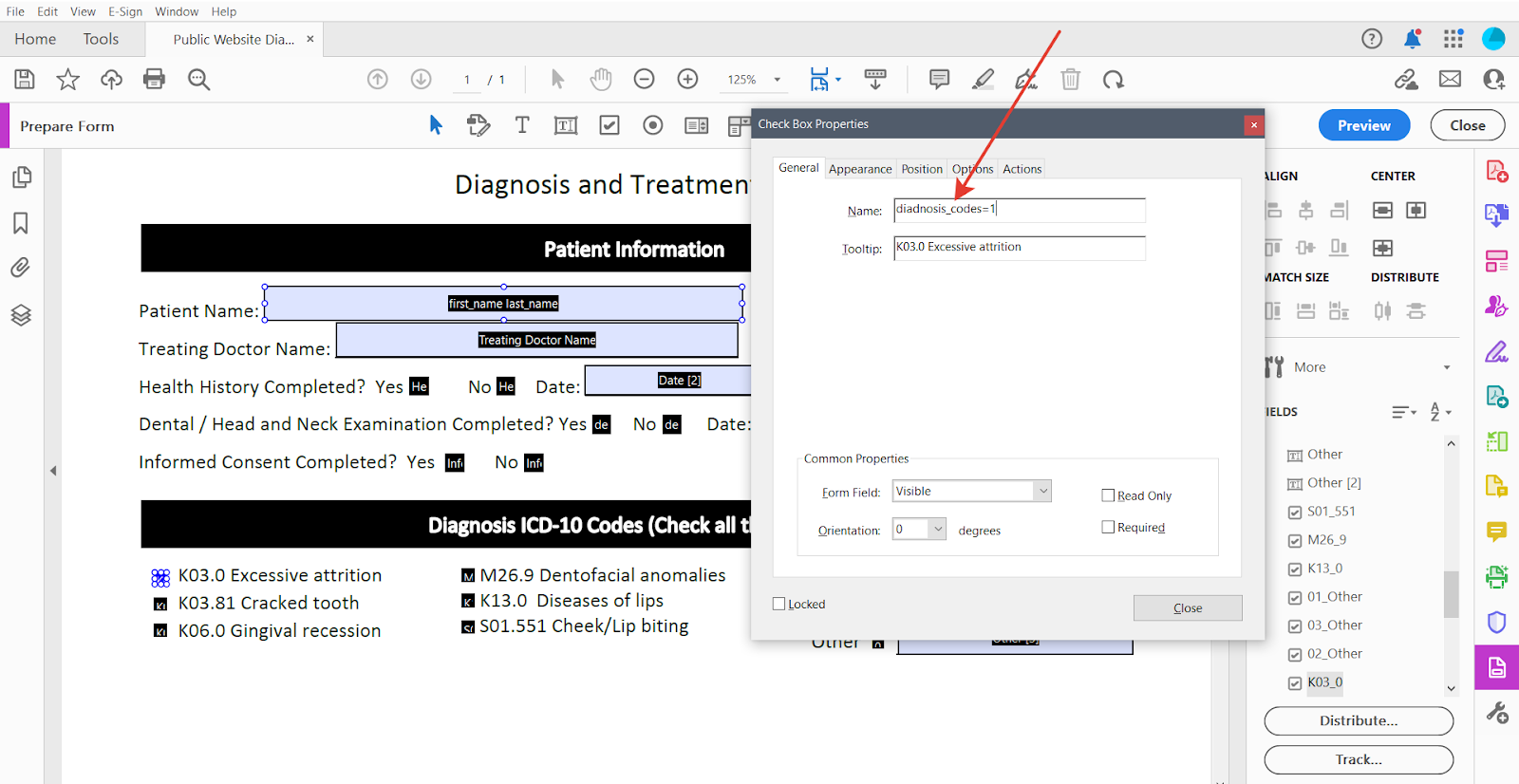
Click on the "Add Checkbox" icon and click on the location where you want to place the checkbox. You can adjust the size of the checkbox by dragging its corners. Right-click on the field and select "Properties" from the dropdown menu. In the Properties dialog box insert to the "Name" field:
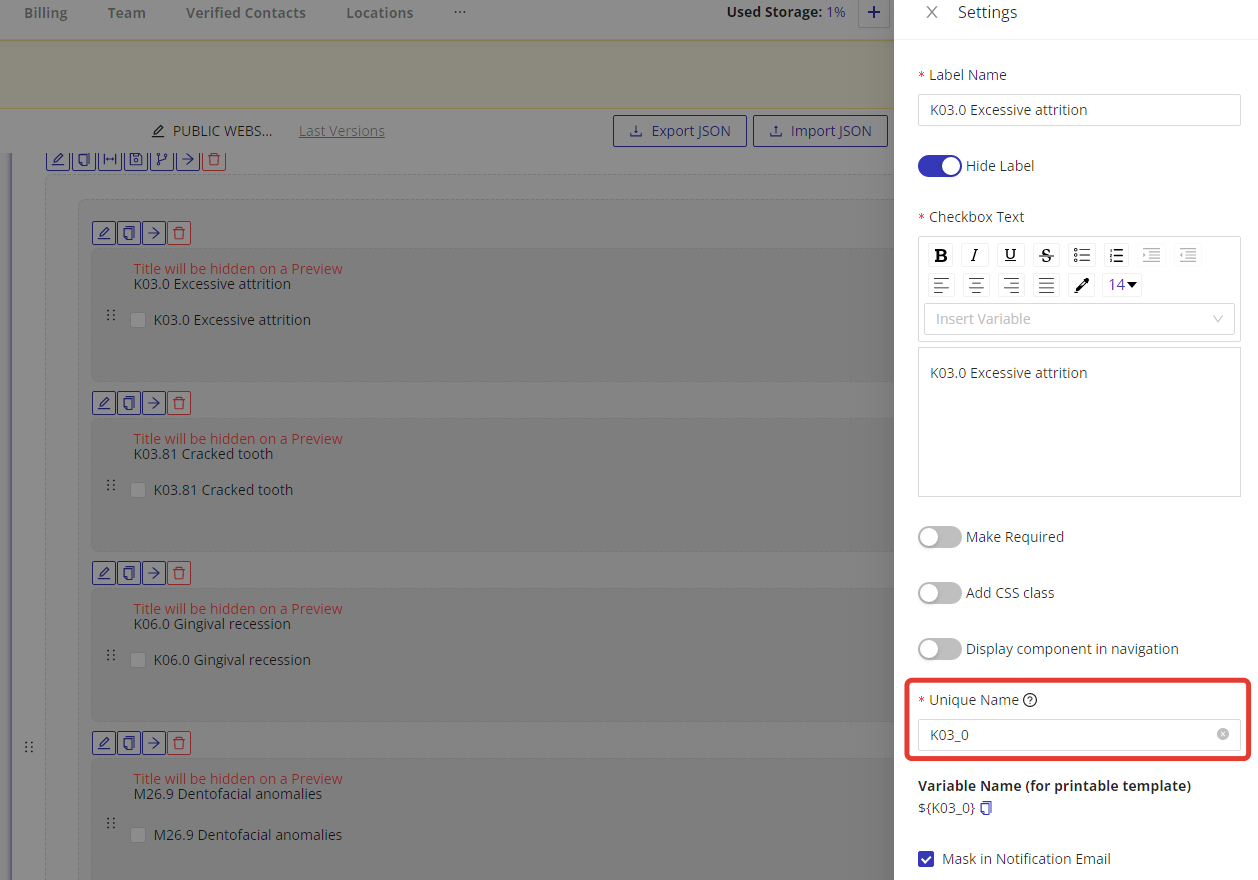
- for a single Checkbox component: its unique name, for example
K03_0 - for a Multiple Choice component: the option's own name, which combines the
component and the option:
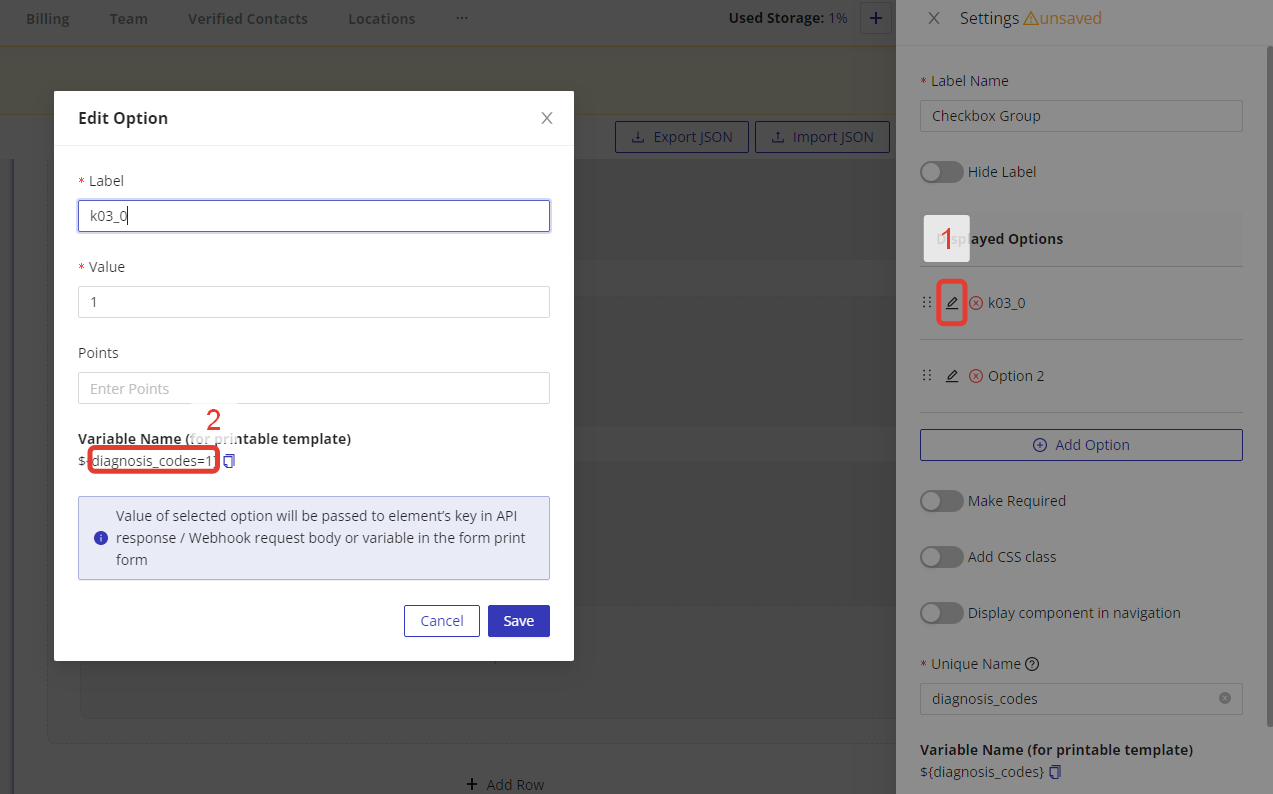
<component unique name>=<option value>, for examplediagnosis_codes=1
Open the component's settings, click the pencil icon next to the option, and copy
the value shown under Variable Name (for printable template). It already has
the ${component=value} form. Use it without the ${ } wrapper in Acrobat's Name
field.
Because the component's unique name is part of the field name, option values only
need to be unique inside their own component. Two components may both have an
option valued 1; symptoms=1 and conditions=1 are different fields.

Working with Radio Buttons
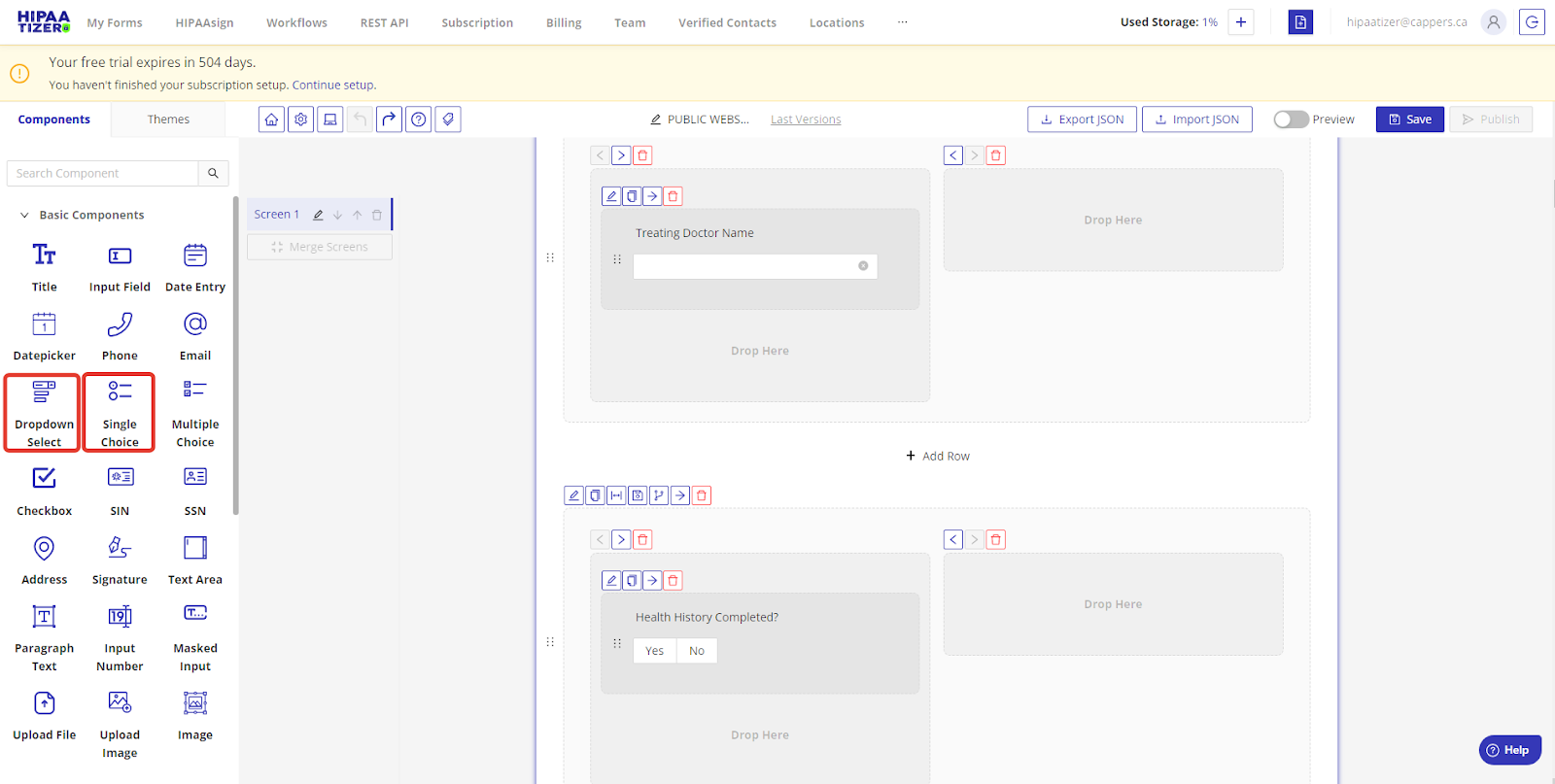
Radio buttons are used to create single-choice options. In the HIPAAtizer form builder, you can use either the "Single Choice" component or the "Dropdown Select" component.
To add a radio button:
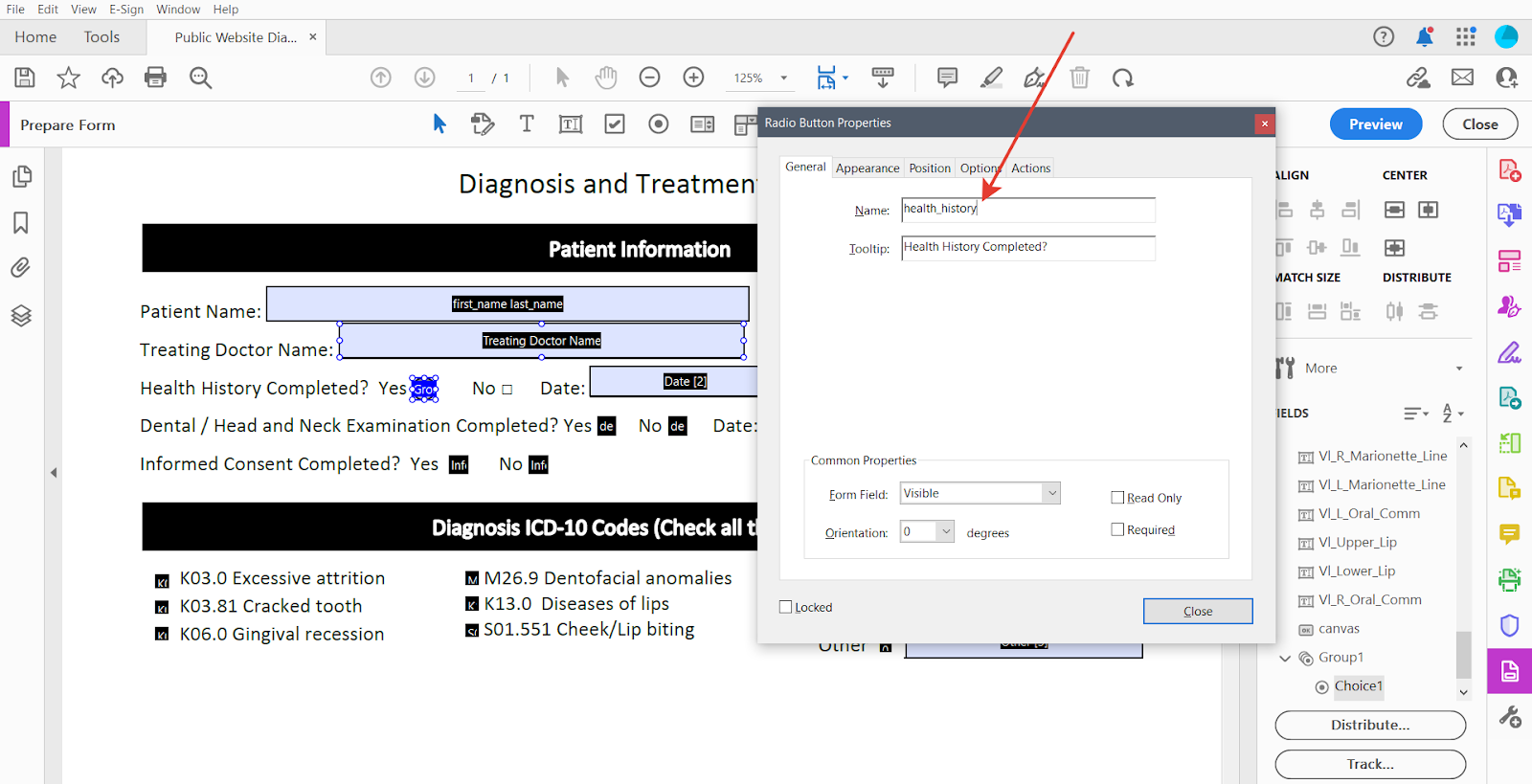
- Click on the "Add Radio Button" icon and click on the location where you want to place the radio button. You can adjust the size of the radio button by dragging its corners. Right-click on the field and select "Properties" from the dropdown menu. In the Properties dialog box insert the unique name of "Single Choice" or "Dropdown Select" component to the "Name" field.
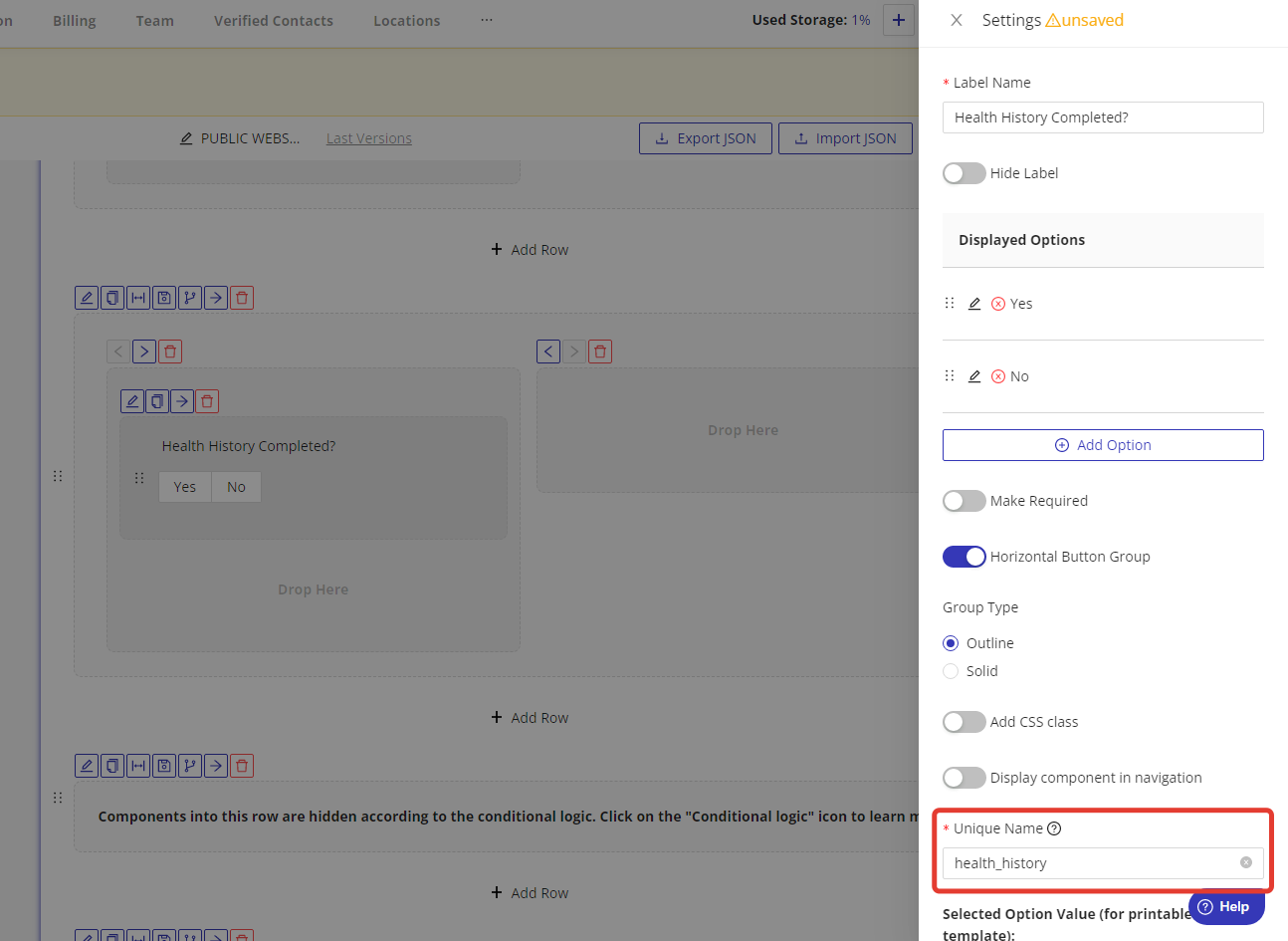
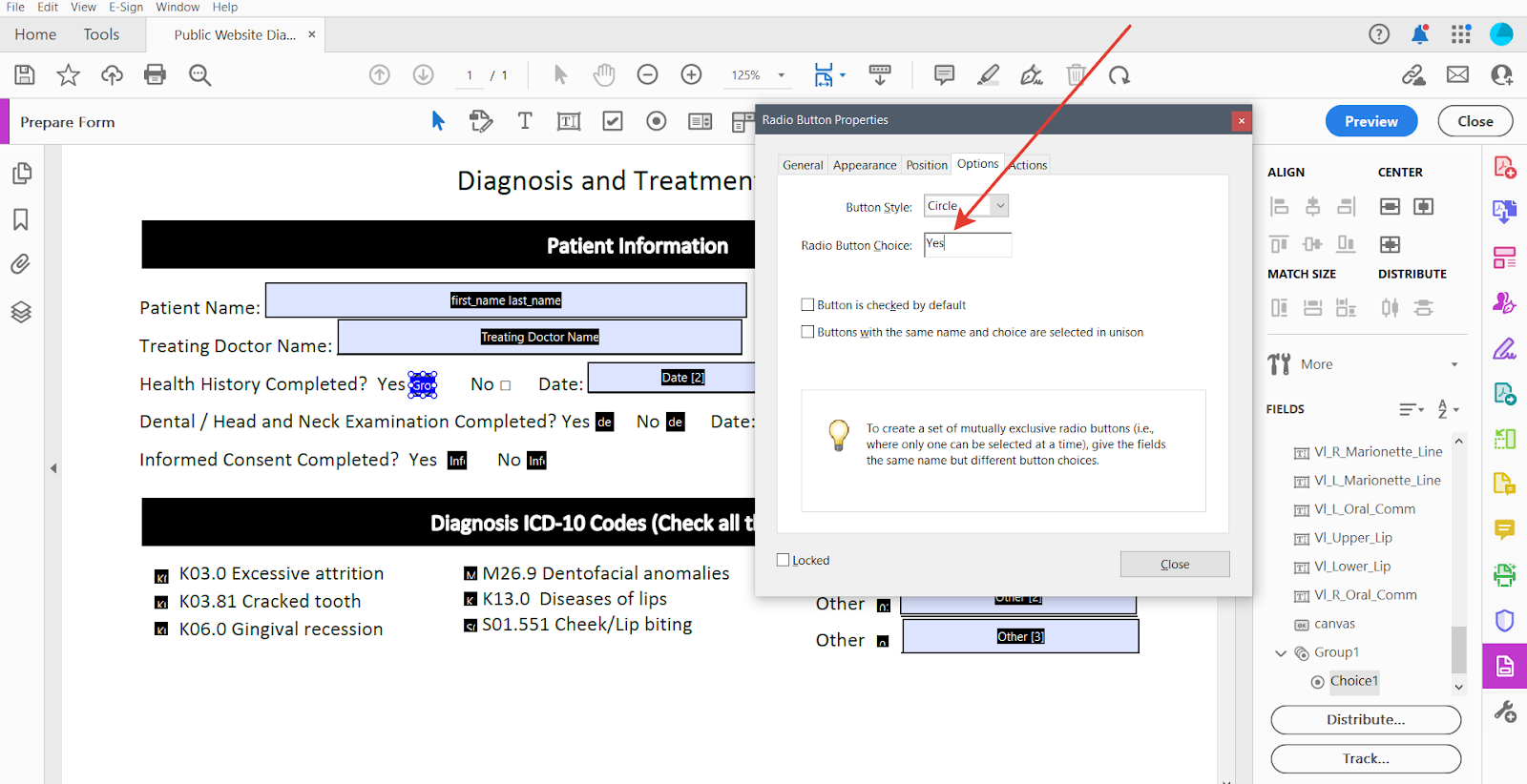
- Insert the option's Value into the "Radio Button Choice" field, the same value shown in the component's option editor, not the option's label. To change the appearance of radio buttons, select your preferred view from the "Button Style" field. This will allow you to customize the look and feel of your radio buttons to better suit your form design.
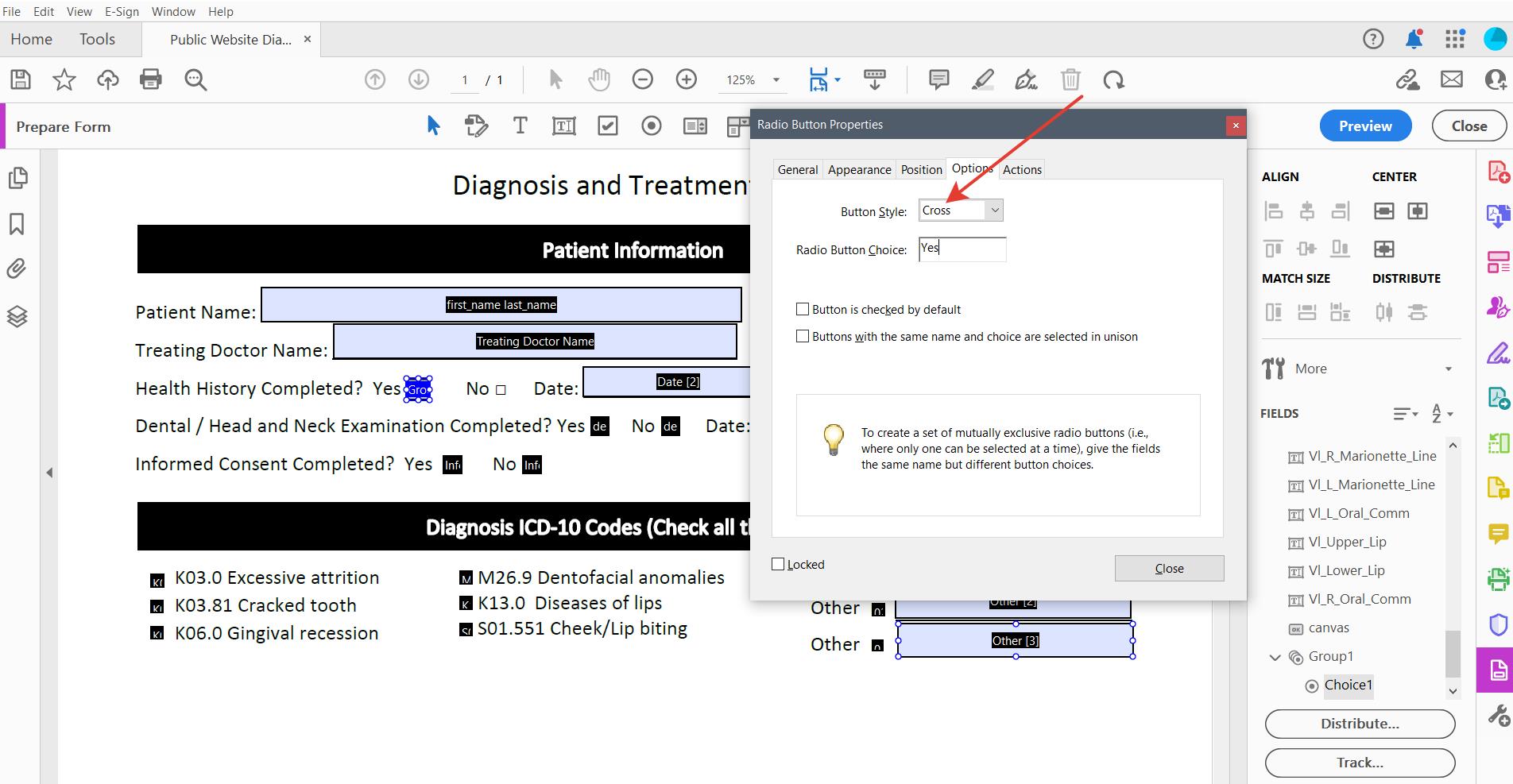
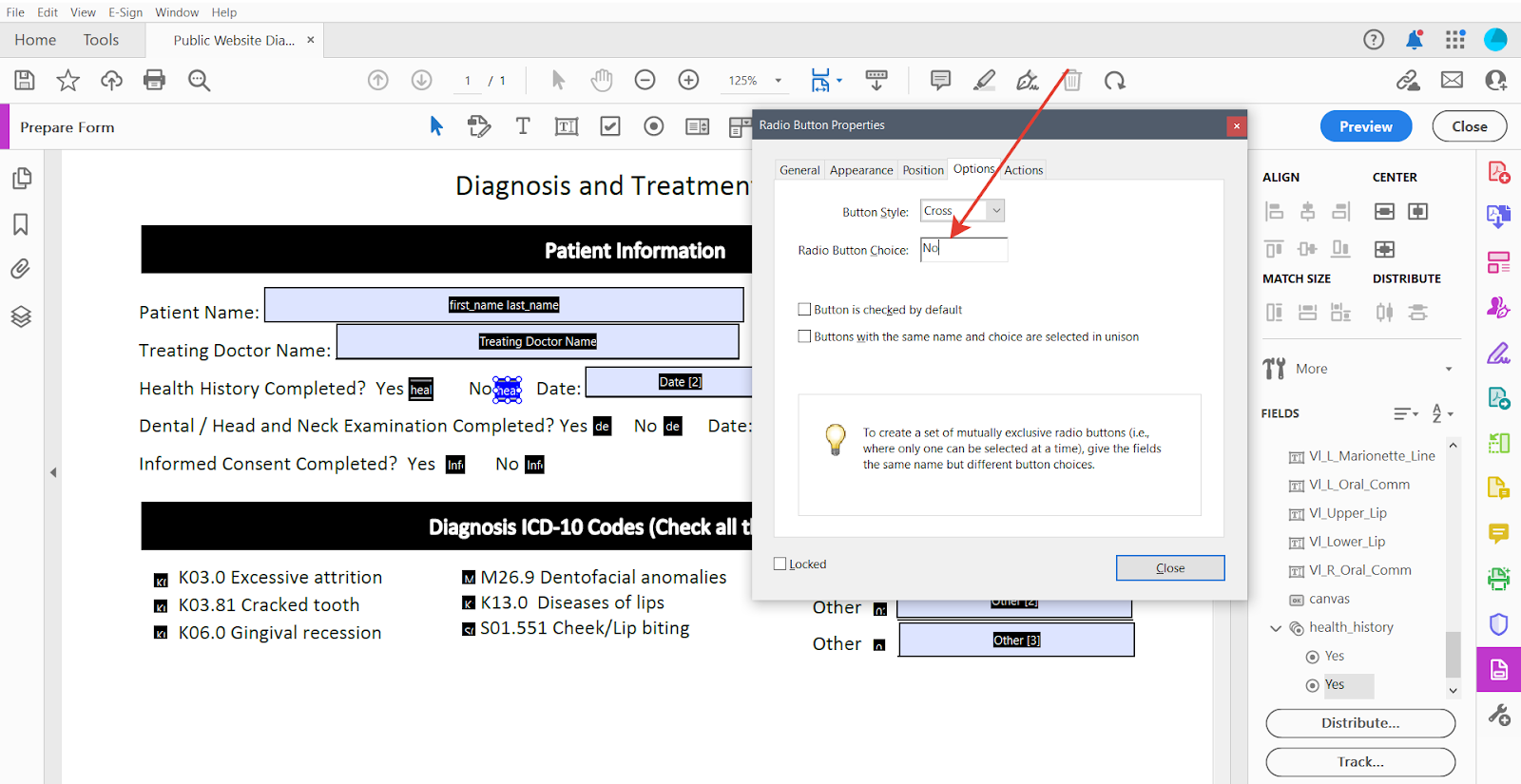
- Copy and paste the already created radio button and change the "Radio Button Choice" to the name of your second option. Continue adding and naming each option until you have listed all the choices for this question. Once you have completed this step, you can proceed to the next question in the form.
When creating radio buttons, it's important to change the "Name" field first before making any other settings. This will ensure that your radio buttons are properly labeled and function as intended.
A Single Choice or Dropdown Select component can also be represented as ordinary
checkboxes, one per option, named <component unique name>=<option value> exactly
as for Multiple Choice. Both approaches work; checkboxes keep one naming rule for
every kind of option list.
Working with Repeatable Tables
A component inside a repeatable table is addressed once per row:
<table unique name>.<row index>.<component unique name>
The row index starts at 0. For a medication table with the unique name
medications holding a component named medication_name, the fields for the
first three rows are:
medications.0.medication_name
medications.1.medication_name
medications.2.medication_name
Add as many rows to your PDF as the component's maximum row count allows. Rows beyond that maximum can never be filled.
A Q&A table is different. Each component inside it has its own unique name, so name those fields exactly as you would any other component, with no table prefix and no row index.
Working with Text
Select the "Add Text" icon and click on the location where you want to place the label or text. Type in the text you want to appear next to the form field.

Working with Signatures
Signatures are images, so they go in an image field.
- Click the "Add Image Field" icon and click where the signature belongs. Size it to the signing area.
- Right-click the field, choose "Properties", and insert the unique name of the related Signature component into the "Name" field.
Acrobat adds _af_image to the end of an image field's stored name and shows you
only the part before it. A field whose Properties dialog says
patient_signature is stored as patient_signature_af_image. This is expected:
leave it alone, and enter only the component's unique name.
The signature image is fitted to the width of the field, so a field only as tall as a signature line will crop the image top and bottom. Around 40 points of height works well.
Working with Canvas
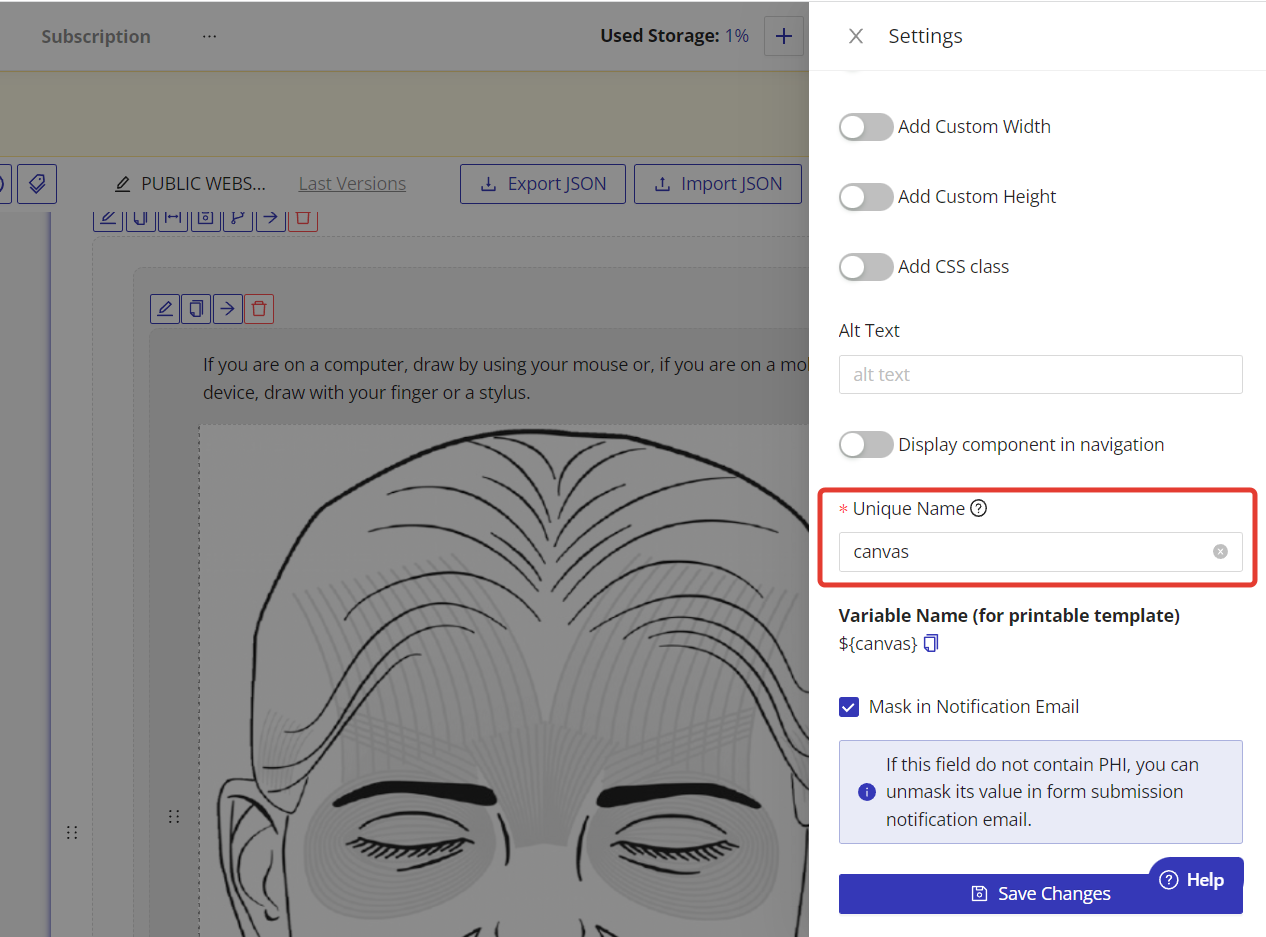
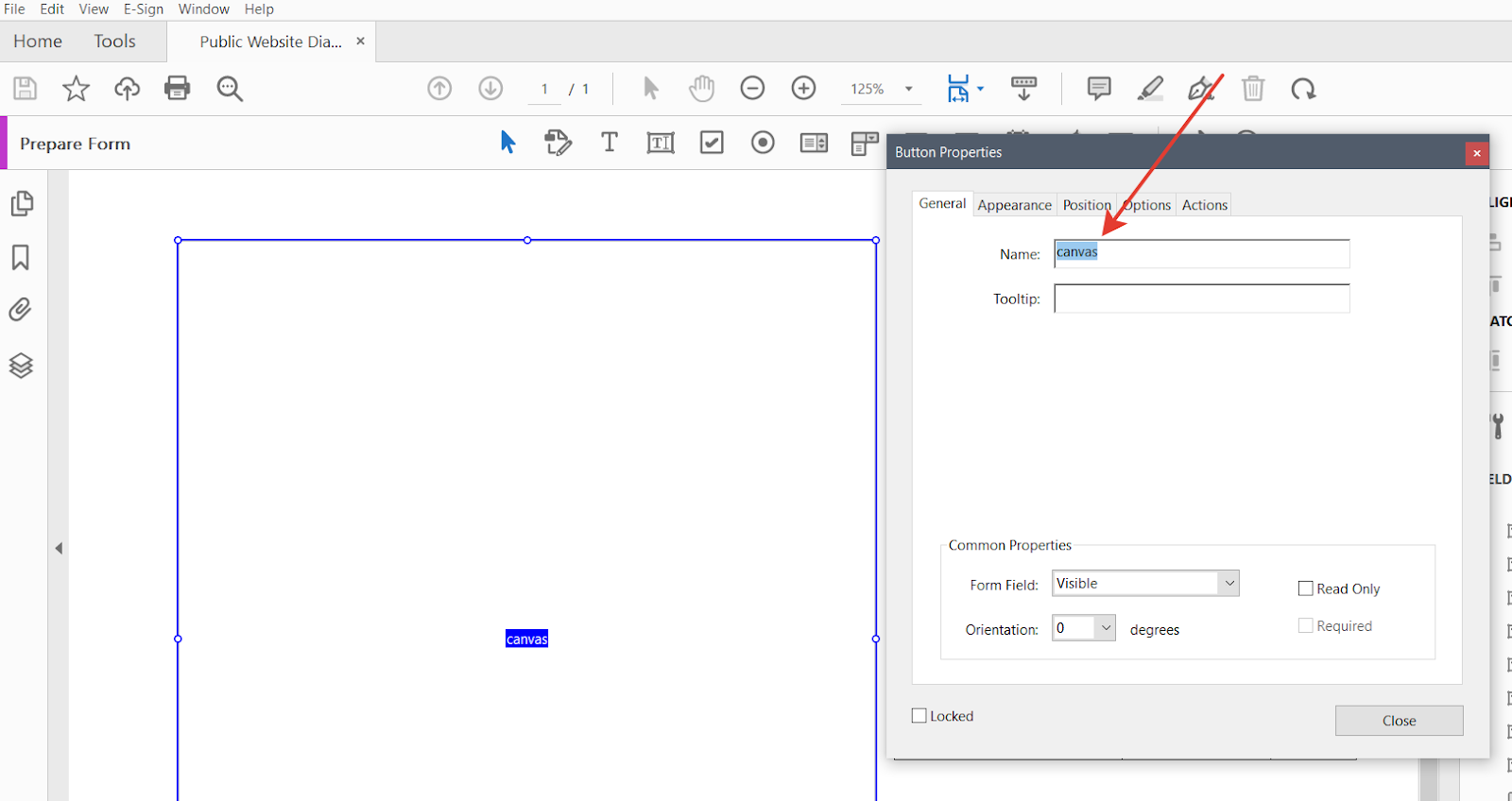
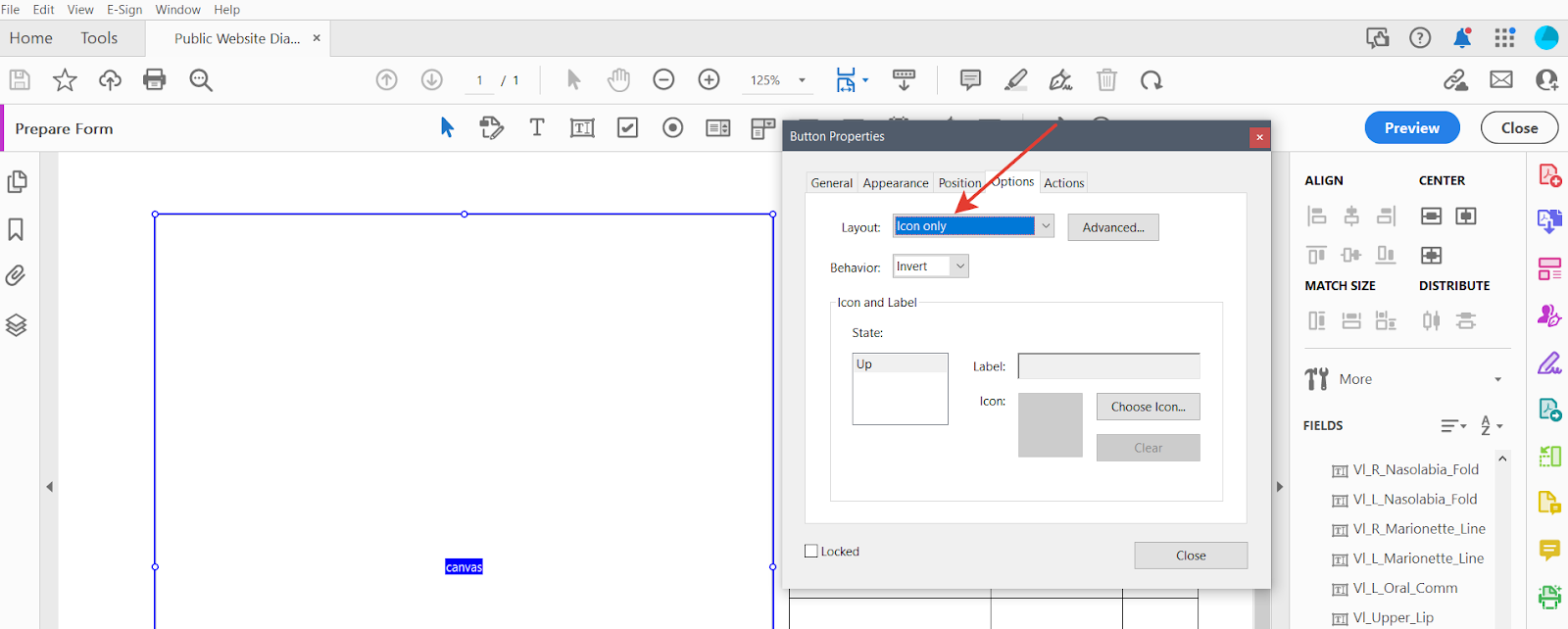
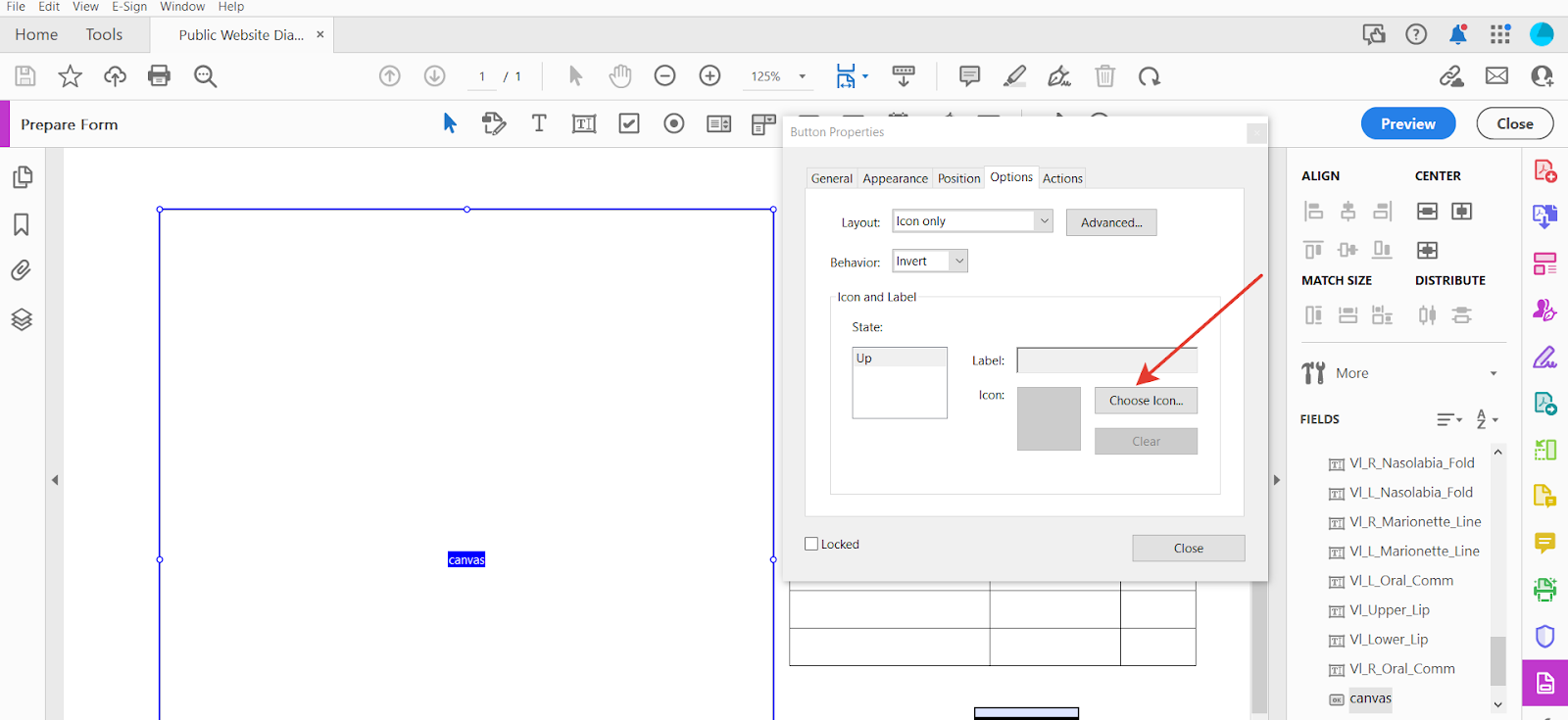
Click on the "Add "Print" or "Clear"…" icon and click on the location where you want to place the field. You can adjust the size and shape of the text field by dragging its corners. Right-click on the field and select "Properties" from the dropdown menu. In the Properties dialog box, insert the unique name of the related "Canvas" component from your online form into the "Name" field.
Go to the "Options" tab and select the layout type "Icon Only." Click on the "Choose Icon" button and upload the image you need.

How Values Appear on the PDF
Some values are formatted when they are placed in the document:
| Submitted | Printed |
|---|---|
| a phone number | (206) 555-0142 |
| an SSN | 528-44-7193 |
| a date field | as configured for that component |
Design your field widths with the formatted version in mind.
Updating PDF Form Template
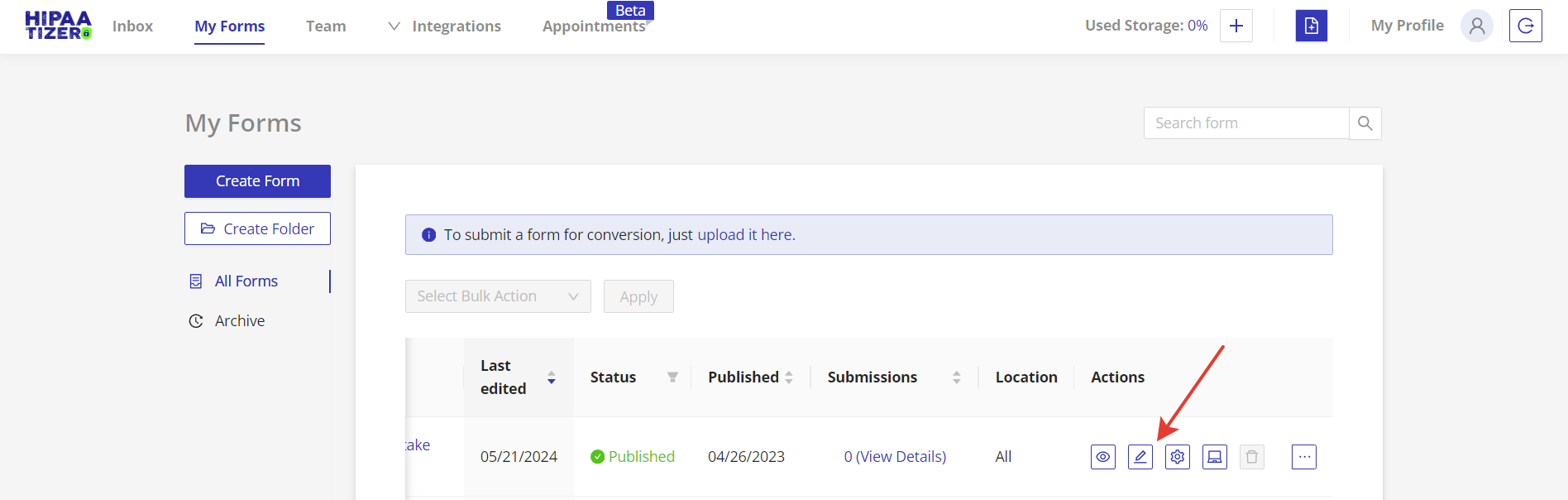
If you updated the webform in the web builder and you need help updating the PDF form template, just send us the relevant form's JSON file and we'll do the rest. Send your JSON files to support@hipaatizer.com. Here are the steps to export the form's JSON file to your computer:
Go to My Forms. Click on the "Edit" icon for the selected form. Click on the "Download JSON" button.