

Single Choice

The Single Choice component allows users to select one option only from a predefined list. It is best suited for questions where only a single answer is valid, such as Yes/No selections or choosing one category, department, or service.
How It Works
TThe Single Choice component displays a set of selectable options as radio buttons or buttons. Users can select only one option at a time; selecting a new option automatically deselects the previous one.
You can configure the component's label, available options, required state, layout, and display behavior to match your form requirements.
Properties
| Property | Description |
|---|---|
| Label Name | The text displayed above the field that identifies its purpose to the user. |
| Hide Label | Option to hide the label visually while keeping it accessible to screen readers. |
| Disabled | The field is still displayed, however it can not be filled out. |
| Displayed Options | How the options in the component will be displayed. Edit the options to alter their text, as well as their value if being used in a scoring system. |
| Add Option | Create additional options for users to choose from within the component. |
| Make Required | Requires the user to complete this field before submitting the form. |
| Horizontal Button Group | Single choice buttons are displayed vertically by default. Enable this option to display them horizontally. |
| Add CSS Class | Applies custom CSS classes for styling and layout customization. |
| Display Component in Navigation | Option to include this component in any summary or form navigation (if applicable). |
| Unique Name | A required identifier that must be unique within the form. Used in variables, email templates, webhooks, and integrations. |
Add Options
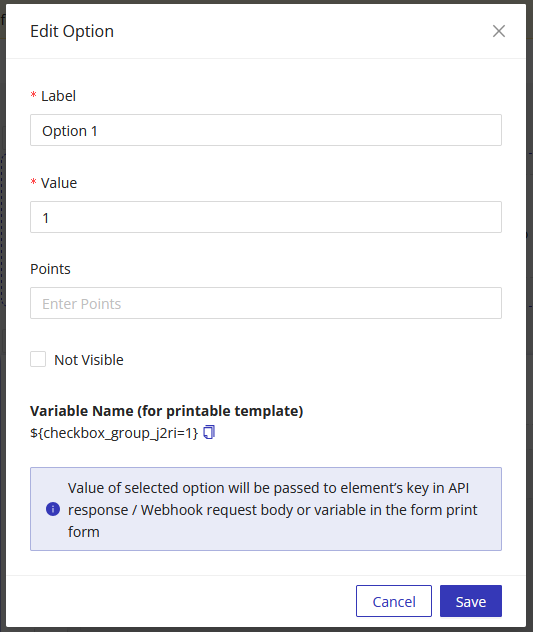
When adding options, you can adjust the Label and Value that are tied to each option.
Label - Text representing the option Value - The value passed in API responses, webhooks, and form variables
Using Single Choice Values in Other Parts of the Form
You can reference the provided single choice value elsewhere in the form (e.g., success pages, PDF templates, notification emails) using the component's Unique Name as a variable.