

Canvas

The Canvas component provides a user-friendly input interface for users to draw directly on an image located in the form. This can be used to illustrate pain points on the body, highlight areas for cosmetic alteration, and many more purposes.
How it Works
The Canvas component displays a clickable image, allowing users to use their mouse as a 'brush' to interact with the image, filling it in to convey information such as pain points on the body.
Upload an image to the Canvas component, such as an anatomical model, for that image to be displayed to users in an interactable window within the form.
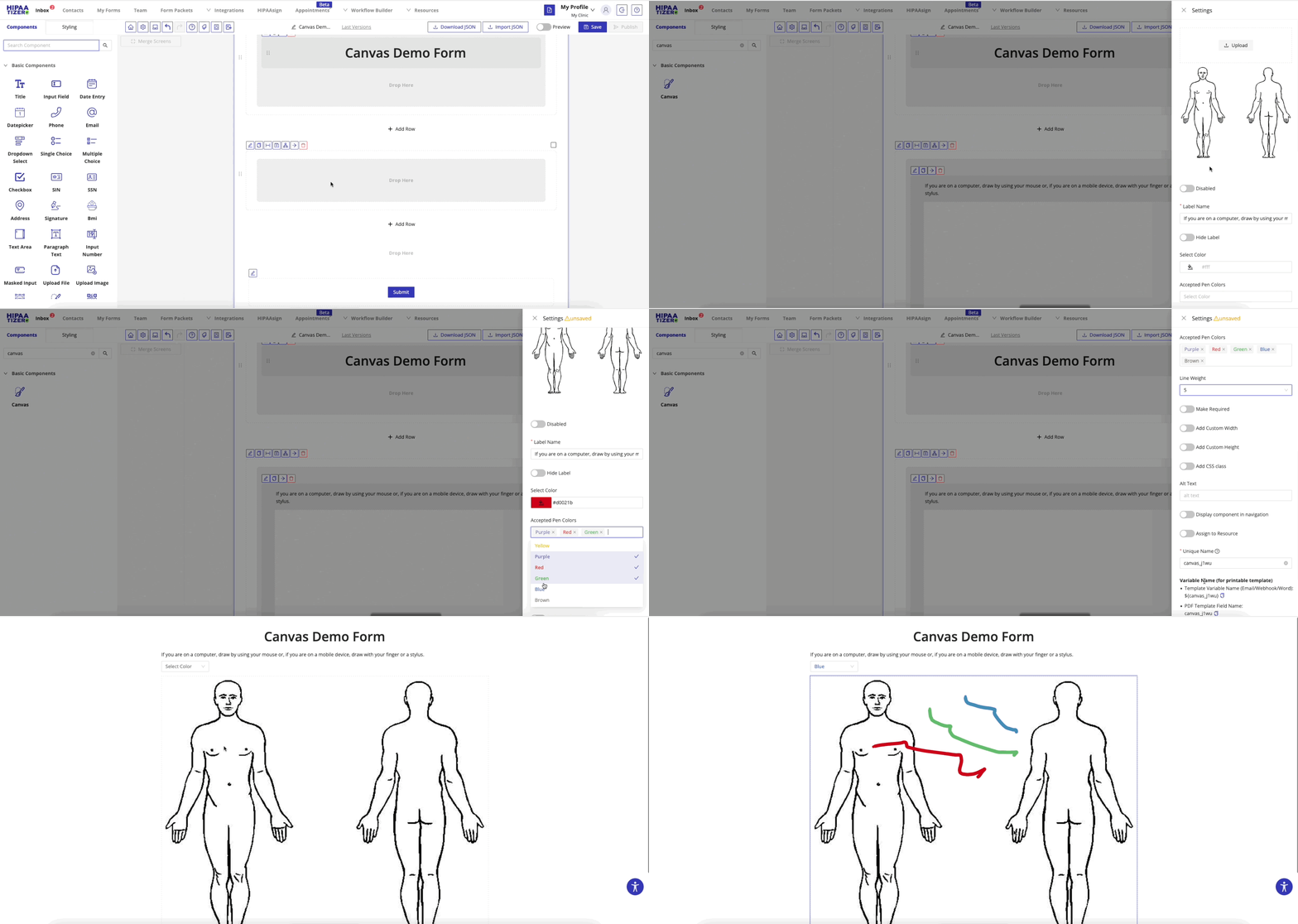
Properties
| Property | Description |
|---|---|
| Upload | Use this field to upload the image that will be displayed in the Canvas component. |
| Disabled | The field is still displayed, however it can not be filled out. |
| Label Name | The text label displayed above the phone field. |
| Hide Label | Option to hide the label visually while keeping it accessible to screen readers. |
| Select Color | Change the color displayed around the canvas image. |
| Accepted Pen Colors | Select the color(s) that will be available for users to draw on the canvas image. |
| Line Weight | Select how thick lines appear when users draw in the canvas. |
| Make Required | Marks the field as required. |
| Add Custom Width | Enable a custom pixel width to be used when displaying your canvas image. |
| Add Custom Height | Enable a custom pixel height to be used when displaying your canvas image. |
| Add CSS Class | Apply custom CSS classes to style the field to match your branding or layout. |
| Alt Text | Define the alt text that will be tied to the image. |
| Display Component in Navigation | Option to include this component in any summary or form navigation (if applicable). |
| Unique Name | A required identifier that must be unique within the form. Used in variables, email templates, webhooks, and integrations. |
| Variable Name | A variable identifier that can be copied to collect information in printable PDF or Word forms. |
| Mask in Notification Email | Masks the submitted value of this field in email notifications for enhanced privacy and compliance. Useful for preventing exposure of sensitive or identifiable information. |
Using Canvas Values in Other Parts of the Form
You can reference the information provided through canvas elsewhere in the form (e.g., success pages, PDF templates, notification emails) using the component's Unique Name as a variable.