

Relocating Existing Form Submissions to a Location
HIPAAtizer allows you to move existing form submissions to a specific Location without modifying the form itself.
This helps ensure:
- Proper HIPAA-compliant access control
- Clear separation between clinics, providers, or departments
- Accurate submission visibility for team members
When Should You Relocate Submissions?
Common scenarios include:
- Locations were added after submissions were already collected
- Submissions were initially stored under All Locations
- A form was reassigned, but historical submissions need to follow
- Access to older submissions needs to be restricted for certain staff
Relocating submissions is a non-destructive action. Submission data, audit history, and timestamps remain unchanged -- only the assigned Location is updated.
How to Move Existing Submissions to a Location
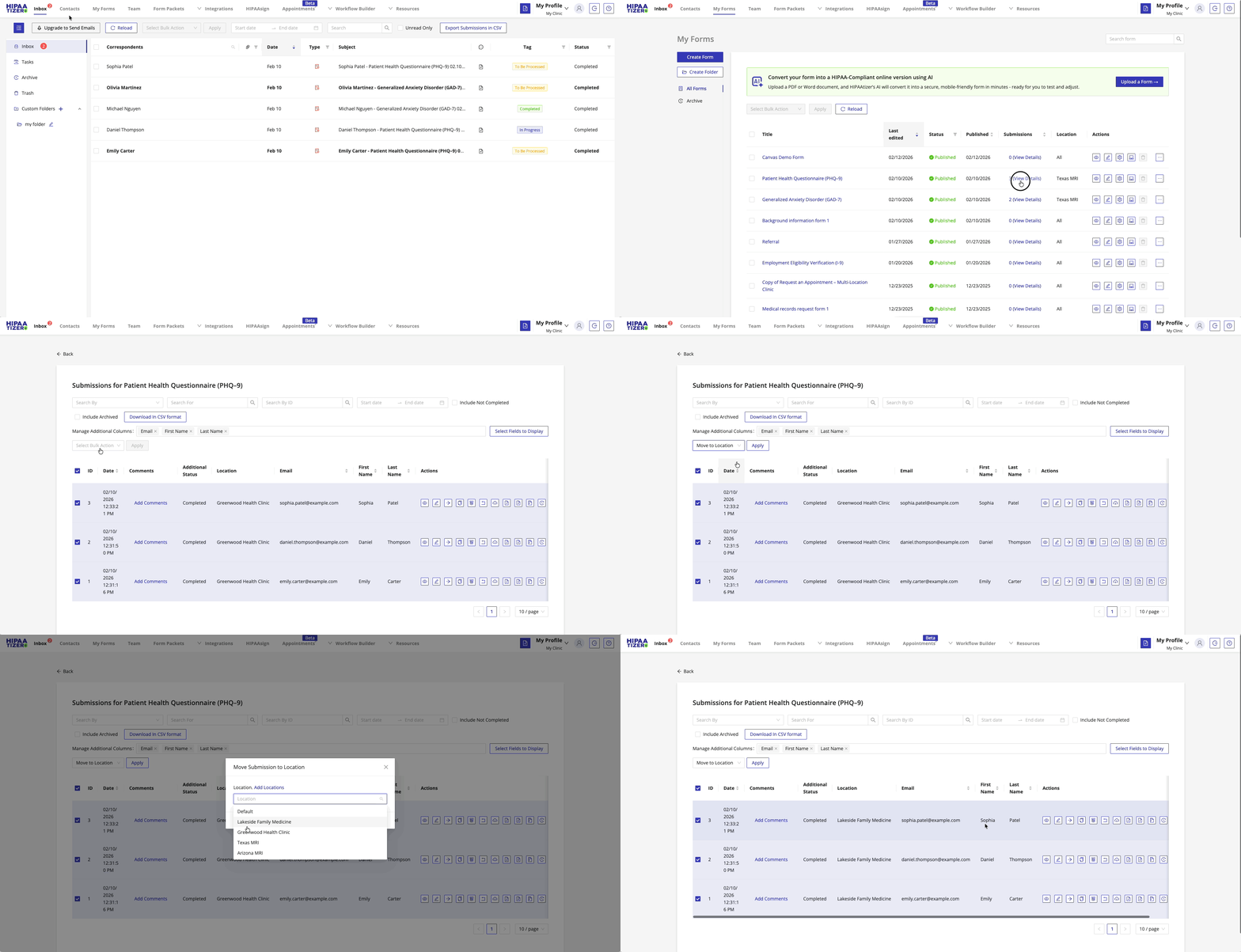
Relocation is performed from the My Forms section and applies only to the submissions you explicitly select.
Step-by-Step
-
Open My Forms from the top navigation bar
-
Locate the form whose submissions you want to reorganize.
-
In the Submissions column, click the submission count (for example, "12 (View Details)").
-
In the submissions list:
- Select one or more submissions using the checkboxes
- Open the Bulk Actions dropdown
- Choose Move to Location
- Click Apply
-
In the modal dialog:
- Select the destination Location
- Click Move to Location to confirm
The selected submissions will immediately be reassigned to the chosen Location.
What Happens After Relocation?
Once moved:
- Only users assigned to the destination Location will see the submissions
- Submissions are removed from other Locations' views
- Submission content, attachments, and audit logs remain unchanged
This action does not:
- Change the form's assigned Location
- Modify routing rules
- Notify patients or external users
Important Notes
Only users with access to both the selected submissions and the destination Location can relocate submissions.
Manual relocation is intended for historical cleanup. For future submissions, use Location-Based Submission Routing to automatically assign submissions as they are received.
Best Practices
- Assign forms to All Locations when using routing rules
- Use manual relocation only for existing or historical submissions
- Review team member Location access after moving submissions
Related documentation: