

Location-Based Submission Routing
HIPAAtizer allows forms and their submissions to be scoped to specific Locations, giving administrators the flexibility to control visibility and access across departments, clinics, or providers under the same account.
With Location-Based Submission Routing, you can automatically assign each form submission to the appropriate Location based on information entered by the user. This ensures only authorized team members -- those assigned to the relevant Location -- can access the submission.
Overview
- Each form in HIPAAtizer can be assigned to a Location.
- Each form submission can be routed to a specific Location using custom rules.
- Team members will only see forms and submissions associated with the Locations they are assigned to.
- Locations behave like sub-accounts for access control purposes.
Assigning a Form to a Location
When a form is assigned to a specific Location:
- The form will only be visible in the dashboard to users with access to that Location.
- Submissions will also be restricted to that Location's users unless routing logic overrides it.
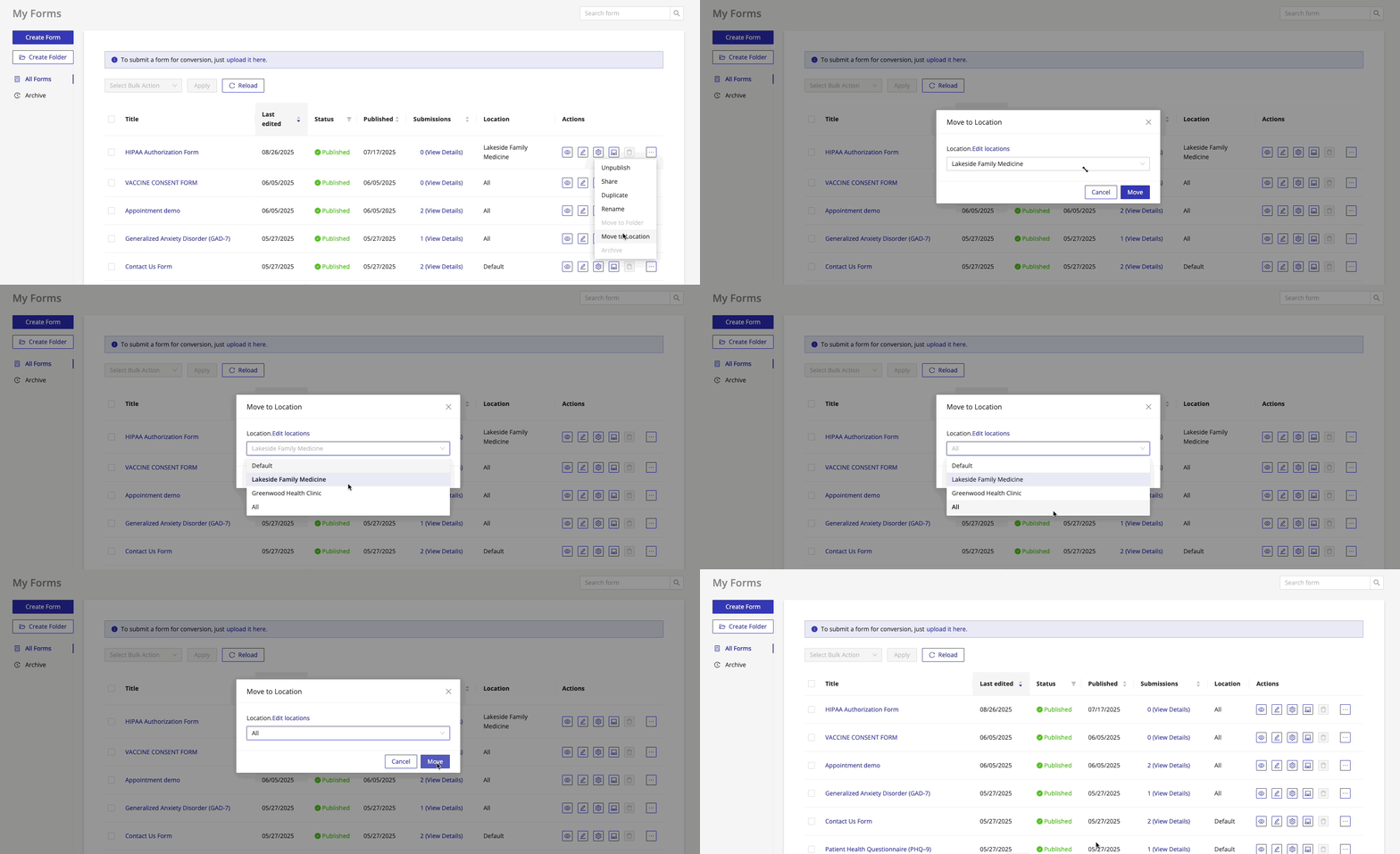
When using Location-Based Submission Routing, we recommend assigning the form itself to All Locations.
This ensures:
- All team members can see the form
- Submissions are only visible to users with access to the submission's routed Location
This approach maintains both flexibility and HIPAA-compliant access control.
Enabling Location-Based Submission Routing
To activate submission-level routing:
- Open the Form Settings for your form
- Navigate to Location-Based Submission Routing
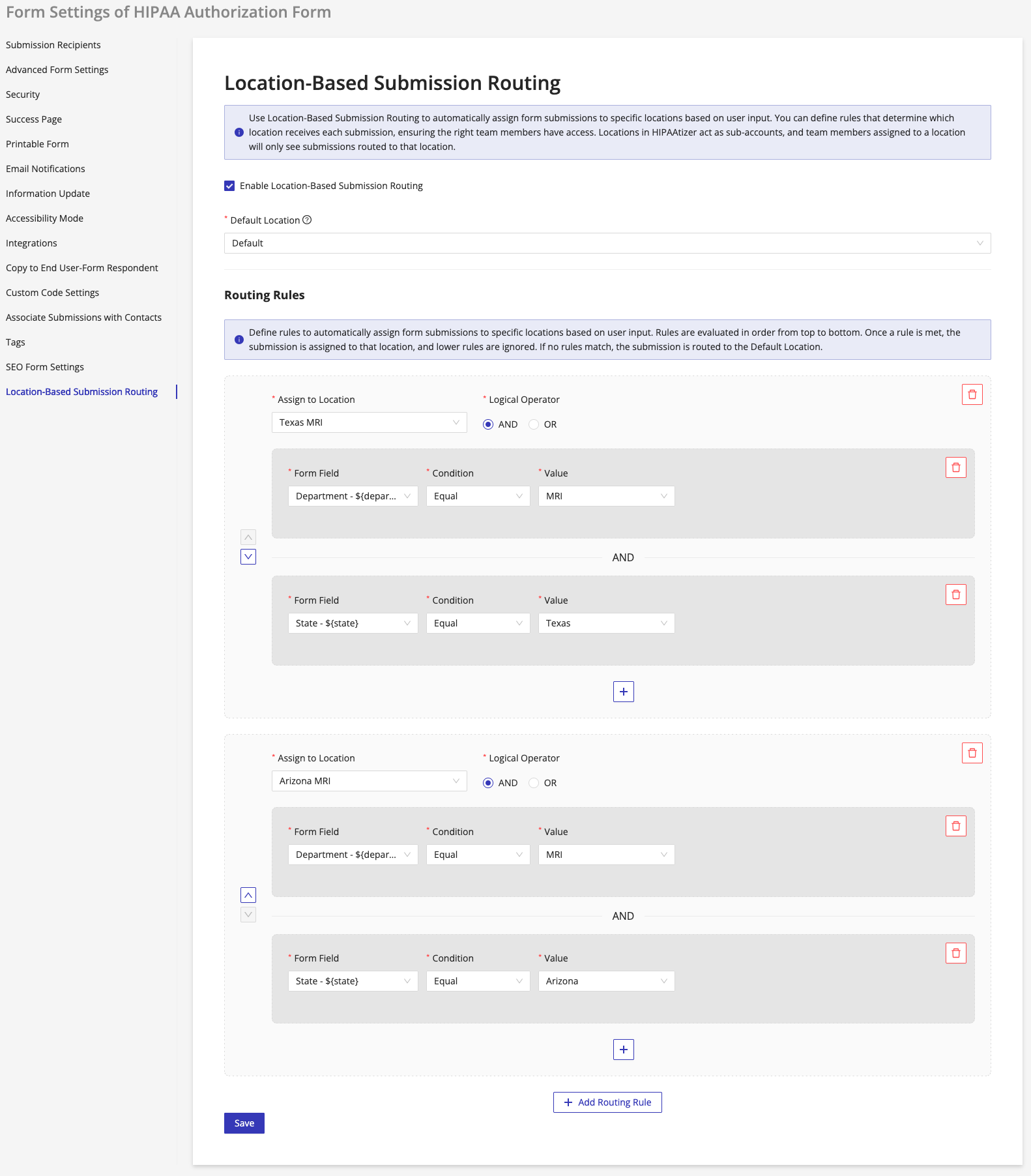
- Check the box: Enable Location-Based Submission Routing
Once enabled, you will need to define:
Default Location
This is the fallback Location where form submissions will be assigned if they do not meet any of your defined rules.
Routing Rules
Routing Rules allow you to define logic to automatically route submissions. Each rule includes:
- Target Location: Where submissions will be routed
- Logical Operator:
AND/OR(applies to conditions within a rule) - Conditions: Based on user responses in specific form fields
Rules are evaluated top to bottom, and only the first matching rule will be applied. If none match, the submission will go to the Default Location.
Example
Let's say you want to route submissions based on department and state:
Rule 1
Assign to Location: Texas MRI
Logic Operator: AND
- Department is equal to
MRI - State is equal to
Texas
Rule 2
Assign to Location: Arizona MRI
Logic Operator: AND
- Department is equal to
MRI - State is equal to
Arizona
Using the assigned location in emails and printed forms
Once a submission is assigned to a location, four variables carry that location's details into anything generated at submission time:
| Syntax | Renders |
|---|---|
${submissionLocationTitle} | Title of the assigned location |
${submissionLocationAddress} | Full address of the assigned location |
${submissionLocationPhone} | Phone number of the assigned location |
${submissionLocationEmail} | Email address of the assigned location |
Use them in notification emails, in the confirmation email from Send Copy to Respondent, or in a printable PDF template, so each document shows the office that actually handled the submission.
These resolve only once the submission has been created, so they do not render on the form itself or in a form preview. They are also empty if the submission was never assigned to a location. See the variables reference for the full list.
Summary
Location-Based Submission Routing enables fine-grained control over how submissions are handled, providing:
- Granular access based on user roles and Locations
- Automated routing logic to streamline workflows
- Greater alignment with organizational structures
To get started, navigate to the Form Settings and configure your routing rules under Location-Based Submission Routing.
Need help? Contact Support