

Assigning Team Members to Locations
By default, all team members in your HIPAAtizer account have access to all Locations, meaning they can view all forms and submissions regardless of their department or clinic.
To restrict access and assign a user to specific Locations.
Steps to Assign Locations
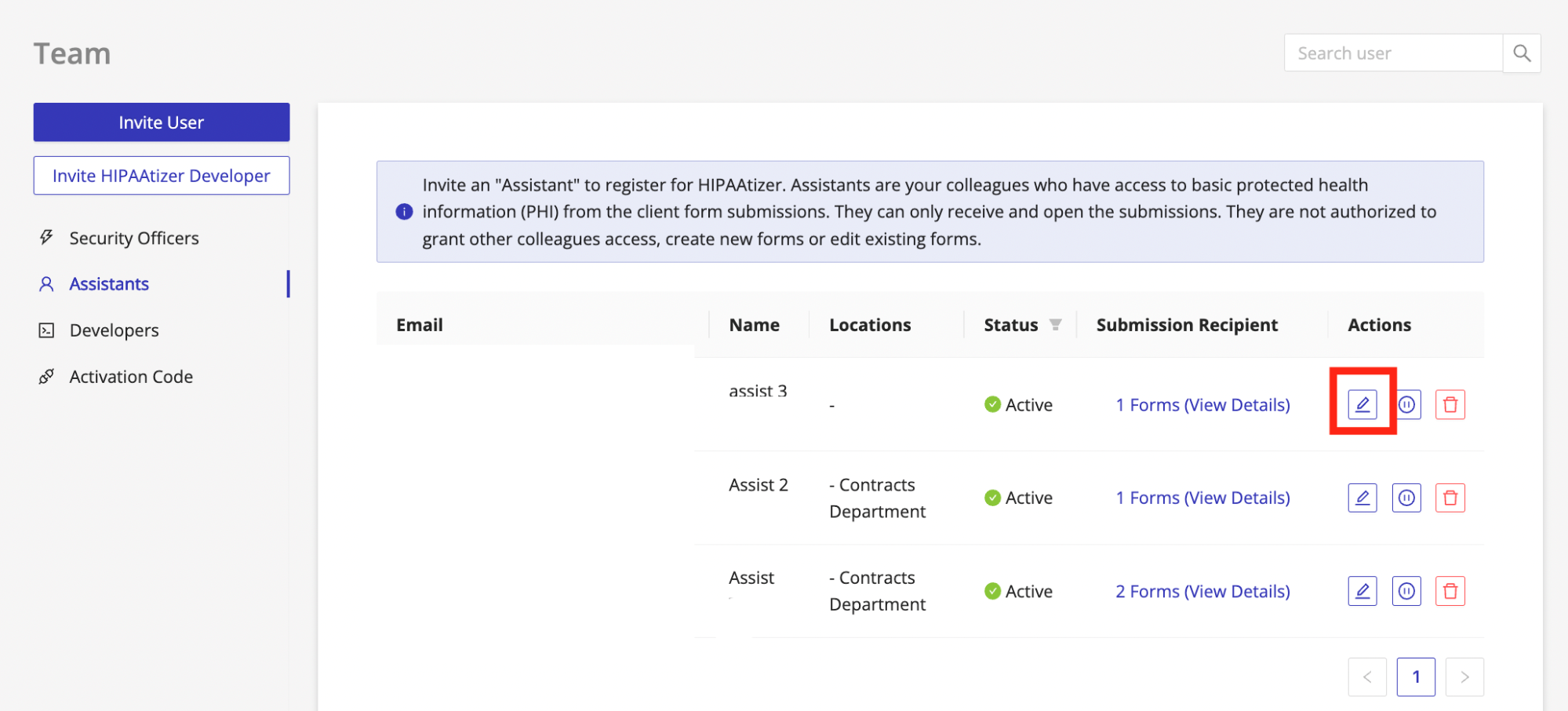
- Navigate to the Team dashboard.
- Locate the team member you'd like to update.
- Click Edit under their row.
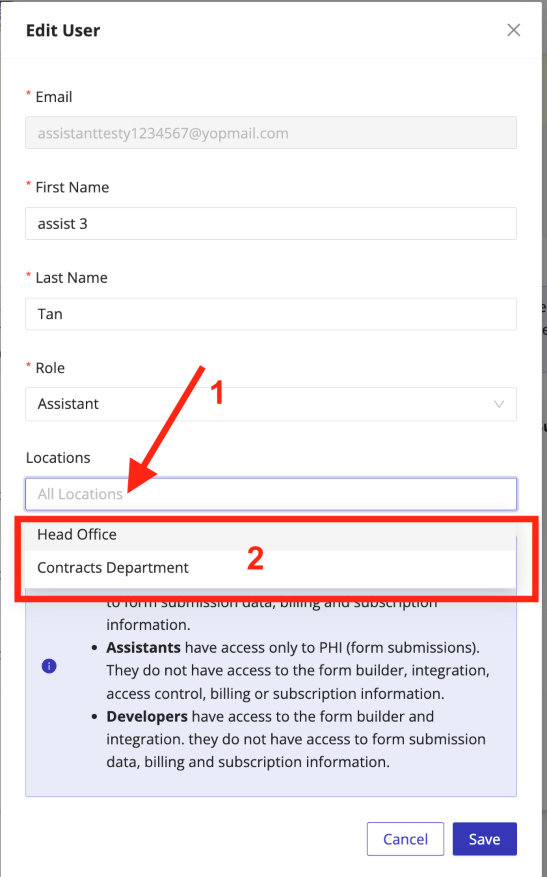
- In the modal window that appears:
- Click on the Locations tab.
- Select one or more Locations from the list.
- Click Save to apply the changes.
Once saved, the team member will only have access to the forms and submissions associated with their assigned Locations.
Why Assign Locations?
Assigning users to specific Locations allows you to:
- Enforce HIPAA-compliant access control
- Limit access to PHI by department, site, or business unit
- Ensure team members only work with relevant data
This is especially useful when managing multiple clinics, departments, or physicians under a single Covered Entity account.