Themes
HIPAAtizer provides several options for styling your forms. You can find all the styling settings in the Styling tab, located in the left-hand navigation menu of the Form Builder.
Create a Theme
By default, the form theme is set to "Default," but you can create your own theme and apply it across all your forms.
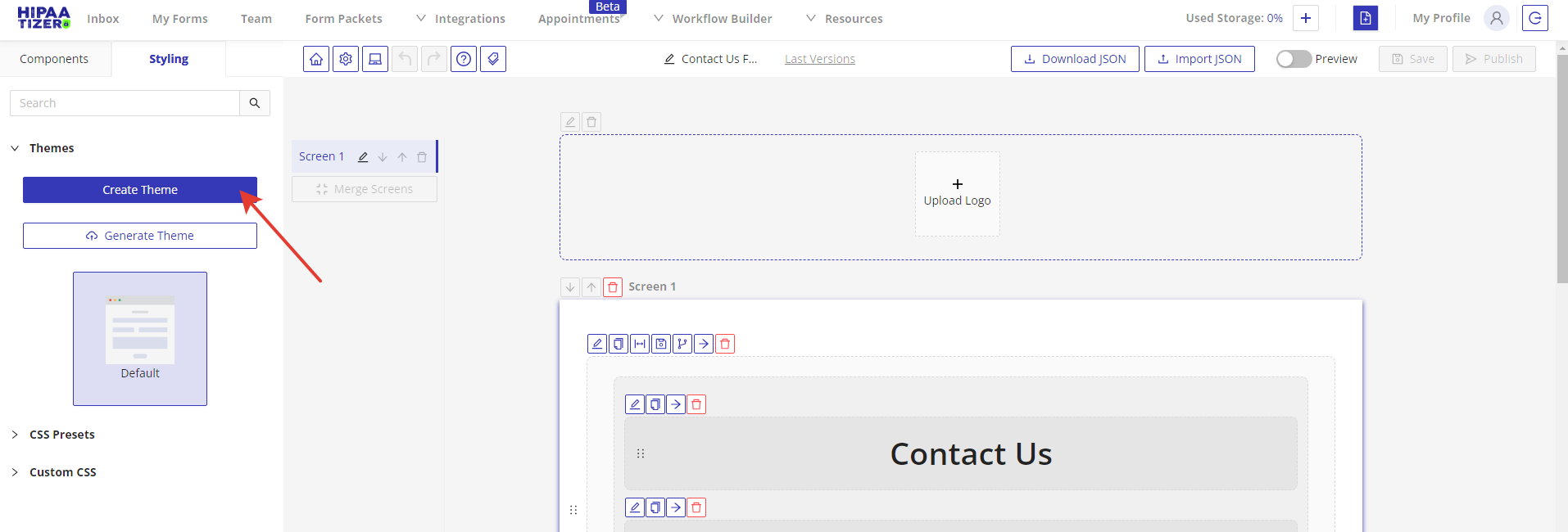
- To create a theme, first click on the "Create Theme" button, then give your theme a unique name.
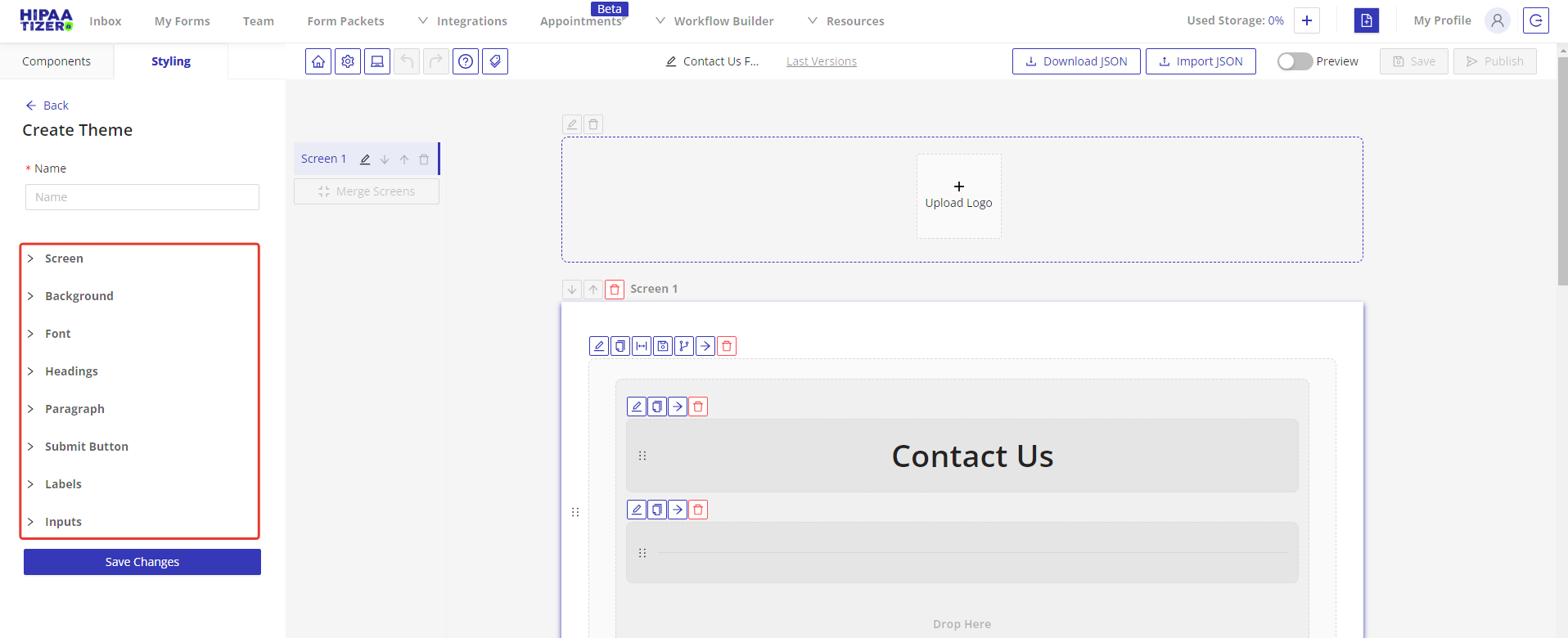
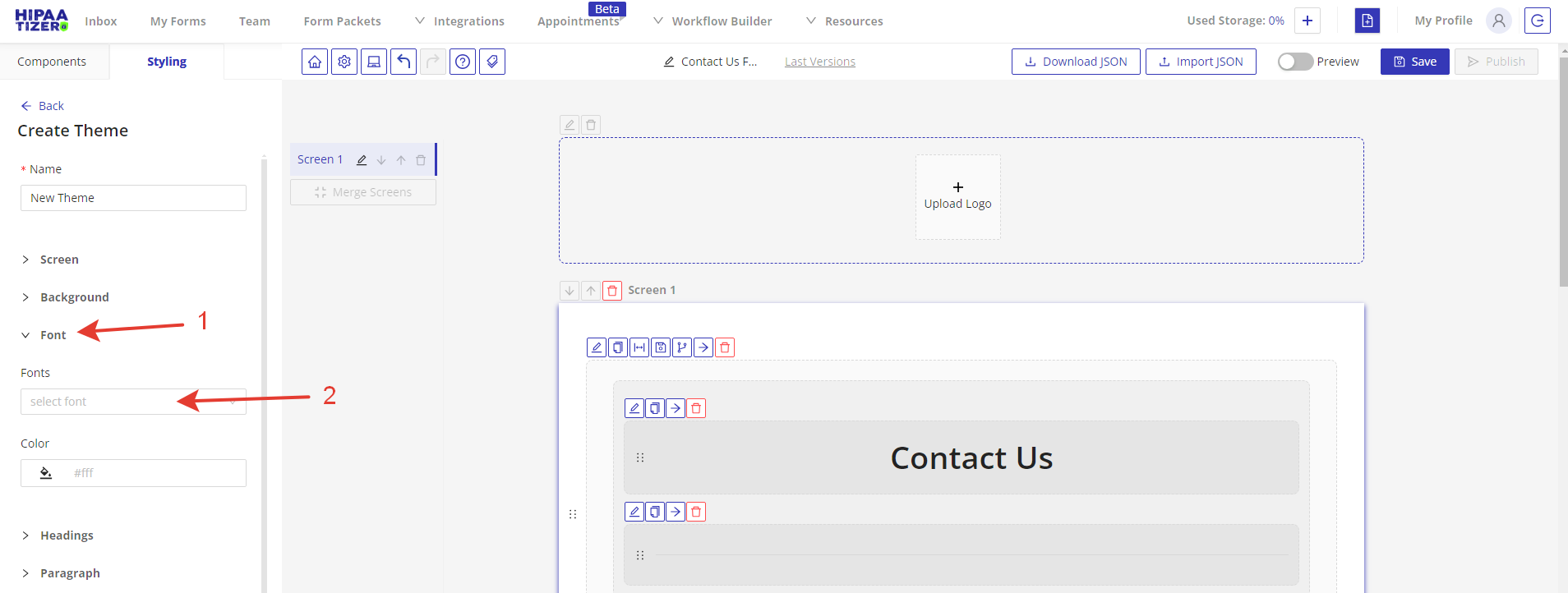
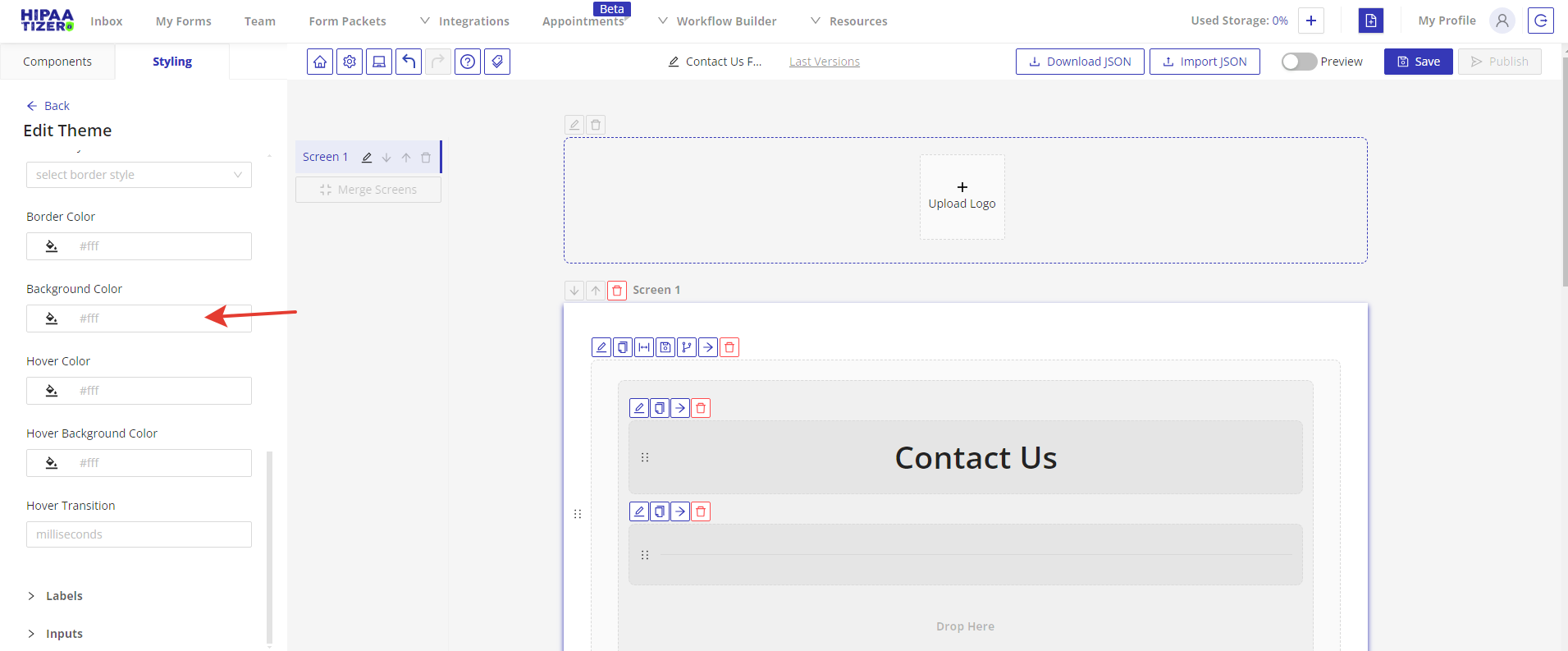
- Click on a section to change that portion of the theme. For example, to change the font type and button color, navigate to the Font section first and select the desired font from the Fonts dropdown.
- After adjusting the font, go to the Submit Button section and choose the appropriate color from the Background Color field. Save your changes by clicking on the "Save Changes" button.
Preview your theme
To preview your changes, click on the Preview switch button in the top right corner.
Edit your Theme
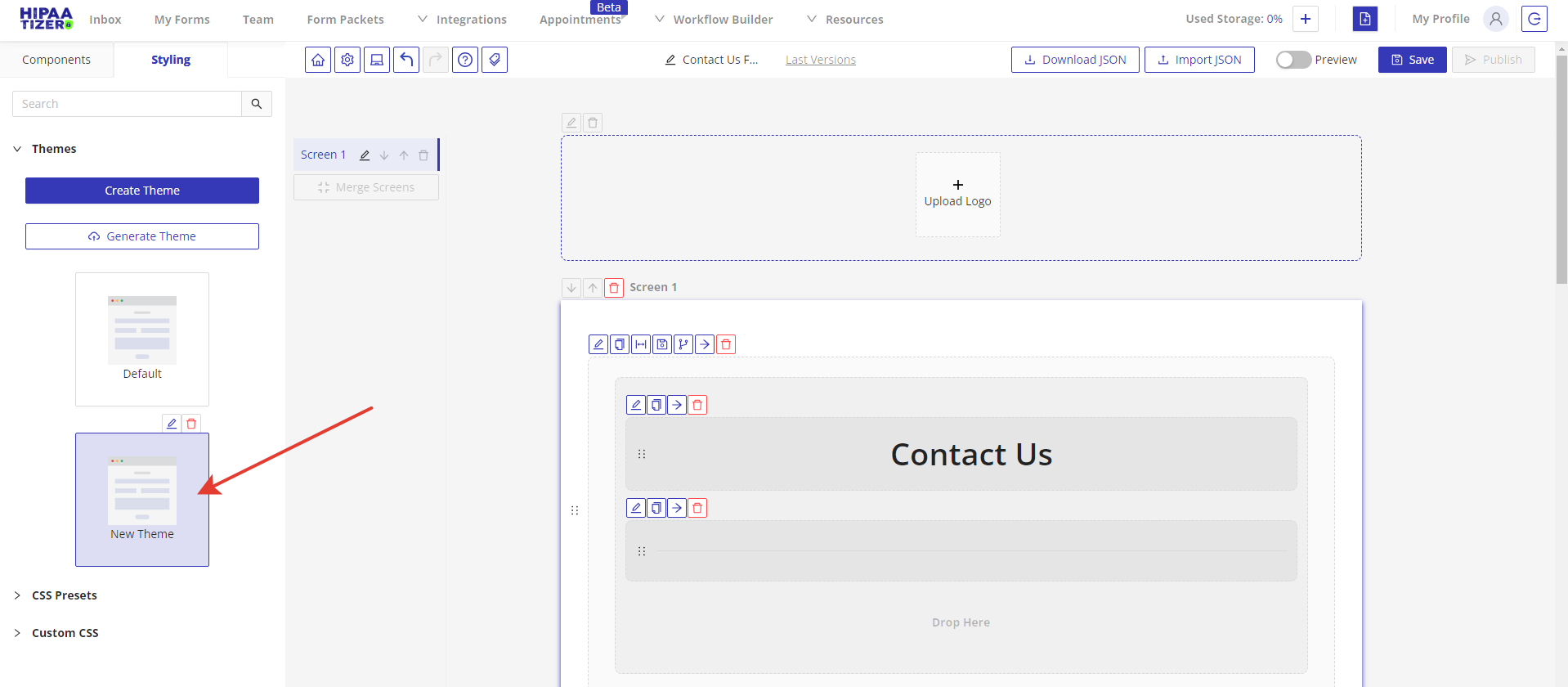
To make adjustments to your theme, switch back to the form builder and navigate to the Styling tab again. Your theme will appear in the Themes list and will be selected as the current theme.
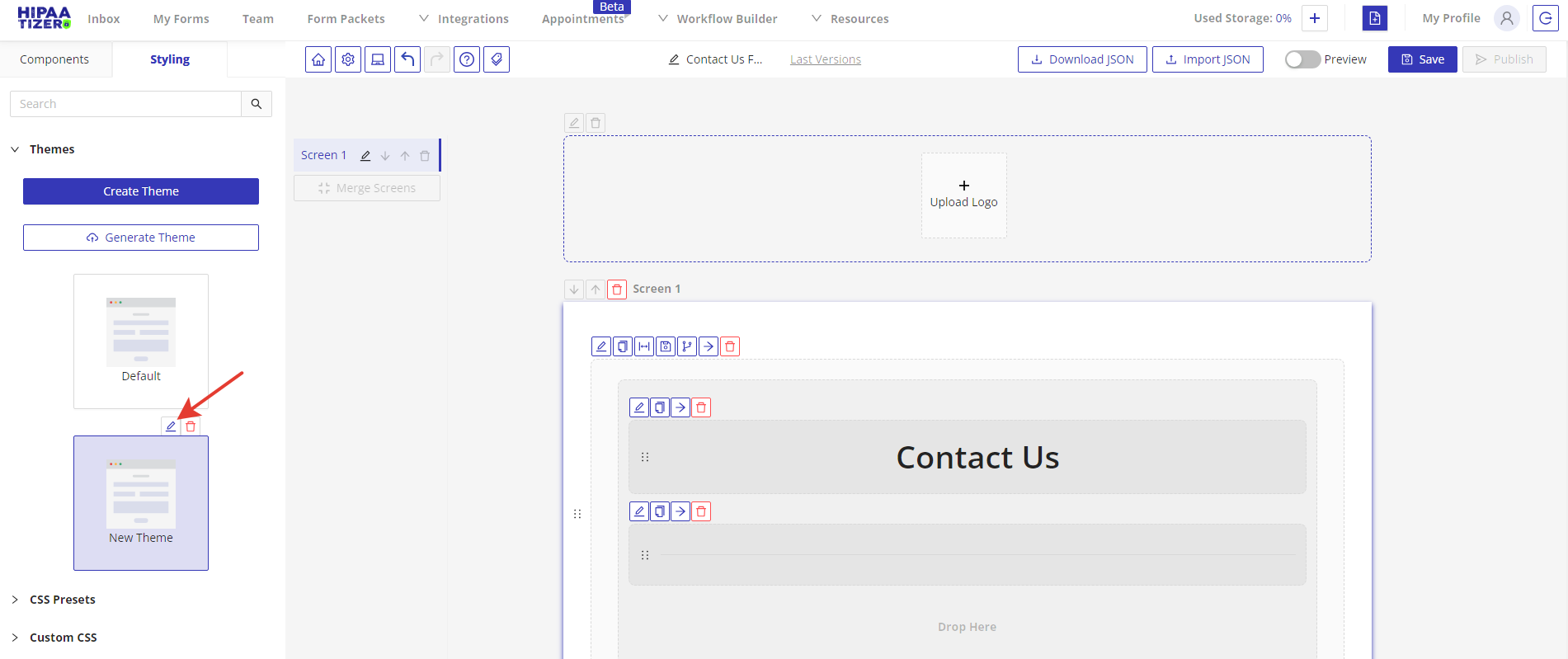
Click the "Edit" icon to modify your theme. Once you're satisfied with the form's appearance, save and publish your form.
Generate a Theme
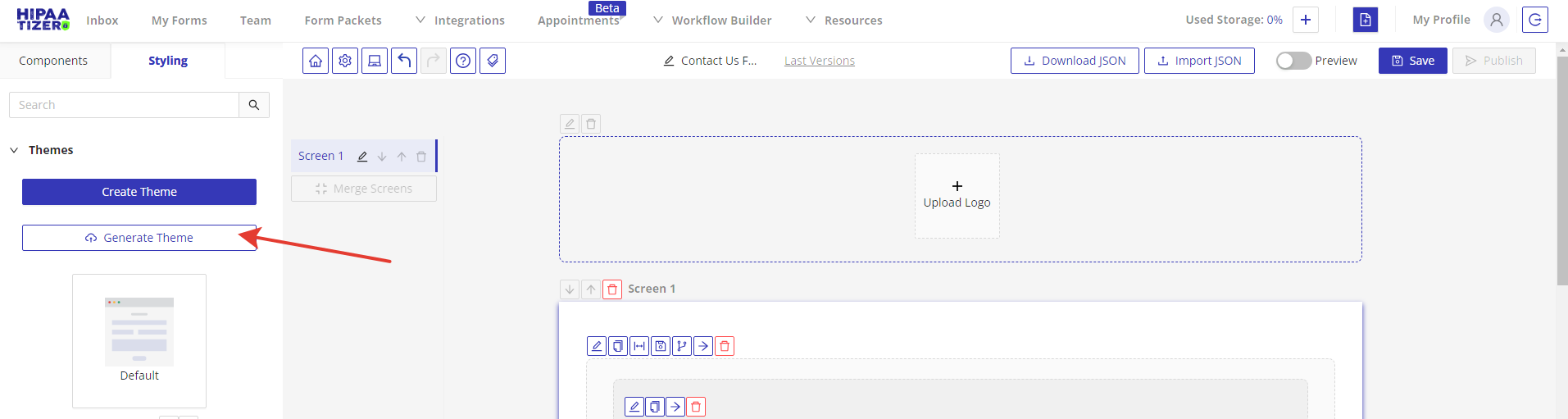
If you want to apply styles from your website, you can use the Generate Theme option. Please note that HIPAAtizer might not be able to recognize styles from your website.
- Click on the "Generate Theme" button. Enter your website URL and click on the Generate button. For example, let's use the HIPAAtizer contact us form page: https://www.hipaatizer.com/contact-us/
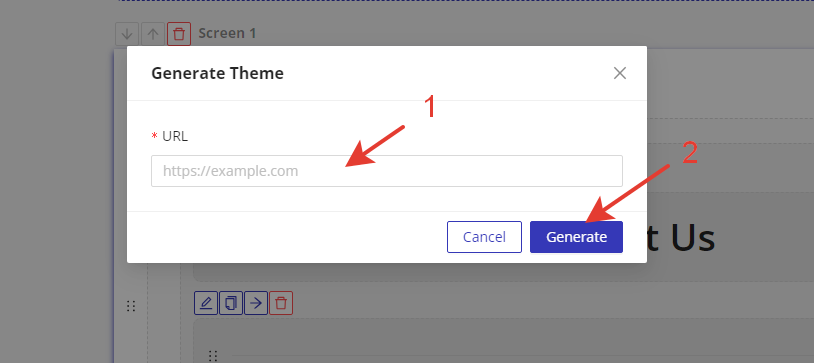
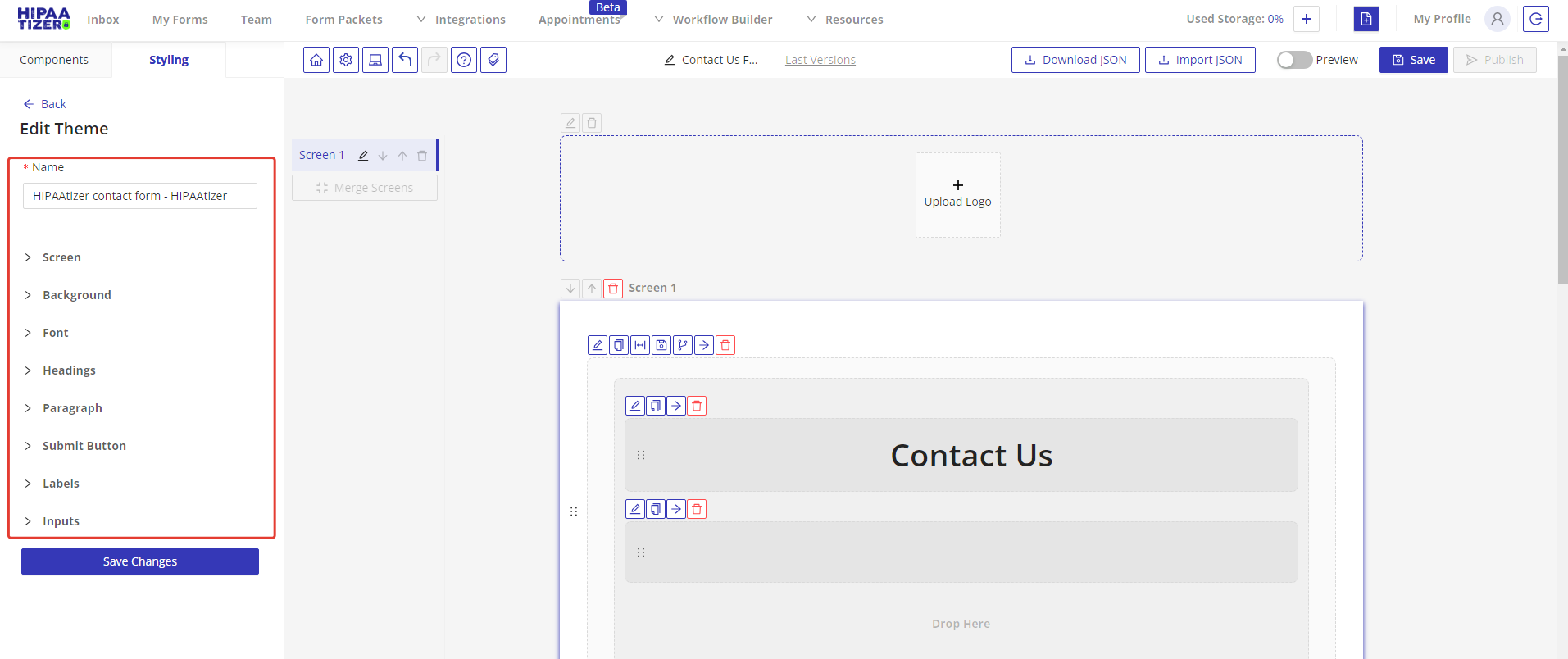
- Your generated theme will be displayed in the Themes tab. You can rename it and edit its styles. Click on the "Preview" switch button to see the applied changes. Once you have completed all settings, save and publish your form.
Use HIPAAtizer's CSS Presets
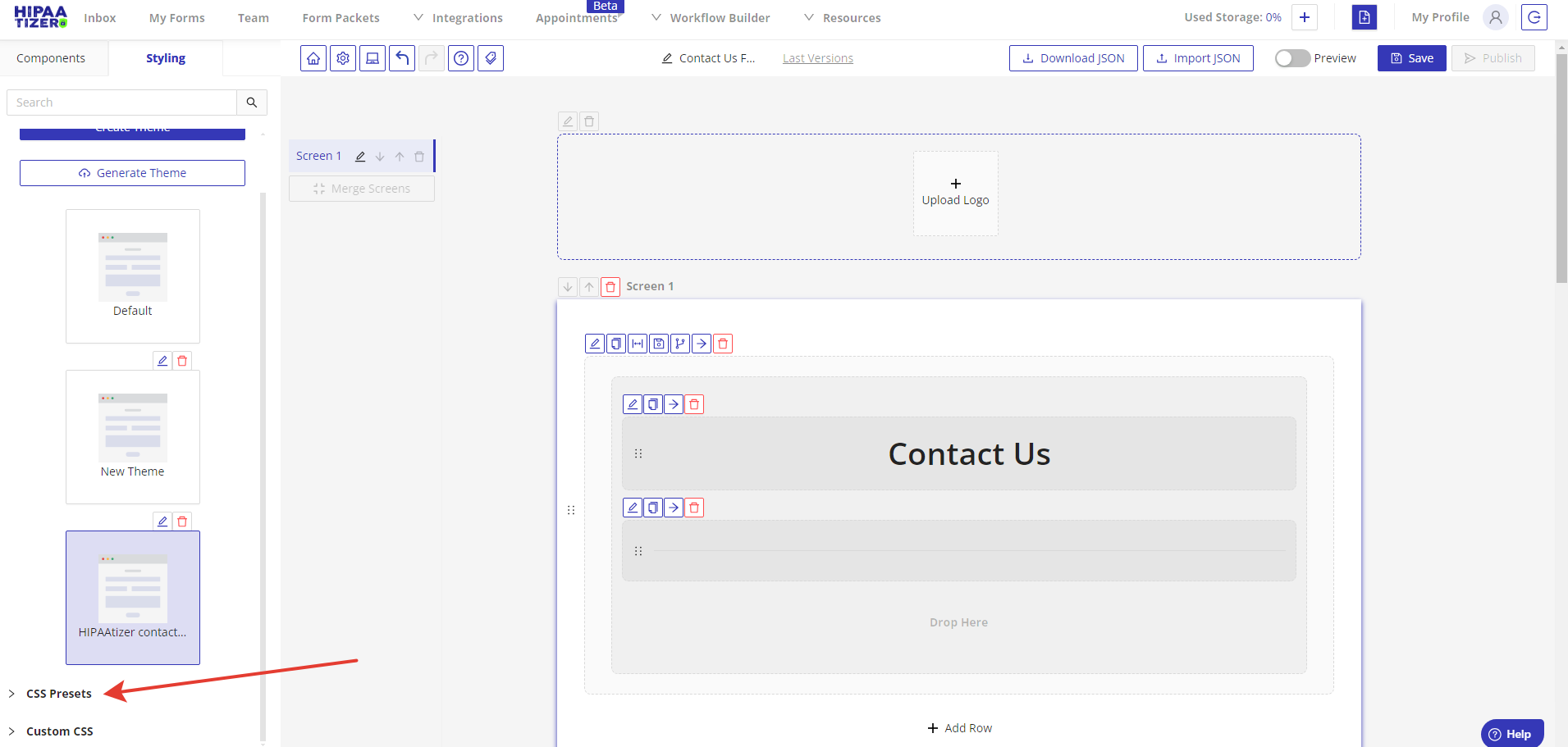
Currently, HIPAAtizer offers one CSS preset, "Round." To apply it, please follow these steps:
- Go the the CSS Presets tab, and click on the "Round" preset. Then, click on the "Preview" switch button to see the applied changes.
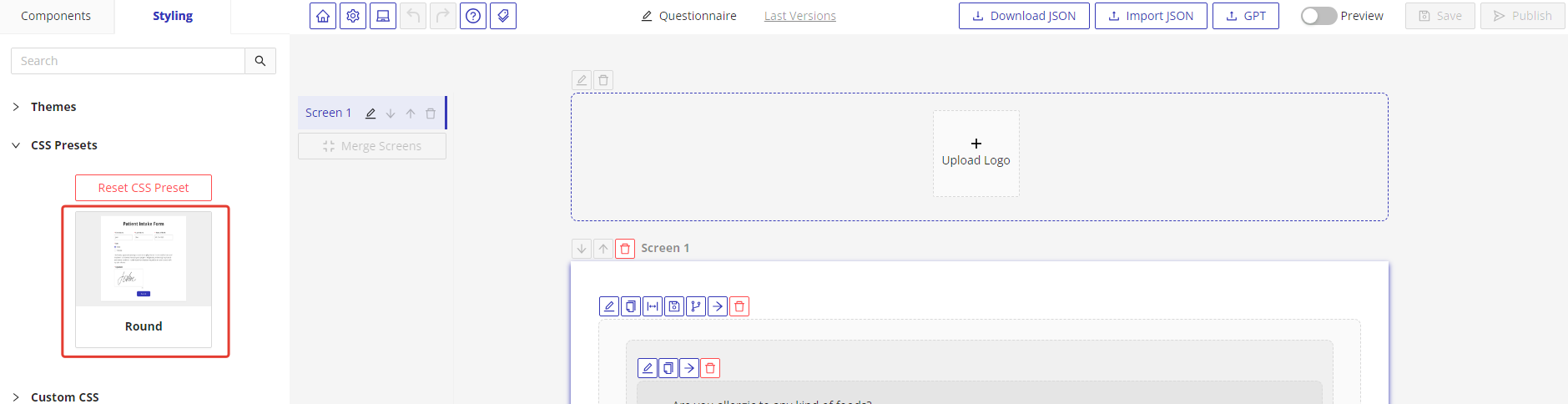
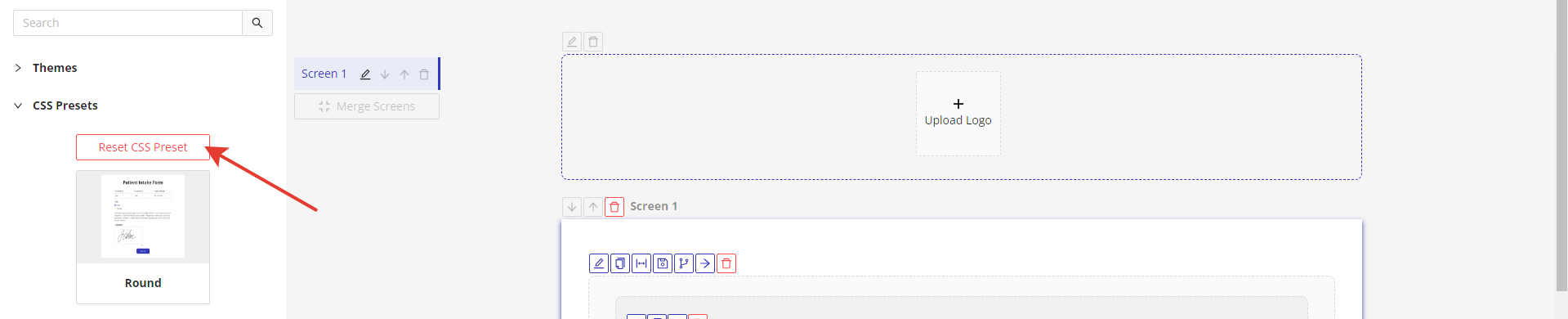
- To reset the preset, click on the Reset CSS Preset button. The form will revert to the Default theme.