
Dropbox for HIPAAtizer Integration-Easy and Secure Form Management
Need an easy and HIPAA-Compliant solution to move form data to Dropbox?
With the Dropbox + HIPAAtizer integration, speed up the transfer of form submission data collected on your intake and other forms when you use HIPAAtizer forms together with our Dropbox integration.
Important: Dropbox supports HIPAA compliance only on certain plans. If you’re not sure your Dropbox plan includes HIPAA protections and a BAA, do not transfer PHI. In that case, keep PHI securely stored in HIPAAtizer and export only non-PHI information to Dropbox.


Is Dropbox HIPAA Compliant?
Dropbox can support HIPAA compliance for eligible plans when the account has the required security settings and a signed Business Associate Agreement (BAA).
If you would like to store Form submissions, you should be subscribed to a plan that supports BAA while using Dropbox.
Dropbox: A Popular Storage Tool for Teams
Dropbox is widely used by teams to store and organize files, collaborate across departments, and keep documents consistent across locations.
Healthcare teams often use Dropbox for:
- storing “copies” of completed paperwork
- internal documentation
- administrative workflows


How to Use HIPAAtizer with Dropbox
If your clinic collects patient intake information, consent forms, or document uploads through a HIPAA-Compliant online form, you may want to automatically store files in Dropbox for easier internal handling.
With HIPAAtizer, you can:
- build secure HIPAA-Compliant forms
- collect submissions safely
- export submissions and other files to Dropbox
How the Integration Works
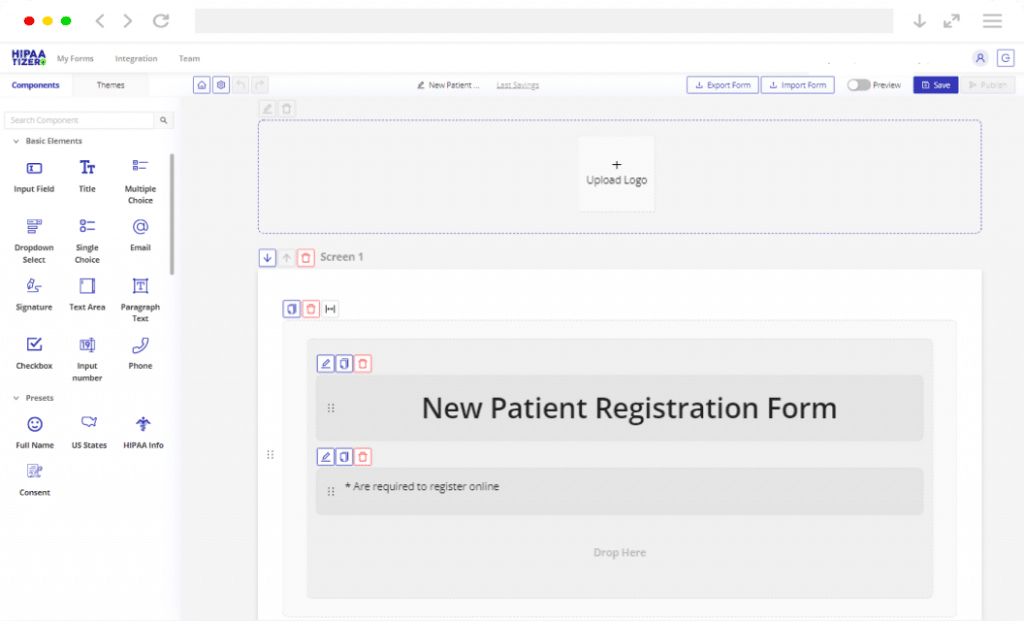
Step 1
Create Your HIPAA-Compliant Form
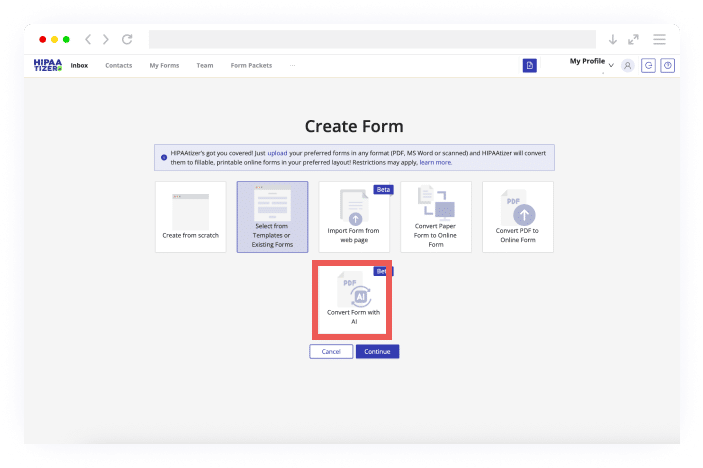
Use HIPAAtizer’s drag-and-drop form builder or convert an existing PDF/Word form into a secure online version.
Step 2
Decide What Can Be Sent to Dropbox
Before connecting Dropbox, decide what documents should be stored there.
Healthcare teams often use Dropbox for:
- intake submissions
- medical details
- reasons for visit
- ID documents
- insurance cards
- signed consent PDFs
Examples of NON-PHI you can safely store in Dropbox:
- internal form naming
- timestamps
- location or department tags
- CSV reports
If you’re not on the right Dropbox plan, it’s safer to keep all PHI inside HIPAAtizer.
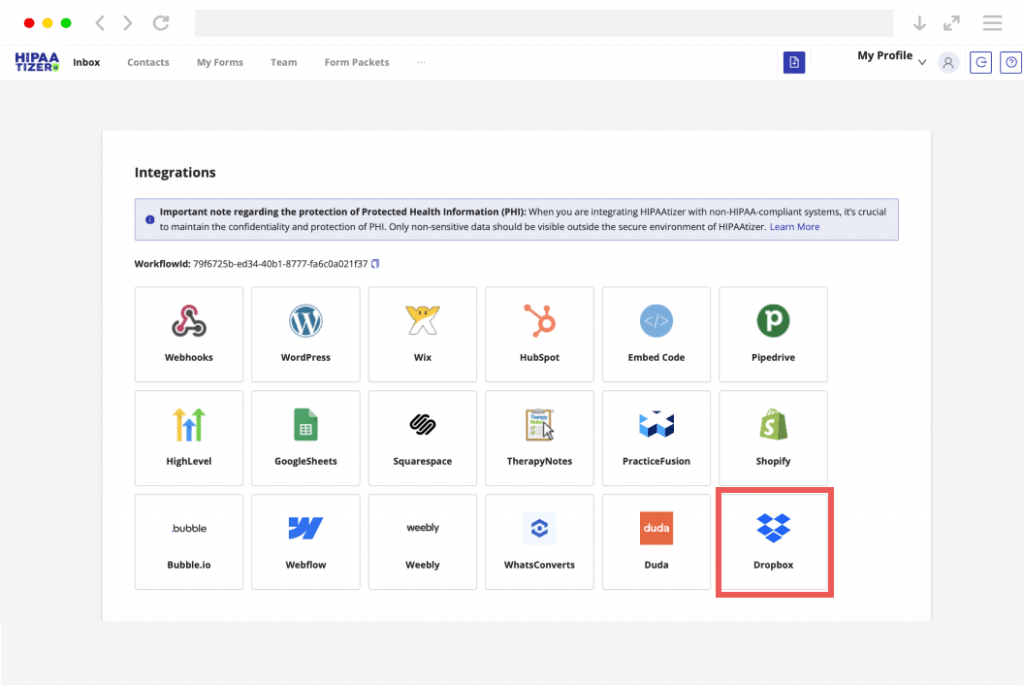
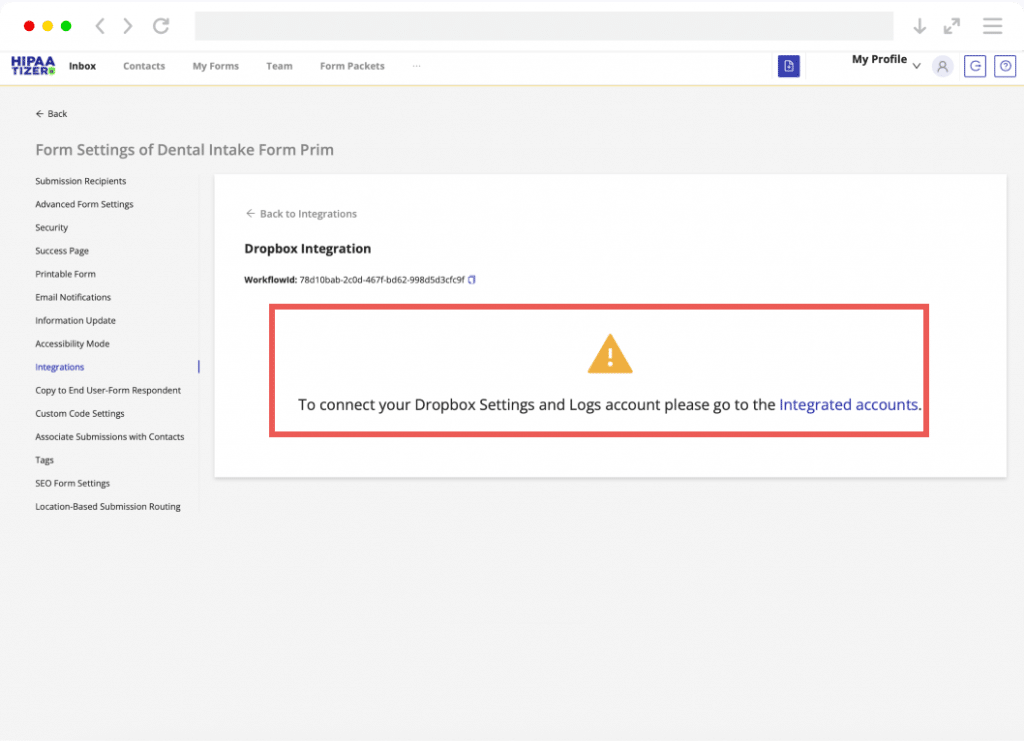
Step 3
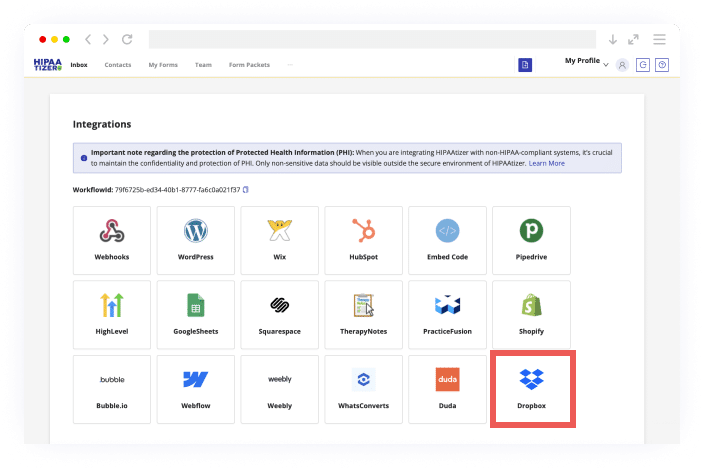
Connect Dropbox to Your HIPAAtizer account
Once your workflow is ready, connect your form submissions to Dropbox so files are automatically stored.
Need help? Contact our support team and we’ll guide you through the best setup support@hipaatizer.com
Step 4
Keep Access Controlled
Even after integration, HIPAA compliance depends on proper access control.
Make sure:
- Only authorized staff can access folders
- Sharing links is managed carefully
- Any PHI is stored only with a BAA in place
Perfect for Clinics, Teams, and Agencies
Dropbox + HIPAAtizer is a great fit for:
- clinics that need organized file storage
- teams supporting multi-location workflows
- marketing or IT partners managing HIPAA storage
- practices modernizing paper forms without changing platforms
You keep your workflow stable:
- Your favorite storage in Dropbox
- Secure and styled intake forms in HIPAAtizer
Ready to Get Started with Dropbox + HIPAAtizer?

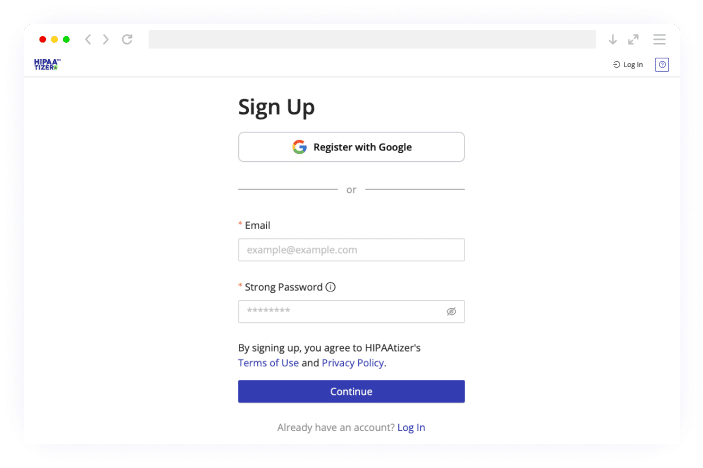

Build your form with HIPAAtizer AI or request a free conversion

Connect Dropbox (PHI only if your plan supports HIPAA + BAA)
FAQs
Dropbox can support HIPAA compliance only on eligible paid plans with a signed BAA and the correct account settings. If you don’t have a BAA, avoid storing PHI in Dropbox.