

Guide to Collecting UTM Tags with HIPAAtizer Forms for Enhanced Marketing Insights
Follow the instructions below to learn how to collect UTM Tags with HIPAAtizer forms:
Add Fields to Your Forms
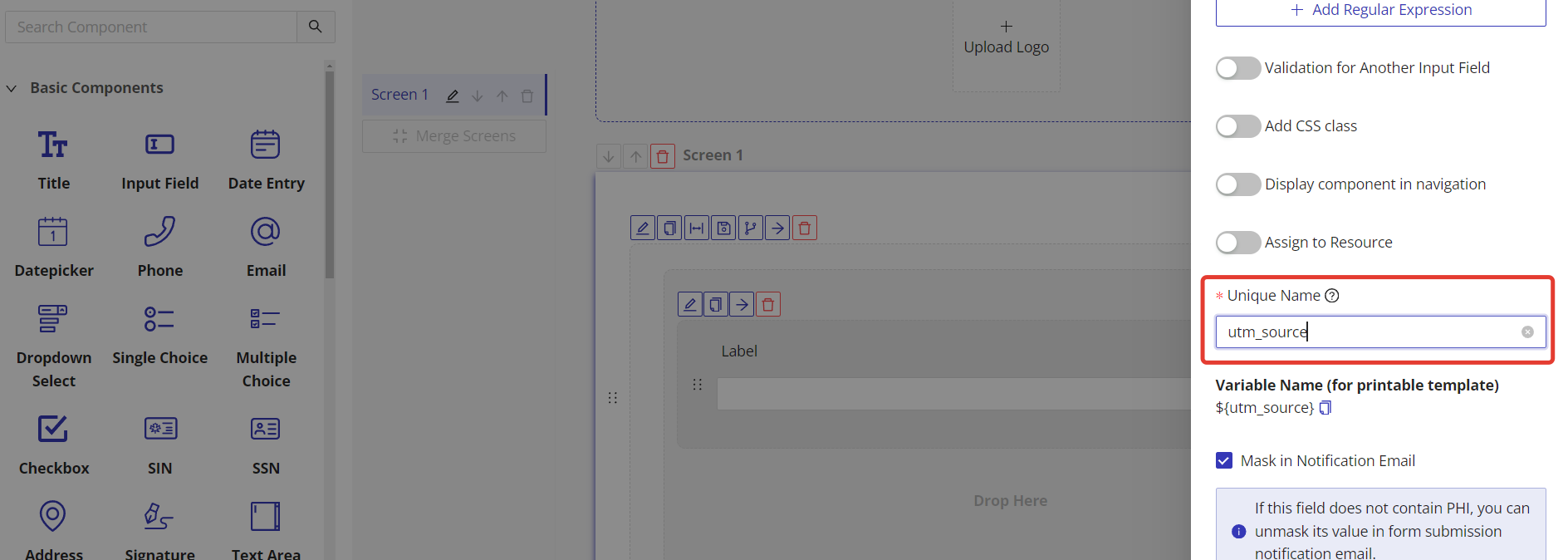
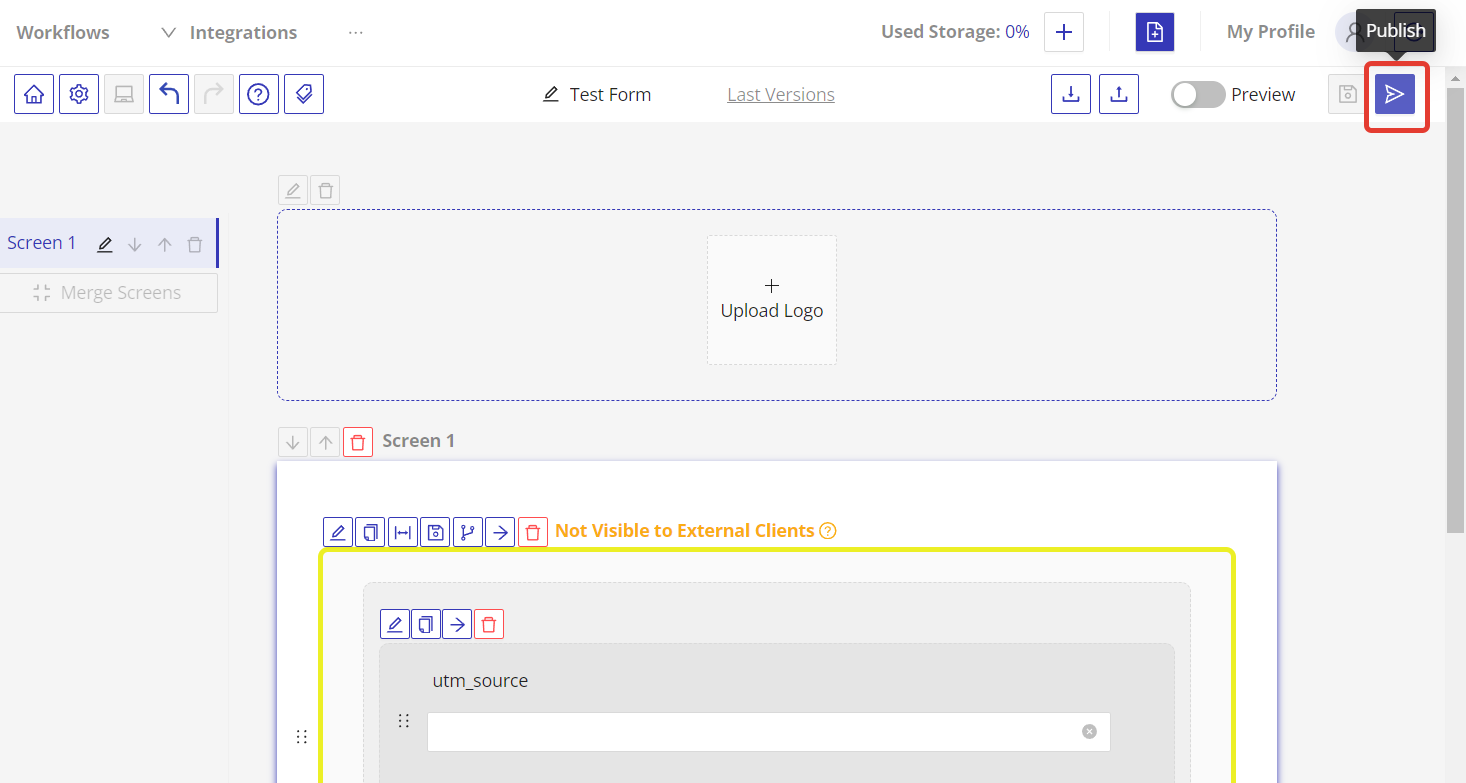
Create fields in your form with Unique Names that match the UTM tags you want to collect (e.g., utm_source, utm_campaign, utm_medium, utm_content, utm_term, utm_keyword, gclid).
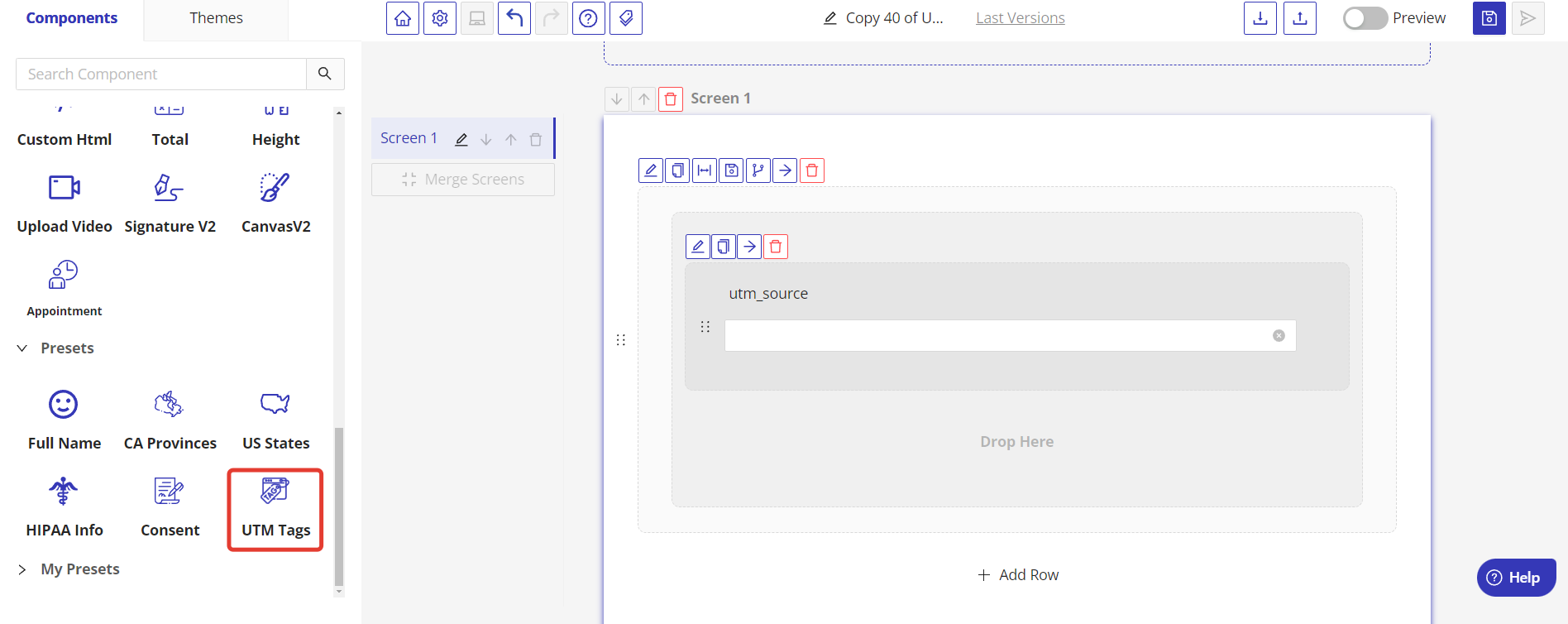
You can utilize the UTM tags preset available in the Form Builder to easily add these UTM tags to your form. This feature streamlines the process of setting up your form to capture the necessary marketing data.
Organize and Hide Fields
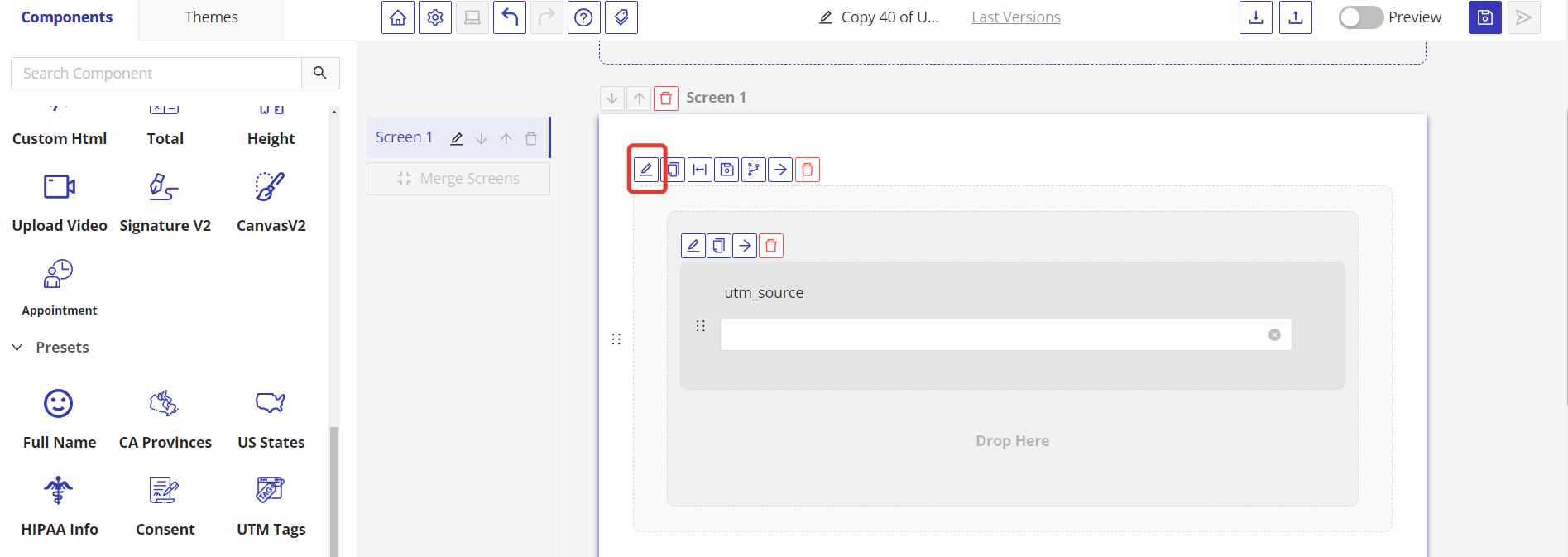
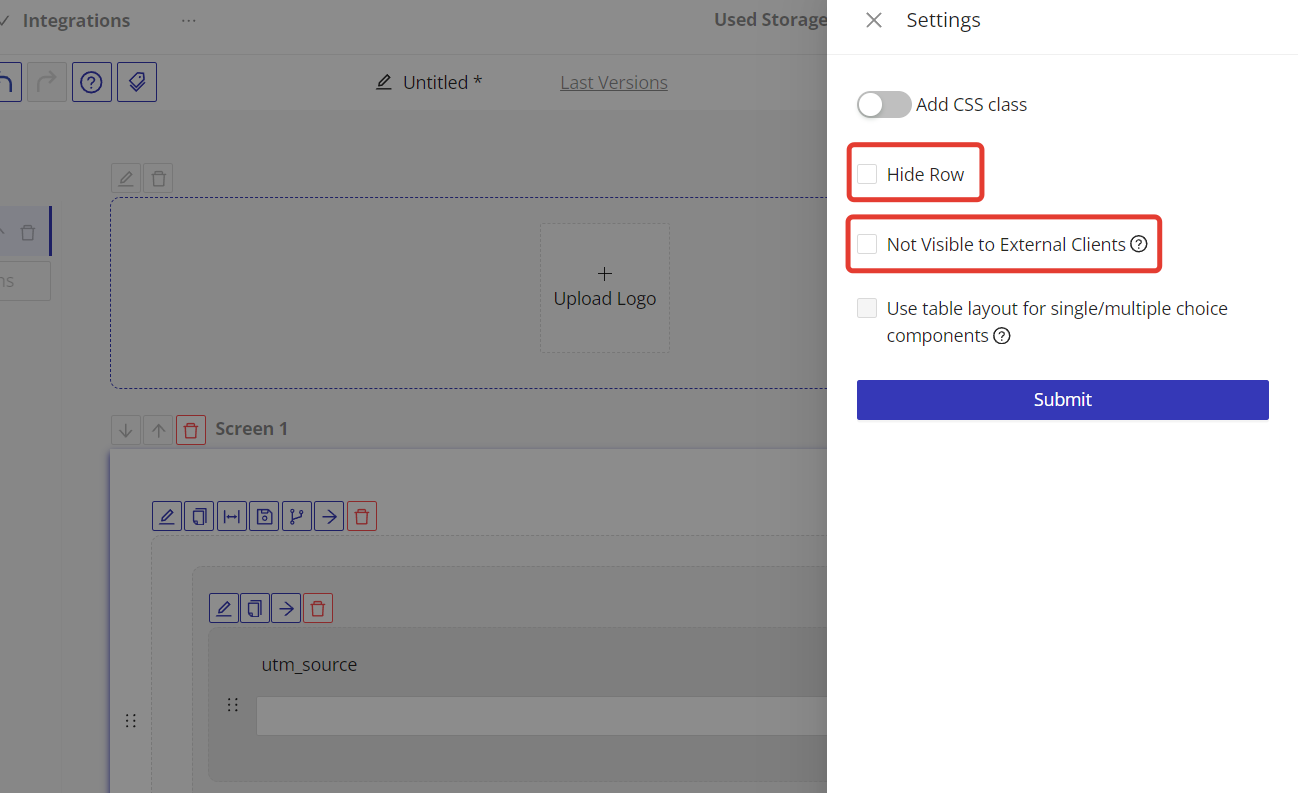
Consider grouping these fields into a separate row for better organization. To ensure these fields are not visible to the form submitter but still collect data, you can hide the entire row. Click the pencil icon on the row, then check the "Hide Row" and/or "Not Visible to External Client" checkboxes.
Publish and Embed Your Form
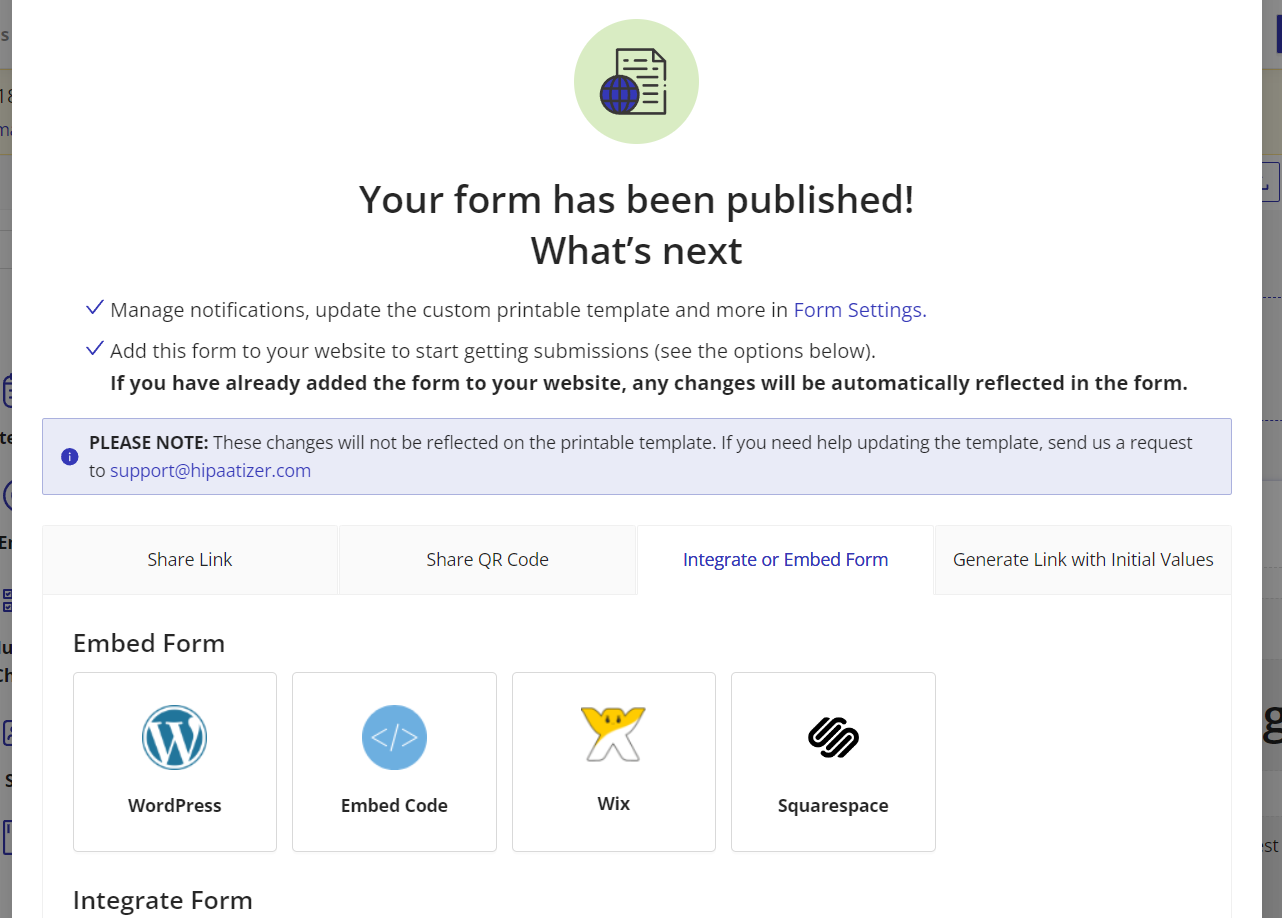
Once your form is set up to capture UTM tags, publish it. On the "Share Form" pop-up window click on the "Integrate or Embed Form" tab to explore embed or integrate form options.
Embed the form on your landing page where visitors arriving through Google Ads will land. This setup ensures that when a user submits the form, the UTM tags from the URL they clicked on are captured along with their submission.
Learn how to capture additional context, such as the parent page URL, using embedded HIPAAtizer forms: Capturing Parent Page URL and Details with Embedded HIPAAtizer Forms