# Doc: https://www.hipaatizer.com/docs/form-builder/features/conditional-logic
> LLM view for https://www.hipaatizer.com/docs/form-builder/features/conditional-logic
This file contains all documentation content in a single document following the llmstxt.org standard.
## Conditional Logic
import Tabs from '@theme/Tabs';
import TabItem from '@theme/TabItem';
# Conditional Logic
Conditional Logic allows you to build dynamic forms that **show or hide entire rows (and all fields within those rows) based on user responses** to other form fields. This is useful when certain questions are only relevant under specific conditions.
:::tip
If all rows on a form screen are hidden as a result of Conditional Logic, that screen is automatically skipped for the user.
:::
## What you can do with this feature
- Show follow-up questions only when specific answers are selected
- Skip entire screens in multi-page forms when they become irrelevant
- Block form submission based on disqualifying answers
- Keep forms compact by revealing repetitive or optional sections only when needed
[> See Use cases](#use-cases)
## Requirements
- Available for **Covered Entity accounts** on **Simple Compliance Gold Plus** and higher
- Available for **Sandbox accounts**
- Form must contain at least one supported [Condition Component](#controlling-component)
## Where to find it
## How it works
Conditional Logic is applied **at the row level**.
Each row can be configured to **Display** or **Hide** based on one or more rules that reference other fields in the form (called **Condition Components**).
### Supported Condition Components {#controlling-component}
Only the following components can be used as Condition Components:
- [Dropdown Select](https://www.hipaatizer.com/docs/form-builder/features/components/dropdown-select)
- [Single Choice](https://www.hipaatizer.com/docs/form-builder/features/components/single-choice)
- [Multiple Choice](https://www.hipaatizer.com/docs/form-builder/features/components/multiple-choice)
- [Checkbox](https://www.hipaatizer.com/docs/form-builder/features/components/checkbox)
### Actions
For each row, Conditional Logic can perform one action:
- **Display** - show the row only when conditions are met
- **Hide** - hide the row when conditions are met
### Conditions
Each rule compares a Condition Component's value using one of the following operators:
- **Equals**
- **Does not equal**
- **Contains**
- **Does not contain**
For **Contains** and **Does not contain**, multiple values can be selected.
### Multiple rules
You can add multiple rules to the same row and combine them using:
- **AND** - all rules must be true
- **OR** - at least one rule must be true
The selected logical operator applies to all additional rules in that Conditional Logic block.
## Configure
### Step 1: Add Condition Components
Add one or more supported components ([Dropdown Select](https://www.hipaatizer.com/docs/form-builder/features/components/dropdown-select)
, [Single Choice](https://www.hipaatizer.com/docs/form-builder/features/components/single-choice)
, [Multiple Choice](https://www.hipaatizer.com/docs/form-builder/features/components/multiple-choice)
[Checkbox](https://www.hipaatizer.com/docs/form-builder/features/components/checkbox)) to your form. These will be referenced in Conditional Logic rules.
### Step 2: Create the target row
Create a new row and add the components that should be conditionally displayed or hidden.
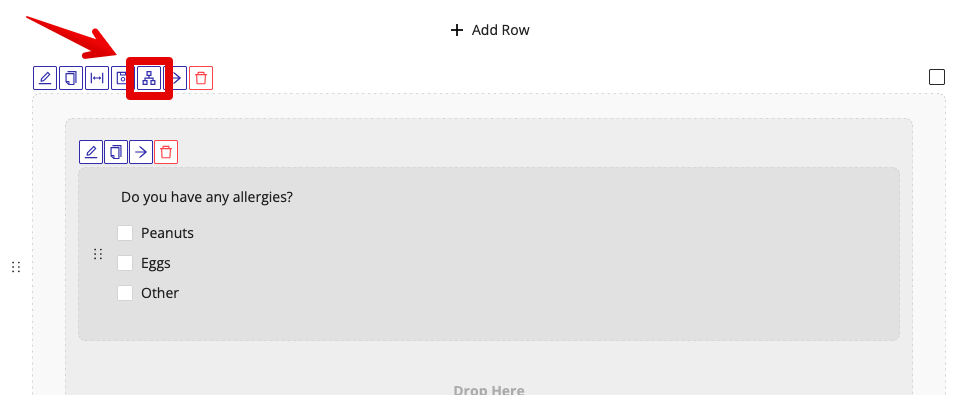
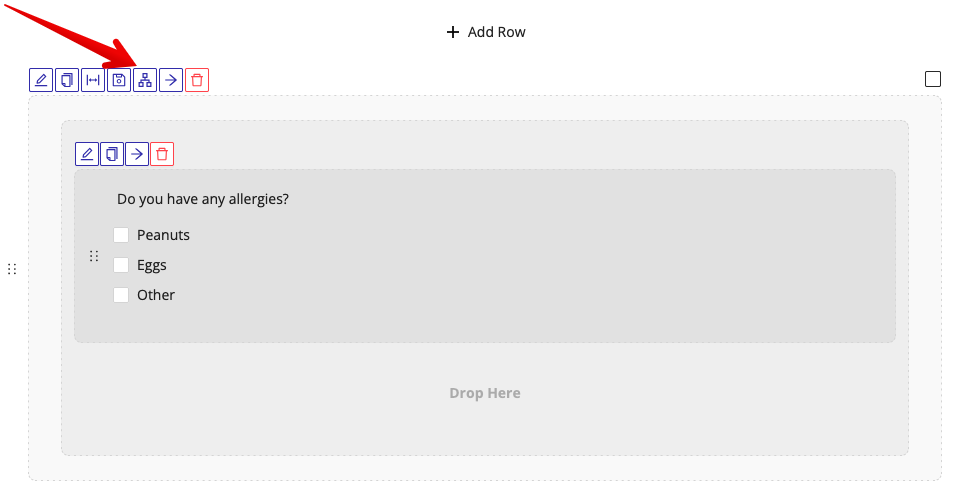
### Step 3: Open Conditional Logic
- Click the **Conditional Logic** icon on the row
- Select the **Action**: `Display` or `Hide`
### Step 4: Define rules
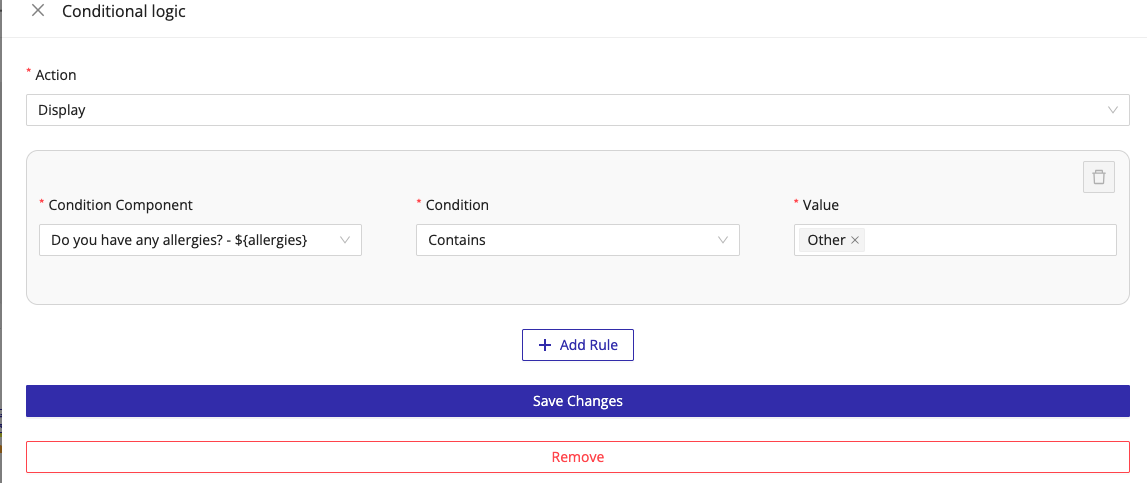
For each rule:
- Select the **Condition Component**
- Select the **Condition**
- Select the **Value** to evaluate against
### Step 5: Add additional rules (optional)
- Click **Add Rule**
- Choose **AND** or **OR**
- Add more conditions as needed
## Use cases {#use-cases}
### Show follow-up input when "Other" is selected {#use-case-other}
***See step-by-step instructions***
**Goal:** Ask the user to specify details only when needed.
1. Add a *Multiple Choice* question: "Do you have any allergies?"
2. Include an option called "Other"
3. Create a new row with a text input: "Please specify other allergies:"
4. Set Conditional Logic:
- Action: **Display**
- Condition Component: "Do you have any allergies?"
- Condition: **Contains**
- Value: `Other`

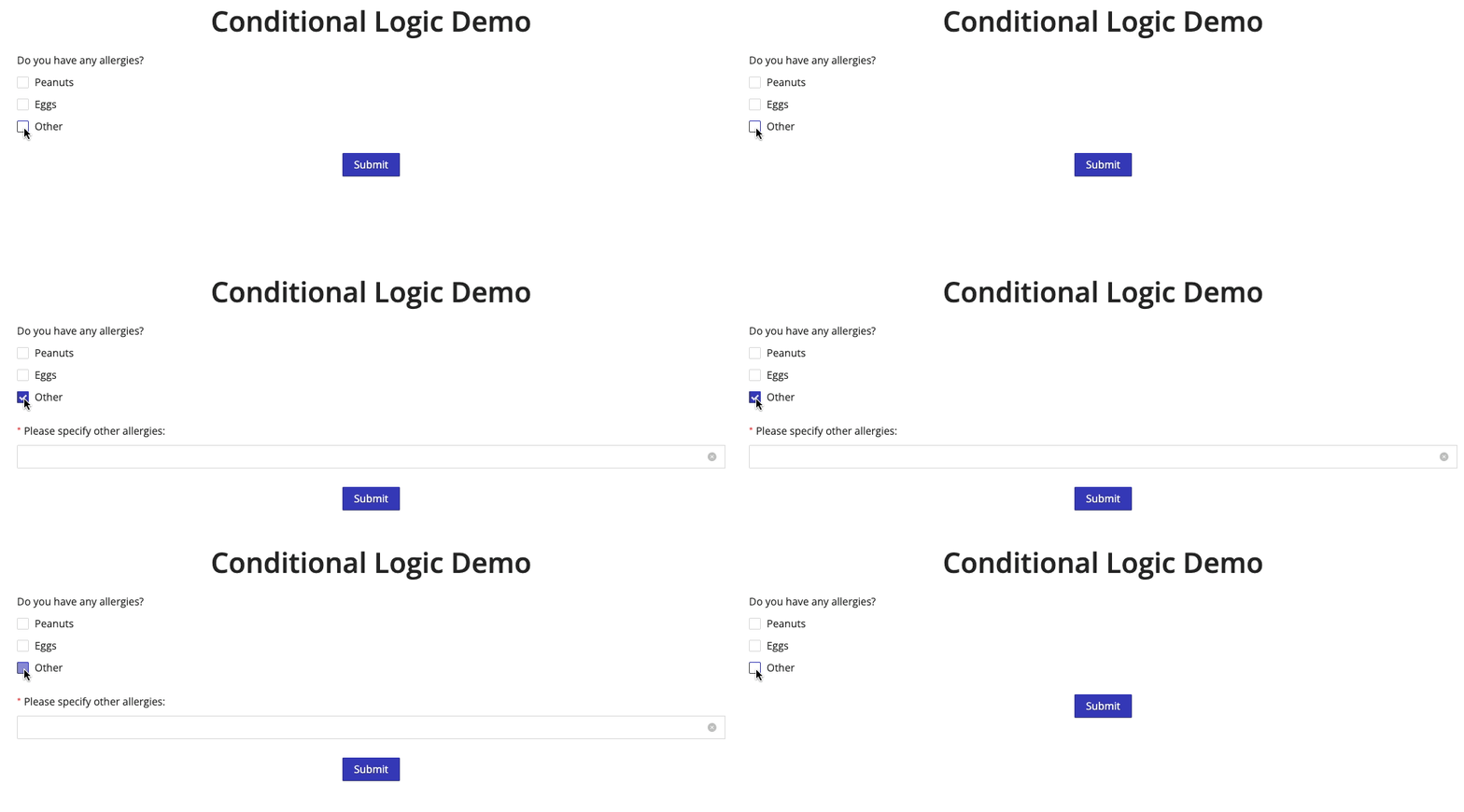
**Result:**
The "Please specify" input appears only when "Other" is selected.
### Skip an entire screen
***See step-by-step instructions***
**Goal:** Remove unnecessary steps from a multi-page form.
1. Place all rows on a screen behind Conditional Logic
2. Configure each row to **Hide** when a specific answer is given
3. When all rows are hidden, the screen is skipped automatically
**Result:**
Users never see irrelevant screens.
### Repeating optional sections (e.g., medications)
***See step-by-step instructions***
**Goal:** Allow users to add multiple items without overwhelming the form.
1. Show the first medication name + dosage fields by default
2. Add a checkbox labeled "Add another medication"
3. Place the next medication fields in a new row
4. Use Conditional Logic to display that row only when the checkbox is checked
5. Repeat as needed
**Result:**
Users control how much information they provide, and the form stays compact.
### Block form submission based on disqualifying answers
***See step-by-step instructions***
**Goal:** Disqualify the user after a specific answer and prevent them from submitting the form.
1. Add a new screen **immediately after** the screen with the disqualifying question.
2. On the disqualification screen, add a row with a **Paragraph** component containing the disqualification message.
3. Configure **Conditional Logic** for that row so it only **Displays** when the disqualifying answer is selected:
- Action: **Display**
- Condition Component: ``
- Condition: **Equals** (or **Contains**, if it's a Multiple Choice)
- Value: ``
4. If there are any other rows on the disqualification screen, apply the **same Conditional Logic rules** to those rows so the entire screen behaves consistently.
5. On the disqualification screen, click **Edit** for the **Submit / Continue** button and toggle **Hide Button** so the user cannot move forward or submit from that screen.
**Result:**
If the user gives a disqualifying answer, they'll see the disqualification message on the next screen and won't be able to continue or submit.
If they do **not** give a disqualifying answer, the disqualification screen is skipped and the user continues to the next screen--or the form submits if it would have ended there.
## Troubleshooting
### Symptom: Row never appears
**Cause:**
The Condition Component is not one of the supported types, or the condition value does not match exactly.
**Fix:**
Verify the component type and confirm the option labels match the selected values.
### Symptom: Screen is skipped unexpectedly
**Cause:**
All rows on the screen are hidden by Conditional Logic.
**Fix:**
Ensure at least one row remains visible, or confirm that skipping the screen is intentional.
### Symptom: Rules behave inconsistently
**Cause:**
Incorrect AND / OR logic between rules.
**Fix:**
Review whether all rules must be true (**AND**) or if any rule should trigger the action (**OR**).
## Related
- [Form Builder Overview](https://www.hipaatizer.com/docs/form-builder/features/)